
Can I Use My Laptop While It Is Charging? Yes, Here’s Why

Many computer users hesitate before plugging in their laptops during a busy workday. A persistent worry asks if leaving the power cord connected while typing or streaming might harm the machine.
The short answer is reassuring: you can safely use your laptop while it charges. Modern portable computers are built to handle simultaneous charging and daily work without any risk of electrical failure or overcharging.
In fact, running on wall power often unlocks higher hardware performance for heavy tasks. While today’s battery chemistry prevents older charging problems, keeping your device healthy still requires basic heat management and thoughtful settings.
Here is how your computer manages power flow, protects its cells, and keeps running smoothly.
Key Takeaways
- Modern laptops cannot be overcharged because internal charge controllers automatically stop current intake when the battery reaches 100% capacity.
- Keeping your laptop plugged in during heavy workloads allows pass-through power to run components directly from the wall, which boosts hardware performance and preserves battery cycle counts.
- Excessive heat, rather than electrical overcharging, is the primary threat to lithium-ion battery health, making ventilation and flat work surfaces essential during use.
- Enabling built-in manufacturer battery care settings to cap maximum charging between 60% and 80% substantially reduces chemical stress for laptops kept at a desk.
- Always use original manufacturer chargers or certified replacements with matching voltage and wattage to avoid hybrid discharge, which drains the battery even while plugged in.
Direct Safety Assessment and Common Myths
Leaving a laptop connected to a power outlet while typing, browsing, or gaming is a standard habit for millions of computer owners. Despite how common this practice is, persistent questions linger regarding the safety of continuous charging.
A look at modern electronics quickly shows that the fear of destroying a computer simply by leaving it plugged in is based on outdated assumptions rather than how today’s systems actually work.
The Immediate Verdict on Device Safety
Modern laptops are intentionally engineered to run while connected to an electrical outlet. Computer manufacturers design these machines with dual-purpose circuits that comfortably supply power to active components while replenishing the battery at the same time.
Daily computing tasks, from writing documents to streaming high-definition video, will not cause sudden hardware meltdowns, short circuits, or catastrophic motherboard failures simply because the charging cord is in place. Every standard part inside the laptop expects this operational state and functions normally under wall current.
The Fallacy of Battery Overcharge
A frequent concern among users is the idea of overcharging, where an owner worries that continuous electrical current will overfill the battery and cause swelling or explosions. This fear is unfounded on modern devices.
Every modern laptop includes an automatic shutoff mechanism that continuously tracks battery voltage. As soon as the internal cells reach 100% capacity, the system halts the incoming charging current.
The laptop does not force excess electricity into a full battery, eliminating the possibility of an overcharge during typical desk use.
The Distinction Between Older Battery Tech and Lithium-Ion Cells
Much of the advice warning against continuous charging comes from previous generations of portable electronics. Decades ago, portable electronics relied heavily on nickel-cadmium batteries.
Those older power packs suffered from a flaw known as the memory effect, where partially charging and discharging a device caused the battery to remember a smaller capacity over time. Users had to drain them completely to maintain their full runtime.
Today’s laptops run on modern lithium-ion and lithium-polymer cells. These advanced chemistries do not experience memory effect, meaning you can recharge them at any percentage without damaging their capacity.
Mechanics of Modern Laptop Power Flow
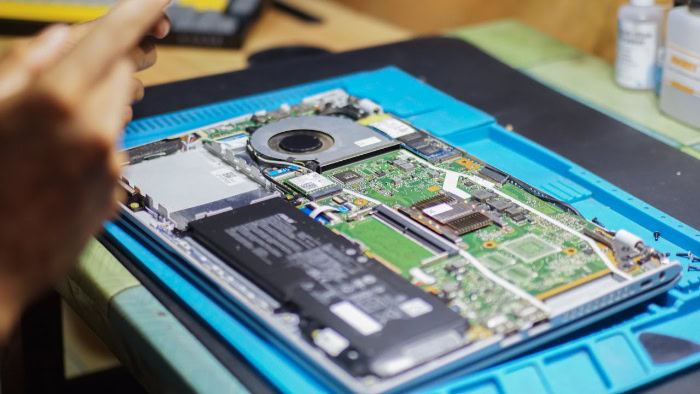
A look at how electricity moves inside a computer explains why leaving the cord plugged in is safe. Instead of routing all electrical current directly through chemical cells, modern laptops rely on sophisticated internal management to direct power from the wall into individual circuits.
Role of the Internal Charge Controller
At the center of this power distribution is a dedicated microchip known as the charge controller. This controller manages the incoming electrical current from the wall adapter, monitoring cell temperature, voltage levels, and overall battery capacity.
When the battery needs power, the controller meters the flow precisely, slowing the intake as the battery nears full capacity to prevent thermal strain. It functions as an intelligent gatekeeper, protecting cell health by ensuring the battery never absorbs more electricity than it can safely hold.
Pass-Through Power and Direct Wall Current
Once the battery reaches full charge, an essential feature called pass-through power engages. Instead of continuing to route current through the battery, the system bypasses the cells entirely and diverts electricity straight to the processor, display, cooling fans, and storage drives.
The battery sits in a passive state while the laptop operates directly on wall current. This mechanism means that using a plugged-in laptop does not constantly drain and replenish the chemical cells; the wall adapter handles all operational demands directly.
Protection Against Voltage Fluctuations
Wall outlets do not always deliver perfectly consistent electrical current, which is why laptops feature multiple layers of hardware protection. The external power adapter, often called the power brick, acts as the primary barrier by converting alternating current into stable direct current and filtering out major voltage spikes.
Inside the computer, dedicated motherboard circuits further regulate that intake, smoothing minor dips and surges before power touches sensitive microchips. Together, these safeguards shield the internal hardware from electrical irregularities during everyday operation.
Advantages of Operation on Wall Power

Keeping a computer plugged in while you work provides several clear operational benefits beyond simply keeping the battery charged. Wall power alters how the system manages its computing resources and protects hardware components from unnecessary physical wear.
Maximum Hardware Performance for Heavy Tasks
A wall adapter delivers substantially more wattage than a standalone battery can safely release at once. High-demand tasks such as 3D rendering, video encoding, and modern gaming require significant electrical power to run the processor and graphics card at peak clock speeds.
When running on battery alone, the operating system often throttles hardware performance to conserve energy and prevent rapid battery drain. Connecting to wall power removes these constraints, enabling the computer to deliver its highest available processing speeds and smoothest graphics output.
Preservation of Battery Cycle Counts
Rechargeable batteries have a finite service life measured in charge cycles. One full cycle occurs whenever you use an amount of power equal to 100% of the battery capacity, whether consumed in a single session or across several smaller uses.
Because pass-through power routes electricity straight from the wall adapter to internal components, the battery remains idle once full. Operating on wall power spares the battery from repeated discharge and recharge routines, slowing the accumulation of charge cycles during long desk sessions.
Elimination of Workflow Interruptions
Operating on direct power provides practical continuity for demanding schedules. Long video conferences, large file downloads, operating system updates, and intensive creative projects require uninterrupted uptime.
Relying strictly on battery reserves introduces the risk of sudden shutdowns, sleep mode interruptions, or unsaved file loss when capacity runs low. Wall power ensures steady, dependable operation, allowing you to focus entirely on your work without monitoring an icon on your screen.
Potential Hazards and Thermal Concerns

While modern charging circuits eliminate the danger of electrical overcharging, keeping a laptop plugged into the wall is not entirely free of risk. The primary threat to battery health during plugged-in operation is not electrical current, but the buildup of heat inside the chassis.
Excess Heat from Heavy Workloads
Excessive heat serves as the primary cause of battery degradation over time. Demanding programs push internal processors to work hard, generating substantial thermal energy.
In compact laptop designs, the cooling fans must work continuously to vent this heat, but warmth still spreads through the chassis and warms the battery compartment. High internal temperatures accelerate chemical reactions inside the battery cells, which gradually degrades their ability to retain energy.
Chemical Stress at High Charge Capacities
Lithium-ion chemistry experiences its greatest internal tension when two conditions coincide: elevated temperatures and a 100% state of charge. When a battery sits fully charged at high operating temperatures, the internal electrodes experience prolonged mechanical and chemical strain.
Casual, everyday use while plugged in causes minimal harm under normal temperatures. However, running heavy workloads for extended periods each day on a hot desk while pinned at full capacity will speed up the natural loss of battery capacity.
Risks from Incompatible or Low-Wattage Adapters
Using the wrong power brick introduces distinct risks to system stability and battery health. Cheap, counterfeit, or uncertified replacement chargers often lack the proper protective circuitry needed to regulate voltage, risking component damage.
Furthermore, connecting an underpowered adapter, such as a 45W charger to a laptop that requires 90W, can trigger a condition known as hybrid discharge. In this state, the laptop draws from the wall and the battery at the same time to meet high power demands, draining the battery even while plugged in and generating excess heat.
Best Practices for Long-Term Battery Health

Maintaining a healthy laptop battery while enjoying the convenience of wall power requires only a few sensible habits. By combining built-in software controls with proper physical care, you can maximize hardware performance without causing unnecessary battery wear.
Software Tools for Charge Limit Thresholds
Many computer manufacturers provide built-in utilities that cap maximum charge capacity between 60% and 80%. Holding the charge at 80% prevents the battery from resting at maximum voltage while connected to wall current, which greatly reduces chemical strain.
To configure this limit on a Windows laptop:
- Open your computer manufacturer’s companion application, such as Lenovo Vantage, Dell Command, MyASUS, or HP Command Center.
- Go to the device power or battery settings category within the program.
- Turn on features labeled Conservation Mode, Primary AC Use, or Battery Health Charging to establish an 80% charge ceiling.
To configure this limit on a Mac laptop:
- Open the Apple menu in the top-left corner of the screen and select System Settings.
- Select the Battery tab from the sidebar menu.
- Click the information icon next to Battery Health and enable the Optimized Battery Charging toggle so the system can hold your charge at 80% during long desk sessions.
Physical Airflow and Temperature Regulation
Keeping the computer cool is essential when working on wall power. Always rest the laptop on a flat, hard surface, such as a wooden desk or a metal laptop stand, to ensure that bottom intake vents and rear exhaust ports remain clear.
Soft surfaces like blankets, beds, and couch cushions block these vents, trapping hot air inside the chassis and baking the battery. If you frequently run demanding tasks in warm rooms where temperatures exceed 85°F (29°C), consider adding an active cooling pad to pull heat away from the bottom panel.
Selection of Approved Power Supplies
Always power your laptop with original equipment manufacturer chargers or certified third-party replacements from reputable brands. Before connecting an aftermarket charger, check the fine print on the power brick label to match the required specifications.
Verify that the output voltage, such as 20V, matches your computer’s rating exactly, and ensure the amperage, such as 3.25A, meets or exceeds the original standard. If you use a modern USB-C charger, confirm that it supports the Power Delivery standard and provides the full wattage your laptop needs, such as 65W or 100W.
Conclusion
Using a laptop while it remains connected to wall power is both safe and advantageous for daily computing. Modern hardware is built to bypass fully charged battery cells and draw electricity directly from the wall, preventing overcharging and supplying the power needed for peak performance.
Rather than worrying about electrical current harming the battery, users should focus on thermal management. Keeping internal temperatures low protects battery cells from premature wear far more effectively than unplugging the machine at random intervals.
By maintaining open air vents, using certified power adapters, and setting charge limit thresholds between 60% and 80%, you can comfortably keep your laptop plugged in without sacrificing battery health.
Frequently Asked Questions
Can I leave my laptop plugged in all the time?
Yes, you can leave your laptop plugged in all the time without damaging the battery. Modern charge controllers stop power intake once the battery reaches 100% capacity, running the computer directly on wall current. If you rarely unplug, set an 80% charge limit in your settings to reduce long-term chemical strain.
Does gaming while charging ruin the laptop battery?
Gaming while charging will not ruin your battery, but the extra heat from the processor can cause gradual wear. High-demand games require wall power so the graphics card and processor can operate at full speed. To protect the battery, play on a flat, hard desk so cooling vents remain clear.
Should I let my laptop battery drain to zero before charging it?
No, you should avoid draining your modern laptop battery down to zero percent. Older nickel-cadmium packs needed full discharges to avoid memory effect, but modern lithium-ion cells experience heavy strain when drained completely. For the best results, plug your laptop in when it reaches roughly 20% rather than letting it die.
Can I use my phone charger to charge my laptop while working?
You can use a phone charger if it supplies enough wattage, but most phone chargers are too weak for active laptop use. An underpowered charger can cause hybrid discharge, draining the battery while plugged in during demanding tasks. Ensure your USB-C adapter matches your laptop’s required wattage rating, such as 65W.
Why does my laptop get so hot when I use it while charging?
Your laptop gets hot because charging the battery and running internal processors generate heat at the same time. Charging naturally warms the battery cells, while active programs place heavy demands on internal chips. You can lower temperatures by working on a hard desk, elevating the rear feet, or limiting charging to 80%.
About the Author: Elizabeth Baker


