
How to Fix an iPhone That Won't Charge: Quick DIY Fixes

Staring at a red battery icon that refuses to turn green induces a unique kind of modern panic. Your phone is dying, and plugging it in does absolutely nothing.
Before you rush to the store for an expensive repair, take a breath. Most charging failures stem from minor, easily fixable issues.
A lint-packed port, a damaged cable, or a temporary software glitch is usually the actual culprit behind an unresponsive battery.
Isolate the Power Source and Accessories
Before assuming your phone is broken, look at the equipment supplying the power. Wall outlets, charging blocks, and cables fail much more often than the devices themselves.
Isolating the external hardware is the fastest way to find out what is actually malfunctioning.
Test the Wall Outlet and Power Adapter
Start at the source. Plug a lamp or another device into the wall outlet to confirm it is actually providing electricity.
A tripped breaker or a loose wall socket might be the culprit. If the outlet works normally, swap out the USB power brick.
Power adapters can burn out internally without showing any visible signs of damage. Try plugging your cable directly into a computer or a different power block to rule out a faulty adapter.
Inspect the Charging Cable for Damage
Cables take a lot of daily abuse. Check your Lightning or USB-C cable for obvious physical wear. Look closely for the following common issues:
- Fraying or splitting rubber near the connector head.
- Exposed internal wires.
- Sharp kinks or bends in the cord.
- Darkened, corroded, or bent metal contact pins.
If the pins are damaged, the cable will not be able to establish a secure electrical connection with your phone.
Verify MFi Certification
Not all charging cables are created equal. Apple uses an MFi (Made for iPhone) certification program to ensure third-party accessories meet specific safety and performance standards.
If you use a cheap, uncertified cable, your iPhone might display an “Accessory Not Supported” error. The phone will actively block the charge to protect its internal components.
Always look for the MFi logo on the packaging when buying replacement cords.
Use the Cross-Testing Method
The most definitive way to test your accessories is to cross-test them using a simple process:
- Plug your current cable and power brick into a different Apple device, like an iPad or a friend's iPhone.
- If the other device charges perfectly, you know the issue lies within your specific phone.
- If the second device also refuses to charge, you can safely assume you need a new cable or power adapter.
Safely Clean the iPhone Charging Port

If your power source and accessories are working, the connection point on your phone is the next logical suspect. The charging port is an open cavity that easily traps external debris.
A simple cleaning often resolves charging issues instantly.
Identify the Debris Problem
Every time you put your phone in your pocket or bag, a tiny amount of lint, dust, and dirt settles into the charging port. When you plug in your cable, you push that debris further down.
Over months and years, this material becomes a tightly packed layer of grime at the bottom of the port. Eventually, this barrier prevents the charging cable from making physical contact with the internal pins.
Gather the Right Cleaning Tools
You must use specific, safe items to extract the debris. You need non-conductive tools that will not damage the sensitive electronics inside the phone. Recommended tools include:
- A standard wooden toothpick (usually the best option).
- A plastic dental pick.
- A soft-bristled toothbrush.
These tools are soft enough to avoid scratching the metal contacts while remaining firm enough to dislodge the compacted dirt.
Tools to Strictly Avoid
Never stick anything metallic into your charging port. You must also avoid using compressed air. Keep these items far away from your phone:
- Paperclips, safety pins, and needles, which can permanently scrape the delicate contact pins or cause a short circuit.
- Canned air, as the high-pressure blast can force dust and lint even deeper into the tightly sealed internal components of your device.
Step-by-Step Cleaning Technique
Follow these instructions to safely clear out your port:
- Power down your iPhone completely to ensure your safety.
- Use a bright flashlight to illuminate the inside of the port so you can see the compacted debris.
- Insert your wooden toothpick gently, keeping it pressed against the bottom and sides of the port cavity rather than the center pins.
- Slowly scrape the edges to loosen the dirt and carefully hook the debris to pull it out.
- Once the port is clear, plug the phone back in to see if it charges.
Resolve iOS Software and Settings Glitches

Sometimes the hardware is perfectly fine, but the software running the show gets confused. Your iPhone relies on iOS to detect a connected charger and regulate the flow of electricity.
A background software crash or a specific settings configuration can easily pause or completely halt the charging process.
Perform a Force Restart
If a minor software crash has frozen the background processes that manage power, a standard reboot might not be enough. A force restart forces the system to cut power and completely reload the operating system.
To do this on modern iPhones, follow these exact steps:
- Quickly press and release the Volume Up button.
- Immediately press and release the Volume Down button.
- Press and hold the side Power button until the screen goes black and the Apple logo appears.
- Release the button and let the phone turn back on, then plug it in again.
Address the “Stuck at 80%” Phenomenon
Many users panic when their battery stops charging right at 80 percent. This is rarely a hardware failure.
Apple includes an “Optimized Battery Charging” feature designed to extend the total lifespan of your battery. The software monitors your daily charging routine and delays charging past 80 percent until you actually need it.
If you need a full battery immediately, you can temporarily bypass this limitation:
- Open your Settings app.
- Tap on Battery.
- Select Battery Health & Charging.
- Turn off the Optimized Battery Charging toggle.
Check for Temperature Throttling
Your iPhone monitors its internal temperature constantly to prevent battery damage. If the phone gets too hot from sitting in direct sunlight or running demanding apps while plugged in, iOS will automatically pause the charging process.
You might even see a thermal warning on the screen. The same protection applies in freezing temperatures.
If your phone feels unusually warm or cold to the touch, unplug it and move it to a comfortable, room-temperature environment. Wait about thirty minutes for the device to stabilize before attempting to charge it again.
Handle the Liquid Detected Warning

Moisture and electronics are a dangerous combination. Apple built a strict safeguard into iOS to prevent catastrophic damage when water enters the charging connection.
If a moisture alert pops up on your screen, you need to handle the device carefully and patiently to avoid making the situation worse.
Understand the Moisture Alert
When your iPhone detects fluid inside the Lightning or USB-C connector, it immediately disables charging. This warning is a necessary defensive measure.
Forcing an electrical current through a wet port will cause a short circuit. That sudden surge of uncontrolled electricity can instantly fry the motherboard and render the device completely useless.
The Proper Drying Technique
If you see the liquid warning, follow these safe drying steps:
- Unplug all cables from the device immediately.
- Hold your phone with the charging port facing downward.
- Tap the phone gently against the palm of your hand to knock loose any trapped water droplets.
- Place the device in a dry area with good airflow, ideally in a room with a gentle breeze from a fan.
- Wait up to a full day for the internal moisture to completely evaporate. Do not use a hairdryer or an oven.
Debunking the Rice Myth
You have probably heard the old advice to bury a wet phone in a bowl of uncooked rice. You must avoid doing this.
Rice is actually terrible at absorbing ambient moisture from small electronics. More importantly, dry rice is covered in fine dust and starch.
These tiny grains and broken particles will inevitably wedge themselves deep inside your charging port. When the starch mixes with the residual water, it creates a paste that can permanently ruin the electrical contacts.
The Emergency Override Risk
The moisture alert does offer an emergency override button on the screen. You should only press this if you are in a life-or-death situation and desperately need to make a call.
By bypassing the software block, you intentionally force electricity through a wet environment. Doing so carries a massive risk of permanently destroying your phone on the spot.
Utilize Hardware Workarounds and Assess Internal Damage
If your phone remains completely unresponsive after software resets and thorough cleanings, you must start looking closely at the physical components. You can use alternative methods to get power into the device while checking for symptoms of permanent hardware failure.
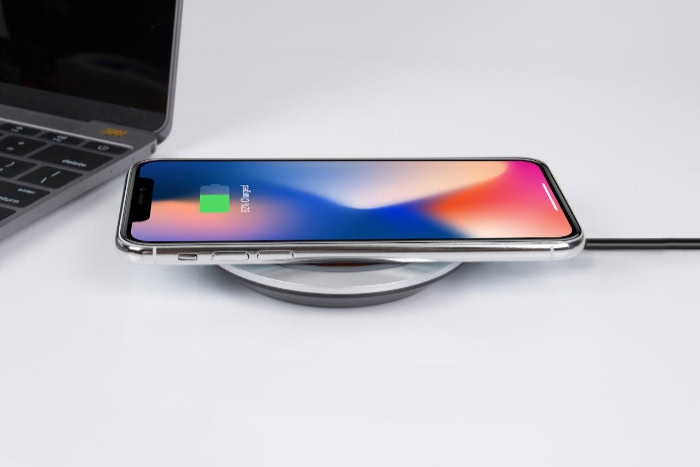
Bypass the Port with Wireless Charging
A completely broken charging port does not necessarily mean your phone is completely dead. The inductive charging coils on the back of modern iPhones operate on a separate internal system.
Try placing your phone on a MagSafe or Qi-certified wireless charging pad. If the device successfully powers up wirelessly, you know the battery still works.
This confirms that your issue is strictly isolated to the physical port at the bottom of the device.
Check Battery Health Status
Lithium-ion batteries degrade chemically over time. Eventually, they lose the ability to hold any electrical charge whatsoever.
If you managed to get your phone to turn on wirelessly, you should check the condition of your battery:
- Open the Settings app.
- Tap on Battery.
- Select Battery Health & Charging.
- Look at the Maximum Capacity percentage.
If this number is severely low, your battery is exhausted and will simply refuse to charge normally.
Identify Signs of Severe Hardware Failure
Sometimes the hardware damage is highly visible to the naked eye. Inspect your phone closely for the following physical indicators:
- A screen that is bulging, warping, or lifting away from the metal frame, which indicates a dangerously swollen battery.
- Broken, bent, or completely missing metal pins inside the charging port cavity.
- Burn marks or a distinct smell of melted plastic near the connector.
If you notice any of these signs, stop using the phone immediately.
Determine When to Seek Professional Repair
There is a strict limit to what you can safely fix at home. If you have exhausted all the previous troubleshooting steps and your device remains dead, you need professional assistance.
It is time to book an appointment at an Apple Store or an authorized service provider. Certified technicians have specialized diagnostic tools to test the internal circuitry.
They can safely open the device to replace a dead battery or install a brand new charging port assembly.
Conclusion
Fixing an unresponsive battery requires a logical process of elimination. By checking your power cables, carefully extracting compacted lint, resetting the system software, and evaluating the physical hardware, you can usually identify the exact problem.
Proceeding methodically through these troubleshooting steps will successfully resolve the vast majority of charging issues without forcing you to spend a single dollar. To keep your device running smoothly for years, practice basic preventative care.
Regularly clean out your charging port and always use high-quality, certified accessories to protect the internal battery.
Frequently Asked Questions
Why does my iPhone say it is charging but the battery percentage does not increase?
This usually happens when your power adapter or cable is faulty and cannot provide enough electrical current. It can also occur if you are running highly demanding apps while plugged in. Try using a different wall charger and closing your background applications.
How much does it cost to replace an iPhone charging port?
Replacing a damaged charging port typically costs between $79 and $120 out of pocket at an authorized repair center. If you have an active AppleCare+ warranty plan, the repair is usually covered for a significantly reduced fee or is completely free.
Can I clean my iPhone charging port with rubbing alcohol?
You should never pour liquid rubbing alcohol directly into your charging port. While high-percentage isopropyl alcohol evaporates quickly, it can still damage the delicate internal seals and speaker meshes. Always stick to dry, non-conductive tools like a simple wooden toothpick.
What should I do if my iPhone only charges at a specific angle?
If you have to bend or prop up your cable to get a connection, either the cord is internally frayed or your port is packed with dirt. Test a brand new cable first. If the problem persists, carefully clean the port cavity.
Does wireless charging degrade the iPhone battery faster than a cable?
Wireless charging generates slightly more excess heat than a standard wired connection. Since high temperatures slowly degrade lithium-ion cells over time, excessive wireless charging can impact overall battery health. However, the daily difference is minimal and perfectly safe for standard usage.
About the Author: Elizabeth Baker


