
Is It Bad to Leave Your Laptop Plugged in All the Time?

Seeing your laptop battery hit 100% while still plugged in often triggers a specific type of tech anxiety. You likely enjoy the convenience of a fully powered device, but you also worry that leaving the charger connected is slowly ruining your hardware.
The short answer is that while modern engineering prevents catastrophic failures, keeping a laptop tethered to the wall 24/7 does have consequences. It will not destroy your computer overnight, but it slowly degrades the battery's maximum capacity.
To preserve your battery health, you simply need to know how lithium-ion cells handle stress.
The Myth of Overcharging
Many users hesitate to leave their laptops plugged in because they fear “overcharging” the device. This fear typically stems from experiences with older rechargeable electronics that would degrade rapidly if left connected too long.
Fortunately, modern laptops utilize sophisticated hardware designed specifically to handle continuous power connection without causing immediate catastrophic failure.
How Modern Charging Circuits Work
Every modern laptop contains a Battery Management System (BMS). This internal circuit monitors the charge level of the battery cells in real time.
Once the battery reaches 100% capacity, the BMS physically cuts off the flow of electricity to the battery. The system is smart enough to know when the tank is full, so it stops filling it.
This means that even if you leave your laptop plugged in for a week, the battery itself stops receiving energy the moment it tops out.
Trickle Charging Explained
After the BMS cuts power to the battery, the laptop switches to “bypass mode.” In this state, the computer runs directly off the electricity coming from the AC adapter, completely bypassing the battery.
The battery simply sits there in a full state. Over time, all batteries naturally lose a tiny amount of charge even when not in use.
When the level drops slightly below 100%, the charger engages a “trickle charge” to top it back up. This process ensures the device remains ready for mobile use without constantly forcing high current into the cells.
Safety Assurance
The concept of a battery “overfilling” like a water balloon until it bursts is physically impossible with modern hardware. Lithium-ion technology differs significantly from older Nickel-Cadmium batteries that suffered from memory effects and heat issues.
Manufacturers build multiple failsafes into the power brick, the laptop motherboard, and the battery pack itself. While leaving a laptop plugged in might affect how much charge the battery can hold years down the line, it will not cause the device to explode or catch fire.
The Primary Enemies of Battery Health

While overcharging is a myth, battery degradation is a reality. The battery does not die because it receives too much power; it degrades because of the environmental conditions inside the laptop chassis.
Batteries rely on chemical reactions to store energy, and two specific factors accelerate the breakdown of the chemicals involved.
Voltage Stress at Full Capacity
Lithium-ion batteries are happiest when they are roughly half full. When you charge a battery to 100%, the lithium ions are packed tightly into the anode.
This state creates high voltage stress within the cell. Think of it like a rubber band stretched to its absolute limit.
The rubber band is safe, but keeping it stretched tight for months causes it to lose elasticity. Similarly, keeping a battery at 100% charge constantly maintains this chemical stress, which causes the capacity to shrink faster than it would if the battery sat at a lower charge level.
The Impact of Thermal Buildup
Heat serves as the primary adversary of electronics. The process of charging a battery generates heat, and the operation of the CPU and graphics card generates even more.
If a laptop runs hot, the electrolytes inside the battery can begin to break down or crystallize. This damage is irreversible.
A laptop that sits on a plush duvet while charging will retain heat, causing far more damage to the battery cells than the electricity itself.
Compound Damage Risks
The worst-case scenario for a battery involves the combination of high voltage and high heat. If a user keeps their laptop plugged in at 100% while performing intensive tasks like video rendering or gaming, the battery faces a double threat.
It suffers from the tension of being fully charged while simultaneously baking in the heat from the processor. Over time, this specific combination significantly raises the risk of battery swelling, a condition where the pack physically expands and can potentially warp the laptop chassis.
Software Solutions and the Smart Charging Compromise
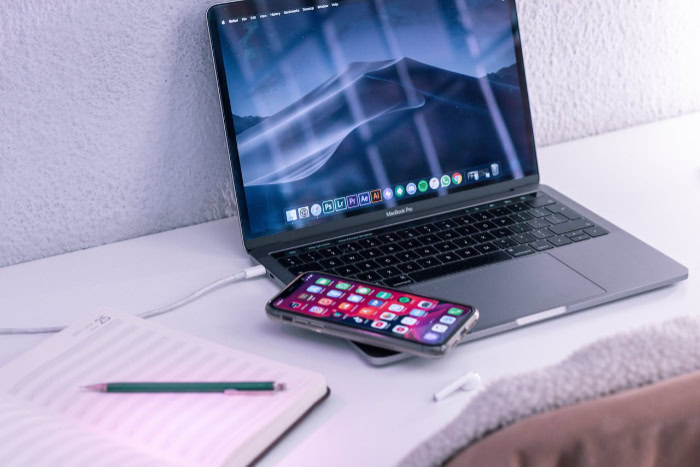
Since high voltage and heat cause the most damage, the best way to protect a battery while staying plugged in is to limit the charge level. You do not need to physically unplug the device to achieve this.
Software tools can tell the Battery Management System to stop charging before the battery hits that stressful 100% mark.
The 40-80 Percent Rule
Chemical engineers generally agree that lithium-ion batteries remain most stable when kept between 40% and 80% charged. In this range, the ions are not under excessive pressure, and the internal chemistry remains balanced.
If you can keep your laptop battery within this window, you can significantly extend its total lifespan. Ideally, a laptop that stays on a desk should hover around 60% to 80% rather than sitting at full capacity.
Operating System Features
Modern operating systems now include features to automate this process. macOS includes “Optimized Battery Charging,” which learns your daily routine.
If you usually unplug at 8:00 AM, the Mac will hold the charge at 80% overnight and finish the last 20% right before you wake up. Windows offers similar “Smart Charging” features that prevent the battery from topping up completely if the system detects that the device stays plugged in for extended periods.
Manufacturer Tools
For users who want more control, many laptop manufacturers provide proprietary utilities. Applications like Dell Power Manager, Lenovo Vantage, and MyASUS allow users to set a hard charging limit.
You can configure the laptop to stop charging permanently at 60% or 80%. This mimics the benefits of removing the battery while allowing the device to run off AC power. This setup offers the best protection for anyone who uses their laptop primarily as a desktop replacement.
Physical Maintenance and Storage Best Practices

Software settings can handle most of the heavy lifting for battery preservation, but your physical habits also play a major role. Batteries rely on active chemical processes, and letting them sit stagnant for too long can lead to calibration errors or capacity loss.
A few simple routines can ensure the hardware remains accurate and efficient over the years.
The Importance of Exercising the Battery
Even if you usually keep your laptop docked at a desk, you should unplug it occasionally to “exercise” the cells. Batteries contain a digital fuel gauge that estimates how much power remains.
If a device is always plugged in, this sensor can drift and lose accuracy, leading to situations where the laptop shuts down unexpectedly even though it claims to have charge left. To prevent this, disconnect the power cord every few months and let the battery drain down to roughly 20%.
This process keeps the internal chemicals active and helps the system recalibrate its estimates.
Protocols for Long-Term Storage
If you plan to stop using your laptop for an extended period, such as leaving it behind during a long vacation, you must store it correctly. Leaving a battery at 100% for weeks leads to capacity loss, while leaving it at 0% can cause the battery to enter a deep discharge state, rendering it unable to hold a charge ever again.
The safest method is to charge or discharge the device to approximately 50%, turn it off completely, and place it in a cool, moisture-free environment. This middle ground keeps the internal voltage stable during its hibernation.
Managing Removable Batteries
While most modern ultrabooks feature sealed chassis, some ruggedized laptops and older gaming models still use removable battery packs. If your device supports this, and you plan to run it on AC power for a week or more, the best move is to simply take the battery out.
This protects the cells from the heat generated by the computer components. Store the battery in a cool place with a roughly 50% charge, and only reinsert it when you need to be mobile again.
Balancing Performance and Battery Lifespan

There is no single correct way to manage a laptop battery because every user has different priorities. Some people need raw power for rendering video, while others need their device to last through a trans-Atlantic flight.
Your charging strategy should match your daily workflow rather than following a generic rulebook.
High-Performance Users
Gamers, video editors, and 3D designers should almost always keep their laptops plugged in while working. High-performance tasks draw immense amounts of power that a battery alone often cannot supply steadily.
If you unplug a gaming laptop, the system will likely throttle the performance of the CPU and graphics card to preserve energy, resulting in lower frame rates and slower render times. For these users, the priority is thermal management.
Keep the cooling vents clear and use software limits to cap the charge at 80%, but keep the AC adapter connected to ensure maximum speed.
The Desktop Replacement Scenario
Many users treat their laptops as stationary computers that sit on a desk connected to an external monitor 24/7. If this describes your usage, maximizing battery lifespan is easy.
Since you rarely need the full runtime of the battery, use manufacturer tools to set a hard charging limit of 50% or 60%. This keeps the battery at its most chemically stable voltage.
Even if the laptop stays plugged in for years, the battery degradation will be minimal compared to keeping it fully charged.
The Mobile Traveler
If you are a student or professional who moves constantly between classrooms, coffee shops, and meeting rooms, you should not worry about limiting your charge. You need every minute of runtime available.
Charging to 100% is perfectly acceptable in this scenario because the battery will not stay at that high-stress voltage for long. You will likely unplug and begin draining the power almost immediately.
The damage from high voltage accumulates over time, so as long as you are actively using the energy, hitting 100% is a necessary and safe part of the cycle.
Conclusion
Battery health will inevitably decline over time no matter what you do. However, your daily habits determine if that happens in two years or five.
Leaving your laptop plugged in is generally safe and often necessary for high-performance tasks. The real danger is not the electricity itself but the heat and high voltage stress that come with staying at 100% capacity.
Instead of worrying about overcharging, focus on keeping the device cool and using smart charging limits to cap capacity at 80%. This simple adjustment strikes the perfect balance between convenient power and long-term durability.
Frequently Asked Questions
Does leaving my laptop plugged in ruin the battery?
No, modern laptops have built-in sensors that stop charging once the battery is full. The system bypasses the battery and runs directly off the wall outlet. However, keeping the battery at 100% capacity constantly can speed up chemical degradation over several years.
Should I let my battery drain to zero before charging?
You should avoid letting lithium-ion batteries drain completely to zero. Deep discharges strain the battery chemistry and can eventually prevent it from holding a charge. It is much better to plug the device in when it drops to around 20% to keep the cells healthy.
Is it okay to use my laptop while it is charging?
Yes, using your laptop while charging is perfectly safe. In fact, high-performance tasks like gaming run better on AC power. Just ensure the laptop vents are not blocked, as charging generates extra heat that can damage the battery if the device gets too hot.
How can I limit my battery charge to 80%?
Most modern laptops have software settings to limit charging. Windows users can check the manufacturer app, such as Lenovo Vantage or MyASUS, for battery conservation modes. Mac users can enable Optimized Battery Charging in the System Preferences to delay charging past 80% based on usage.
What is the best battery percentage for storage?
If you plan to store your laptop for more than a week, charge it to approximately 50%. Storing it at 100% causes capacity loss, while storing it at 0% risks deep discharge failure. Turn the device off completely and keep it in a cool room.
About the Author: Julio Caesar


