
What Is a Wi-Fi Adapter? Beyond the Ethernet Cable
Most people expect a seamless internet connection the moment they power on a device. However, many desktop PCs lack internal wireless hardware, and older laptops often suffer from failing network cards.
A Wi-Fi adapter serves as the bridge between your hardware and the invisible radio waves broadcast by a router. It functions as a dedicated translator, converting those signals into data your operating system can process.
While wired Ethernet connections offer stability, the modern need for mobility makes these compact adapters a practical necessity.
Key Takeaways
- A Wi-Fi adapter converts radio signals from a router into digital data for your computer.
- USB dongles offer easy installation while PCIe cards provide better signal stability for desktops.
- Newer standards like Wi-Fi 6 offer significantly faster speeds and better performance in crowded areas.
- Dual-band support allows devices to switch between the long-range 2.4 GHz and high-speed 5 GHz frequencies.
- Drivers and physical placement are essential for maintaining a strong and consistent wireless connection.
How Wi-Fi Adapters Function
At its most basic level, a Wi-Fi adapter functions as a sophisticated radio. It continuously monitors the environment for specific wireless signals sent from a router or access point.
Once it captures these signals, it translates the invisible energy into the digital language of ones and zeros that a computer processor understands. This process happens instantly, allowing for a seamless experience while browsing or streaming.
Signal Conversion and Data Processing
The primary task of any adapter is signal conversion. Routers broadcast information using radio waves that vibrate at specific frequencies.
The adapter contains a specialized chip designed to intercept these waves and decode the information they carry. This conversion turns electromagnetic radiation into electrical signals that travel through the USB port or PCIe slot into the rest of the computer hardware.
Two-Way Communication Flow
Networking is never a one-sided conversation. While an adapter must receive data for tasks like downloading a file, it must also transmit data back to the router.
Every time you click a link or send an email, the adapter converts that digital request into a radio signal and broadcasts it back to the access point. This rapid exchange occurs millions of times per second, maintaining a constant dialogue between your hardware and the network.
The Role of the Client Device
In a local area network, the adapter identifies your computer as a client. The router acts as the central hub, or server, managing traffic for every device in the building.
The adapter uses a unique hardware address to ensure that the router sends the correct data to the correct machine. This specific relationship prevents your web traffic from being accidentally sent to another laptop or smartphone connected to the same network.
Common Types of Wireless Adapters

Wireless adapters come in several physical formats, each designed for a different use case. The physical interface determines how the device connects to your system and how much power it can draw.
Some options prioritize ease of use, while others require opening the computer case to access internal slots for better performance.
USB Dongles for Convenience
USB Wi-Fi adapters, often called dongles, are the most popular choice for general users. These devices are roughly the size of a thumb drive and plug directly into a standard USB port.
Their main advantage is simplicity, as they can be moved from one computer to another without any technical knowledge. While convenient, their small size often limits the size of the internal antenna, which can result in slightly weaker signal reception compared to larger alternatives.
PCIe Cards for Desktop Performance
For desktop users who need the most stable connection possible, PCIe wireless cards are the preferred option. These are internal components that plug directly into the motherboard of a computer.
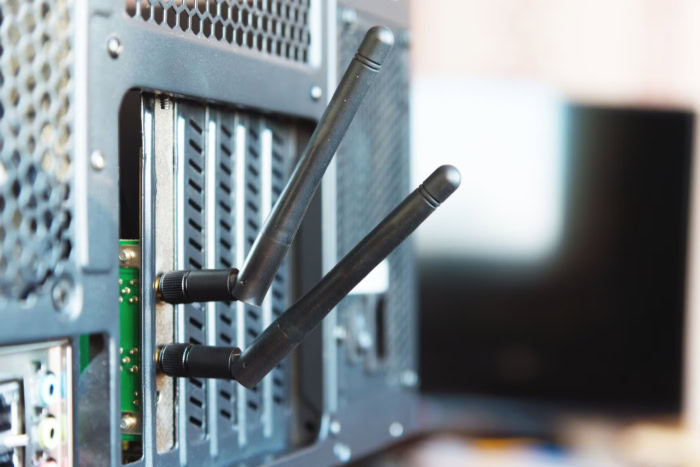
Because they have a direct connection to the system power supply and the data bus, they often offer superior speeds and stability. These cards usually feature large, external antennas that stick out from the back of the PC, providing much better range than a small USB stick.
Integrated Wireless Solutions
Most modern laptops, tablets, and smartphones do not use external adapters because they have integrated chips. These are small modules soldered onto the motherboard or built into the main processor.
These integrated solutions are designed for power efficiency, allowing the device to stay connected for hours without draining the battery. While they are not easily replaced, they offer a compact solution that requires no extra space.
M.2 Cards and Modular Upgrades
In the world of laptop repair and high-end desktop builds, M.2 cards are a standard form factor. These are tiny, rectangular boards that slide into a specific slot on the motherboard.
They are often used to replace a failing internal adapter or to upgrade an older laptop to support newer wireless standards. These cards require a manual connection to the internal antenna wires of the laptop, making them a more technical but highly effective upgrade path.
Important Technical Specifications

The performance of a wireless adapter is defined by its internal technology rather than its physical appearance. While many adapters look similar on the outside, the internal chips and antenna configurations vary significantly.
Matching these specifications to your router is necessary to ensure the hardware can take full advantage of the speeds provided by an internet service provider.
Wireless Standards and Speed
Wireless technology follows specific generations known as standards. You will often see labels like 802.11ac, which is now called Wi-Fi 5, or 802.11ax, known as Wi-Fi 6.
Each new generation increases the maximum possible speed and improves how the device handles crowded areas with many signals. If you have a Wi-Fi 6 router, using an older Wi-Fi 5 adapter will limit your connection to the slower speed of the older standard.
Frequency Bands and Signal Transmission
Most modern adapters are dual-band, meaning they can connect to both 2.4 GHz and 5 GHz frequencies. The 2.4 GHz band is slower but can travel through thick walls and over long distances.
In contrast, the 5 GHz band offers much faster data transfers but struggles to pass through solid objects. High-quality adapters allow the computer to switch between these bands automatically to maintain the best possible connection.
Antenna Types and Range Optimization
The design of the antenna determines how well an adapter can “hear” the router. Internal antennas are hidden inside the casing, offering a clean look but limited range.
Fixed external antennas provide better gain, while some high-end adapters include remote antennas on a magnetic base. These remote antennas can be moved away from the computer case to avoid electronic interference, which is particularly helpful if the PC is tucked under a desk.
Throughput Ratings and Speed Reality
Manufacturers often list throughput ratings in Megabits per second (Mbps). These numbers represent the theoretical maximum speed the hardware can achieve under perfect conditions.
However, actual speeds are often lower due to distance, physical obstacles, and network congestion. It is important to choose an adapter with a rating that meets or exceeds your internet plan to prevent the hardware from becoming a bottleneck for your connection.
Comparing Adapters to Other Networking Hardware

Networking equipment involves various components that often look similar but serve distinct purposes. It is important to distinguish between the hardware that generates a signal and the hardware that consumes it to ensure a home network operates efficiently.
While these devices all work together to provide internet access, they are not interchangeable.
Adapters versus Routers
The most basic distinction is between the broadcaster and the listener. A router connects to the internet via a modem and broadcasts a wireless signal throughout a designated area.
It acts as the manager of the entire network. On the other hand, the adapter is the component that allows an individual device to catch that signal.
Without a router, the adapter has nothing to listen to. Without an adapter, a computer remains isolated from the wireless signal regardless of how powerful the router might be.
Adapters versus Range Extenders
It is easy to confuse these two because both are often small devices that plug into a wall or a USB port. However, their purposes are entirely different.
A range extender is designed to pick up an existing Wi-Fi signal and rebroadcast it further into a building to eliminate dead zones. It helps every device in that new area.
A Wi-Fi adapter is strictly for the device it is plugged into. It does not boost the signal for other people; it simply gives one specific machine the ability to join the network.
Wireless Adapters versus Ethernet Connections
Choosing between a wireless adapter and a hardwired Ethernet cable usually involves a trade-off between convenience and performance. An adapter provides the freedom to move a laptop or set up a desktop anywhere without running long cables through the house.
However, radio waves are susceptible to interference and signal dropouts. A physical Ethernet cable provides the most stable connection with the lowest latency, which is often preferred for gaming or heavy data transfers.
The adapter is the better choice for flexibility, while the cable remains the gold standard for raw reliability.
Installation and Performance Considerations

Buying the right hardware is only the initial step in securing a reliable connection. Proper setup and an awareness of external variables are necessary to ensure the adapter provides the speed and stability expected for modern internet use.
Performance is rarely just about the hardware itself; it depends on how that hardware interacts with your software and the physical space around it.
Driver Software and System Compatibility
For an adapter to function, the computer needs a specific set of instructions called a driver. This software acts as a translator between the operating system and the hardware.
While many modern systems recognize USB adapters automatically, some high-performance PCIe cards require a manual driver installation from a website or a provided disk. If the driver is outdated or corrupt, the adapter might experience frequent disconnections or fail to reach its maximum rated speeds.
Keeping this software updated ensures that the hardware can handle the latest security protocols and connection standards.
Hardware Bus and Port Limitations
The physical port you use can act as a bottleneck for your internet speed. For example, if you plug a high-speed Wi-Fi 6 USB adapter into an old USB 2.0 port, the data will be throttled.
The USB 2.0 port can only move data at a fraction of the speed that a modern adapter is capable of providing. For the best results, users should match their adapter to the appropriate port, such as using USB 3.0 or higher.
Similarly, internal PCIe cards need to be seated in a motherboard slot that provides enough bandwidth to prevent the computer from slowing down the wireless connection.
Physical and Environmental Obstacles
The environment is a common cause of poor wireless performance. Radio waves lose strength as they pass through solid objects.
Materials like brick, concrete, and metal are particularly difficult for Wi-Fi signals to penetrate. Beyond physical walls, other electronics can create noise that disrupts the signal.
Devices like microwave ovens, cordless phones, and even neighboring Wi-Fi networks can interfere with your adapter’s ability to maintain a clear line of communication with the router. Placing the adapter in an open area away from large metal objects often leads to a significant improvement in connection quality.
Conclusion
Wi-Fi adapters provide a practical solution for modernizing older hardware or repairing a broken internal connection without the expense of a full system replacement. Opting for a portable USB dongle or a high-performance PCIe card ensures that a computer remains functional in a wireless environment.
These devices remove the limitations of physical cables, offering the freedom to set up a workspace anywhere within range of a signal. Beyond mere repair, they serve as a simple upgrade path for those wanting to access the latest network technologies.
Achieving the best possible speeds requires a deliberate match between your adapter and your router. If the adapter lacks the latest standards or frequency support, it will throttle the high-speed data your router is trying to provide.
Selecting hardware that aligns with your network infrastructure ensures a stable and reliable connection for all your online activities.
Frequently Asked Questions
Does a Wi-Fi adapter improve internet speed?
An adapter can only provide the maximum speed allowed by your internet plan and router. If you use an old adapter with a high-speed router, the hardware will limit your performance. Upgrading to a modern adapter ensures your computer can handle the full bandwidth available from your service provider.
Can I use a Wi-Fi adapter on a desktop without Wi-Fi?
Yes, adding a Wi-Fi adapter is the most common way to give a desktop computer wireless capabilities. You can simply plug a USB dongle into an open port or install a PCIe card into the motherboard. This allows a machine originally designed for Ethernet to connect to any wireless network.
Is a USB Wi-Fi adapter better than a PCIe card?
USB adapters are portable and easy to install, making them perfect for general use. However, PCIe cards are usually better for gaming or heavy streaming because they have larger antennas and a more stable power source. Your choice should depend on whether you value simple convenience or maximum connection reliability.
Do I need to install drivers for my Wi-Fi adapter?
Most modern operating systems include generic drivers that allow adapters to work immediately upon being plugged in. However, manufacturers often provide specialized software that unlocks higher speeds or better security settings. Downloading the latest official driver from the manufacturer website is the best way to ensure the hardware runs correctly.
Can a Wi-Fi adapter connect to a 5GHz network?
Most modern adapters are dual-band, meaning they can connect to both 2.4 GHz and 5 GHz networks. The 5 GHz band offers much faster data speeds for activities like video conferencing or gaming. You should check the product specifications to confirm it supports the 802.11ac or 802.11ax standards for 5 GHz access.
About the Author: Elizabeth Baker


