
Why Your Computer Is So Slow and How to Fix It

A sluggish computer transforms simple daily routines into exercises in extreme frustration. You click a basic program, wait indefinitely, and wonder what went wrong with a machine that once felt blazing fast.
Before you throw the entire system out the window, you need to identify the actual culprit. Performance issues typically stem from two distinct sources: cluttered software choking your system resources or aging physical hardware struggling to keep pace with modern demands.
The goal is simple. We will break down a systematic method to diagnose your specific performance bottlenecks.
By isolating the exact problem, you can apply targeted fixes instead of blindly guessing.
Key Takeaways
- Diagnosing slowness requires system monitoring tools to accurately pinpoint your exact resource bottlenecks.
- Disabling unnecessary startup applications and background processes immediately frees up wasted processing power.
- Routine software maintenance removes digital clutter and keeps your operating system running smoothly.
- Physical maintenance and internal thermal management prevent your components from slowing down due to overheating.
- Upgrading to a solid state drive provides the single most significant speed boost available for older computers.
Diagnosing the Bottleneck: Using System Monitoring Tools
Before making drastic changes to your computer, you need to see exactly where the slowdown occurs. Built-in monitoring tools act like a real-time dashboard for your machine.
They show you exactly which programs consume the most resources, allowing you to stop guessing and start troubleshooting based on hard data.
Utilizing Task Manager or Activity Monitor
Your operating system provides a direct window into its internal operations. You just need to know how to open it.
- On Windows: Press Ctrl + Shift + Esc simultaneously to open the Task Manager. Click “More details” if you only see a small list of apps.
- On macOS: Press Command + Space to open Spotlight search, type “Activity Monitor,” and hit Enter.
Once open, these tools display a list of every single application and background process currently running on your machine.
Identifying High-Impact Processes
Inside your monitoring tool, you will see columns labeled CPU, Memory (RAM), and Disk. Click on the header of any column to sort the list from highest usage to lowest.
Pay close attention to percentages that stay high continuously.
- CPU Spikes: High CPU usage means your processor is working overtime. This is common when rendering video or playing complex games, but a basic text editor or web page should not push your CPU to 100 percent.
- Memory Limits: High memory usage indicates your RAM is full. When this happens, the computer writes temporary data to your hard drive, which drastically slows down performance.
- Disk Usage: A disk sitting at 100 percent usage means the drive is reading and writing data as fast as it can. This bottleneck makes the entire system freeze until the drive catches up.
Interpreting the Data
Seeing high numbers requires a bit of context. You must determine if a single program is misbehaving or if your system lacks the total resources needed to run your normal tasks.
If one specific application is constantly maxing out your CPU while everything else uses barely anything, you have found a rogue application.
You can usually select that program and click “End Task” or “Force Quit” to immediately restore your system speed. Conversely, if ten different lightweight applications are collectively using 98 percent of your memory, you are dealing with a system-wide resource deficit.
Optimizing System Startup and Background Processes
The way your computer starts and manages idle operations heavily influences its overall speed. If too many applications fight for resources the moment you log in, your machine will feel sluggish immediately.
Taking control of what runs in the background frees up processing power for the tasks you actually care about.
Managing Startup Applications
Software developers love to program their applications to launch automatically when you turn on your computer. Over time, these startup programs pile up and add minutes to your boot time.
- Windows users: Open the Task Manager and click the “Startup” tab. Right-click any non-essential application (like game launchers or cloud storage apps you rarely use) and select “Disable.”
- Mac users: Go to System Settings, click General, and then select “Login Items.” Highlight unwanted applications and click the minus (-) button to remove them.
Controlling Background Apps
Not all running software appears on your taskbar or dock. Many applications hide in the background, quietly downloading updates or syncing files.
Check your system tray (the small icons near your clock on Windows) or your menu bar (top right corner on Mac). Right-click and exit any software you do not actively need.
Communication apps, widget engines, and software updaters are common offenders that quietly consume valuable processing cycles.
Power Management Settings
Laptops and some desktops are configured to balance performance with energy efficiency. This is great for battery life but terrible for maximum speed. If you are plugged into a wall outlet, you can tell your operating system to prioritize performance.
- Open the Control Panel in Windows and search for “Power Options.”
- Select the “High Performance” plan if it is available.
- On macOS, open System Settings, go to Battery, and look for “Low Power Mode.” Ensure this is set to “Never” when connected to a power adapter.
Streamlining Visual Effects
Modern operating systems rely heavily on animations, transparent windows, and shadow effects to look sleek. These visual enhancements look great, but they force your processor and graphics card to render unnecessary graphics.
Disabling them makes window management feel instantly snappier.
Here is how to disable these effects based on your operating system:
- For Windows: Search your start menu for “Adjust the appearance and performance of Windows” and select the option to “Adjust for best performance.”
- For macOS: Open Accessibility within System Settings, click on Display, and toggle on “Reduce motion” and “Reduce transparency.”
Software Maintenance and Digital De-Cluttering

Storage drives behave poorly when they are filled to the brim with unnecessary files. Digital clutter fragments your storage, wastes processing power, and creates conflicts within the operating system.
Routine software maintenance acts as a thorough cleaning, clearing out the garbage and streamlining internal operations.
Disk Cleanup and Temporary Files
As you browse the web and use applications, your computer saves thousands of temporary cache files to speed up future loading times. Ironically, an overabundance of these files eventually bogs the system down.
- Use built-in tools like “Disk Cleanup” or “Storage Sense” on Windows to safely delete temporary internet files, old installation logs, and system error memory dumps.
- Empty your Recycle Bin or Trash regularly. Files sitting in the bin still occupy physical space on your hard drive.
- Ensure your main storage drive maintains at least 15 percent free space so the operating system has room to shuffle files around efficiently.
The Impact of Bloatware
New computers often arrive pre-loaded with trial software, manufacturer utilities, and sponsored games. This “bloatware” occupies storage space and frequently embeds itself into your startup sequence.
Navigate to your list of installed programs (Apps & Features in Windows) and ruthlessly uninstall anything you do not recognize or plan to use. Removing third-party antivirus trials, pre-installed media players, and branded optimization software often results in immediate performance gains.
Browser Optimization
Web browsers are notoriously hungry for system resources. If your computer slows down primarily while surfing the internet, your browser is the likely culprit.
- Manage Extensions: Every active browser extension acts as a mini-application running constantly. Audit your add-ons and remove shopping assistants, coupon finders, or ad-blockers you no longer use.
- Clear Data: Go to your browser settings and clear your cached images and files.
- Hardware Acceleration: Look through your browser settings for “Use hardware acceleration when available” and ensure it is turned on. This offloads graphical work from your central processor to your dedicated graphics chip.
Operating System and Driver Updates
Manufacturers frequently release patches that optimize code, fix memory leaks, and improve hardware communication. Running outdated software guarantees you will miss out on these performance tweaks.
Open Windows Update or macOS Software Update and install all pending patches. Additionally, check the manufacturer's website for your specific graphics card (like NVIDIA or AMD) to download the latest video drivers.
Updated drivers ensure your hardware communicates flawlessly with the latest software demands.
Security and System Integrity Checks

A slow computer often hides deeper issues below the surface of your standard applications. Malicious software and corrupted system files quietly drain resources, while failing storage drives struggle to read data efficiently.
Running regular security and integrity checks ensures the foundational code of your machine remains healthy and free of interference.
Malware and Adware Scans
Hidden malicious software frequently uses your system resources to run unwanted background tasks. Adware forces popup ads to load out of sight, while more severe malware might use your processing power to mine cryptocurrency or send out mass emails.
You need to actively hunt for these hidden resource drains.
- Open your trusted antivirus program. Built-in tools like Windows Security work exceptionally well for this task.
- Select the option to run a “Full Scan” rather than a quick scan, ensuring the software checks every file directory.
- Review the scan results and allow the software to quarantine or delete any flagged items immediately.
Verifying System File Integrity
Power outages, unexpected crashes, and failed software updates easily corrupt essential operating system files. When the computer tries to read corrupted files, it stalls and slows down the entire operating system.
Built-in repair tools scan your system directory and automatically replace damaged files with fresh copies.
- For Windows: Open the Command Prompt as an administrator. Type sfc /scannow and press Enter. Allow the verification process to reach 100 percent before closing the window.
- For macOS: Open Disk Utility from your Applications folder. Select your main hard drive on the left menu and click “First Aid” at the top to check for directory errors.
Disk Health Assessment
The physical state of your data storage dictates how fast your computer accesses files. Different types of drives require different maintenance strategies to stay fast.
- Hard Disk Drives (HDDs): Traditional magnetic drives suffer from fragmentation. As files scatter across the physical disk over time, the mechanical read head takes longer to find them. Open the “Defragment and Optimize Drives” tool in Windows to consolidate these files.
- Solid State Drives (SSDs): These modern drives do not need defragmentation. Instead, they rely on a command called “Trim” to actively wipe deleted data blocks and maintain fast write speeds. Ensure your system's drive optimization tool is scheduled to run weekly, which automatically executes the Trim command in the background.
Physical Maintenance and Hardware Upgrades
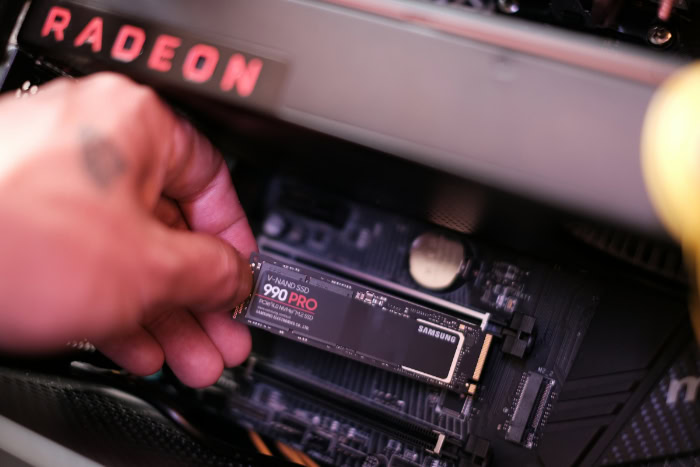
Software optimization eventually reaches a hard limit. If your operating system is perfectly clean but the computer still struggles, you must look at the physical components.
Routine physical maintenance and strategic hardware upgrades offer the most dramatic performance improvements available.
Thermal Management
Computers generate significant heat, and accumulated dust acts as a thick blanket that traps that heat inside the case. When internal processors get too hot, they automatically slow themselves down to prevent permanent melting.
This safety feature is called thermal throttling.
- Completely power down and unplug your desktop or laptop.
- Take the machine to a well-ventilated area, preferably outside.
- Use a can of compressed air to blow dust out of the cooling fans, heat sinks, and exhaust vents.
- Never use a standard vacuum cleaner for this task, as it generates static electricity that ruins sensitive microchips.
The Storage Transition
The single greatest upgrade you can perform on an older computer is replacing a mechanical Hard Disk Drive with a Solid State Drive. Traditional hard drives rely on spinning magnetic platters and moving mechanical arms to locate your data.
An SSD uses flash memory chips to access data instantly. Boot times drop from minutes to seconds, and large applications open almost immediately.
If your machine currently boots its operating system from an HDD, transferring your data to an SSD provides an astonishing speed boost.
Memory (RAM) Expansion
Modern software demands substantial memory just to idle in the background. If you constantly keep dozens of browser tabs open while running heavy applications, your computer will quickly run out of physical RAM.
Upgrading your memory capacity gives your system more breathing room for heavy multitasking. Check your system manual to see if your motherboard supports additional RAM sticks, note the maximum capacity allowed, and purchase the correct DDR type and speed for your specific model.
Defining “Obsolescence”
Hardware upgrades cannot solve every performance issue. At a certain point, the core architecture of your machine simply ages out of relevance.
Modern operating systems and demanding software require instruction sets and processing speeds that ten-year-old processors physically lack. You must recognize obsolescence to avoid wasting money.
If you max out your RAM, install a fast SSD, and perfectly optimize your software, yet the computer still lags during basic web browsing or word processing, the hardware is obsolete. Replacing the entire system becomes the only logical step forward.
Conclusion
Fixing a sluggish computer requires a systematic approach. You start by identifying basic software bottlenecks and clearing out background clutter before moving on to deeper integrity checks and physical hardware upgrades.
Treating this as an iterative troubleshooting process prevents you from spending money on upgrades you might not actually need. Once your machine runs smoothly again, establishing a routine maintenance schedule keeps it performing well for years.
Regular virus scans, disk cleanup, and physical dust removal stop slow performance before it even begins. Finally, you must align your expectations with the physical reality of your machine.
An older computer optimized perfectly will still struggle with the newest high-end software. Recognizing when a machine has reached its physical limits saves you from fighting an unwinnable battle against time.
Frequently Asked Questions
Why is my computer suddenly running so slow?
Sudden slowness usually occurs because a background application is consuming too many system resources or a malicious program is hiding on your hard drive. Open your task manager to identify rogue processes draining your processing power, then run a full antivirus scan to rule out infections.
Does adding more RAM make a computer faster?
Adding more memory improves overall performance significantly if your computer constantly freezes while you run multiple programs or keep dozens of browser tabs open. However, extra RAM will not increase your raw baseline speed if your central processor is completely outdated and unable to handle modern software requirements.
How often should I clean inside my computer?
You should open your computer case and carefully blow out accumulated dust every three to six months. Homes with shedding pets or dusty environments require more frequent cleaning schedules. Removing this dust buildup ensures proper airflow and completely prevents your processor from slowing down due to excessive heat.
Will replacing my hard drive with an SSD speed up my computer?
Upgrading from a traditional mechanical hard drive to a solid state drive is the most effective way to dramatically increase system speed. An SSD accesses files instantly without relying on moving parts. This upgrade cuts your boot times down to seconds and makes basic applications open almost immediately.
What is the best way to speed up a slow web browser?
The most effective method to restore browser speed involves clearing your cached image files and completely removing unneeded browser extensions. Shopping assistants and coupon add-ons often run constantly in the background. Disabling them frees up substantial memory and stops your browser from lagging during basic internet searches.
About the Author: Julio Caesar


