
Laptops vs. Tablets for Students: Which Fits Your Major?
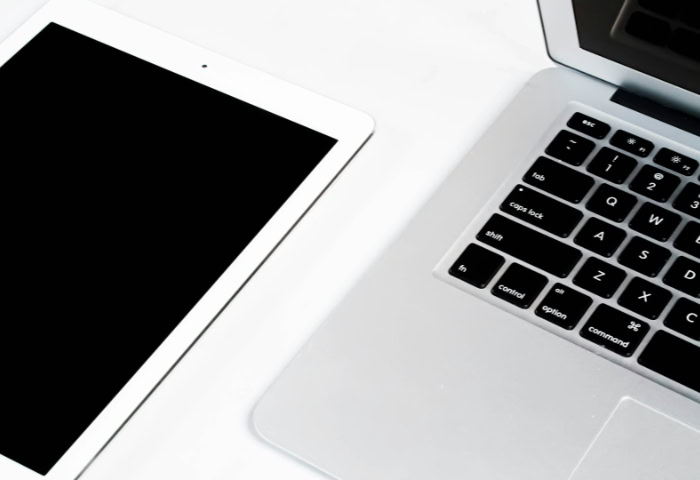
Choosing the right device for college is often the first real test of a student's academic career. You stand at a crossroads between the raw productivity of a traditional laptop and the versatile portability of a modern tablet.
While manufacturers love to claim the lines have blurred, significant differences in operating systems and software compatibility remain. A tablet might survive a liberal arts seminar, but an engineering lab usually requires different machinery.
The wrong choice leads to daily frustration or expensive replacements later.
Performance and Software Capability
The most critical distinction between a laptop and a tablet is not physical design but the engine running underneath. Students often overlook how the operating system dictates what they can and cannot do during a semester.
A processor might look fast on a spec sheet, yet software limitations can restrict how that power applies to actual coursework.
Operating Systems
Desktop operating systems like Windows and macOS are designed to give users complete control. You can access the file system directly, run background processes without interference, and install applications from any source.
Such freedom is essential for managing complex folder structures or keeping specific utilities running while you work on other tasks. The computer acts as an open platform where the user defines the workflow.
Tablets typically run mobile-first systems such as iPadOS or Android. These environments are often described as “walled gardens” because they prioritize simplicity and security over flexibility.
File management has improved, but it remains cumbersome compared to a traditional desktop interface. Moving files between apps or organizing a semester's worth of research materials often requires more steps and workarounds on a mobile system than on a laptop.
Software Compatibility by Major
Your intended field of study acts as the primary filter for this decision. Students in humanities, social sciences, or general business administration often find that mobile apps cover the vast majority of their needs.
Writing papers, creating slide decks, and reading digital textbooks work seamlessly on tablets.
Engineering, computer science, and creative arts majors face a different reality. Specialized disciplines rely on software that simply does not exist or function fully on mobile platforms.
Computer Aided Design (CAD) tools, integrated development environments for coding, and advanced 3D modeling software usually require a desktop architecture. Attempting to compile code or render heavy video projects on a tablet can be impossible or significantly slower.
Multitasking Realities
Productivity changes drastically depending on how many things you can see at once. Laptops support a windowed environment where you can layer applications, resize them freely, and spread work across multiple external monitors.
A flexible interface allows a student to have a research paper, three PDF sources, and a music player open simultaneously without friction.
Tablets manage multitasking through “split-view” or limited windowing features. While functional for two apps, the experience feels restrictive when workloads increase.
Viewing two documents side-by-side often results in cramped text. Connecting a tablet to an external monitor frequently just mirrors the screen rather than extending the desktop, which limits how much information you can reference at a single glance.
Input Methods and Note-Taking Efficiency

How a student physically interacts with their device often matters more than raw processing speed. The daily routine of university life involves hours of data entry, from typing extensive research papers to sketching diagrams during lectures.
Choosing an input method is effectively choosing how you will capture and manipulate information for the next four years. A mismatch here can lead to physical discomfort or significant friction in your study workflow.
The Typing Experience
Writing is the backbone of most academic degrees. Laptops are explicitly designed for long-form text creation.
They feature keyboards with adequate key travel and spacing, which reduces finger fatigue during marathon writing sessions. The solid base of a laptop allows you to type comfortably on a desk, a lap, or even a precarious lecture hall table without the device wobbling.
Tablet keyboards are typically purchased as separate accessories or folio cases. These detachable options often suffer from shallow key travel and cramped layouts that can make typing feel like tapping on glass or a hard surface.
The lack of a rigid hinge means they usually require a flat table to function properly. Trying to balance a tablet with a kickstand on your knees while typing a dissertation is a recipe for frustration.
Stylus Utility and Handwriting
Tablets offer a distinct advantage through the use of a digital stylus. Writing notes by hand mimics the traditional pen-and-paper experience but adds the benefit of digital organization and cloud backups.
This direct interaction is invaluable for subjects that rely on visual languages.
Chemistry students need to draw molecular structures, math majors must solve complex equations, and biology students often sketch diagrams. Doing this on a laptop requires awkward formatting tools or specialized software that slows down the note-taking process.
A tablet allows a student to annotate PDF slides directly, circle important concepts, and draw arrows between ideas in real-time. This freedom fosters a more intuitive way to process abstract information.
Connectivity and Peripherals
Academic environments still rely heavily on physical hardware connections. Laptops generally come equipped with a variety of ports, including USB-A, HDMI, and headphone jacks.
This variety allows a student to plug in a thumb drive from a professor, connect to a projector for a presentation, or charge a phone without needing extra equipment.
Tablets typically pursue a minimalist design philosophy, often featuring only a single USB-C port. Connecting anything beyond a charging cable usually requires a dongle or a specialized hub.
This “dongle life” adds hidden costs and logistical headaches. Forgetting your adapter at home might mean you cannot print your essay in the library or connect to the external monitor you need for a group project.
Portability and Campus Life Logistics

A student's life is rarely stationary. You spend your days moving between dorm rooms, libraries, coffee shops, and lecture halls.
The physical presence of your technology, how much it weighs, how long it lasts, and where it fits, defines your daily comfort just as much as its software does. A device that is too heavy or dies by noon quickly becomes a burden rather than a tool.
Weight and Form Factor
Tablets generally win the contest for pure lightness. Holding a slim slate of glass is easy, and it slips into any backpack without strain.
However, the calculation changes once you accessorize. To make a tablet a viable replacement for a laptop, most students add a protective cover and a keyboard attachment.
These accessories add significant bulk. Often, a high-end tablet combined with a sturdy keyboard case weighs nearly the same as a modern ultrabook.
The perceived weight advantage frequently disappears precisely when you try to make the device more functional.
Battery Endurance
Power outlets are not always available in older classrooms or crowded study areas. Tablets typically excel in endurance because their mobile processors are highly efficient.
They handle tasks like reading PDFs, browsing the web, or watching lecture recordings for hours without needing a charge. Laptops are more power-hungry.
While efficiency has improved, running desktop-class applications or multitasking with high screen brightness drains the battery significantly faster. A laptop pushing performance limits might leave you searching for a wall socket by early afternoon, while a tablet usually sails through until evening.
“On-the-Go” Readiness
The environment where you work dictates which form factor succeeds. University lecture halls are notorious for having tiny, fold-out desks that barely accommodate a notebook.
A traditional laptop with a clamshell hinge requires a stable base and a certain amount of depth to stay upright. If the desk is too small, the laptop feels precarious.
Tablets are far more adaptable in these tight quarters. You can hold one in your hands while standing in a lab, prop it up on a bus tray, or use it comfortably in a cramped economy seat.
The ability to ditch the keyboard and use the device as a pure screen offers flexibility that rigid laptops cannot match.
Financial Investment and Longevity

Buying a device for university is a significant financial commitment. You are not just purchasing a gadget; you are investing in a tool that must survive four years of daily abuse, software updates, and changing academic requirements.
The sticker price rarely tells the full story of what a device costs to own and maintain over the course of a degree.
Price-to-Performance Ratio
Tablets often appear to be the budget-friendly option when looking at the base price. However, that initial number is misleading because it represents a device designed primarily for consumption.
To transform a tablet into a functional student workstation, you almost always need to purchase a keyboard cover and a digital stylus. These accessories are expensive and can easily add hundreds of dollars to the final receipt.
Once you total the cost of a high-end tablet and its mandatory peripherals, the price often matches or exceeds that of a capable laptop. For that same amount of money, a laptop usually provides more internal storage, a faster processor, and a larger screen.
You generally get more raw computing power per dollar with a traditional computer because you are not paying a premium for miniaturization and touch-screen technology.
Durability and Repairability
Student life is hard on hardware. Laptops benefit from the “clamshell” design, which naturally protects the most fragile components, the screen and keyboard, when the device is closed.
You can slide a closed laptop into a backpack with reasonable confidence that the display is safe from scratches or pressure. Tablets are essentially exposed sheets of glass.
Even with a protective case, the screen remains vulnerable to cracks if the bag is dropped or crushed.
Repairability is another area where laptops typically win. If a battery wears out or a keyboard key breaks on a laptop, local repair shops can often fix the specific part.
Tablets are tightly sealed units held together with glue. Opening them is difficult, and fixing a single component often costs nearly as much as replacing the entire device.
Resale Value and Lifespan
A device needs to remain useful from freshman orientation to graduation day. Laptops tend to age gracefully; a four-year-old computer might be slower, but it can usually still handle word processing and web browsing without major issues.
Mobile hardware often feels the impact of age more acutely as apps update and require more resources, potentially making an older tablet feel sluggish.
However, premium tablets often hold their monetary value exceptionally well. If you keep the device in pristine condition, you can often sell a high-end tablet for a significant portion of its original price.
Laptops, particularly budget Windows models, tend to depreciate faster. Students who plan to upgrade their tech halfway through college might find that a tablet offers a better return on the secondary market.
The “Hybrid” Approach and Alternatives

Sometimes the strict binary choice between a laptop and a tablet feels limiting. Manufacturers and students alike have recognized that neither form factor is perfect for every situation.
As a result, alternative strategies have emerged that attempt to bridge the gap or split the workload across different tools.
2-in-1 Convertibles
Convertible laptops attempt to fuse the productivity of a keyboard with the flexibility of a touch screen. Most models feature a 360-degree hinge that allows the screen to fold flat against the back of the chassis.
It sounds like the ideal solution, yet the reality often involves compromise. A 2-in-1 is typically heavier and thicker than a dedicated tablet, making it awkward to hold for long reading sessions.
Simultaneously, the keyboard mechanism can feel less robust than a standard laptop. While they function adequately for both typing and drawing, they rarely offer the premium experience of a device dedicated to a single purpose.
The Companion Strategy
Instead of searching for a single “unicorn” device that does it all, many students find success by owning two specialized tools. The strategy involves purchasing a reliable, budget-friendly laptop or desktop for heavy tasks like writing papers and managing files.
You then pair this with a base-model tablet strictly for reading digital textbooks and taking handwritten notes. Splitting the budget in this way often costs the same as buying one top-tier premium device.
It provides the redundancy of a backup computer and ensures you always have the right tool for the specific task at hand.
Conclusion
The decision between a laptop and a tablet is rarely about which device is objectively better. It is about matching the tool to the job.
Laptops remain the undisputed champions of content creation. They offer the stability, keyboard quality, and software environment needed to write long papers and run professional-grade applications.
Tablets define modern flexibility. They are unmatched for reading, annotating, and working in portable contexts where a traditional computer feels cumbersome.
Use a simple mental checklist to finalize your choice. If you are going into engineering, computer science, or a writing-intensive major, prioritize a laptop.
The frustrations of trying to code or type a thesis on a mobile OS are not worth the weight savings. If your day revolves around visual arts, reading hundreds of pages of biology notes, or reviewing slides, a tablet is a strong contender.
However, the most practical step you can take is to consult your department's specific technical requirements. Professors know exactly what software will be required in your third and fourth years.
Following their guidance is the safest way to ensure your technology supports your degree rather than getting in the way.
About the Author: Julio Caesar


