
What Is a Motherboard? Your PC’s Backbone

The processor might claim the title of the brain, but the motherboard functions as the central nervous system of your entire computer. It is the massive printed circuit board sitting inside your case that physically holds and electronically connects every single component.
Power from the supply flows through its circuits to wake up the system while data races between the CPU, graphics card, and memory modules. If you strip away the flashy lights and cooling fans, this board remains the absolute foundation of your machine.
The Primary Functions of a Motherboard
A motherboard does far more than simply provide a physical surface for computer parts to sit on. It actively manages the complex interactions between hardware to ensure the system operates as a cohesive unit.
Without this coordination, the processor would operate in isolation, and the graphics card would have no way to render images to your screen. The board handles three specific tasks that keep the machine running.
Communication Hub
The primary job of the motherboard is to facilitate high-speed data transfer between components. It contains intricate pathways called traces that act as superhighways for electrical signals.
When you open a program, the motherboard routes the request from the storage drive to the system memory and then to the processor for execution.
This constant exchange happens billions of times per second. If the pathways are efficient and high-quality, the system experiences less latency and better overall stability during heavy workloads.
Power Distribution
While the Power Supply Unit (PSU) draws electricity from the wall outlet, it does not send that raw power directly to delicate chips like the CPU or RAM. The motherboard receives the main power cables and acts as a sophisticated distribution center.
It uses Voltage Regulator Modules (VRMs) to step down the 12-volt current from the PSU into the precise, lower voltages required by the processor. This regulation protects sensitive electronics from surges and ensures they receive steady energy even when the computer is running demanding software.
System Initialization
Before an operating system like Windows or macOS loads, the motherboard takes charge. It houses a small chip containing the BIOS or UEFI firmware, which is the first software to run when you press the power button.
This firmware performs a Power-On Self-Test (POST) to verify that the memory, processor, and video output are functional. Once the hardware passes these checks, the motherboard hands control over to the storage drive to boot the operating system.
Anatomy of a Motherboard

Modern motherboards may look like a confusing city of circuits and capacitors, but the layout follows a standardized logic. Manufacturers place specific ports and slots in predictable locations so builders can easily identify where each component belongs.
Familiarity with these physical areas makes the assembly process intuitive rather than guessing where cables should go.
The CPU Socket
The most distinct feature on the board is the CPU socket. This is a square interface usually located near the top center, designed to house the processor.
It features a retention mechanism, often a metal latch or bracket, that firmly clamps the chip in place to ensure perfect contact with the electrical pins. This area requires care during installation because bending the pins in the socket or on the CPU can permanently damage the hardware.
Memory Slots
Located directly next to the CPU socket are the DIMM slots, which hold the RAM sticks. Most standard boards feature two or four of these long, vertical connectors.
They are positioned close to the processor to minimize the distance data must travel, which reduces latency. These slots have locking tabs on the ends that click shut when the memory module is fully inserted.
Expansion Slots
The lower half of the motherboard features horizontal PCIe slots used for add-in cards. The longest slot, typically the one closest to the processor, offers the highest bandwidth and is intended for the graphics card.
Shorter slots below it accommodate other devices such as dedicated sound cards, Wi-Fi adapters, or video capture cards. These slots allow users to upgrade the capabilities of their PC without replacing the core system.
Storage Connectors
Data storage drives connect to the board through two main interfaces. SATA ports are usually found along the right edge of the board and connect to traditional 2.5-inch SSDs or mechanical hard drives via cables.
For faster speeds, modern boards include M.2 slots. These lie flat against the circuit board and allow small, stick-shaped NVMe drives to screw directly into the motherboard, eliminating the need for messy power and data cables.
The Chipset
Hidden under a metal heatsink usually found in the bottom right corner is the chipset. This silicon acts as a traffic controller for the motherboard's peripheral features.
While the CPU handles the heavy lifting, the chipset manages data flow for USB ports, SATA drives, and sometimes networking. It defines the specific capabilities of the board, such as how many high-speed USB ports are available or if the user is allowed to overclock the processor.
Common Form Factors and Sizes

Motherboards come in standardized sizes known as form factors. These standards dictate the dimensions of the board and the mounting points used to secure it inside a case.
Choosing the right size involves finding a balance between the physical space available in your room and the number of features you require.
Standard ATX
The ATX format is the default standard for most desktop computers. It measures 12 by 9.6 inches and offers the most robust feature set for general consumers.
An ATX board typically provides between three to four PCIe expansion slots and four RAM slots. This size fits comfortably in mid-tower cases, providing ample room for multiple graphics cards or extra storage drives.
Micro-ATX
Micro-ATX (mATX) boards take a square shape, usually shaving a few inches off the bottom of the standard ATX layout. Despite being smaller, they often retain the same width and keep four RAM slots.
The main trade-off is fewer PCIe expansion slots. This makes mATX a popular choice for budget-conscious builders who want a smaller PC but do not plan to install multiple add-in cards.
Mini-ITX
For ultra-compact builds, the Mini-ITX standard reduces the board size to a mere 6.7 by 6.7 inches. To achieve this footprint, engineers remove almost all expansion options.
These boards feature only one PCIe slot for a graphics card and usually limit the user to two RAM slots. While they allow for powerful systems that fit in a backpack or on a small desk, they require careful planning to ensure all parts fit together without overheating.
Case Compatibility
The size of the motherboard dictates which computer case you can use. A large ATX board will not physically fit inside a small Mini-ITX chassis.
However, the compatibility often works in reverse; larger cases usually have mounting holes to support smaller boards. Builders must verify the case specifications before purchasing to ensure the motherboard will mount correctly and that the rear connectors align with the case opening.
External and Internal Connectivity

A motherboard serves as the physical bridge between the computer's internal processing power and the external devices used to interact with it. This connectivity is split between the ports accessible from the outside of the case and the internal headers that link the chassis components to the system.
The Rear I/O Panel
The Rear Input/Output (I/O) panel is the cluster of ports located on the back edge of the motherboard. This area peeks through the back of the computer case and provides the main interface for external peripherals.
A standard panel includes multiple USB ports for connecting keyboards, mice, and external drives. It also features an Ethernet (LAN) port for wired internet connections and audio jacks for speakers or microphones.
Many consumer boards also provide HDMI or DisplayPort outputs, which allow the system to send video signals to a monitor if the processor has integrated graphics.
Internal Headers
Inside the computer case, the motherboard utilizes clusters of metal pins known as headers to manage case-specific features. These headers connect to cables running from the front of the chassis.
The most critical group is the front panel header, which links the case's power switch, reset button, and hard drive activity LEDs to the board. Other internal headers power the case fans, allowing the system to control fan speed based on temperature.
There are also headers specifically for the USB ports found on the front or top of the computer case, enabling easy access for thumb drives.
Networking Hardware
While almost all motherboards come with a wired Ethernet port for internet access, wireless capabilities vary by model. Entry-level boards often rely solely on a wired connection, meaning the user must run an Ethernet cable to their router or install a separate Wi-Fi card.
Mid-range and high-end boards frequently include built-in Wi-Fi and Bluetooth modules. These models usually have two gold-plated connectors on the rear I/O panel where external antennas screw in, allowing the PC to connect to wireless networks and peripherals like Bluetooth headphones without additional hardware.
Compatibility and Platform Basics
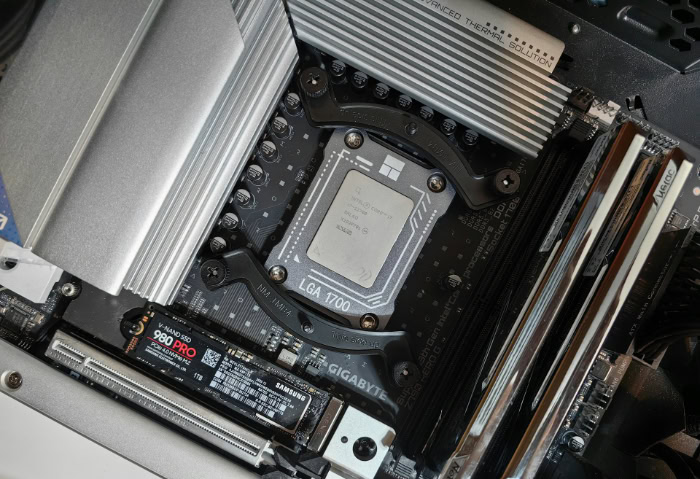
Selecting a motherboard is not as simple as picking a size and a color. The board dictates exactly which components can be installed, acting as a strict filter for the rest of the build list.
Manufacturers design boards around specific ecosystems, meaning a processor or memory stick that fits one board may be physically impossible to install on another.
CPU Platform Differences
The most significant divide in the PC market is between Intel and AMD. Motherboards are engineered specifically for one of these two brands.
An Intel processor requires a motherboard with an Intel chipset and socket, while an AMD processor requires an AMD-compatible board. These platforms use different electrical architectures and mounting mechanisms, so they are not interchangeable.
Attempting to install an Intel CPU into an AMD motherboard is physically impossible and could result in damaged hardware.
Socket Generations
Even within the same brand, compatibility changes over time. Processor manufacturers update the physical interface, known as the socket, to support new technologies and power requirements.
For example, a modern Intel CPU might use the LGA 1700 socket, while an older version used LGA 1200. Similarly, AMD shifted from the long-running AM4 socket to the newer AM5 platform.
A user must ensure the motherboard socket matches the processor generation exactly, as an older board cannot typically support a newer generation chip if the socket shape has changed.
Memory Generations
Random Access Memory (RAM) also follows strict generation standards, currently transitioning from DDR4 to DDR5. Motherboards are built to support only one of these standards.
The memory slots on the board feature a small plastic ridge that aligns with a notch on the bottom of the RAM stick. This notch is located in a different position for DDR4 and DDR5.
This physical keying prevents users from accidentally inserting the wrong type of memory, which protects the electrical circuits from voltage mismatches.
Conclusion
The processor and graphics card often receive the most attention for their contribution to raw speed and gaming performance. However, the motherboard remains the defining factor for the system's overall reliability and feature set.
It limits or expands what the computer can do, from the speed of the memory it supports to the number of storage drives it can accommodate.
Selecting the right board serves as the absolute foundation for any successful build or upgrade. A high-quality motherboard ensures that power is delivered cleanly to sensitive electronics and that all parts communicate efficiently.
By prioritizing compatibility and build quality over flashy aesthetics, builders create a stable platform that allows the rest of the hardware to perform at its full potential.
Frequently Asked Questions
Does a motherboard affect computer speed or gaming FPS?
A motherboard does not directly generate more frames per second in games like a graphics card does. However, a high-quality board allows the processor and memory to run at their maximum speeds without crashing. It provides the stable power delivery necessary to prevent performance drops during heavy workloads.
Can I upgrade my CPU without changing the motherboard?
You can only upgrade the processor if the new chip uses the same socket type and chipset generation as your current board. Manufacturers like Intel and AMD change socket shapes every few years to support new technology. You must verify the manufacturer's support list before purchasing a new CPU.
Will a smaller Micro-ATX motherboard fit in a standard ATX case?
Yes, a smaller Micro-ATX motherboard fits perfectly inside a standard ATX mid-tower case. The mounting points are standardized so the screws align correctly without any modification to the chassis. However, a larger ATX motherboard will not fit inside a smaller case designed specifically for Micro-ATX or Mini-ITX builds.
Do all motherboards come with built-in Wi-Fi?
Not every motherboard includes wireless connectivity out of the box. Many budget or entry-level models only feature an Ethernet port for wired internet and require a separate adapter for Wi-Fi. You should look for “AC,” “AX,” or “Wi-Fi” in the model name to confirm it has built-in wireless capabilities.
How do I know if my RAM is compatible with the motherboard?
Motherboards support only one generation of memory, such as DDR4 or DDR5. You cannot physically force a DDR5 stick into a DDR4 slot because the notches on the bottom do not align. You must check the motherboard specifications to ensure your memory type matches what the board is built to handle.
About the Author: Elizabeth Baker


