
What Is an Ergonomic Keyboard? Types and Benefits

Across modern offices and home workspaces, millions of professionals spend entire days typing at desks, often tolerating stiff necks, tight shoulders, and persistent wrist strain. Standard flat, rectangular keyboards cause much of the resulting physical discomfort.
Their rigid, straight rows originated during the nineteenth century to prevent typewriter strike bars from colliding, forcing human hands to accommodate mechanical convenience rather than natural anatomy. Ergonomic equipment challenges an outdated legacy by prioritizing biological needs over machinery.
From foundational definitions and essential structural components to primary equipment categories, physical health benefits, and practical adaptation considerations for new users, ergonomic hardware systematically restores neutral body alignment while protecting muscular well-being.
Key Takeaways
- Standard rectangular keyboards cause physical strain through ulnar deviation (bending wrists outward), forearm pronation (twisting palms flat to the desk), and wrist extension (bending hands backward).
- Split layouts and center tenting keep wrists straight and elevate the inner edges of the board, allowing forearms to rest in a natural handshake angle that reduces pressure on the carpal tunnel.
- Negative tilt angles the keyboard downward and away from the user, preventing awkward wrist bending while built-in rests support the heels of the palms rather than the sensitive wrist crease.
- Equipment options range from single-frame wave designs for beginners needing an easy transition to fully separated modules and concave columnar wells for heavy typists.
- Adapting to an ergonomic board typically takes one to two weeks of muscle retraining, and while supportive hardware reduces strain, sustained physical comfort depends on maintaining healthy daily posture habits.
Definition and Postural Anatomy of the Traditional Keyboard
Conventional office equipment prioritizes manufacturing simplicity over human comfort. Most desktop computing setups still rely on rectangular boards that trace their lineage back more than a century.
Recognizing how standard hardware shapes daily typing posture helps explain why desk workers regularly experience physical fatigue and discomfort.
The Purpose of an Ergonomic Keyboard
Ergonomic design centers on a straightforward philosophy: tools should conform to the natural contours of the human body rather than forcing the body to adjust to rigid machinery. While conventional devices require users to contort their limbs into fixed, unnatural positions, ergonomic hardware adapts to natural human movement.
The baseline objective of any ergonomic input device is to support a relaxed, neutral posture during everyday computer use. In a neutral posture, muscles, joints, and tendons rest in their least stressful positions, keeping tension to a minimum.
Achieving this alignment allows hands, wrists, and arms to work comfortably for extended periods without sustaining unnecessary mechanical strain.
The Flaws of Standard Flat Keyboards
Standard rectangular keyboards force the upper body into three distinct, awkward postures simultaneously. The first posture is ulnar deviation.
Because traditional boards are narrow and straight, users must angle their hands outward at the wrist to keep their fingertips positioned over the home row. This outward bend pinches the tendons on the outer side of the wrist and restricts fluid movement.
The second issue is forearm pronation. Typing on a completely flat surface requires users to rotate their forearms inward so that their palms face straight down toward the desk.
This rotation twists the two long bones of the forearm, the radius and ulna, around one another. Holding this twisted position for hours creates sustained muscular tension across the forearms and elbows.
The third mechanical flaw is wrist extension. Many traditional boards sit flat on the desk or feature small kickstands underneath the back edge that prop the top rows upward.
Both arrangements encourage users to bend their wrists backward and upward to reach the buttons. Wrist extension severely compresses the delicate underside of the wrist against desk surfaces, significantly increasing internal tissue pressure.
Common Overuse Conditions and Physical Strain
Working in compromised postures over long stretches generates predictable physical symptoms. Many computer users initially notice dull aching, soreness, or fatigue in their fingers and forearms after a day of heavy typing.
Over time, poor postural habits often progress to persistent burning sensations, reduced grip strength, and localized numbness or tingling in the fingertips.
These symptoms frequently signal the onset of repetitive strain injuries, commonly known as RSI. When tendons repeatedly rub against adjacent bone and sheath structures during awkward joint flexion, painful swelling known as tendonitis can develop.
Another frequent outcome is Carpal Tunnel Syndrome, which occurs when inflamed tendons and compressed tissue pinch the median nerve as it travels through the narrow carpal tunnel in the wrist. Left unmanaged, these overuse conditions can disrupt daily activities well beyond the office desk.
Key Structural Features of Ergonomic Models

Engineers and designers address typing strain by altering the physical geometry of the typing surface. Rather than arranging buttons along a single flat plane, ergonomic models introduce targeted angles, physical separations, and reconfigured layouts that match the body’s natural anatomy.
Split Key Layouts
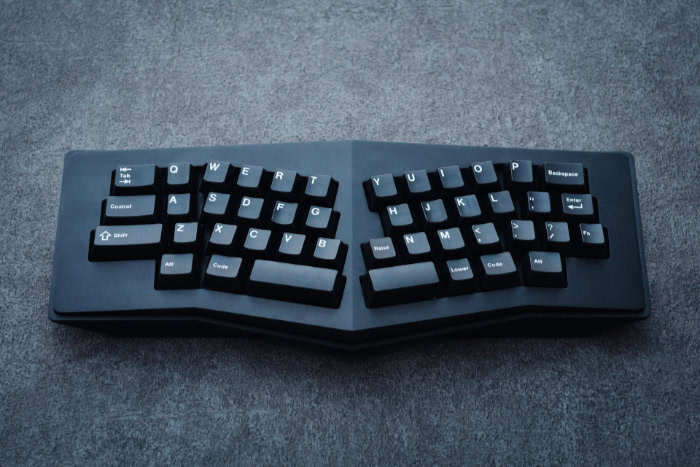
Split layouts divide the alphanumeric typing field into two separate halves, creating dedicated typing zones for the left and right hands. In fixed split models, these clusters are separated by a central gap and angled outward.
In fully modular designs, the two halves exist as separate physical units that users can place anywhere on the desk.
Angling or separating the typing clusters eliminates ulnar deviation entirely. Instead of bending the wrists outward to crowd onto a compact rectangle, typists can position their hands directly in line with their forearms.
This straight alignment allows the tendons in the wrist to glide naturally through their sheaths, minimizing friction and muscle fatigue.
Lateral Incline and Elevation Adjustments
Lateral incline, commonly known as tenting, involves elevating the inner edges of the typing surface so that the board slopes downward toward the outside edges. This adjustment can range from a subtle tilt of 5 degrees to steep configurations of 20 degrees or more, depending on personal comfort.
Raising the center of the hardware counters forearm pronation. When human arms rest naturally at the side or on a table, the palms naturally face inward toward each other in a relaxed, semi-handshake position.
Tenting accommodates this natural resting angle, allowing the radius and ulna to sit parallel rather than twisted, which eases tension across the forearms, elbows, and upper arms.
Negative Tilt and Palm Rest Architecture
Ergonomic models frequently incorporate cushioned palm supports positioned directly below the typing rows. Unlike conventional wrist pads that press against the sensitive carpal tunnel crease, proper palm rests support the muscular heels of the hands.
This distinction shields sensitive blood vessels and nerves from direct desk contact.
These palm rests often work alongside negative tilt adjustments, which angle the board downward and away from the user. While traditional keyboard kickstands lift the back rows upward and cause severe wrist extension, negative tilt drops the rear rows lower than the front rows.
This downward angle allows the hands to cascade naturally downward, maintaining a flat, neutral wrist line while typing.
Thumb Clusters and Vertical Key Wells
Standard keyboards assign an overwhelming share of typing work to the weakest fingers, forcing the little fingers to repeatedly stretch for Enter, Shift, Backspace, and Control. In contrast, the thumb is the strongest, most versatile digit on the hand, yet traditional boards limit it solely to pressing the spacebar.
Ergonomic designs frequently feature dedicated thumb clusters, which relocate heavy-use actions like Space, Enter, Backspace, and Delete to clusters of buttons operated by the thumbs.
Advanced designs take physical optimization further by introducing vertical, concave wells. Instead of placing switches on a flat board, these devices sink the buttons into curved bowls sculpted to match the varied lengths of human fingers.
Shorter fingers rest on elevated switches, while longer fingers drop into deeper depressions. This architecture drastically reduces finger travel distance and eliminates excessive reaching.
Common Categories of Ergonomic Keyboards

Ergonomic hardware exists on a broad spectrum, ranging from familiar one-piece boards to radical modular systems. Choosing an appropriate category depends on individual typing habits, desk space, and personal tolerance for physical adjustments.
Single-Frame Wave Keyboards
Single-frame wave keyboards integrate ergonomic features into a unified, traditional-style chassis. These models arrange the buttons in gentle, curved arcs with a slight central crest that provides modest tenting and split positioning.
Most models also include a permanently attached, cushioned palm rest along the bottom edge.
Wave models represent an ideal transition for beginners who want relief from everyday aches without confronting a steep learning curve. Because all buttons remain on a single frame in recognizable positions, users can maintain their existing typing speed while gaining the benefits of reduced wrist bending and gentle forearm support.
Fully Separated Split Keyboards
Fully separated split keyboards divide the hardware into two independent modules connected by a flexible cable or wireless signal. Each half houses the inputs for one hand, allowing users to position the modules anywhere across their work surface.
Many split models include adjustable legs that support customized tenting angles and negative tilt configurations.
This category suits individuals who need tailored positioning to accommodate broader shoulders or specific workstation setups. By moving the modules apart to match their actual shoulder width, users can type without rounding their shoulders forward.
Split models also allow users to position secondary devices, such as trackballs or document holders, directly between the two halves.
Contoured and Columnar Keyboards
Contoured and columnar keyboards represent the most comprehensive departure from traditional typewriter design. These devices abandon traditional staggered rows in favor of ortholinear or columnar layouts, where switches align in straight vertical columns that reflect the natural forward-and-back motion of fingers.
Many columnar models also feature deep concave wells and extensive thumb clusters.
High-volume writers, computer programmers, and individuals recovering from severe strain benefit most from contoured systems. While these models require a deliberate retraining period, they minimize joint extension, reduce repetitive reaching, and optimize muscle efficiency better than any traditional flat layout.
Health and Physical Comfort Benefits
Adopting hardware that matches human anatomy yields immediate physical relief while supporting long-term musculoskeletal wellness. By removing unnecessary physical resistance from typing tasks, users can maintain high productivity without compromising bodily comfort.
Neutral Joint Alignment for Hands and Wrists
The primary physical benefit of an ergonomic board is immediate joint decompression. By eliminating the awkward angles of ulnar deviation and wrist extension, the hands and forearms remain in straight, relaxed alignment throughout the workday.
This neutral posture substantially lowers internal fluid pressure inside the carpal tunnel. Relieving mechanical compression around the median nerve helps prevent the painful tingling and numbness associated with nerve entrapment.
Tendons that control finger flexion can move freely without scraping against adjacent connective tissue, reducing inflammation and fatigue.
Relief for Shoulders and the Upper Back
The physical benefits of ergonomic typing extend well beyond the hands and wrists. When users type on a narrow, standard keyboard, their hands are pulled inward toward the center of the chest.
This posture causes the shoulders to roll forward, collapses the chest, and pulls the head into a strained forward position.
Wider hand placement, particularly on split and wave keyboards, naturally opens the chest and draws the shoulder blades back into proper postural alignment. Relaxing the shoulders relieves chronic tension across the upper trapezius muscles and cervical spine.
Users frequently find that correcting their arm posture eliminates persistent upper back stiffness and tension headaches.
Long-Term Prevention of Repetitive Strain Injuries
Sustained computer use involves thousands of repeated finger motions every hour. Over months and years, small biomechanical inefficiencies accumulate into severe tissue damage.
Ergonomic equipment mitigates this cumulative trauma by reducing the total physical force and reach distance required for each entry.
Viewing ergonomic hardware as a proactive health investment rather than a reactive treatment yields the greatest long-term advantage. Implementing supportive equipment before pain develops preserves joint mobility and prevents chronic inflammatory conditions.
For users already managing minor strain, improved alignment prevents further tissue irritation and allows existing inflammation to subside.
Adaptation Challenges and Practical Considerations

While the advantages of ergonomic hardware are substantial, switching away from standard equipment involves tangible adjustments. Recognizing the practical realities of muscle retraining, desk footprint, and equipment costs helps users manage the transition smoothly.
Muscle Memory Re-Education and Keystroke Accuracy
Transitioning to an altered layout requires retraining decades of deeply ingrained muscle memory. During the first one to two weeks, typists typically experience a temporary drop in typing speed and an increase in typos.
Fingers naturally reach for familiar positions, only to find empty space or an altered switch angle.
This adjustment proves especially challenging for self-taught typists who cross the center line with the wrong hand, such as striking the letter B with the right index finger or using the right hand for the left-side spacebar. On a split board, a physical divide prevents crossing over, forcing typists to adopt strict touch-typing discipline.
Once the initial adjustment period passes, typing speed typically rebounds to previous levels with far greater physical comfort.
Desk Space Demands and Hardware Expenses
Ergonomic hardware frequently demands more physical room than minimal office boards. Split units, large wrist supports, and steep tenting hardware require wide, clear desk surfaces, and they may not fit easily inside compact keyboard trays or slim travel bags.
Mobile professionals who split time between home and office may need to purchase dual setups or carry bulky gear during commutes.
Financial investment presents another practical factor. While a basic rectangular office keyboard often costs around $20, commercial ergonomic models typically range from $60 for an entry-level wave board to between $150 and $350 for fully modular split systems with mechanical switches.
Advanced contoured hardware can cost $400 or more. Users must weigh these hardware expenses against the long-term value of physical comfort and injury prevention.
Personal Assessment for Daily Computer Users
Selecting the appropriate hardware requires honest self-evaluation. Individuals who type for only one or two hours daily may find sufficient comfort in a budget-friendly wave keyboard or simple wrist support adjustments.
Conversely, professionals spending 6 to 10 hours a day typing can readily justify the cost and learning investment demanded by a fully separated split or columnar board.
Typing style, existing physical discomfort, and workstation layout should guide the final decision. Someone experiencing elbow and shoulder pain might prioritize a fully split board to broaden their posture, whereas someone suffering from wrist fatigue may focus primarily on negative tilt and palm support.
Matching specific structural solutions to individual physical needs ensures a successful, comfortable transition.
Conclusion
Ergonomic keyboards set themselves apart from conventional hardware by prioritizing human anatomy over mechanical convenience. By replacing rigid, flat rows with split angles, lateral tenting, negative tilt, and contoured wells, these devices eliminate unnatural wrist bending and ease muscular strain throughout the arms and upper body.
Choosing supportive typing equipment is an investment in everyday physical well-being, preserving joint comfort and protecting against cumulative overuse injuries. At the same time, hardware is only one element of a healthy workspace.
Lasting posture improvement remains an ongoing daily habit supported, rather than solely solved, by the right tools.
Frequently Asked Questions
How long does it take to get used to an ergonomic keyboard?
Most people adjust to an ergonomic keyboard within one to two weeks of consistent daily typing. During the first few days, typing speed often slows down as muscle memory adapts to split angles and relocated buttons. Once your hands adjust to the natural positioning, your normal speed returns along with significantly less wrist and shoulder fatigue.
Do ergonomic keyboards really help with wrist pain?
Yes, ergonomic keyboards reduce wrist pain by keeping your hands, wrists, and forearms in a neutral resting position. Traditional flat keyboards force wrists to bend outward and twist palms downward, which pinches nerves and strains tendons. Ergonomic designs use split layouts and center elevation to keep joints straight, relieving pressure on the carpal tunnel and easing everyday discomfort.
What is keyboard tenting and why does it matter?
Keyboard tenting raises the center edges of a split keyboard so the typing surface slopes downward toward your desk. This elevation prevents forearm pronation, which occurs when you turn palms completely flat against a table. Tenting allows arms to rest in a natural handshake angle, aligning forearm bones and preventing muscular fatigue across your elbows and wrists.
Are ergonomic keyboards good for people who type with two fingers?
Ergonomic keyboards can help informal typists, but fully split models can feel frustrating without basic touch-typing habits. Split boards create a physical gap that prevents crossing hands across the center. While a curved wave keyboard offers an easy transition for non-standard typing styles, separated layouts work best when you assign dedicated hands to each half.
Should I choose a wave keyboard or a fully split keyboard?
Choose a wave keyboard for an easy, affordable transition, or a fully split keyboard for maximum posture customization. Wave models keep all buttons on a single frame, making them familiar and immediate to adopt. Fully split keyboards cost more and require practice, but they let you adjust distance and tilt angles to match your shoulders.
About the Author: Elizabeth Baker


