
What Is a Hardware Security Key and How Does It Work?

Traditional passwords no longer provide sufficient protection for online accounts. Automated guessing tools, massive data breaches, and deceptive phishing emails frequently expose login credentials, allowing criminals to hijack sensitive profiles with ease.
Hardware security tokens solve the problem by introducing a physical barrier to the authentication routine. Small USB and wireless devices require a physical touch from the actual owner before granting account access, neutralizing remote attacks even when an unauthorized user acquires a valid password.
Learning how such hardware functions, why it outperforms basic text verification codes, and how everyday individuals can select appropriate models while setting up reliable backups provides a dependable safeguard for personal email, financial portals, and sensitive records.
Key Takeaways
- Hardware security keys provide physical two-factor authentication by requiring a manual touch on a USB or NFC device, preventing remote attackers from accessing accounts with stolen passwords alone.
- Unlike standard USB flash drives that store files, security keys house a dedicated cryptographic chip that verifies user identity through unique public and private mathematical pairs without transmitting secrets over the internet.
- Built-in domain verification protects users against phishing by automatically checking the browser address bar, stopping the key from sending credentials to fake or spoofed websites.
- Hardware authentication eliminates the vulnerabilities of SMS codes and mobile authenticator apps, offering complete immunity against SIM-swapping scams and real-time login proxy theft.
- Purchasing and registering two keys simultaneously provides a primary token for daily carry and a spare token safely stored at home, preventing account lockouts if a device is lost or damaged.
Overview of Hardware Security Keys
Physical security tokens introduce a concrete, hardware-based layer of defense to modern computing. While software defenses reside entirely in computer code and can be copied or manipulated across a network, a physical authenticator anchors user identity to a dedicated piece of hardware.
Placing this hardware directly into the sign-in sequence ensures that remote bad actors cannot gain access using stolen passwords alone.
Physical Appearance and Port Options
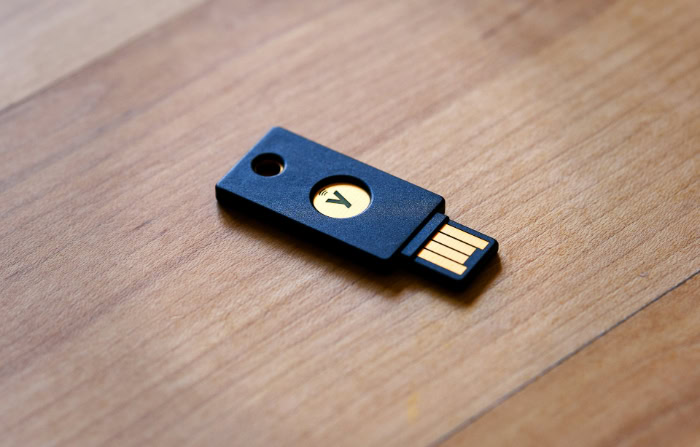
Most hardware authenticators resemble compact thumb drives or automotive remote fobs. Manufacturers build these tokens out of reinforced, crush-resistant plastic or solid metal shells, making them durable enough to carry on a ring alongside house door openers.
They operate without internal batteries, drawing tiny amounts of power directly from the host computer or mobile phone during authentication.
Users connect these authenticators through three primary methods: USB-A, USB-C, and Near Field Communication (NFC). The classic rectangular USB-A connector fits traditional desktop computers and older laptops.
The smaller, reversible USB-C plug matches modern laptops, tablets, and smartphones. Many modern tokens also integrate contactless NFC chips, allowing users to verify logins on mobile devices simply by holding the token against the back of the phone for 1 second.
Primary Role in Multi-Factor Authentication
In multi-factor authentication, security frameworks require multiple independent proofs before granting account access. These proofs fall into three categories: something known (such as a password or PIN), something inherent (such as a fingerprint or facial scan), and something possessed.
A hardware authenticator serves as the physical “something you have” component.
Even if a malicious party steals a password, account compromise remains impossible without physical possession of the paired token. Individuals routinely deploy these physical tokens to secure personal email accounts, financial portals, online brokerage systems, password managers, and social media platforms.
Securing email and password management vaults with a dedicated hardware token is especially valuable, as these services often hold the credentials needed to reset passwords on other accounts.
Distinction from Standard USB Storage Drives
Although physical authenticators plug into identical ports, they share none of the functionality of standard USB flash drives. Standard drives contain flash storage cells intended to store family photos, video files, and documents.
Connecting a flash drive prompts the operating system to mount a storage volume where files can be copied, edited, or deleted.
A security token contains no general storage space whatsoever. Instead, the interior houses a tamper-resistant cryptographic microchip programmed strictly to execute authentication handshakes.
When plugged into a computer, the device identifies itself as an input device, similar to a mouse or drawing tablet, rather than a storage drive. It transmits only cryptographic signatures, meaning malicious software cannot use the device to store or transfer harmful files.
The Mechanism of Key-Based Authentication
Behind the rapid tap of a security token lies an advanced mathematical protocol that replaces static login secrets with dynamic cryptographic verification. Rather than sending reusable passwords across the internet, the device generates verifiable cryptographic proofs that guarantee user identity without exposing sensitive data.
Public and Private Key Encryption in Simple Terms
Asymmetric cryptography relies on paired mathematical credentials: a public code and a private secret. When enrolling a token with an online account, the token creates a unique pair of cryptographic credentials specifically for that service.
The public code gets transmitted to the website server, which stores it as a specialized digital lock.
The private secret stays permanently locked inside the token’s tamper-resistant chip and never leaves the hardware. When logging in, the server sends a unique mathematical puzzle to the browser.
The token uses its internal private secret to solve the puzzle and returns the mathematical solution. The server verifies this solution against the stored public code.
Because the private secret is never transmitted across the network, remote hackers have no opportunity to intercept or steal it.
The Physical Touch Requirement for User Verification
Every legitimate hardware authenticator features an exposed gold contact pad, capacitive sensor, or small physical button. During the sign-in sequence, the browser instructs the user to touch this sensor.
Completing this touch sends a microscopic electrical signal through the contact pad, confirming that a living human being is physically present at the computer.
This user presence requirement neutralizes remote automated attacks. Even if a computer suffers from malware infection or a remote attacker attempts an automated intrusion from thousands of miles away, the login attempt stalls completely at the prompt.
Without an actual hand physically touching the token, the hardware refuses to sign the authentication request.
Automatic Domain Verification Against Imposter Websites
Phishing remains one of the most widespread online dangers, relying on deceptive websites that mimic legitimate banking or email login screens. Modern hardware tokens utilize open authentication standards that automatically inspect the exact web address displayed in the browser address bar before responding.
If a user accidentally clicks a phishing link and lands on a fraudulent site designed to mimic an authentic service, the token compares the web address sent by the browser with the address tied to the stored credential. Recognizing that the fake web address does not match the legitimate domain, the token silently refuses to provide an authentication response.
This automatic domain binding provides absolute defense against spoofed pages, protecting users even when a fake site appears identical to the original.
Security Comparison with Alternate Authentication Methods

Secondary verification methods have evolved substantially over the past two decades, yet distinct differences remain in their ability to withstand sophisticated fraud. Evaluating common authentication formats reveals why dedicated physical tokens provide far stronger defense than telephone networks or software applications.
Weaknesses of SMS Text Verification Codes
Text-message verification transmits a temporary one-time numeric passcode to a mobile phone over cellular networks. While sending a text code is better than relying on a solo password, cellular networks were never designed for sensitive security handshakes.
Criminals frequently bypass this system through SIM-swapping scams, convincing mobile phone carriers to transfer a victim’s phone number to a fraudulent SIM card controlled by the attacker.
Furthermore, one-time text codes offer zero defense against phishing. When a user falls for a copycat website and types in their username and password, the criminal’s automated system triggers a real verification text.
The unsuspecting user enters the six-digit text code into the phishing site, and the attacker instantly relays that code to the authentic service, gaining full entry within seconds.
Strengths and Limits of Software Authenticator Apps
Software authenticator applications, such as mobile apps running on a smartphone, improve upon text messages by removing reliance on vulnerable mobile phone carriers. These apps generate time-based one-time passcodes locally on the phone every 30 seconds, operating entirely offline without cellular connections.
Despite this improvement, software authenticators share the fundamental flaw of text verification: manual code entry. Because the user must read the six digits from a screen and type them into a browser form, a deceptive website can prompt the user for the code in real time.
Deceptive login proxies capture both the password and the timed six-digit string, immediately passing them to the actual service before the 30-second window expires.
Resistance to Credential Theft and Relay Attacks
The defining difference between software codes and hardware authenticators lies in how data moves during authentication. Software codes require human handling, opening the door to deception, typos, and malicious relay scripts.
Hardware authenticators handle verification entirely through direct, automated cryptographic communication between the secure chip and the browser.
During this automated exchange, the token cryptographically binds its response to the specific domain and an unrepeatable cryptographic challenge. Even if an attacker records the entire data exchange using malicious proxy software, that intercepted data cannot be reused on any other website or at any later time.
This architectural design creates total immunity to automated credential interception, rendering phishing relays completely harmless.
Backup Strategies and Account Recovery Procedures

Implementing physical hardware requires thoughtful preparation to prevent accidental lockouts. Because an authenticator serves as a strict gatekeeper, establishing redundant access pathways guarantees uninterrupted access if a primary device gets lost, submerged in water, or misplaced.
The Consequence of a Lost or Damaged Key
Misplacing a hardware token does not hand an account over to a stranger. Because the device functions as an authentication factor alongside a password, a finder would still need the victim’s exact username and complex password to make use of the hardware.
Additionally, many tokens allow users to configure an optional PIN for an added layer of defense.
The primary danger of a lost or broken token is user lockout. If an individual configures an online account to require a single physical token and loses that hardware without setting up alternative recovery paths, regaining entry can become an agonizing process.
Online services enforce strict identity verification to unlock accounts, and some privacy-focused platforms cannot restore access at all, making proactive planning essential.
The Two-Key Strategy for Primary and Spare Devices
Security specialists recommend purchasing two authenticators simultaneously to establish a primary device and an emergency spare. When setting up two-factor authentication on important accounts, users should enroll both tokens one right after the other during the initial setup session.
The primary token attaches to an everyday ring or remains in a work bag for daily use. The secondary spare stays safely locked away at home in a fireproof safe, desk drawer, or secure filing cabinet.
If the primary token gets lost or damaged while commuting, the individual simply retrieves the spare token from home, logs in normally, and removes the missing token from the account’s registered device list.
One-Time Emergency Backup Codes
Almost every online service generates a batch of one-time emergency recovery codes during two-factor enrollment. These alphanumeric codes, usually presented as a list of 8 to 10 unique strings, act as single-use safety passes to bypass hardware prompts during an emergency.
Users should treat these codes with the highest level of care. Printing the codes on paper and storing that paper inside a physical home safe or locked lockbox provides safety without relying on digital storage.
Storing recovery codes as plain text files on a computer desktop or inside an unencrypted smartphone note compromises their protective value, as malware could steal them directly over the network.
Practical Selection and Daily Operation

Adopting hardware authentication into daily life requires minimal adjustment once the appropriate hardware matches personal computers and phones. A brief initial enrollment process leads directly to a smooth, frictionless login routine that safeguards accounts without interrupting regular productivity.
Hardware Choices Based on Device Compatibility
Selecting an authenticator begins with cataloging the connection ports on frequently used devices, including smartphones, tablets, laptops, and desktop computers. A person using a desktop computer with USB-A ports alongside a modern USB-C smartphone will benefit from selecting hardware designed for versatility.
Dual-interface authenticators combine a USB-C connector with contactless NFC capabilities, serving as an adaptable solution for multi-device households. The USB-C connector plugs directly into modern laptops and tablets, while the built-in NFC antenna connects wirelessly to Apple and Android smartphones.
Compact, low-profile nano tokens are also available; these remain plugged permanently into a laptop’s USB port, sitting nearly flush with the computer frame.
Account Setup and Key Enrollment
Enrolling an authenticator takes less than 2 minutes within the security settings of an online profile. Users navigate to the account security or two-factor authentication menu, select the option to add a hardware authenticator, and follow the displayed instructions.
The browser prompts the user to insert the token into a USB port or tap it against the back of the phone. When the token’s indicator light begins blinking, the user touches the gold contact pad for 1 second.
The browser and the hardware token complete a cryptographic registration exchange, after which the website prompts the user to assign a friendly label to the device, such as “Primary Black Token.”
The Standard Sign-In Workflow
Day-to-day operation is fast and intuitive. When signing into an account on a new computer or after a session expiration, the user enters their standard username and password.
The website immediately displays a prompt requesting the physical token.
Inserting the token and lightly touching the sensor authenticates the session in less than 2 seconds, with no codes to read, transcribe, or submit. Many websites offer a “Trust this computer” or “Remember this device” checkbox.
Checking this box allows the browser to remain verified for 30 days or longer, meaning users only need to provide physical confirmation when logging in from unfamiliar hardware or accessing sensitive account settings.
Conclusion
Hardware security keys provide the most dependable defense available against unauthorized account takeovers and automated phishing schemes. By moving authentication away from interceptable text messages and fallible human memory, these small physical tokens ensure that accounts stay protected even if a password leaks online.
Adopting this physical safeguard does not require advanced technical expertise or constant friction. With a reliable secondary backup device stored safely at home and browser trust settings enabled for everyday devices, maintaining security becomes an effortless part of daily life.
Physical security keys turn what used to be a complicated technical chore into a simple, confident tap of a finger.
Frequently Asked Questions
What happens if I lose my hardware security key?
Losing your hardware security key will not let a stranger into your accounts because they still need your password. As long as you enrolled a spare backup key or saved your emergency recovery codes, you can log in immediately and deregister the missing device. Without a backup, you must complete the website’s identity recovery process.
Can a hardware security key get infected with a virus?
No, a hardware security key cannot be infected with a computer virus or malware. Unlike standard flash drives, security keys do not store personal files or execute outside software. The onboard cryptographic chip only processes authentication requests and communicates with your browser as a basic input device, meaning malicious code cannot spread to the hardware.
Do I have to use my security key every time I log in?
You only need to use your security key when signing in on a new device, after clearing your browser, or when accessing sensitive settings. Most websites provide a “remember this device” option that keeps personal computers trusted for 30 days or longer. This allows you to skip physical verification during your regular daily browsing.
Can I use one security key for all my accounts?
Yes, you can use a single security key to protect dozens or even hundreds of different accounts. The device generates a completely unique mathematical credential pair for every service you register, ensuring that none of your accounts are linked together. If one website suffers a breach, credentials on your other accounts remain completely safe.
How do I use a security key with my smartphone?
You can connect a security key to your smartphone using wireless Near Field Communication or by plugging it directly into the charging port. With an NFC-capable key, you simply hold the token against the back of your phone for 1 second. Alternatively, keys with matching connectors plug straight into the charging port.
About the Author: Julio Caesar


