
DVI vs. VGA: Which Monitor Port Should You Use?
Display interfaces form the bridge between your computer tower and monitor, converting internal data into viewable visual output. For decades, VGA and DVI served as common connections across everyday desks.
Even today, both ports frequently show up on budget displays, older office workstations, and conference room projectors.
Choosing between them often causes confusion, yet selecting the correct option has a direct impact on text sharpness, image clarity, and screen stability. Each port relies on fundamentally different video transmission methods that influence your visual quality.
Key Takeaways
- DVI delivers sharper image quality and text clarity than VGA by transmitting direct digital signals, eliminating the quality loss caused by VGA’s analog conversion cycle.
- Standard VGA maxes out around 1080p at 60Hz and degrades over longer cables, whereas Dual-Link DVI supports sharper 1440p displays and high refresh rates up to 144Hz.
- Neither standard natively transmits audio in typical desktop configurations, meaning both require an independent 3.5mm audio cable or external speakers for sound.
- Passive adapters work only with DVI-I ports because they output analog signals; digital-only DVI-D ports require active, powered converters to connect to VGA monitors.
- When a monitor offers both connection types, choosing DVI provides instant pixel-perfect alignment and removes blurry text without manual clock or phase adjustments.
Signal Technology: Analog vs. Digital Transmission
Every visual display relies on electronic signaling to move picture information from a graphics processor to a physical screen. The way an interface packages and sends these signals dictates how accurately the display recreates colors, shapes, and fine lines.
While older displays relied on fluctuating electrical voltages, modern screens depend on discrete numeric values.
The Analog Signal Architecture of VGA
Video Graphics Array transmits video as continuous electrical waves. Developed during an era when cathode-ray tube monitors dominated computer desks, the analog design made sense because those older screens required fluctuating voltage levels to guide electron beams across phosphorus surfaces.
In this configuration, the computer converts internal binary data into red, green, and blue analog electrical voltages through a digital-to-analog converter located on the graphics card.
Modern flat-panel liquid crystal displays operate purely on digital principles. When connected via an analog cable, an LCD monitor must perform an extra step to make the picture visible.
The monitor takes the incoming analog voltage waves and uses an internal analog-to-digital converter to rebuild them into numeric pixel values. This double-conversion cycle introduces signal degradation.
Any electrical noise encountered during the trip down the cable gets baked into the final converted image, often causing subtle fuzziness or flickering.
The Digital Video Foundation of DVI
Digital Visual Interface was designed to match the native digital operation of modern flat-panel displays. Rather than converting numeric data into fluctuating electrical waves, DVI transmits information as direct binary values.
A graphics card sends streams of digital bits across the cable, telling every pixel on the monitor its exact color and brightness level without alteration.
Eliminating the conversion process between the computer and the screen prevents signal loss. Because the monitor receives identical numeric coordinates and color data from the source, there is no chance for timing errors or voltage drift.
The screen renders each pixel exactly as computed by the graphics card, ensuring sharp edges and accurate colors.
Audio Transmission Limits in Both Standards
Neither standard was originally designed to carry computer sound. Standard VGA setups only have physical lines for red, green, and blue color channels along with horizontal and vertical synchronization data.
Users who connect their computers with this interface must run a separate 3.5mm audio cable from the sound card to external speakers or a dedicated monitor audio input.
Standard DVI connections share a similar video-only limitation. The official interface specification does not allocate dedicated audio channels.
Although certain graphics card manufacturers later modified specific output ports to push digital audio across DVI through custom HDMI adapters, traditional DVI cables and ports strictly carry video signals. A standalone audio cord remains necessary for typical desktop setups.
Visual Performance and Display Quality

The technical method used to transmit visual data has an immediate effect on what you see on the screen. From rendering microscopic text elements to maintaining picture fidelity across longer cable runs, digital connections offer distinct mechanical advantages over analog links.
Image Sharpness and Text Clarity
Digital signaling allows flat-panel monitors to achieve direct pixel-to-pixel mapping. Every pixel rendered by the computer graphics card maps directly onto a single physical liquid crystal cell on the monitor.
Because each pixel receives dedicated binary data, fine elements like small typography, spreadsheets, and line art show up with sharp edges and total clarity.
Analog connections, by contrast, frequently struggle with precision on modern screens. Because the monitor must guess where each individual pixel begins and ends along continuous voltage waves, minor timing discrepancies cause blurriness.
Users often see ghosting, where faint shadows trail behind dark letters on light backgrounds, or phase noise, where vertical bands shimmer across solid color fields.
Resolution Limits and Refresh Rate Support
Resolution and refresh rate capabilities highlight another sharp divide between the formats. While standard VGA can reach resolutions of 1920×1080 at 60Hz, achieving that output cleanly requires pristine cables and premium electronics.
At 1080p, analog signals push the physical limits of standard copper wiring, which regularly leads to noticeable softness across the entire desktop.
DVI provides significantly more bandwidth, accommodating high-resolution displays with ease. A standard single-link connection easily drives 1920×1200 at 60Hz, while dual-link configurations support resolutions up to 2560×1600 at 60Hz or 1080p at 144Hz.
This higher bandwidth makes dual-link connections capable of handling fast gaming displays and detailed 1440p productivity monitors.
Signal Degradation and Cable Length Vulnerabilities
Cable length poses a major hazard for analog signals. As an analog cable stretches beyond 10 feet (3.05 meters), resistance in the wire weakens the electrical voltage.
Furthermore, the light shielding inside budget cables easily picks up electromagnetic interference from nearby power cords, fluorescent lights, and wireless devices. This interference appears as visual static, horizontal lines, or faded colors on the screen.
Digital lines resist external interference much more effectively. The monitor simply needs to distinguish between binary high and low states rather than reading delicate voltage gradients.
As long as the data stream arrives intact, the image remains completely flawless. Digital cables operate reliably up to 15 feet (4.57 meters) without signal boosters, failing only when the signal drops off completely rather than degrading into a noisy picture.
Connector Designs and Port Variations
Recognizing the physical shapes and pin layouts on computer hardware helps avoid mismatched cables and poor performance. While one standard maintained a uniform shape throughout its entire lifespan, the other evolved into several distinct physical and electrical variants.
The Standard 15-Pin VGA Interface
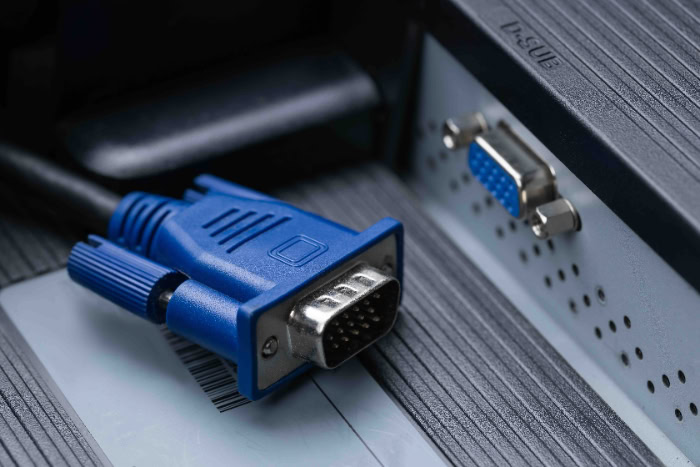
The classic DE-15 connector features a trapezoidal shell containing 15 pins arranged across three rows. Commonly molded in bright blue plastic, the connector features dual side screws that secure the plug directly to the chassis of a computer tower or monitor.
This locking mechanism prevents accidental disconnections when adjusting desks or moving equipment.
Uniformity was one of the greatest strengths of this interface. Older desktop computers, business laptops, and overhead projectors all shared the exact same 15-pin layout.
The physical plug fit into any standard port without requiring unique sub-variants or specialized pin configurations.
The DVI Family: DVI-D, DVI-A, and DVI-I
The DVI connector family is divided into three distinct configurations based on signal capabilities. The most common variety is DVI-D, which transmits digital signals exclusively.
It features a wide, flat grounding blade on one side without any surrounding pins, making it physically incapable of carrying analog waveforms.
A second configuration, DVI-I, integrates both analog and digital transmission into a single port. It incorporates 4 pins surrounding the flat blade, which carry analog red, green, blue, and horizontal sync signals alongside the main digital grid.
The third and rarest type, DVI-A, is an analog-only variation designed for specialized hardware that required an analog signal routed through a DVI-shaped housing.
Single-Link vs. Dual-Link DVI Specifications
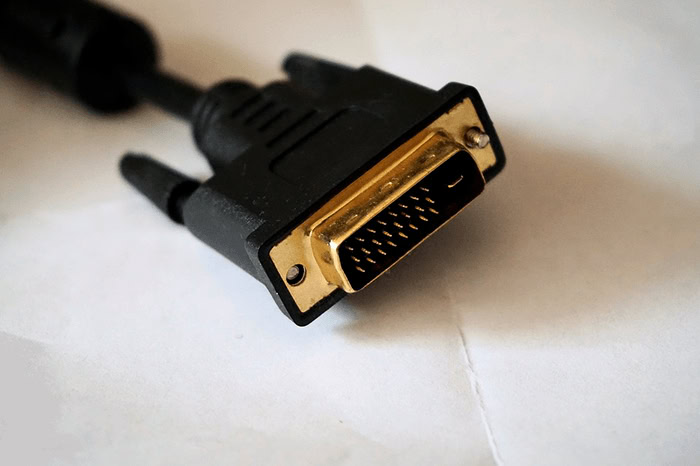
Looking directly at the pin face of a DVI-D or DVI-I connector reveals whether it operates as a single-link or dual-link cable. Single-link connectors contain 18 pins arranged in two separate blocks of nine, separated by a physical gap in the middle.
Dual-link connectors fill that gap completely, featuring a solid 24-pin grid.
That physical difference in pins corresponds to bandwidth capacity. A single-link connection utilizes one digital transmitter, providing a maximum pixel clock rate of 165 MHz, which caps standard displays at 1920×1200 at 60Hz.
Dual-link connections add a second internal transmitter that doubles data throughput, enabling resolutions up to 2560×1600 at 60Hz or high-refresh-rate 1080p output at 144Hz.
Adapter Compatibility and Conversion Options
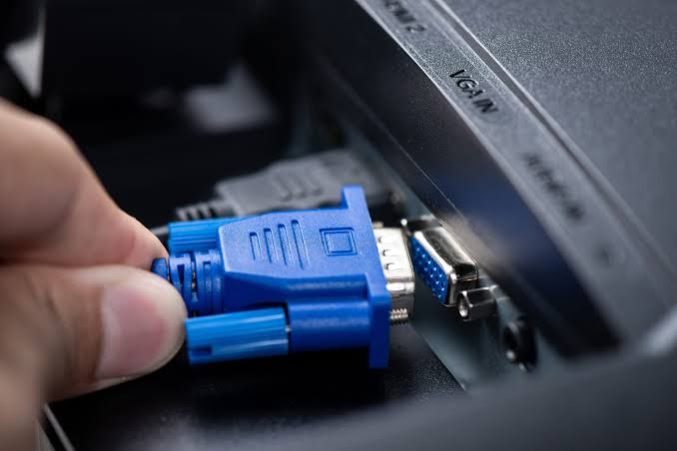
Mixing older hardware with modern components frequently demands adapters to bridge physical and electrical gaps. The type of adapter required depends entirely on whether the video signals need a simple pin redirect or active signal processing.
Passive Adapters for DVI-I to VGA Connections
Connecting a computer with a DVI-I port to a standard analog monitor requires only an inexpensive passive adapter. Because the DVI-I port already outputs genuine analog signals on the 4 pins surrounding the flat blade, the adapter simply routes those specific pins directly to the corresponding pins on a 15-pin connector.
No electronic translation occurs inside the housing.
Passive adapters cannot work on DVI-D ports. Because DVI-D connectors lack the 4 analog pins, there is no analog signal to pass through.
Furthermore, DVI-D ports feature a solid plastic barrier where those pins would go, creating a physical obstruction that prevents a DVI-I plug or passive adapter from being inserted into the socket.
Active Digital-to-Analog Converters for DVI-D
Bridging a digital-only DVI-D port to an analog monitor requires an active converter. Because the source port only outputs binary data, an active adapter houses a built-in integrated circuit that functions as a dedicated digital-to-analog processor.
This microchip continuously interprets incoming binary data and constructs analog voltage waves in real time.
Active converters introduce performance considerations. The digital-to-analog conversion chip requires electrical current, which it pulls from the port or an external 5-volt USB cable.
Cheaper active adapters can introduce subtle input latency, generate noticeable warmth during extended use, and fail unexpectedly if their tiny internal processor overheats.
Modern Display Interfaces: HDMI and DisplayPort Interoperability
Modern graphics cards frequently feature HDMI and DisplayPort outputs rather than legacy connectors. Converting DVI to HDMI is straightforward because both standards share identical electrical signaling for video.
A simple passive cable can route digital video from an HDMI source straight to a DVI-D monitor without any chips or latency.
Connecting modern DisplayPort outputs to legacy analog monitors requires active conversion. DisplayPort relies on packetized data transmission, which operates differently from the continuous signaling of older standards.
An adapter connecting a DisplayPort source to a 15-pin analog display must contain a powered chip to convert those digital data packets into analog video waves.
Practical Selection Guide for Desktop Setups

Setting up a workstation with older hardware often involves balancing cable availability, port options, and display quality. Following a few practical rules ensures the cleanest possible image and avoids blurry text or unstable signals.
Optimal Port Selection for Dual-Equipped Monitors
Many business monitors manufactured over the past two decades feature both a 15-pin analog port and a white digital connector on the back panel. When your computer and screen both support both options, always choose the digital connector.
Selecting the digital pathway eliminates unnecessary signal conversions and provides instant image stability.
For daily office work, web browsing, and document editing, the digital link provides a noticeable upgrade. Every character of text renders with sharp edges, eliminating the faint fuzziness that causes eye fatigue during long work sessions.
Spreadsheets with fine grid lines remain steady and clear, free from the subtle shimmer often seen over analog wires.
Setup Scenarios for Legacy Office Equipment
Older business desktops and docking stations frequently feature legacy outputs alongside newer connectors. If you are adding a secondary monitor for office tasks, use digital cables whenever ports permit.
When forced to use an analog connection on older hardware, keep the cable length under 6 feet (1.83 meters) to minimize signal loss and electrical noise.
Meeting rooms and auditoriums often retain ceiling-mounted projectors that only accept analog input cords. In these spaces, cable runs often exceed 25 feet (7.62 meters).
To prevent ghosting and color washing across long distances, use thick, double-shielded cables equipped with molded ferrite chokes on each end to suppress electromagnetic interference from nearby lighting fixtures.
Correction Steps for Blurry Screen Displays
If you must use an analog connection and notice fuzzy text or shaky pixels, check the monitor settings. Most flat-panel displays feature an “Auto” or “Auto-Adjust” button on the bezel.
Pressing this button instructs the monitor to scan incoming voltage waves and synchronize its internal clock with the computer graphics card. If automatic adjustment fails, open the on-screen menu and manually adjust the clock and phase settings until shimmering disappears.
The most permanent solution for fuzzy text is replacing the analog connection entirely. Switching to a digital cable bypasses clock and phase calibration completely.
Because digital transmission locks pixels directly into position, the screen displays a perfectly sharp picture immediately without manual calibration.
Conclusion
VGA relies on an older analog architecture that transmits video through continuous electrical waves, leaving it vulnerable to signal degradation, cable interference, and blurry text on modern screens. DVI replaces this outdated process with pure digital signaling, ensuring that every pixel sent from the computer arrives cleanly on the display without conversion loss.
Furthermore, DVI supports significantly higher bandwidth, handling resolutions up to 2560×1600 alongside high refresh rates that VGA cannot match.
Digital DVI remains the superior choice whenever your equipment offers it. Choosing a direct digital link guarantees stable image reproduction, crisp type, and dependable performance for daily computing tasks.
If your setup includes mixed ports, inspect the connector pins before buying an adapter. A simple passive adapter works when converting from a DVI-I output to a VGA display, but a digital DVI-D connection demands an active, powered converter.
Taking a moment to match your hardware with the correct digital cables ensures you get the sharpest display quality your monitor can deliver.
Frequently Asked Questions
Does DVI have better picture quality than VGA?
Yes, DVI provides significantly sharper image quality than VGA. Because DVI transmits direct digital data to modern screens, it avoids the signal conversion loss and electrical interference that blur analog VGA connections. Text appears noticeably crisper, colors remain accurate, and you will not experience ghosting shadows or screen flickering during everyday computer use.
Can a DVI cable carry audio to my monitor?
No, standard DVI cables do not carry audio signals. The official DVI standard was built strictly for video transmission, meaning you cannot send sound through a typical cable. To hear audio through your monitor or desktop speakers, you must connect a separate 3.5mm audio cord from your computer headphone jack to the monitor audio input.
Can I connect a VGA monitor to a DVI port with an adapter?
Yes, you can connect a VGA monitor to a DVI port, but the required adapter depends on your port. A DVI-I port works with an inexpensive passive adapter because it carries analog signals. A digital-only DVI-D port requires an active, powered converter to translate digital data into an analog signal.
Why is text blurry on my VGA monitor?
Text looks blurry on a VGA monitor because analog signals suffer from timing errors and electronic interference. Liquid crystal screens require exact pixel timing, and analog signals force the monitor to guess pixel boundaries. Pressing the Auto button on your monitor often sharpens the picture, though switching to DVI fixes the problem permanently.
Can I run 144Hz on VGA or DVI?
VGA cannot support 144Hz, but a Dual-Link DVI cable can run 1080p at 144Hz. Standard VGA interfaces do not possess the bandwidth needed for high refresh rates and top out at 60Hz. In contrast, Dual-Link DVI includes extra pins that double the transmission bandwidth, allowing smooth 144Hz performance on compatible 1080p gaming screens.
About the Author: Julio Caesar


