
How to Change Your Wi-Fi Password: Step-by-Step Guide

A wireless network password acts as the primary barrier protecting household privacy and sensitive personal data. Updating network credentials removes unauthorized bandwidth freeloaders, replaces vulnerable factory presets printed on router stickers, and preserves strong defenses against security threats.
Routine credential updates also ensure that only trusted family members and personal devices maintain access to local files and media streams. Successful execution requires only a few straightforward actions: opening administrative controls through a web browser or mobile application, selecting modern encryption settings with a fresh passphrase, and reconnecting household electronics.
Key Takeaways
- Router configuration portals can be reached by entering the default gateway address (commonly 192.168.1.1 or 192.168.0.1) into any web browser, or by using official manufacturer mobile applications.
- For the strongest protection, select WPA3-Personal encryption or WPA2-Personal with AES, and create a passphrase of at least 15 characters using four or five unrelated words.
- Changing the wireless passphrase immediately terminates connections for all active hardware, requiring users to forget the old network profile on personal devices and reset screenless smart home accessories.
- Establishing an isolated guest network protects sensitive home computers from compromised smart home gadgets and allows visitors to access the internet without learning the primary household passphrase.
Methods of Access to the Router Management Interface
Reaching the internal management console is necessary before any network modifications can take place. Depending on the age and model of the hardware, access is typically gained through a standard internet browser.
Browser Access via Default Gateway IP Address
A default gateway represents the local numerical address assigned to the router on a home network. Entering this sequence of digits into a browser address bar opens the login portal directly.
Common default gateway addresses include 192.168.1.1, 192.168.0.1, and 10.0.0.1.
Locating the default gateway takes only a few seconds through operating system settings:
For Windows users:
- Open Settings, select Network & internet, and choose Wi-Fi.
- Click on Hardware properties for the active connection.
- Scroll down to find the numerical sequence labeled IPv4 default gateway.
For macOS users:
- Open System Settings and select Network.
- Choose Wi-Fi and click the Details button next to the active connection.
- Select TCP/IP from the sidebar to view the address listed next to Router.
The Step-by-Step Password Update Procedure

Updating a network passphrase requires entering the management dashboard, locating the appropriate transmission settings, and confirming the revision. Completing these actions methodically ensures a smooth update without disruptions to core networking services.
Login to the Administrative Console
Accessing the configuration console requires standard login credentials and an active local connection.
- Connect a computer or mobile phone to the local network using Wi-Fi or an Ethernet cable.
- Open a web browser, type the default gateway address into the address bar, and press Enter.
- Enter the administrator username and password on the landing screen, then submit the form to open the main dashboard.
Navigation to the Wireless Security Menu
Once inside the management portal, look for the menu that governs wireless broadcasts. Manufacturers label this area differently across models.
Common tab names include Wireless, WLAN, Wireless Security, Wireless Settings, or Basic Setup.
Modern routers usually transmit over two separate frequency bands: 2.4 GHz and 5 GHz. The 2.4 GHz band provides broader physical coverage at modest data rates, while the 5 GHz band delivers faster speeds across shorter distances.
When reviewing these screens, verify if both bands share a single network name or maintain independent identities. If both bands operate under separate names, make sure to update the security passphrase on both frequencies so that connections remain uniform across the residence.
Selection of the Security Protocol
Wireless networks rely on mathematical encryption protocols to safeguard transmitted information against interception. Within the wireless security submenu, select the strongest protocol supported by the router and existing household devices.
WPA3-Personal represents the current industry benchmark, offering superior protection against brute-force guessing attacks. If some household hardware cannot support WPA3, choose WPA2-Personal set to AES encryption, or select a transitional mode labeled WPA2/WPA3 Mixed.
Avoid outdated protocols such as WEP or WPA-TKIP, as both feature severe security flaws that unauthorized parties can bypass within minutes.
Entry of the New Passphrase and Application of Changes
Creating a resilient passphrase protects the network far better than short, obscure combinations. A passphrase composed of four or five unrelated words creates a defense that is difficult for automated cracking software to guess, yet easy for humans to remember and type on mobile touchscreens.
Aim for a total length of at least 15 characters, blending uppercase letters, lowercase letters, numbers, and symbols.
- Type the chosen passphrase into the field labeled Passphrase, Wireless Password, or Network Password.
- Confirm the entry if a second confirmation box appears.
- Click Save, Apply, or Submit at the bottom of the interface.
- Wait 30 to 60 seconds while the router applies the parameters and completes a brief system restart.
Device Management After the Update

Applying a fresh passphrase instantly alters the security environment across the household. Managing the transition properly prevents extended offline periods for essential home hardware and personal electronics.
Immediate Disconnection of Active Hardware
The instant the router saves the updated passphrase, every active connection terminates immediately. Smartphones, laptops, streaming boxes, and smart home appliances will lose their connection to the local signal.
This sudden drop occurs because the authentication token stored in device memory no longer matches the security configuration stored inside the router. While this temporary disconnection requires manual reconnecting, it serves an important purpose by instantly expelling any unauthorized devices or former guests who previously utilized the connection.
Steps for Device Re-authentication
Reconnecting hardware requires clearing old authentication details so the operating system prompts for the new passphrase.
To clear an old profile on major platforms:
- Open the Wi-Fi settings menu on the device.
- Select the network name from the list of known networks.
- Choose Forget This Network or Remove Network to delete stored parameters.
- Select the network name again, enter the new passphrase, and establish the connection.
Screenless smart home hardware, such as smart plugs, light bulbs, and security cameras, requires extra attention. Because these devices lack displays and physical typing buttons, they cannot request a fresh password automatically.
Most screenless accessories must be placed into pairing mode by pressing a physical setup button on the unit for 3 to 5 seconds. Once the status indicator blinks, open the dedicated smartphone app from the device manufacturer to transmit the updated network passphrase directly to the hardware.
Use of Guest Networks for Visitors and IoT Hardware
Most modern routers allow administrators to enable an isolated guest network alongside the primary wireless signal. A guest network provides internet connectivity while blocking access to shared local folders, internal media servers, and connected personal computers.
Establishing a dedicated guest network offers practical convenience. Houseguests can access the web freely without learning the primary household passphrase.
Furthermore, assigning smart appliances and budget internet-connected gadgets to a guest network creates an isolation buffer. If an inexpensive smart bulb suffers a firmware vulnerability, outside intruders cannot cross over to target private personal computers.
Using a guest network also means the primary household passphrase can remain stable even when hosting numerous visitors.
Solutions for Common Obstacles
Unexpected obstacles can occasionally arise during network administration. Routine troubleshooting procedures resolve most issues quickly, restoring administrative access and bringing all household hardware back online.
Resolution for Lost Admin Passwords
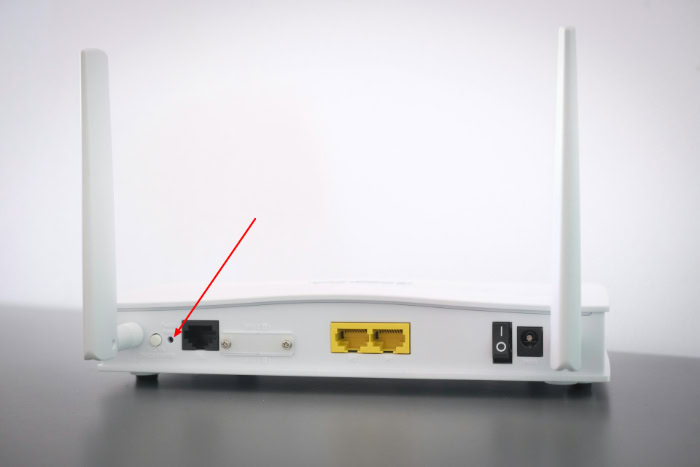
When administrator credentials are lost or the default factory password fails to grant access, a physical hardware reset provides the ultimate remedy. Every router features a recessed reset pinhole, usually located on the back panel near the power input or Ethernet ports.
To execute a hardware reset:
- Keep the router plugged into power so the unit remains active.
- Insert the tip of an unfolded paperclip or a SIM card removal tool into the reset pinhole.
- Press and hold down the internal button for 10 to 15 seconds until the front LED lights begin flashing or change color.
- Release the button and wait 2 to 3 minutes for the hardware to complete its reboot cycle.
A physical reset returns all router settings back to the original factory specifications. This erasure wipes out any custom network names, security rules, and user-defined passwords.
Once the unit finishes rebooting, log in using the original factory credentials printed on the hardware sticker, then configure the network again.
Fixes for an Unresponsive Router IP Address
Entering a default gateway into a browser address bar sometimes produces an error message indicating that the site cannot be reached. Several routine factors can block communication between a computer and the router administrative portal.
- Check the physical Ethernet connection: If wireless connectivity is erratic, connect the computer directly to one of the numbered Ethernet ports on the back of the router with a network cable.
- Disable active VPN software: Virtual private networks route traffic through remote servers, preventing a computer from recognizing local private IP addresses such as
192.168.1.1. Disconnect any corporate or personal VPN tools before browsing to the gateway. - Clear the browser cache: Web browsers frequently store outdated page redirection data. Open a private or incognito browser window, or clear cached browsing files, then re-enter the gateway address.
- Verify the active network link: Confirm that the testing computer has not accidentally jumped to an unsecured neighboring network or a cellular hotspot.
Workarounds for Smart Device Connection Failures
Older smart home gadgets occasionally fail to reconnect after security modifications, even when the submitted passphrase is completely accurate. Many older internet-of-things devices run on inexpensive wireless radios limited strictly to 2.4 GHz broadcasts and older encryption algorithms.
When older smart appliances reject a newly secured network, check the encryption mode. Advanced WPA3 security protocols lack backward compatibility with many legacy devices manufactured before 2020.
Adjusting the router security setting to WPA2-Personal (AES) or selecting a hybrid WPA2/WPA3 mode usually resolves the communication block immediately.
If connectivity problems persist, review the frequency configuration. Modern routers often blend 2.4 GHz and 5 GHz bands under one unified network name.
Older smart hardware can struggle to negotiate connection handshakes when both frequencies share a name. Splitting the bands into two separate names, such as HomeNetwork2.4G and HomeNetwork5G, allows legacy accessories to bind directly to the 2.4 GHz transmission without interference.
Conclusion
Securing a local wireless network follows a clear path from administrative access to device management. Entering the router default gateway address into a web browser opens the management portal, where administrators can select modern WPA2 or WPA3 encryption protocols and apply a strong, multi-word passphrase.
Once the hardware saves the update and completes a brief restart, reconnecting personal computers, phones, and screenless smart devices restores full household access. Scheduling routine credential updates every few months preserves digital privacy, prevents unauthorized users from siphoning bandwidth, and keeps home networking equipment functioning reliably.
Frequently Asked Questions
Will changing my Wi-Fi password kick all my devices offline?
Yes, changing your Wi-Fi password immediately disconnects every phone, computer, and smart appliance currently using the network. Your router drops these active connections because the security credentials saved on your devices no longer match the new network settings. You must select your network name on each device and enter the updated passphrase to restore your wireless connection.
What is the difference between a Wi-Fi password and a router admin password?
Your Wi-Fi password connects devices to the wireless internet, while your router admin password unlocks the internal settings console. Anyone in your house uses the Wi-Fi password to get online with laptops or phones. In contrast, the admin password is reserved for managing network security, setting parental controls, and modifying core router configurations through an administrative browser dashboard.
How do I find my router IP address?
You can find your router IP address by checking the default gateway field in your computer network settings. On Windows, open Settings, select Network & internet, click Hardware properties, and locate the IPv4 default gateway address. On a Mac, open System Settings, navigate to Network, select Wi-Fi, click Details, and look under the TCP/IP tab next to Router.
Why will my smart home devices not reconnect after a password update?
Older smart home devices often fail to reconnect because they lack screens for manual entry or cannot support newer WPA3 security standards. Screenless accessories like smart plugs and light bulbs require manual pairing using their manufacturer mobile app. Additionally, switching your router security protocol to WPA2-Personal ensures that older 2.4 GHz hardware can successfully negotiate the connection.
What should I do if I forget my router admin password?
You must perform a physical factory reset by pressing the recessed pinhole button on the back of the router. Press and hold this button with a paperclip for 10 to 15 seconds until the device lights blink. This action restores original factory defaults, allowing you to log in using the default administrative credentials printed on the router sticker.
About the Author: Julio Caesar


