
How to Reset Your Router: Step-by-Step Guide

Home networks frequently encounter sudden slowdowns, recurring connection drops, or unresponsive internet access. Forgotten administrative passwords can also lock users out of their own hardware settings.
Performing a router reset clears software glitches, removes conflicting configurations, and restores the equipment to a clean baseline state. Resolving technical hiccups requires distinguishing between a basic reboot and a full factory wipe.
Gathering initial credentials beforehand ensures a smooth transition back online. Users can execute a reset through hardware buttons or software menus before establishing secure wireless credentials, entering provider configurations, and reconnecting household devices.
The Distinction: Soft Reboot vs. Hard Factory Reset
Troubleshooting network hardware requires choosing between two different reset methods. Selecting the right option resolves performance issues without needlessly deleting personal settings.
The Standard Power Cycle
A standard power cycle, or reboot, briefly shuts down the hardware to clear temporary system memory. It preserves all custom network names, passwords, parental controls, and port-forwarding rules.
A simple reboot is the appropriate first choice for resolving everyday connection drops, unexpected slowdowns, or temporary responsiveness issues.
The Full Factory Reset
A factory reset permanently erases all custom configurations, returning the operating system to its original manufacturing state. It removes personal Wi-Fi credentials, firewall adjustments, and static IP addresses.
Use a full reset to resolve forgotten administrator passwords, clear persistent firmware glitches, transition between service providers, or prepare the hardware for resale.
Pre-Reset Preparation

Recording network information before wiping a router prevents extended downtime. Documenting system settings and hardware credentials beforehand ensures a fast, orderly reconfiguration.
Backup of Custom Configuration Data
When the administrative dashboard is accessible, open the system utilities menu to export a backup configuration file directly to a computer. If the dashboard is unreachable, manually note essential parameters on paper: the 2.4 GHz and 5 GHz network names (SSIDs), Wi-Fi passphrases, reserved IP addresses, and custom port-forwarding rules.
Collection of Default Device Information
Check the printed label on the router chassis for original setup details. Record the default gateway IP address (such as 192.168.0.1 or 192.168.1.1), the factory administrative credentials, and the default Wi-Fi password needed for initial setup.
Additionally, locate any account-specific credentials mandated by the internet service provider, such as PPPoE logins for DSL or fiber connections.
The Hardware Reset Method
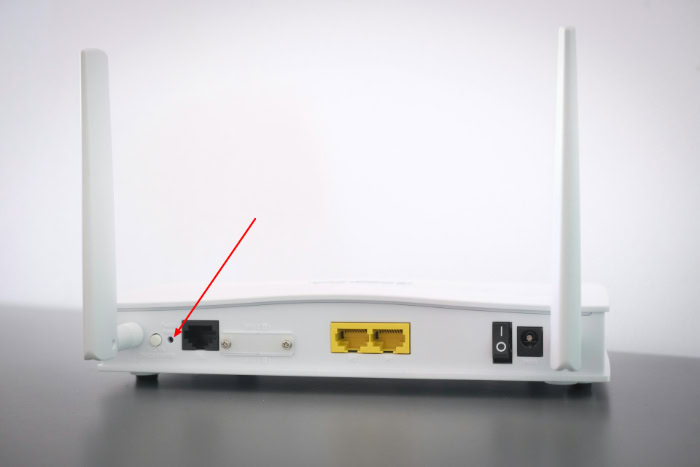
The physical reset method provides a reliable path to wipe network hardware when administrative menus are locked or software becomes unresponsive. This mechanical procedure triggers an internal circuit that commands the firmware to clear memory and reload default values.
Following the proper mechanical steps ensures the unit completes the wiping sequence without damaging internal components.
Location of the Recessed Reset Button
Router manufacturers intentionally protect the reset switch inside a tiny pinhole on the rear or underside of the chassis to prevent accidental presses. Unlike standard power toggles or Wi-Fi control buttons, this switch sits several millimeters below the plastic casing.
Locating and pressing the switch requires a slender, rigid tool. A straightened metal paperclip or an electronic SIM-ejection tool works well.
Avoid using graphite pencils or wooden toothpicks, as brittle tips can snap off and permanently lodge inside the pinhole opening.
Execution of the Physical Button Press
Executing a hardware restore requires applying continuous pressure to the internal switch while the device remains powered. Follow these sequential steps to perform the procedure:
- Verify that the router power cable is firmly connected and the unit is switched on.
- Insert the tip of the straightened paperclip straight into the pinhole until a faint mechanical click is felt.
- Hold the switch down firmly for 10 to 30 seconds without releasing pressure.
- Release the button once the indicator lights begin to change pattern, signaling the restart sequence.
- Allow the unit to sit undisturbed for 2 to 3 minutes while the internal storage formats and the baseline system loads.
Interpretation of Status Indicator Lights
Front-panel status lights provide essential visual feedback throughout the reset cycle. When the reset button is depressed for the required timeframe, the active status lights will abruptly alter their behavior.
Many models flash all lights simultaneously, while others show the power light blinking rapidly before turning amber or shutting off momentarily.
Do not unplug the power cable while the indicator lights flash erratic patterns. A sudden power loss during this sequence can corrupt the core firmware, rendering the hardware inoperable.
The reset is complete when the primary power light illuminates steadily and the wireless status light returns to a stable solid or regular blinking state.
The Software Reset Method

Performing a reset through the software interface offers an alternative when physical access to the device is awkward or when retaining access to the browser console is preferred. This method utilizes the administrative firmware to initiate the restore process cleanly.
It provides clear countdown indicators and eliminates the need to hold down a physical pinhole button.
Access to the Router Admin Dashboard
Reaching the internal management console requires establishing a direct connection between a computer and the router. An Ethernet cable plugged into one of the numbered local area network (LAN) ports provides the most reliable connection, though connecting over the current Wi-Fi network is also viable.
- Open a standard web browser on the connected computer or launch the official mobile management app on a smartphone.
- Type the default gateway IP address (such as
192.168.1.1or10.0.0.1) into the browser address bar and press Enter. - Input the current administrator username and password at the security prompt to access the configuration dashboard.
Initiation of the Factory Restore Option
Once logged into the management portal, locate the maintenance controls within the administrative directory. These controls are usually grouped under headings such as System Tools, Management, Administration, or Advanced Settings.
- Select the sub-menu labeled Backup & Restore, Factory Defaults, or System Recovery.
- Click the button designated as Restore Factory Defaults or Erase All Settings.
- Confirm the selection when the browser displays a warning prompt stating that all custom preferences will be wiped.
- Monitor the on-screen progress bar or countdown timer, which typically runs for 60 to 120 seconds while the router restores system defaults and reboots automatically.
Post-Reset Network Reconfiguration

Once the router finishes its reboot sequence, it functions as a blank slate with factory-secured settings. Rebuilding the network promptly shields connected devices from external vulnerabilities and restores household internet connectivity.
A systematic configuration process secures the administrative gateway, establishes wireless encryption, and reconnects household electronics.
Initial Device Access via Default Credentials
Following a factory wipe, previous custom network names vanish from wireless broadcast lists. The device now broadcasts the original factory SSID listed on the unit label, or it may temporarily remain an open network awaiting setup.
- Connect a laptop or smartphone to the default Wi-Fi network using the temporary password printed on the hardware sticker, or connect directly using an Ethernet cable.
- Launch a web browser and input the default gateway IP address to open the initial setup wizard.
- Log in using the default administrative username and factory password found on the device sticker.
Selection of New Security Passwords and Network Names
The first action inside the configuration portal involves replacing all factory credentials with robust credentials to block unauthorized access.
- Create a strong administrator password for the router dashboard containing a combination of uppercase letters, numbers, and symbols to secure device management.
- Open the wireless security settings and select modern encryption protocols, choosing WPA3 if supported by household devices, or WPA2-Personal (AES) as a secure baseline standard.
- Assign a customized network name (SSID) for the local Wi-Fi broadcast, and create a complex wireless passphrase containing at least 12 characters.
Reconnection of Household Electronics and Smart Devices
Reconnecting smart televisions, streaming sticks, smart plugs, and home appliances can require significant time if each device must be reconfigured manually. A simple strategy eliminates this manual burden: set the new SSID and wireless passphrase to match the exact network name and password used prior to the reset.
Because wireless devices authenticate based on matching credentials, household electronics automatically reconnect to the newly configured router without individual reconfiguration.
After applying the settings, verify communication across the home network:
- Confirm that mobile devices and laptops successfully acquire valid local IP addresses.
- Open several public websites across different devices to confirm steady internet data throughput.
- Verify that local networked equipment, such as network-attached storage units or wireless printers, communicates normally across the local subnet.
Solutions for Unresolved Connection Errors

If internet connectivity fails to return after completing a full hardware or software reset, the root cause often lies beyond internal router firmware. External wiring issues, modem synchronization faults, or carrier-level provisioning rules can prevent a restored device from obtaining an active internet signal.
Checking physical links and carrier settings isolates the source of lingering connection problems.
Physical Cable and Modem Inspections
Physical wiring errors represent a frequent cause of connection failures following a reset. Verify that all network wiring sits firmly seated in the correct physical ports.
- Inspect the Ethernet cable running from the standalone broadband modem to ensure it clicks securely into the router port marked WAN or Internet, which is frequently color-coded yellow or blue.
- Check the coaxial cable or incoming fiber terminal line connected to the modem, tightening any loose screw-on connectors.
- Replace damaged or kinked Ethernet cables that fail to show active link lights on the port sockets.
- Perform a sequential power cycle for standalone setups: unplug both the modem and the router from electrical outlets, wait 60 seconds, plug in the modem first, and wait 2 minutes for modem status lights to turn solid before plugging in the router.
Internet Service Provider Inquiries
When local physical connections appear intact but internet data fails to flow, the issue may involve carrier-side delivery or account-specific requirements.
- Check the service status webpage or mobile app of the internet service provider using cellular data to identify regional service outages or planned maintenance.
- Access the router dashboard to verify whether the internet connection type requires specialized carrier protocols, such as entering PPPoE login credentials for DSL or fiber connections.
- Enable MAC address cloning within the router network settings if the service provider restricts broadband access to the physical hardware address of the original computer or carrier-supplied modem.
- Contact carrier technical support to confirm account standing and request an external line test to verify signal strength arriving at the premises.
Conclusion
A standard power cycle and a hard factory reset serve very different roles when troubleshooting a home network. A quick reboot clears temporary cache files and refreshes carrier handshakes while keeping all customized network names, passwords, and security rules safe.
In contrast, a factory reset wipes the hardware down to its original manufacturing state, permanently erasing custom configurations to resolve severe software corruptions or remove forgotten administrator passwords. Maintaining a reliable connection relies on routine upkeep: performing occasional reboots, keeping written records of login credentials, and immediately securing unconfigured hardware with strong WPA2 or WPA3 encryption.
Proactive maintenance preserves network speed while preventing unexpected lockouts.
Frequently Asked Questions
Will resetting my router change my Wi-Fi password?
Yes, performing a full factory reset erases your custom Wi-Fi password and restores the original default password printed on the router label. All personal network names and security rules disappear completely. To regain wireless access, connect using the temporary credentials on the physical sticker, then configure a new passphrase inside the administrative dashboard.
How long do I hold the reset button on a router?
You should hold the reset button down firmly for 10 to 30 seconds while the router remains powered on. Use a paperclip to press the recessed switch until the front indicator lights flash rapidly or shut off momentarily. Release the button and wait 2 to 3 minutes for the device to finish rebooting.
What is the difference between restarting and resetting a router?
Restarting reboots the operating system without deleting any custom settings, while resetting wipes all personal configurations back to factory defaults. A restart clears active memory errors and solves most temporary connection slowdowns. A factory reset permanently erases network names, passwords, and custom rules, requiring a complete reconfiguration of the hardware before normal use.
Why does my router have no internet after a factory reset?
Your router has no internet after a reset because it has lost your internet service provider configuration settings and account credentials. Certain broadband connections require specialized setups, such as PPPoE login credentials, specific VLAN IDs, or MAC address cloning. Reconnecting the modem cable to the WAN port and power cycling both devices often restores data flow.
How can I reconnect all my smart devices easily after a reset?
You can reconnect all your smart devices automatically by setting the new Wi-Fi network name and password to match your exact previous credentials. Smart televisions, light bulbs, and home appliances search for the specific network name and security passphrase they previously stored. Reusing those exact details enables household electronics to rejoin immediately without manual reconfiguration.
About the Author: Elizabeth Baker


