
iPad vs. Laptop: Compare Apps, Power, and Price
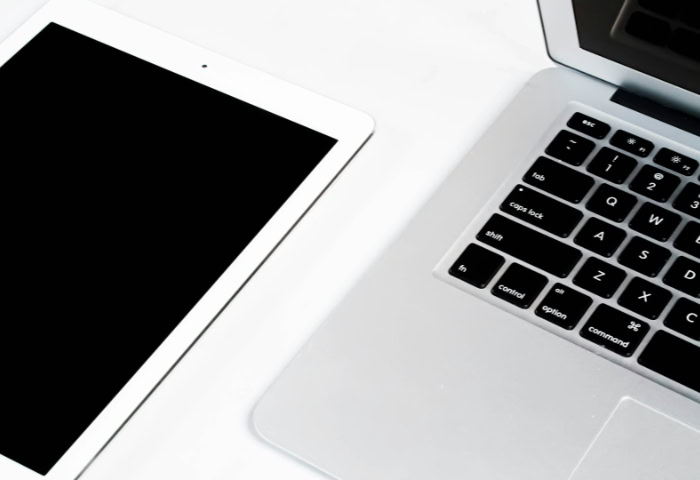
Choosing your next computer is no longer just a decision about brand or price. It is a fundamental choice between two distinct computing philosophies.
The Apple iPad has rapidly transformed from a basic tablet for media consumption into a formidable machine designed to replace the traditional PC. This evolution creates a strict dilemma for buyers.
You must now choose between a highly portable touch-first mobile architecture and a classic desktop computing experience.
Making the right decision requires looking far beyond the marketing hype. To help you evaluate these options, we will compare both platforms across physical design, software capabilities, user interaction, raw performance, and optimal use cases.
The ultimate goal is to match the right hardware and operating system with your specific daily habits, ensuring you invest in the perfect tool for your work and personal life.
Hardware, Portability, and Design
The physical form factor of your device dictates where and how easily you can work. Choosing between a tablet and a traditional computer requires evaluating physical dimensions, ergonomic stability, and the built-in hardware that supports your daily tasks.
Weight and Footprint
A standalone iPad is essentially a thin slab of glass and aluminum. This minimalist design makes it incredibly lightweight and easy to slip into any bag without a second thought.
You can hold it comfortably in one hand while reading or reviewing documents. Ultrabooks and traditional laptops carry significantly more bulk.
Even the thinnest laptops must accommodate a built-in keyboard, a trackpad, and a sturdy hinge. While laptops offer an all-in-one package, they cannot match the raw, effortless portability of an unadorned tablet.
The “Lapability” Factor
Working away from a proper desk reveals a major difference in ergonomic stability. Traditional laptops feature a rigid hinge connecting the screen to a heavy base.
This design allows you to type comfortably on your lap, on a couch, or in a cramped airplane seat. The screen stays exactly where you position it.
iPads rely on flexible folio cases or kickstands to stay upright. These accessories require a flat, solid surface to function well.
If you try to balance an iPad equipped with a kickstand on your lap, the device often feels top-heavy and unstable.
Connectivity and Ports
Professionals who frequently use external drives, monitors, or memory cards will notice a stark contrast in connectivity. Laptops typically feature a variety of built-in ports, including multiple USB-A slots, HDMI outputs, and SD card readers.
This variety allows you to plug in peripherals directly. iPads embrace a strictly minimalist approach, usually offering just a single USB-C port.
Connecting multiple accessories to an iPad simultaneously requires carrying dongles or a dedicated USB-C hub. This reliance on external adapters can easily undercut the sleek portability the tablet initially promised.
Camera and Media Hardware
Most laptops are equipped with a basic front-facing webcam suitable for video calls. They completely lack rear-facing cameras.
The iPad turns this dynamic around by including advanced camera hardware on the back of the device. This rear lens provides a distinct advantage for quickly scanning multi-page documents, recording high-quality video on the go, or utilizing augmented reality applications.
The tablet essentially doubles as a highly capable, large-screen camera, adding a layer of utility that traditional clamshell computers simply do not possess.
Operating Systems, Software, and File Systems

The internal software architecture is what truly separates these two computing experiences. While high-end tablets often feature the exact same processors found in modern laptops, their operating systems dictate entirely different rules for how applications run and how files are managed.
iPadOS vs. Desktop OS
Apple designed iPadOS as a sandboxed mobile operating system. This means applications are heavily restricted in how they interact with each other and with the system itself.
This strict environment ensures high security and reliable performance, but it limits user control. In contrast, unrestricted desktop environments like macOS or Windows offer deep system access.
A desktop operating system allows you to run complex background processes, tweak system-level settings, and install software from any source outside of an official app store.
App Ecosystem vs. Desktop Software
The divide between mobile applications and traditional desktop software remains substantial. The iPad relies on an ecosystem of apps specifically optimized for touch interfaces.
While many of these apps are powerful, they often lack the dense feature sets of their desktop counterparts. For example, Microsoft Excel on an iPad is excellent for viewing spreadsheets and making basic edits.
However, running heavy macros, utilizing advanced data modeling tools, or managing massive data sets requires the fully-featured legacy software available only on a PC.
File Management Access
Managing files on a laptop is an open and transparent process. You have complete access to local storage drives and can create deep, highly customized folder hierarchies.
You can see exactly where every file lives and move items freely between any directory. The iPad uses a more structured and restricted approach through its official Files app.
While Apple has greatly improved this system over the years, the mobile file system still hides many structural directories to protect the user experience. Moving files between different applications on a tablet can sometimes feel like solving a puzzle rather than a straightforward drag-and-drop action.
Web Browser Capabilities
Your daily browsing experience will vary significantly between platforms. Modern laptops run full desktop browsers that seamlessly support demanding enterprise web applications, complex formatting, and robust libraries of third-party extensions.
The iPad relies on a mobile version of Safari that features desktop-class rendering. It does a remarkable job of loading standard websites correctly.
However, users frequently encounter compatibility issues with specialized corporate portals, and the support for browser extensions remains highly constrained compared to Chrome or Edge on a traditional computer.
Input Methods and Interaction Experience

The physical way you control your computer shapes everything from your working speed to your creative output. Choosing between a tablet and a laptop means deciding whether you prefer precise mechanical inputs or direct physical interaction with your digital workspace.
Touch-First vs. Cursor-First
The iPad is fundamentally a touch-first device. Its entire interface features large icons, swipe gestures, and menus designed for fingers.
This creates an intimate, direct interaction with your content. Traditional laptops are built around a cursor-first philosophy.
The interface relies on the pinpoint accuracy of a mouse or trackpad to click small buttons, highlight specific text characters, and resize overlapping windows. While you can connect a mouse to an iPad, the underlying software logic remains heavily biased toward touch interactions.
The Power of the Stylus
Adding an Apple Pencil to an iPad unlocks entire workflows that are impossible on a standard clamshell laptop. A digital stylus turns the screen into a blank canvas.
This capability is absolutely essential for digital illustration, precise photo retouching, and drafting handwritten notes during a meeting. You can physically draw diagrams or sign contracts directly on the glass.
Unless you purchase a specialized convertible laptop, a traditional computer completely lacks the hardware to support these natural, pen-based workflows.
The Typing Experience
For long-form writing, the built-in keyboard of a traditional laptop is difficult to beat. Laptops offer spacious, ergonomic decks with satisfying tactile feedback, requiring zero setup to begin typing.
To achieve a similar experience on an iPad, you must invest in external accessories like the Magic Keyboard or separate Bluetooth alternatives. While these attachments provide excellent typing speeds, they add noticeable weight and bulk to the tablet.
The modular nature of the iPad means you only have to carry the keyboard when you need it, but the combined setup often ends up weighing just as much as a dedicated laptop.
Multitasking, Performance, and External Displays

Pushing a device to its limits reveals exactly how it handles demanding workflows and complex multi-screen setups. Evaluating raw speed, thermal limits, and display extensions will help you determine the practical boundaries of each hardware platform.
Window Management
Laptops operate on a free-form desktop model that allows you to open dozens of overlapping windows simultaneously. You can arbitrarily resize these applications, drag them across the screen, and arrange them into highly customized layouts.
The iPad approaches multitasking with a much more structured philosophy. Features like Split View and Slide Over force applications into rigid, predetermined grids.
Even with the introduction of Stage Manager to allow for overlapping apps, the mobile operating system strictly dictates where windows can be placed and how many can be active at once.
Raw Processing Power
Modern mobile processors have significantly blurred the performance lines between tablets and traditional computers. In many cases, high-end iPads contain the exact same internal silicon as premium laptops.
The crucial difference lies in thermal management. Laptops typically feature internal fans and active cooling systems, allowing them to sustain maximum processing speeds for hours while rendering video or running complex software.
iPads rely entirely on passive cooling. While they are exceptionally fast in short bursts, a tablet may throttle its processing speed during extended, heavy workloads to prevent the glass and aluminum chassis from overheating.
External Monitor Support
Connecting a laptop to an external monitor instantly provides a seamless, expanded workspace. You can easily drag files and software across multiple screens with different aspect ratios without any technical friction.
iPad support for external displays is still evolving. While modern iPads can project their interface onto a larger monitor using Stage Manager, the experience remains constrained.
The tablet software sometimes struggles with non-standard resolutions, and moving applications between the tablet screen and the external monitor requires learning a specific set of gestures and software rules.
Battery Longevity and Standby
Both platforms deliver excellent all-day battery life for standard tasks like word processing and web browsing. However, heavy processing tasks will rapidly drain the battery on either device.
The most noticeable difference emerges in standby efficiency. An iPad can sit asleep on a coffee table for several days and lose only a tiny fraction of its charge.
Laptops generally consume more background power while in sleep mode. If you leave a traditional computer unplugged and asleep for a weekend, you will likely return to a significantly depleted battery.
Total Cost of Ownership and Persona Matching

Budget considerations and your primary daily habits play the largest role in selecting the right device. Examining total hardware costs and mapping out specific user profiles will clarify which platform provides the highest value for your individual needs.
The Hidden Costs of Accessories
An entry-level iPad often appears highly affordable compared to a standalone computer. However, utilizing a tablet as a true laptop replacement requires purchasing several expensive accessories.
You will need a premium case, a specialized detachable keyboard, and a digital stylus to replicate a complete workstation. Once you add the price of these peripheral devices to the base tablet, the total investment often meets or exceeds the price tag of a highly capable, all-in-one mid-tier laptop.
The Student Workflow
Students constantly balance reading heavy textbooks, taking rapid notes, and drafting essays. The iPad shines in a lecture hall environment because it can lie flat on a desk, allowing the user to seamlessly highlight digital documents and handwrite equations.
A traditional laptop dominates during the research and writing phases. When a student needs to type a twenty-page paper while referencing dozens of open browser tabs, the physical keyboard and unrestricted window management of a laptop become absolutely essential.
The Creative Professional
The choice for a creative professional depends heavily on their chosen medium. Digital illustrators and graphic artists heavily favor the iPad because drawing directly on the screen with an Apple Pencil feels completely natural.
Photographers, music producers, and video editors frequently run into software bottlenecks on mobile platforms. These professionals generally prefer the processing headroom, unrestricted file access, and comprehensive plugin support offered by a traditional desktop operating system.
The Business and Office Worker
Corporate environments involve dense spreadsheets, proprietary enterprise software, and rapid email management. A standard laptop is built specifically to handle these demands.
The physical keyboard allows for rapid data entry, while the cursor makes it easy to manipulate tiny spreadsheet cells. The limitations of mobile office applications and the friction of navigating corporate web portals make the iPad a frustrating primary device for heavy administrative and financial tasks.
The Casual User
If your daily routine involves watching streaming video, browsing social media, reading news articles, and playing casual games, a tablet is the superior choice. The iPad is lighter, easier to hold on a couch, and offers a beautiful, vibrant screen without the physical bulk of an attached keyboard.
It provides instant access to media and entertainment in a highly portable format that a traditional clamshell computer simply cannot match.
Conclusion
Ultimately, neither an iPad nor a traditional laptop is universally superior. Your success with either platform depends entirely on how well its specific hardware and software align with your daily habits.
If you prioritize touch interaction and high portability, a tablet makes perfect sense. If you rely on complex file management and unrestricted desktop software, a traditional computer remains the clear winner.
Before making a final purchase, take the time to audit your primary daily tasks and verify the exact software requirements of your profession. Choosing the right tool requires an honest assessment of how you actually work.
Frequently Asked Questions
Can an iPad fully replace a laptop for a college student?
An iPad works beautifully for taking handwritten notes, reading digital textbooks, and managing basic assignments. However, most students still need a standard laptop to run specialized academic software, efficiently format long research papers, and manage multiple open windows during heavy study sessions.
Do I need to buy an Apple pencil and keyboard?
Purchasing a stylus and a physical keyboard is highly recommended if you want to use your tablet for heavy productivity. Without these accessories, your device remains limited to basic touch interactions. These additions allow you to type comfortably and sketch directly on the screen.
Will Microsoft Office work exactly the same on an iPad?
Microsoft Office on iPadOS is a simplified mobile version designed primarily for touch screens. While you can easily view documents and make basic edits, you will miss out on the advanced formatting tools, macro support, and heavy data processing capabilities found in the desktop version.
How long does an iPad battery last compared to a laptop?
Both devices typically offer enough battery life to get through a standard eight-hour workday of light usage. Tablets excel at preserving power while asleep, losing almost no charge over several days. Laptops drain faster during heavy processing tasks and consume more power while in standby mode.
Can I connect multiple external monitors to an iPad?
Current high-end iPads can project their screen to a single external monitor using specialized software features. They do not support the massive, multi-screen configurations that a traditional computer handles with ease. Laptops remain the superior choice for users who require multiple extensive external displays.
About the Author: Elizabeth Baker


