
Laptop vs. Chromebook: What Fits Your Needs?

Buying a new computer used to mean picking between a Windows PC or a Mac, but today your hardware choice directly dictates how efficiently you work, study, and relax. Making an uninformed purchase can leave you frustrated with sluggish performance or stuck paying for expensive hardware you never use.
The portable market now splits into two distinct paths. Traditional laptops running Windows or macOS offer robust desktop capabilities and expansive local storage.
Alternatively, Chromebooks utilize ChromeOS to provide a streamlined, cloud-centric experience focused almost entirely on web applications.
Key Takeaways
- ChromeOS relies heavily on cloud storage and progressive web apps, allowing it to run smoothly and maintain long battery life on highly affordable hardware.
- Traditional Windows and macOS laptops are completely necessary if your daily workflow involves full desktop software like Adobe Creative Cloud, local CAD programs, or intense spreadsheet modeling.
- Chromebooks feature built-in sandboxing and read-only system files, practically eliminating the risk of malware without requiring users to purchase or manage third-party antivirus software.
- A $300 budget provides a highly responsive, durable Chromebook, whereas the same amount spent on a Windows laptop frequently yields sluggish performance, low RAM, and a poor display.
- Without a reliable Wi-Fi connection, Chromebooks lose significant functionality, while traditional laptops retain full access to all locally installed programs and stored files.
Core System Architecture and Platform Types
The fundamental way a computer operates dictates every aspect of user interaction. Before evaluating specific hardware upgrades or aesthetics, buyers must look at the software foundation powering the machine.
Overview of ChromeOS
ChromeOS is built directly around the Google Chrome web browser. This operating system minimizes the need for extensive local processing by shifting the heavy lifting to web-based servers.
By design, the architecture demands very little from the physical hardware, prioritizing speed and system resource efficiency over complex background operations.
Overview of Windows and macOS
Windows and macOS represent the traditional approach to personal computing. These full-scale desktop operating systems offer profound administrative control over the machine.
Users can directly modify local file structures, adjust complex registry settings, and manage deep system configurations to suit their specific workflow preferences.
Cloud-Centric Design versus Local Storage Model
The structural contrast between these platforms becomes most visible in their storage models. Chromebooks rely heavily on cloud storage solutions like Google Drive, significantly reducing the need for large internal drives.
Consequently, a standard Chromebook might ship with a modest 64GB eMMC drive. Conversely, traditional laptops prioritize heavy local storage capacity, frequently featuring 512GB or larger NVMe Solid State Drives to house large files and complex software locally.
Software Compatibility and Application Ecosystems

An operating system directly determines which applications you can install and run. Your daily software requirements will act as the primary filter for choosing the appropriate device.
Web Applications and Android App Support
ChromeOS relies primarily on progressive web apps and Google Play Store integration to provide software solutions. Users access most of their productivity tools directly through a browser window.
While the ability to run Android applications offers flexibility, utilizing software specifically designed for mobile touchscreens on a traditional laptop form factor can lead to awkward interface limitations and unoptimized performance.
Desktop Software and Legacy Programs
Traditional laptops hold an absolute monopoly on full-scale professional desktop software. Industry-standard programs like the complete Adobe Creative Cloud suite, complex local CAD software, and desktop versions of Microsoft Office require Windows or macOS environments to function correctly.
Chromebooks lack the ability to run direct executable installations, meaning users cannot open standard .exe or .dmg files under any circumstances.
Game Support and Playability
Gaming capabilities follow a similarly strict divide. Windows and macOS machines support local PC gaming environments like Steam and the Epic Games Store, provided the hardware includes a capable dedicated GPU.
Chromebooks take an entirely different approach by eliminating local rendering requirements. Instead, they rely heavily on cloud gaming platforms such as GeForce Now and Xbox Cloud Gaming, alongside standard Android-based games downloaded from the Play Store.
Hardware Requirements and Performance Metrics

The underlying operating system determines how much processing power is necessary for a smooth user experience. This relationship between software efficiency and hardware demands heavily influences pricing and overall portability.
Processor and Memory Demands
Lightweight operating systems run incredibly smoothly on budget-friendly hardware. A Chromebook equipped with an entry-level Intel Celeron or ARM processor and just 4GB of RAM will easily handle dozens of open browser tabs without stuttering.
In contrast, traditional operating systems demand much more power to remain responsive. A modern Windows or macOS laptop generally requires at least an Intel Core or AMD Ryzen processor paired with a minimum of 8GB of RAM just to establish a functional baseline.
Battery Efficiency and Portability
Battery life is largely dictated by the volume of background processes the computer must manage. The lightweight nature of ChromeOS minimizes background tasks, allowing these devices to frequently push past ten hours of continuous usage.
Windows and macOS must constantly manage resource-intensive background services, which naturally drains the battery faster. While premium traditional laptops have improved their power efficiency, budget models often struggle to last a full workday away from a wall charger.
Price-to-Performance Ratio
Evaluating the price-to-performance ratio reveals distinct advantages depending on the available budget. A budget of $300 will secure a highly responsive Chromebook with excellent battery life and decent build quality.
Applying that same $300 to a Windows laptop typically results in a frustrating experience burdened by a slow processor, insufficient RAM, and a poor display. However, there is a strict point of diminishing returns for high-end Chromebooks.
Spending over $1,000 on ChromeOS hardware yields minimal performance benefits compared to the immense capability a premium Windows or macOS laptop offers at the exact same price point.
Security, System Maintenance, and Offline Capabilities

Device management involves more than just daily usage. Understanding how a machine handles malware, processes software patches, and operates without an internet connection will shape your long-term ownership experience.
Built-in Security and Sandbox Protections
Security on ChromeOS is fundamentally integrated into the system architecture. The operating system utilizes sandboxing technology, meaning every web page and application runs in its own restricted environment.
If one tab encounters malicious code, the infection cannot spread to the rest of the machine. Furthermore, the core system files are read-only, preventing viruses from altering the operating system.
Traditional laptops lack these stringent default restrictions, making third-party antivirus software and vigilant security management a necessity for Windows users.
System Updates and Maintenance Overhead
System maintenance presents another major operational difference. ChromeOS handles updates entirely in the background according to Google’s Auto Update Policy, applying new software patches in seconds upon the next reboot.
Windows and macOS require a significantly higher degree of administrative overhead. Users must frequently navigate lengthy installation screens, manual update approvals, and disruptive system reboots that can interrupt daily productivity.
Device Functionality Without Network Access
The reliance on cloud infrastructure heavily impacts device functionality when network access drops. While ChromeOS offers specific offline capabilities like Google Docs editing, local media playback, and offline web apps, the overall experience becomes noticeably restricted without Wi-Fi.
Traditional laptops possess a massive advantage in environments with limited internet connectivity. Because all software and files are stored locally, a Windows or macOS user can continue working without interruption regardless of their connection status.
Device Suitability for Different User Profiles
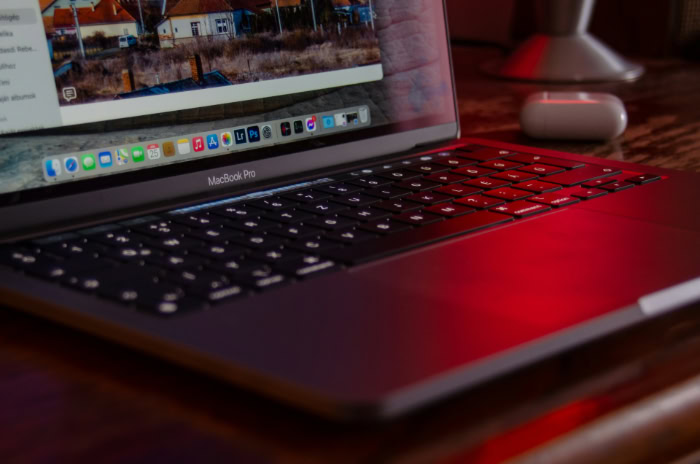
Hardware specifications and software compatibility ultimately dictate which machine fits into specific environments. Analyzing typical user profiles makes it easier to match the right computing philosophy with daily workflow needs.
Ideal Features for Students and Educators
Chromebooks thoroughly dominate K-12 educational environments for very practical reasons. They offer unparalleled affordability, exceptional durability against physical damage, and allow school IT departments to manage thousands of devices seamlessly from a central console.
However, this dynamic shifts entirely during the transition to higher education. University students pursuing majors like engineering, computer science, or digital design must use traditional laptops to run the specialized, resource-heavy software required for their coursework.
Requirements for Business Professionals and Remote Workers
For business professionals and remote workers, the choice depends heavily on corporate infrastructure. Companies operating entirely within cloud ecosystems using SaaS products and Google Workspace can easily deploy Chromebooks to their workforce.
Conversely, finance professionals running complex spreadsheet models, analysts needing proprietary local database access, and corporate employees utilizing advanced VPN environments absolutely require the robust architecture of traditional laptops.
Device Recommendations for Casual Users and Creatives
Casual users who primarily browse the web, stream media, and manage basic communications will find the simplicity of a Chromebook highly appealing. The interface is intuitive and requires absolutely zero technical maintenance.
Creatives, however, face strict hardware and software prerequisites. High-end video editing, professional music production, software development, and complex graphic design demand the sheer processing power and robust application ecosystems exclusively found on traditional laptops.
Conclusion
Choosing between a traditional laptop and a Chromebook comes down to recognizing the vast differences in their operating philosophies. Windows and macOS prioritize immense local processing power and comprehensive software compatibility, making them necessary for complex creative tasks and demanding professional environments.
Conversely, ChromeOS strips away administrative bloat to deliver a lightweight, cloud-centric experience that thrives on budget-friendly hardware and minimal maintenance. Selecting your next computer requires prioritizing your actual workflow requirements, specific software needs, and available budget over simple hardware aesthetics.
By evaluating exactly what programs you open daily and how much you are willing to spend, you can secure a device that perfectly matches your computing habits.
Frequently Asked Questions
Can I install standard Microsoft Office on a Chromebook?
You cannot install the full desktop version of Microsoft Office on a Chromebook. Because ChromeOS does not support standard executable files, you must use the web-based versions of Word, Excel, and PowerPoint through your internet browser instead. This online alternative works well for basic editing but lacks advanced offline features.
Are Chromebooks good for college students?
Chromebooks work perfectly for college students who only need to write essays and research online. However, students pursuing degrees in engineering, computer science, or graphic design will need a traditional Windows or macOS laptop to run complex, specialized software required for their coursework.
Can I play PC games from Steam on a Chromebook?
You cannot natively play traditional PC games from Steam directly on a standard Chromebook. Instead, ChromeOS users must rely heavily on cloud gaming services like GeForce Now or Xbox Cloud Gaming to stream demanding titles. This approach requires a consistently fast internet connection for smooth gameplay.
Do Chromebooks get viruses easily?
Chromebooks are highly resistant to traditional viruses and malware by design. The operating system utilizes specific sandboxing technology to isolate every browser tab and application. If you open a malicious website, the threat remains trapped and cannot alter the read-only core system files.
Will my Chromebook work without an internet connection?
Your Chromebook will only have limited functionality when disconnected from an active Wi-Fi network. While you can still watch locally downloaded media or type offline Google Docs, you will immediately lose access to most web applications and your central cloud storage files.
About the Author: Elizabeth Baker


