
Laptop vs. Tablet: Trade-offs You Must Consider
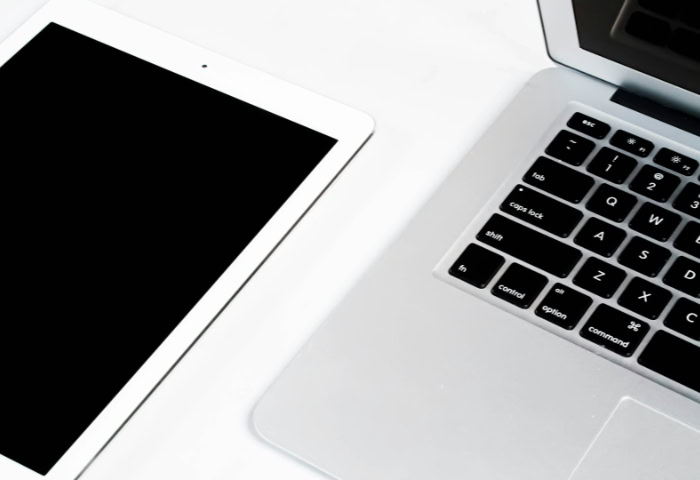
Choosing between a laptop and a tablet was once a simple exercise in compromise. You purchased a laptop for serious work and reserved the tablet for casual reading or movies.
Today, that distinct line has all but vanished. Modern tablets now boast desktop-class processors with attachable keyboards, while ultrabooks have become shockingly thin and portable.
Yet despite this convergence, the fundamental divide between a “creation” machine and a “consumption” device remains relevant. One prioritizes unrestricted software and file management, while the other offers intuitive touch interaction and simplicity.
The right choice requires looking beyond raw technical specifications to analyze your daily habits. It ultimately depends on the specific software you rely on, how you prefer to input data, and the environment where you actually get your work done.
Operating Systems and Software Architecture
Hardware specifications often grab the headlines, but the operating system dictates what a device can actually do. The chipset might be powerful enough to render 3D animation, yet that power is useless if the software limits access to the necessary tools.
Desktop vs. Mobile OS
The most significant divide lies between the open structure of desktop systems like Windows or macOS and the closed nature of mobile platforms like iPadOS or Android. Laptops offer an unrestricted environment where users have full control over the file system.
You can install software from any source, manage complex background processes, and tinker with system settings to optimize performance.
Tablets operate in a “sandboxed” environment. Each app runs in isolation to prioritize security and stability. While this makes it difficult to accidentally break the system with malware, it also creates friction.
Apps cannot easily talk to one another, and accessing the underlying file system is often restricted. This design forces users to rely on specific “share” sheets to move data rather than simple drag-and-drop actions across different programs.
The “Full Version” Reality
Developers often release apps for both platforms, but they are rarely identical. Professional software suites like Microsoft Office or Adobe Creative Cloud illustrate this gap.
On a laptop, Excel supports complex macros, Visual Basic scripting, and massive data sets without hesitation. The tablet version, while capable of basic spreadsheet work, frequently omits these advanced automation features.
Similarly, photo and video editing apps on tablets have improved, but they still lack the granular control found in desktop counterparts. A laptop runs the full version of Photoshop with every plugin and rendering tool available.
The tablet version is often a streamlined adaptation designed for touch, meaning specific filters or batch-processing tools might be missing entirely.
Specialized Software Limitations
For users in STEM fields, the choice is often made for them by software requirements. Computer science students and professional developers generally need a laptop to run coding environments, compile code locally, or manage version control systems like Git.
Engineering software such as AutoCAD or SolidWorks relies on the x86 architecture found in laptops and rarely has a viable mobile equivalent. Furthermore, virtualization, running a second operating system inside the first, is a task that remains exclusive to the desktop architecture of laptops.
Workflow Efficiency and Multitasking

Speed is not just about processor benchmarks; it is about how fast the user can interact with their work. Efficiency drops when a user fights the interface to perform simple tasks.
Window Management
Laptops excel at displaying information density. The desktop metaphor allows users to layer multiple windows, resize them arbitrarily, and view data side-by-side with precision.
Connecting a second monitor usually extends this workspace naturally, allowing windows to move seamlessly between screens.
Tablets have introduced features like Split View and Stage Manager to bridge this gap, but the experience remains rigid. You are often limited to two apps side-by-side, or a specific arrangement dictated by the OS.
While sufficient for checking email while browsing the web, this setup struggles during complex research sessions that require referencing four or five different sources simultaneously.
File Management and Storage
Organizing digital life is significantly easier on a laptop. The file explorer allows users to create nested folders, batch rename files, and unzip large archives with a few clicks.
Connecting an external hard drive triggers a familiar pop-up, and moving terabytes of data is a standard background task.
Tablets treat file management differently. While “Files” apps exist, they can feel clunky.
Moving a file from an external drive to a specific app often involves duplicating the file, which wastes storage space. Simple tasks like formatting a USB drive or unzipping a complex archive often require downloading specific third-party utilities, adding steps to what should be a native process.
Peripheral Support
Cursor input on a laptop is precise. The trackpad or mouse moves a pixel-perfect pointer, essential for editing text or manipulating small interface elements.
Drivers for printers, scanners, and specialized audio interfaces are widely available and usually plug-and-play.
Tablets simulate touch even when using a trackpad. The cursor often “snaps” to buttons rather than floating freely, which can be jarring for users accustomed to desktop precision.
Hardware compatibility is also spottier; if a printer does not support wireless protocols like AirPrint, connecting it to a tablet via USB can be a frustrating exercise in futility.
Input Methods and Ergonomics

The physical interaction with a device determines comfort and usability over long periods. A device might be powerful, but if typing on it hurts your wrists or holding it strains your arm, its utility diminishes.
The Keyboard Experience
Laptops offer a stable, unified construction. The hinge supports the screen at any angle, and the base is heavy enough to balance the device on a lap.
This “lapability” is critical for working in transit, such as in airport terminals or lecture halls. The keyboards generally offer deeper key travel, providing better tactile feedback for long typing sessions.
Tablets rely on detachable keyboard covers or kickstands. Kickstands require a flat surface to stand upright, making them unstable on knees.
The keyboards themselves are often thinner to maintain portability, resulting in a shallow typing experience that can be fatiguing. While high-end keyboard accessories exist, they often add significant weight and bulk, negating the portability advantage of the tablet.
Touch and Stylus Interaction
Here, the tablet dominates. For digital artists, illustrators, and photographers, the ability to interact directly with the canvas is unmatched.
Retouching a photo or drawing a diagram with a stylus feels natural and intuitive. It effectively replaces the need for a separate drawing tablet.
Laptops with touchscreens exist, but they suffer from “gorilla arm syndrome.” Reaching across a keyboard to tap a vertical screen is unergonomic and tires the arm quickly.
Furthermore, while some laptops support pens, the experience is rarely as fluid as on a tablet designed primarily for touch input.
Form Factor Flexibility
Tablets offer the unique ability to rotate into portrait mode. This orientation mirrors a sheet of paper, making it the superior format for reading documents, browsing image-heavy websites, or reviewing musical scores.
Laptops are fixed in landscape orientation. While excellent for spreadsheets and video consumption, this wide aspect ratio is less ideal for reading long-form articles or e-books.
Portability and Hardware Constraints

Portability is often the primary reason buyers look at tablets, but the reality of daily use involves more than just the weight of the device itself. While tablets are designed to be held in one hand, the hardware limitations inherent in such a compact design can create bottlenecks for power users.
Weight and Dimensions
Marketing materials frequently highlight the featherweight nature of tablets, often citing weights under one pound. However, this number is deceptive for anyone planning to do productive work.
Once you add a protective case and a functional keyboard cover, the total carry weight increases significantly. In many instances, a fully equipped large tablet weighs as much as, or sometimes more than, a modern ultrabook.
Laptops have evolved rapidly to compete in this space. Manufacturers now use lightweight alloys to create computers that slide effortlessly into a tote bag or backpack.
Because the keyboard and trackpad are integrated into the chassis, the weight is distributed evenly, avoiding the top-heavy feeling that plagues many tablets when attached to keyboard docks.
Connectivity and Expansion
The physical profile of a device dictates how many ports it can accommodate. Laptops generally win this category by offering a diverse array of connections.
A standard laptop often includes USB-A ports for legacy devices, an HDMI port for projectors, and sometimes an SD card slot for photographers. This variety allows you to walk into a meeting or a classroom and connect to available equipment without panic.
Tablets typically feature a single USB-C port. While versatile, this single port forces reliance on dongles and hubs.
If you need to charge the device while presenting on an external monitor, you must remember to bring a specific adapter. This “dongle life” adds friction to the experience, as forgetting a small plastic accessory can render the device useless for a presentation.
Battery Life and Maintenance
Battery performance varies heavily based on workload. Tablets are highly efficient at playing video, often outlasting laptops during long flights.
However, their battery life can tank quickly when multitasking or running heavy processing tasks. Laptops generally offer more consistent battery performance across a wider range of activities.
Maintenance and repair highlight a stark difference in philosophy. Laptops, particularly business-oriented models, often allow users to replace the battery or upgrade the RAM and storage down the line.
This extendability can add years to the device's life. Tablets are almost exclusively sealed units.
The battery is glued in place, and the memory is soldered to the main board. When a tablet runs out of storage or the battery degrades, the only viable solution is usually to replace the entire device.
Cost Analysis and Value Proposition

The sticker price rarely tells the whole story. Determining the true value of a computer requires calculating the total cost of ownership, including the necessary peripherals to make it functional for your needs.
A “cheaper” device can quickly become expensive once you try to force it to perform tasks it was not originally designed to handle.
The “Hidden” Cost of Accessories
Tablets often appear cheaper initially, but that lower entry price buys only the screen. To replicate the functionality of a laptop, you must purchase additional hardware.
A high-quality keyboard case, a pressure-sensitive stylus, and a multi-port adapter can easily add several hundred dollars to the bill. By the time you equip a “pro” tablet to handle a standard workday, the final price often meets or exceeds that of a premium laptop which includes these input methods in the box.
Price-to-Performance Ratio
Budget allocation yields different results across these two categories. Spending a mid-range amount, such as $600 to $800, on a laptop usually secures a capable machine with decent storage (256GB or 512GB) and a processor ready for multitasking.
In contrast, that same amount in the tablet market pays for a premium display and build quality, but often skimps on internal specs. You might get a beautiful screen, but the base model likely comes with a paltry 64GB of storage.
Upgrading tablet storage to a usable level typically commands a high premium, skewing the value proposition for users who need to store large files locally.
Longevity and Resale
The lifespan of these devices differs due to both software support and physical durability. Desktop operating systems generally support hardware for a long time, and even after official support ends, the open nature of the platform allows for continued use.
Mobile devices have fixed support windows, after which app compatibility begins to break.
Durability is the final financial consideration. A laptop protects its most expensive component, the screen, by folding it away when not in use.
A tablet screen is always exposed. One accidental drop can shatter the display, leading to a repair bill that might rival the cost of a new device.
This fragility often necessitates buying insurance or heavy-duty cases, further adjusting the long-term cost calculation.
Conclusion
Selecting the right device comes down to recognizing what you value most in your daily routine. Laptops remain the superior tool for unrestricted creation and heavy multitasking, offering the software freedom and input precision required for complex work.
Tablets excel at consumption and direct interaction, providing an unmatched experience for reading, sketching, and lightweight tasks where portability trumps raw power.
For programmers, professional writers, and students in technical fields, the laptop is practically mandatory. The need for specific software environments, extensive file management, and a reliable keyboard makes the desktop architecture essential.
Conversely, digital artists, frequent flyers, and those who spend their day reviewing documents will find the tablet far more natural. The ability to annotate PDFs with a pen or edit photos while standing up offers a freedom that a clamshell device cannot match.
Your final purchase should address the specific bottlenecks in your current workflow. If you constantly feel limited by screen space or software compatibility, a laptop is the safe bet.
If you find yourself wanting to work away from a desk or needing to draw directly on your work, a tablet is likely the refresher you need. For those who truly feel torn between these two worlds, a 2-in-1 convertible might offer the necessary middle ground.
It sacrifices a bit of sleekness for the ability to flip between a typing mode and a tablet mode. Assess your actual needs rather than the marketing hype to find the machine that fits your life.
Frequently Asked Questions
Can a tablet replace a laptop for work?
It depends entirely on your specific workflow. If you primarily answer emails, browse the web, and write basic documents, a high-end tablet is likely sufficient. However, for complex multitasking, heavy file management, or running specialized professional software, a laptop remains the superior choice for daily productivity.
Is a laptop or tablet better for college students?
Most college students benefit significantly more from a laptop. Academic portals and assignment submission sites often require full desktop browsers, and typing long essays is much faster on a dedicated keyboard. Tablets generally work best as secondary devices for handwriting digital notes or reading textbooks during lectures.
Can I use a tablet for programming and coding?
Coding on a tablet is technically possible but significantly limited compared to a computer. While you can use basic text editors or cloud-based environments, tablets lack local compilation tools and full terminal access. Serious development work usually requires the open file system and software compatibility found only on laptops.
Are 2-in-1 laptops worth buying over a tablet?
A 2-in-1 convertible is an excellent compromise if you need both typing capabilities and a touchscreen. They offer the full software power of a laptop combined with the flexibility of a tablet display. However, they are often heavier than standalone tablets and can feel awkward to hold in one hand.
Do laptops last longer than tablets?
Laptops generally have a longer functional lifespan because they are easier to repair and maintain. You can often replace the battery or upgrade storage to keep them running smoothly for years. Tablets are typically sealed units with non-removable batteries, meaning the entire device usually needs replacement once the battery degrades.
About the Author: Elizabeth Baker


