
MP4 vs. MOV: Which Video Format Should You Choose?
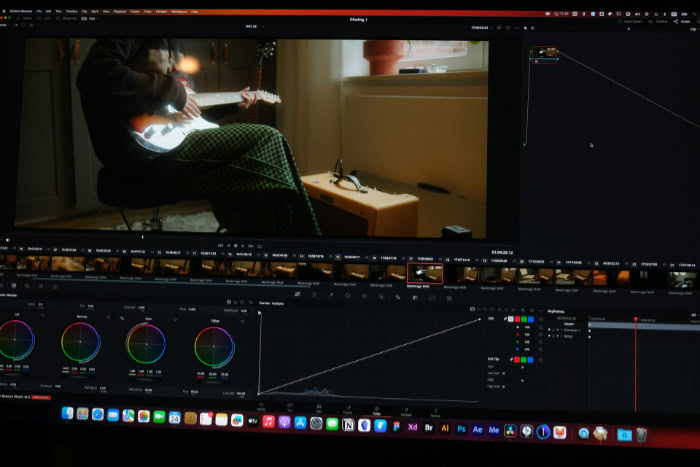
Every day, millions of videos are recorded on smartphones, edited on laptops, and uploaded to social networks. Behind almost every clip sits one of two dominant file extensions: MP4 or MOV.
Both formats power online streaming, personal media libraries, and professional film studios.
Despite their widespread use, seeing both options in a software menu often causes hesitation. A video recorded on an iPhone defaults to MOV, yet Windows computers and web platforms generally prefer MP4.
People saving a home movie, exporting an edit, or sharing a clip frequently wonder which option works best. Choosing poorly can cause bloated file sizes or playback errors.
Comparing the technical differences, distinct benefits, and practical choices between MP4 and MOV removes the guesswork for everyday computer users.
Key Takeaways
- Container versus codec: MP4 and MOV are outer digital wrappers that package video, audio, and subtitles together, whereas the internal codec (such as H.264, HEVC, or Apple ProRes) determines actual visual sharpness and file size.
- Universal compatibility with MP4: Export finished videos as H.264 MP4 files for uploading to YouTube, TikTok, and HTML5 web players, or when sending files to viewers on Windows 11, Android devices, and smart televisions.
- Post-production power with MOV: Keep raw footage and studio masters in the MOV format when working in Final Cut Pro, Premiere Pro, or DaVinci Resolve to take advantage of smooth timeline scrubbing, uncompressed audio tracks, and Apple ProRes support.
- Transparent video overlays: Rely on the MOV container paired with a codec like ProRes 4444 whenever exporting lower-third titles, animated logos, or graphics that require a transparent alpha channel.
- Fast, lossless conversion: Use free desktop utilities like Shutter Encoder or VLC Media Player to remux H.264 MOV recordings into MP4 files in seconds without re-encoding the video or losing image fidelity.
Device and Platform Compatibility
File compatibility often determines whether a video plays immediately or triggers an error message. While modern operating systems have closed the gap between formats, hardware ecosystems still favor their native containers.
Desktop System Support (Windows, macOS, Linux)
On desktop computers, MP4 enjoys near-universal native support. Windows 10 and Windows 11 include built-in media players and system codecs that open standard MP4 files immediately out of the box without requiring extra software downloads.
While modern Windows machines can open basic MOV files recorded in H.264, they frequently struggle with MOV files containing Apple-specific audio tracks or studio codecs, forcing users to install third-party media players.
Within macOS, the situation reverses in favor of Apple’s native ecosystem. While Mac computers play standard MP4 files without trouble, MOV integrates deeply into the operating system.
Utilities like QuickTime Player, Finder Quick Look previews, and Photos handle MOV files effortlessly, offering instant scrubbing and quick trimming tools. Meanwhile, Linux environments rely on open-source multimedia frameworks like FFmpeg and programs like VLC Media Player, which play both MP4 and MOV files equally well once the standard media libraries are installed.
Mobile Device and Smart TV Integration
Portable electronics and living room entertainment systems heavily favor the open MP4 standard. Android smartphones, tablets, portable gaming consoles, and smart televisions from brands like Samsung, LG, and Sony are engineered to decode MP4 files directly through hardware acceleration. Plugging a USB flash drive loaded with MP4 movies into a smart TV almost guarantees smooth playback.
On iOS and iPadOS devices, Apple takes a different approach. When recording video using the built-in camera on an iPhone or iPad, the device saves the footage inside a MOV container by default, usually paired with the efficient HEVC codec.
While iPhones and iPads play incoming MP4 files without issue, transferring raw MOV camera recordings directly from an iPhone to an Android tablet or a non-Apple television often results in playback failures or missing audio.
Web Browser Standards and Online Video Player Support
For web developers and content creators embedding video directly onto websites, MP4 is the undisputed standard. Modern web browsers rely on HTML5 video tags to play media without external browser plugins.
All four major browsers, Google Chrome, Microsoft Edge, Apple Safari, and Mozilla Firefox, natively support MP4 containers housing H.264 video and AAC audio.
Attempting to embed a MOV file directly onto a webpage creates immediate obstacles for visitors. Aside from Apple Safari, most web browsers do not reliably render the .mov extension inside an HTML5 video player.
Instead of playing the clip on the page, Chrome or Firefox may display a blank box or prompt the visitor to download the entire file to their hard drive.
Video Quality, Compression, and File Size

A widespread misconception suggests that MOV files always look sharper than MP4 files. In practice, visual quality and storage demands depend on how the video stream inside the container is configured rather than the three-letter file extension.
The Balance Between Image Fidelity and Resolution
Choosing between MP4 and MOV does not automatically alter the sharpness or color accuracy of a video. Because both formats act as wrappers, an MP4 file and a MOV file holding the exact same H.264 video stream will look identical on a 4K monitor and take up virtually the same amount of disk space.
Visual sharpness is governed directly by resolution, such as 1920×1080 (1080p) or 3840×2160 (4K), alongside the video bitrate. Bitrate measures how much data is processed every second, typically expressed in megabits per second (Mbps). A 1080p MP4 exported at a high bitrate of 50 Mbps will look vastly superior to a 1080p MOV exported at a heavily restricted bitrate of 5 Mbps.
Compression Efficiency and Storage Impact
In everyday usage, MP4 files earn a reputation for being small and portable because export presets for MP4 prioritize aggressive lossy compression. Software programs strip away visual data that the human eye barely notices, producing compact files that upload quickly to cloud storage and fit easily onto thumb drives.
A one-minute 1080p video compressed as an H.264 MP4 might occupy only 60MB to 100MB of space.
Conversely, MOV files frequently consume gigabytes of storage capacity because cameras and editing suites pair the MOV container with lightly compressed or uncompressed codecs. When a digital cinema camera or an editing program exports a MOV file, it usually prioritizes preserving maximum image data for future adjustments.
As a result, a one-minute clip saved in a production-grade MOV format can easily exceed 1GB to 3GB on a hard drive.
Supported Codecs and Internal Data Streams
Both MP4 and MOV support the most popular consumer compression codecs in use today, specifically H.264 (AVC) and H.265 (HEVC). When using either of these two codecs, the containers perform very similarly.
However, the two wrappers diverge when handling specialized internal data streams and uncompressed audio.
Standard MP4 containers enforce stricter rules on what types of data can sit inside the file. They are optimized primarily for compressed consumer audio (like AAC or MP3) and standard video tracks.
The MOV container is far more permissive, natively supporting multiple channels of uncompressed PCM audio, dedicated timecode tracks for synchronizing multiple cameras on a film set, and complex interactive chapter markers.
Suitability for Video Edit Workflows and Production

While everyday viewers care mostly about small file sizes and smooth playback, video editors have very different priorities. Inside post-production software, the way a file is packaged affects computer performance and visual flexibility.
Timeline Performance in Common Edit Software
When editing video inside non-linear editors like Adobe Premiere Pro, DaVinci Resolve, and Final Cut Pro, timeline responsiveness depends heavily on how the video frames are stored. MP4 files almost always use inter-frame (Long-GOP) compression, which saves space by only recording complete image data every several frames and calculating the changes in between.
When an editor scrubs backward and forward on a timeline, the computer processor must work intensely to reconstruct those missing frames on the fly, often causing stuttering playback on mid-range computers.
MOV files used in production frequently utilize intra-frame (All-I) codecs, where every individual frame is saved as a complete, independent picture. Although the file size on the hard drive is much larger, the computer processor does not have to solve complex math equations just to display a frame.
Consequently, high-bitrate MOV files often scrub and play back much more smoothly inside editing software than heavily compressed, smaller MP4 files.
Support for Professional Master Codecs and ProRes
In studio environments, editors avoid re-compressing video repeatedly, as doing so degrades image quality over time. Instead, they rely on intermediate master codecs designed specifically for post-production, most notably Apple ProRes and Avid DNxHR.
These codecs retain rich color depth and fine shadow detail during heavy color grading and visual effects work.
The MOV container is the native home for Apple ProRes. When exporting a master file in ProRes 422 or ProRes 422 HQ, editing software automatically packages the video inside a MOV wrapper.
By contrast, the official MP4 specification does not natively support Apple ProRes tracks. Attempting to export a lightly compressed studio master requires stepping away from MP4 and using MOV or another broadcast container like MXF.
Capability for Video Transparency and Alpha Channels
Creating motion graphics, lower-third title overlays, or animated logos requires a video file that supports a transparent background, known technically as an alpha channel. Without an alpha channel, placing a spinning logo over a video clip results in a solid black or white rectangle blocking the background footage.
The MOV container fully supports codecs capable of carrying alpha channel data, such as Apple ProRes 4444 and the QuickTime Animation codec. Motion designers regularly export graphic assets as MOV files so video editors can drop them cleanly onto a timeline over existing footage.
Standard MP4 files lack structural support for alpha channels in consumer workflows, making MP4 unsuitable for delivering transparent video overlays.
Practical Selection Guide for Common Use Cases

Deciding between MP4 and MOV rarely requires complex technical testing. Matching the file format to the intended destination ensures smooth delivery and avoids wasted storage space.
Recommended Scenarios for the MP4 Format
MP4 is the ideal choice whenever a video reaches its final destination and is ready for an audience. All major social media and video hosting platforms, including YouTube, Instagram, TikTok, and Vimeo, explicitly recommend uploading videos in the MP4 format using the H.264 codec.
Uploading an MP4 reduces upload wait times and speeds up the platform’s internal processing.
Beyond public web platforms, MP4 is the safest format for sharing files privately with clients, coworkers, or family members. Because the sender rarely knows whether the recipient is using a Windows laptop, an Android phone, or a Chromebook, sending an MP4 guarantees the recipient can view the video immediately without technical troubleshooting.
It is also the best choice for embedding videos into Microsoft PowerPoint presentations or saving personal media libraries onto external hard drives.
Recommended Scenarios for the MOV Format
MOV shines during the active creation phase of a video project rather than the final distribution stage. Filmmakers and content creators should select MOV when exporting uncompressed or ProRes master copies for long-term studio archival.
Keeping a high-bitrate MOV master on a backup drive makes it easy to re-edit the project years later without suffering from compression artifacts.
The format is also the natural choice for workflows that remain strictly inside the Apple hardware ecosystem. If a creator records footage on an iPhone, transfers it via AirDrop to a MacBook Pro, edits the project in Final Cut Pro or iMovie, and presents the result directly from that Mac, keeping the footage in MOV avoids unnecessary file conversions.
Conversion Needs and File Migration Methods
When a workflow requires turning a MOV file into an MP4 for wider sharing, free and reliable desktop utilities handle the task quickly. Programs like HandBrake, VLC Media Player, and Shutter Encoder allow users to drop in a MOV file and output a universally compatible H.264 MP4 file within minutes, maintaining clean visual fidelity at a fraction of the original file size.
In many cases, converting a file does not even require re-encoding the video stream. If a MOV file already contains a standard H.264 or HEVC video track, such as a clip recorded on an iPhone, utilities like Shutter Encoder or FFmpeg can perform a process called remuxing (re-multiplexing).
Remuxing simply copies the exact video and audio streams out of the MOV box and places them into an MP4 box. Because the visual data is not re-compressed, a remux takes only a few seconds and results in zero loss of image quality.
Conclusion
Choosing between MP4 and MOV comes down to how a video file will be used rather than which three-letter extension is inherently superior. Both formats act as capable multimedia containers, yet they are engineered for very different priorities.
MP4 is built for universal accessibility, pairing compact file compression with broad hardware support so videos open effortlessly across web browsers, Windows computers, Android phones, and smart televisions. Conversely, MOV prioritizes production fidelity and editing performance, accommodating massive Apple ProRes master files, uncompressed audio tracks, and transparent alpha channels inside studio software.
For quick everyday decision-making, follow one simple rule: choose MP4 for distribution and sharing, and rely on MOV for creation and editing. Keeping raw camera recordings and active project timelines in MOV preserves maximum visual data during post-production, while exporting the finished cut as an H.264 MP4 guarantees anyone can watch the final video on any device without technical hurdles.
Frequently Asked Questions
Does converting MOV to MP4 reduce video quality?
Converting a MOV file to MP4 does not reduce video quality if the internal video stream remains untouched. When a MOV file already uses the H.264 codec, free tools like Shutter Encoder can swap the outer container to MP4 with zero visual loss. Compressing a massive MOV into a small MP4 discards some detail.
Why does my iPhone record videos in MOV instead of MP4?
Apple devices record in the MOV format because it is the native container for the iOS and macOS QuickTime framework. Saving camera footage as a MOV file allows iPhones to capture high-efficiency HEVC video, spatial audio, and frame-rate metadata that synchronize effortlessly with Apple Photos, iMovie, and Final Cut Pro.
Is MP4 or MOV better for uploading to YouTube and TikTok?
MP4 is the better format for uploading videos to YouTube, TikTok, Instagram, and other social media platforms. Social networks explicitly recommend exporting videos as an MP4 paired with the H.264 codec and AAC audio. Because MP4 files are compact, they upload much faster and finish processing online sooner than MOV files.
Can Windows 11 play MOV files without extra software?
Windows 11 can play basic MOV files natively, provided they use standard H.264 video compression. If a MOV file uses Apple ProRes or the newer HEVC codec from an iPhone, the built-in Windows Media Player often displays an error. Installing a free application like VLC Media Player fixes playback issues immediately.
Why are MOV files so much larger than MP4 files?
MOV files are usually much larger because cameras and editing programs pair the format with lightly compressed codecs to preserve visual detail. While MP4 presets shrink file sizes for easy streaming, MOV exports prioritize high bitrates for smooth editing. Exporting both formats with identical codecs and bitrates produces matching file sizes.
About the Author: Elizabeth Baker


