
Thunderbolt 4 vs. USB-C: What Is the Difference?

Choosing the wrong cable or port for a modern laptop can quietly throttle data transfer speeds, limit display options, and slow down power delivery. Because Thunderbolt 4 and USB-C share the exact same physical design, users frequently purchase expensive accessories that their host systems cannot actually support.
This visual uniformity creates widespread confusion regarding physical plugs, receptacle ports, and the underlying communication protocols. A mismatch between an accessory and a computer often results in unexpected performance drops or complete connection failures.
Learning how these two technologies differ prevents costly purchasing mistakes, simplifies hardware configurations, and ensures that high-speed storage drives and external displays operate at their true capabilities.
Key Takeaways
- Physical similarity does not mean equal performance, as USB-C is merely the physical connector shape, while Thunderbolt 4 is a high-speed data transfer protocol.
- Thunderbolt 4 guarantees a consistent bidirectional bandwidth of 40 Gbps and supports PCIe data tunneling, while standard USB-C speeds vary wildly from 480 Mbps to 20 Gbps.
- A single Thunderbolt 4 port is certified to drive up to two 4K monitors at 60Hz or a single 8K monitor, whereas multi-monitor support on standard USB-C is optional and often inconsistent.
- Standard USB-C cables plugged into Thunderbolt 4 ports will throttle the entire connection to slower USB speeds, making active or certified cables necessary for maximum performance.
- Thunderbolt 4 enforces strict power delivery baselines, requiring host laptops to output at least 15 watts to connected accessories and support system charging on at least one port.
The Port versus the Protocol
Connecting devices to a computer requires a clear distinction between the physical hardware you plug in and the invisible data standards running through the wires. While two ports might look identical from the outside, they often perform completely different tasks.
Physical Connector Shape
The USB Type-C plug has become a widely adopted design for modern electronics. This small, oval-shaped connector is entirely symmetrical, meaning users can insert it in any orientation without worrying about which side is up.
Inside the receptacle, twenty-four tiny pins establish electrical contact to deliver power, transmit video, and send data. However, this physical receptacle is merely a shell.
The presence of a USB Type-C port on a laptop does not indicate what speeds or features are supported, as the physical port is completely separate from the transfer standards that control how information travels.
Communication Protocol Standard
While the physical port remains the same, the communication protocol determines the actual performance capabilities. Thunderbolt was designed through a collaborative effort between Intel and Apple to provide a high-bandwidth connection capable of carrying multiple types of data simultaneously.
In contrast, standard USB specifications are developed by the USB Implementers Forum, a large group of technology companies that standardizes USB technology. Through the same physical USB-C port, a computer can run standard USB protocols, Thunderbolt protocols, or even DisplayPort and PCI Express signals.
The port acts as a generic highway, while the protocol acts as the specific type of vehicle allowed to travel on it.
Visual Identification Marks
Because identical-looking ports can have vastly different capabilities, manufacturers often use logos to help users identify their hardware. Thunderbolt certified ports and cables are marked with a distinct lightning bolt icon, which sometimes includes the number four to denote the specific generation.
Standard USB-C hardware, if labeled at all, uses logos from the USB Implementers Forum that indicate specific transfer speeds, such as 10 Gbps or 20 Gbps, along with icons representing power delivery limits. Despite these labeling standards, many device manufacturers leave their ports completely unlabeled to maintain a clean aesthetic, leaving users to rely on device manuals or trial and error to determine compatibility.
Generic cables purchased online also frequently lack these markings, making it difficult to verify their performance capabilities without testing.
Technical Specifications and Performance Limits

Evaluating the capabilities of different connection standards requires looking past visual design and looking into technical specifications. These specifications define the absolute limits of what a port can achieve in terms of speed, display quality, power, and data architecture.
Data Transfer Rates
Thunderbolt 4 enforces a strict performance baseline, guaranteeing a bidirectional bandwidth of 40 Gbps. This means that a certified host port must be able to send and receive data at this speed simultaneously under optimal conditions.
Standard USB-C connections, however, offer highly variable bandwidths depending on the specific USB generation implemented. A standard USB-C port might operate at ancient USB 2.0 speeds of 480 Mbps, or it might support newer USB 3.2 standards that deliver 5 Gbps, 10 Gbps, or 20 Gbps.
These wide variations mean that standard USB-C products often advertise peak capability claims that are rarely achieved, whereas Thunderbolt 4 guarantees its high-speed baseline.
Monitor and Display Support
Display capabilities also differ significantly between the two standards. A Thunderbolt 4 connection is certified to support either two 4K displays operating at 60Hz or a single 8K display from a single port.
Standard USB-C ports do not share this guarantee. Instead, standard USB-C ports utilize DisplayPort Alt Mode to transmit video, which is an optional feature that laptop manufacturers are not required to include.
If a standard USB-C port does support video output, managing multiple monitors usually requires Multi-Stream Transport support, which can be inconsistent across different operating systems and hardware configurations.
Power Delivery Standards
Both standards support charging, but they govern power allocation differently. Standard USB-C ports can support a wide range of charging speeds up to 100 watts or even 240 watts under the latest USB Power Delivery specifications, though actual support is left to the discretion of the manufacturer.
Thunderbolt 4 establishes strict minimum requirements, forcing host laptops to support charging of at least 15 watts for connected accessories, and requiring at least one Thunderbolt 4 port on the laptop to support system charging. These baselines ensure that users can reliably charge their computers and power external accessories without needing dedicated power bricks for every device.
PCI Express Integration
The integration of PCI Express (PCIe) technology is a defining factor of Thunderbolt 4. Thunderbolt 4 requires PCIe data tunneling, which allows the computer’s internal system bus to communicate directly with external peripherals at speeds up to 32 Gbps.
This direct access is not a mandatory feature of standard USB-C connections, which typically rely on simpler USB protocols. Without PCIe support, a standard USB-C port cannot facilitate direct communication with internal system architectures, preventing the use of highly specialized high-speed peripherals.
Compatibility and Interoperability
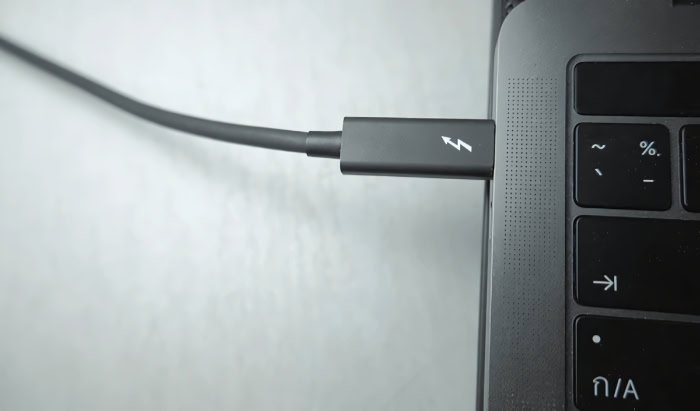
A major advantage of using a unified connector shape is the ability to plug almost any cable into any port, but this physical compatibility does not ensure full technological compatibility. When different standards are mixed, the connected devices must communicate to establish a common language.
How these systems negotiate their connection determines if the hardware operates at full speed, runs at a reduced rate, or fails to work entirely.
Cross-Compatibility of Cable Standards
Cables play an active role in signal transmission and behave differently depending on the ports they connect. If you plug a certified Thunderbolt 4 cable into a standard USB-C port, the cable automatically falls back to standard USB speeds, matching the maximum limit of the host port.
Conversely, if you connect a standard USB-C cable to a Thunderbolt 4 port, the connection will be limited by the cable’s physical construction, throttling the system down to USB speeds even if both the host and the peripheral are Thunderbolt capable. This performance difference is tied to how cables are built; passive cables simply pass signals along and degrade over longer distances, whereas active cables contain built-in microchips to boost signals and maintain high bandwidth across longer lengths.
Backward Compatibility with Previous Standards
Thunderbolt 4 maintains broad backward compatibility, allowing users to connect older hardware without issue. A Thunderbolt 4 port fully supports older Thunderbolt 3 devices, standard USB-C peripherals, and even older USB generations when using appropriate adapters.
Standard USB-C ports also offer backward compatibility with older USB versions, but they cannot interface with older Thunderbolt-specific accessories. When connecting modern accessories to legacy host machines, the oldest and slowest link in the connection chain will always dictate the overall speed and power delivery limits.
Device Behavior in Mismatched Ports
Plugging a Thunderbolt-only accessory into a basic USB-C port that lacks Thunderbolt support typically results in a non-functional device. While some modern Thunderbolt accessories have fallback controllers that allow them to operate as standard USB devices at reduced speeds, others will simply refuse to mount or turn on.
When compatible but mismatched devices are connected, the host machine’s operating system manages the connection by throttling data speeds to the highest mutually supported standard. Common connectivity failures, such as flashing displays, disconnected hard drives, or charging interruptions, are often caused by these protocol mismatches rather than faulty hardware.
Practical Applications and Use Cases

Recognizing the technical differences helps in choosing the right hardware for specific tasks. While some professionals require the highest available bandwidth to complete their work, other daily tasks are handled effectively by more affordable alternatives.
External Storage and Media Workflows
For video editors, photographers, and media professionals, Thunderbolt 4 offers significant advantages due to its massive bidirectional bandwidth. Working with raw high-resolution footage requires transfer speeds that standard USB-C ports cannot sustain without causing lag or frame drops during playback.
While a standard USB-C solid-state drive is sufficient for backing up documents or transferring smaller files, a Thunderbolt 4 external drive can match the speed of a computer’s internal storage. This high velocity dramatically reduces file backup times and allows creative professionals to edit directly off external media without transferring files to their local drive first.
Multi-Monitor Workstation Setups
Setting up a productive home office or corporate workstation often involves managing multiple screens. A single Thunderbolt 4 docking station can receive power, transmit data, and drive two 4K monitors simultaneously using only one cable connected to a laptop.
This single-cable configuration simplifies desk organization and ensures a stable video signal with minimal latency. Standard USB-C ports can struggle with multi-monitor configurations, occasionally resulting in flickering screens, lower resolutions, or the inability to extend the desktop across more than one external display.
External GPU and PCIe Expansion
Gamers and 3D rendering artists who require extra graphical processing power often turn to external graphics cards (eGPUs). Because eGPUs require a high-speed, direct connection to the system’s motherboard, they can only operate over ports that support PCIe data tunneling.
Consequently, external graphics cards are compatible only with Thunderbolt or USB4 ports and will not function at all when plugged into a standard USB-C port. Even with a compatible Thunderbolt 4 setup, users should expect a minor performance loss compared to an internally mounted graphics card due to the physical limitations of external cabling.
General Daily Productivity Tasks
For general office work, standard USB-C connections are more than adequate and highly cost-effective. Tasks such as typing documents, browsing the internet, sending emails, and attending video meetings do not require 40 Gbps of bandwidth.
Connecting a keyboard, a mouse, or a low-speed USB hub to a standard port works reliably without the need for expensive Thunderbolt certified hardware. Utilizing basic USB-C peripherals allows business owners and individual users to equip their workspaces efficiently without paying a premium for performance specifications they do not actually need.
Hardware Evaluation and Purchase Decisions

Making smart hardware choices requires balancing your actual performance needs with the budget you have available. Because certified high-bandwidth accessories are significantly more expensive than standard alternatives, identifying exactly what your devices require is critical.
Taking the time to evaluate your current setup can prevent both costly compatibility errors and unnecessary spending on over-engineered accessories.
Cost Analysis of Cables and Accessories
Certified Thunderbolt 4 cables and accessories command a noticeable price premium due to strict Intel licensing fees, manufacturing complexity, and rigorous testing requirements. A certified two-meter active Thunderbolt 4 cable can cost several times more than a standard USB-C cable of the same length.
Similarly, Thunderbolt 4 docking stations are priced much higher than standard USB-C hubs because they contain advanced controller chips and must guarantee multi-display support and high-speed data delivery. When buying equipment for an office, these cost differences can accumulate quickly, making it financially wise to reserve Thunderbolt hardware only for the users who truly require it.
Peripheral Requirements
Before purchasing accessories, you must evaluate the specific demands of your devices. If you are connecting a basic external backup drive that maxes out at 10 Gbps, buying a Thunderbolt 4 cable will not make the drive run any faster than a matching 10 Gbps USB-C cable.
You should match the capabilities of your accessories directly with the ports available on your laptop. Investing in high-end Thunderbolt docks or storage is only beneficial if both your computer and the connected device support the standard, otherwise, the system will simply run at standard USB speeds.
Assessment of Current Hardware Specifications
To avoid purchasing incompatible accessories, you should check the exact specifications of your computer’s ports. On Windows laptops and desktops, these specifications can be found in the device manual, on the motherboard manufacturer’s website, or by opening the Device Manager to look for Thunderbolt controller entries. macOS users can find this information by checking the “About This Mac” menu and viewing the system report.
Creating a pre-purchase checklist that verifies your computer’s video output capabilities, power requirements, and protocol support ensures that any new workstation upgrade will function correctly right out of the box.
Conclusion
While Thunderbolt 4 and USB-C share an identical physical design, they represent different levels of performance and connectivity standards. Standard USB-C offers a highly accessible, cost-effective solution for everyday tasks, simple peripheral connectivity, and basic charging needs.
In contrast, Thunderbolt 4 provides a premium, high-bandwidth connection with guaranteed performance baselines for data transfer, multi-monitor displays, and system power.
Selecting the appropriate standard comes down to identifying your actual functional requirements and budget. For intense media editing, multi-display setups, and PCIe expansion, the guaranteed speeds of Thunderbolt 4 justify the extra financial investment.
For daily office work, standard web browsing, and basic accessory connections, standard USB-C provides a highly capable and budget-friendly alternative.
Frequently Asked Questions
Can I use a regular USB-C cable to connect my Thunderbolt hard drive?
Yes, you can physically plug it in, but the connection will drop to standard USB speeds. A standard USB-C cable lacks the internal wiring and chips required to transmit Thunderbolt data. While the drive will still work, its speed will be severely throttled, meaning large file transfers will take much longer.
How can I tell if my laptop port actually supports Thunderbolt 4?
Look for a small lightning bolt logo printed next to the oval-shaped port on your laptop. If there is no logo, you can verify support by checking the system report on a Mac or looking for a Thunderbolt Controller in the Windows Device Manager. Some manufacturers omit logos entirely to keep the design clean.
Do I need a special monitor to use a Thunderbolt 4 port?
No, you do not need a special monitor, as Thunderbolt 4 ports can output video to standard screens using basic adapters or DisplayPort cables. However, to get the full benefit of a single-cable setup, a Thunderbolt certified display or docking station is necessary. This allows you to run multiple monitors while simultaneously charging your laptop.
Why are Thunderbolt 4 docks so much more expensive than regular USB-C hubs?
Thunderbolt 4 docking stations cost more because they must pass strict Intel certification and contain advanced high-speed controller chips. These premium components guarantee support for dual 4K displays and consistent 40 Gbps speeds. Cheaper USB-C hubs do not have these requirements, often leading to slower transfers and inconsistent monitor support.
Will plugging a Thunderbolt cable into a standard USB port damage my device?
No, plugging a Thunderbolt cable into a standard USB-C port is completely safe and will not damage your hardware. The built-in safety protocols of both standards ensure that power and data levels are automatically adjusted to the highest mutually supported standard. The device will simply function as a standard USB accessory at a lower speed.
About the Author: Julio Caesar


