
Thunderbolt 4 vs. USB4: Which Is Faster?

Plug a high-speed external drive into two identical-looking USB-C ports, and one might transfer your files four times slower than the other. This hidden performance gap means buying the wrong cable or peripheral can quietly throttle your daily workflow, limit your monitor setups, and waste your money.
The confusion stems from the physical USB-C connector, which now hosts two distinct technologies: Thunderbolt 4 and USB4. While both protocols promise high-speed connectivity, they operate under fundamentally different rules.
Intel mandates strict, non-negotiable performance minimums for Thunderbolt 4 certification. Meanwhile, the USB Implementers Forum allows manufacturers of USB4 devices to opt out of certain high-end features to keep production costs down.
Key Takeaways
- Thunderbolt 4 guarantees a consistent, bidirectional transfer speed of 40 Gbps, whereas USB4 devices can operate at either 20 Gbps or 40 Gbps depending on the specific model.
- Every certified Thunderbolt 4 laptop must support at least two 4K displays at 60Hz or a single 8K display, while USB4 only mandates support for a single monitor.
- PCI Express tunneling is a mandatory requirement for Thunderbolt 4, ensuring full compatibility with external graphics cards and high-speed NVMe solid-state drives.
- Thunderbolt 4 host ports deliver a minimum of 15 watts of power to run external accessories, which is double the 7.5-watt minimum required by the USB4 standard.
- Standard passive copper cables experience signal degradation and speed drops beyond one meter, requiring active cables containing specialized transceivers to maintain full speeds over longer distances.
The Core Architecture
The performance profile of any modern cable or port is dictated by its governing standards. While both options utilize the physical USB-C port, they are born from entirely different development philosophies and regulatory standards.
One is tightly managed by a single corporation to ensure absolute predictability, while the other is maintained by an industry coalition designed to offer manufacturers flexibility.
Intel and the Thunderbolt 4 Standard
Thunderbolt began as a proprietary technology co-developed by Intel and Apple. Under the Thunderbolt 4 generation, Intel maintains absolute ownership of the trademark and enforces a strict, non-negotiable certification process.
If a hardware manufacturer wants to print the Thunderbolt logo on a laptop, cable, or docking station, the hardware must pass a series of testing protocols managed directly by Intel. This mandatory process ensures that any certified device behaves exactly like any other certified device.
Consumers do not have to research individual manufacturer spec sheets to check supported features, because the certification acts as an absolute performance baseline.
The USB Implementers Forum (USB-IF) and USB4
USB4 represents a different philosophical path, managed by the USB Implementers Forum, a large coalition of technology companies. Intel contributed the underlying royalty-free technical specifications of Thunderbolt 3 to the group, which became the foundation for USB4.
Because the USB-IF is an industry association rather than a single company, it focuses on driving broad adoption. To achieve this, USB4 operates on a tiered framework of optional capabilities.
Manufacturers can choose which parts of the specification to implement. For instance, a brand can build a budget-friendly laptop with basic USB4 functionality while omitting high-bandwidth video support, keeping retail prices lower.
Certification vs. Self-Reporting
The practical divide between these two standards rests in how they are validated. Every Thunderbolt 4 accessory and host port must undergo independent laboratory testing to verify it meets every single standard defined by Intel.
If a device fails even one parameter, it cannot use the trademark. USB4 products, on the other hand, frequently rely on self-reporting or looser testing tiers.
While the USB-IF does offer official certification logos, manufacturers are not legally required to run their devices through these expensive labs to sell them as USB4 compatible. This means that two USB4 cables bought online might provide wildly different performance levels depending on how rigorously the individual manufacturers chose to design and test them.
Bandwidth and Data Transfer Standards
Data transmission speeds define how efficiently your peripherals interact with your computer. While both connections use the same physical format, the way they process and allocate bandwidth reveals a massive divide in baseline performance.
One standard guarantees a high speed at all times, while the other offers a range of speeds depending on how the device was manufactured.
Throughput and Speed Discrepancies
Thunderbolt 4 establishes a single, non-negotiable performance baseline of 40 gigabits per second (Gbps) of bidirectional bandwidth. Any laptop or device carrying the certification logo must support this maximum speed.
USB4, conversely, is divided into two distinct speed tiers: USB4 20Gbps and USB4 40Gbps. When shopping for USB4 peripherals, buyers must check the fine print or look for specific packaging logos indicating the speed tier, as a standard USB4 port might only support half the speed of a Thunderbolt 4 port.
This speed difference changes how quickly files transfer and how many devices can run simultaneously on a single connection.
PCIe Tunneling: Supporting External Hardware
PCI Express (PCIe) tunneling allows external peripherals to communicate directly with your computer processor, acting as if they are plugged directly into the motherboard. Thunderbolt 4 mandates a minimum PCIe data bandwidth of 32 Gbps, ensuring that high-speed data streams flow without bottlenecking.
USB4 treats PCIe tunneling as an optional feature. Because of this, some USB4 host devices, particularly budget-friendly laptops or devices using certain processors, do not support PCIe tunneling at all.
Peripherals that rely entirely on this protocol will fail to function when connected to these specific USB4 ports.
Performance Impact
These technical specifications translate directly to daily performance. When using high-speed external NVMe solid-state drives, a Thunderbolt 4 port will consistently deliver read and write speeds near the drive’s physical limits, often exceeding 3,000 megabytes per second.
A USB4 port limited to 20Gbps or lacking robust PCIe support may cap those same drives at half their potential speed. The difference is even more pronounced with external graphics cards.
Because external GPUs require high-speed PCIe tunneling to process real-time 3D rendering, they are fully supported on all Thunderbolt 4 computers but will not work on USB4 computers that omit PCIe tunneling.
Display Output and Video Capabilities

Connecting external monitors requires substantial and reliable bandwidth. Because video signals consume a massive portion of any connection’s carrying capacity, the protocol managing your port dictates the complexity of your display setup.
The differences between these standards become clear when attempting to power multiple high-resolution displays through a single port.
Multi-Monitor Requirements
Thunderbolt 4 laptops must support at least two 4K displays at a refresh rate of 60Hz, or a single 8K display. This guarantee is built into the certification process, forcing manufacturers to allocate sufficient internal hardware resources to display outputs.
USB4, by contrast, only mandates support for a single display with no standardized minimum resolution. A manufacturer can design a USB4 laptop that only outputs to a single 1080p monitor and still legally call it a USB4 device, leaving multi-monitor users to guess whether their displays will function correctly without extensive research.
Video Bandwidth Allocation
Both standards utilize dynamic bandwidth allocation, which balances display signals and data transfers over the same line. When a monitor is connected, the port prioritizes the video stream, using DisplayPort alternate mode, and allocates the remaining bandwidth to standard USB data.
Thunderbolt 4 handles this distribution using high-speed controllers that dynamically adjust allocation, ensuring that video frames remain stable even when copying large files to an external drive. USB4 also supports this dynamic sharing, but because its baseline speeds can drop to 20Gbps, connecting a high-resolution monitor can leave almost no bandwidth left for data transfers, severely slowing down connected storage drives.
Daisy-Chaining and Topology
For clean workspace setups, daisy-chaining allows users to connect multiple devices in a series, running a single wire from the computer to a monitor, and another wire from that monitor to a second display or storage unit. Thunderbolt 4 natively supports this practice alongside multi-port hubbing, allowing you to branch off into complex tree topologies with up to four Thunderbolt ports on a single hub.
USB4 supports standard daisy-chaining in theory, but in practice, the lack of mandatory PCIe and display requirements means that connecting multiple monitors in a series often fails. Many USB4 hubs only provide a single downstream port, preventing users from building complex multi-device networks.
Charging, Power Delivery, and Cable Dynamics

Power delivery and physical cables are often overlooked when comparing computer standards, yet they dictate the reliability of your connected accessories. The type of cable you choose and the power your computer port outputs determine whether your external devices operate stably or randomly disconnect under load.
Bus Power and Charging Limits
When powering bus-powered accessories like portable hard drives, audio interfaces, or small MIDI controllers, Thunderbolt 4 requires the computer port to output a minimum of 15 watts of power. This high floor prevents devices from losing power during intensive tasks.
USB4 only requires a minimum of 7.5 watts of power output, which is sometimes insufficient to run multiple external drives off a single unpowered hub. For charging the laptop itself, both standards utilize the USB Power Delivery protocol, allowing power to flow bi-directionally, though the exact charging speed depends on the charger and the computer manufacturer’s specifications.
Cable Composition: Passive vs. Active
High-frequency data signals degrade quickly over copper wire. Standard passive USB4 cables usually experience signal loss and subsequent speed drops if they exceed one meter in length.
To solve this issue, Thunderbolt 4 cables longer than one meter are engineered as active cables, containing tiny transceivers in the connector housings that boost and clean the signal. This advanced engineering allows Thunderbolt 4 active cables to maintain the full 40 Gbps speed at lengths of up to two meters, providing more flexibility in workstation layouts without compromising on performance.
Cross-Compatibility of Cables
Physically, Thunderbolt 4 and USB4 cables are completely interchangeable because they use the same physical connector. If you plug a certified Thunderbolt 4 cable into a USB4 port, the cable will work reliably, safely adapting to the maximum speed supported by the host computer.
If you plug a cheap, passive USB4 cable into a Thunderbolt 4 port, the connection remains safe, but your speeds may degrade over longer distances. Using high-quality cables ensures that you do not accidentally bottleneck your system, regardless of which standard your computer uses.
Practical Buying Guide: How to Choose for Your Workflow

Selecting the right hardware depends entirely on your specific setup requirements and budget. Deciphering the physical markings on devices and aligning them with your daily tasks helps prevent overspending on features you may not need, while ensuring you do not buy underpowered accessories.
Deciphering Logos and Port Symbols
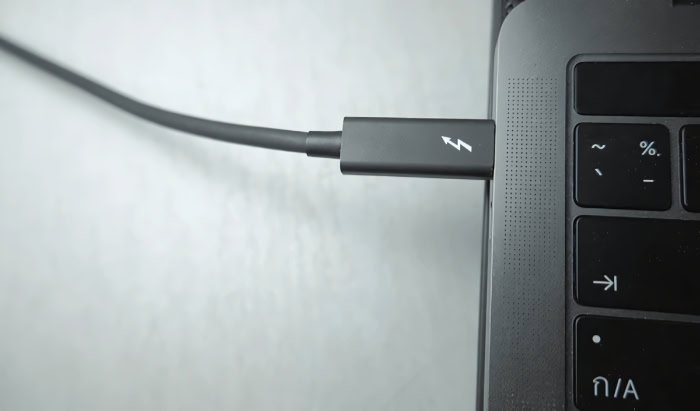
Identifying these ports requires looking closely at the small symbols printed next to them. Thunderbolt 4 ports and cables are marked with a distinct lightning bolt icon, often accompanied by the number four to indicate the specific generation.
USB-IF uses performance-focused labeling for USB4, featuring stylized logos that explicitly state the bandwidth speed, such as “USB 40Gbps” or “USB 20Gbps.” When buying cables or peripherals, looking for these official speed-rated logos on the retail packaging is the most reliable way to verify the performance tier of the hardware.
Matching Your Workflow to the Right Standard
Creative professionals, such as video editors and audio engineers, benefit most from Thunderbolt 4 because their work relies on transferring massive files to external RAID arrays and running lag-free multi-monitor arrays. Gamers looking to boost laptop performance with external graphics cards also require the guaranteed PCIe speeds of Thunderbolt 4.
USB4 is highly suitable for general office work, standard single-monitor setups, and routine external backups. Opting for USB4 allows budget-conscious buyers to purchase affordable laptops and accessories without paying the premium associated with official Intel certification.
Docking Station and Hub Selection
When shopping for a central hub, Thunderbolt 4 docking stations offer extensive backward compatibility. A Thunderbolt 4 dock will connect to a USB4 laptop, though the available ports and display outputs on the dock may scale down depending on the specific capabilities of that USB4 computer.
Choosing a certified docking station ensures that even if you change laptops in the future, your central workstation hub will remain functional, safely negotiating the highest possible data rates allowed by your new machine.
Conclusion
Evaluating modern USB-C connectivity reveals a clear dividing line between guaranteed performance and optional compatibility. Thunderbolt 4 establishes an absolute baseline, offering predictability through strict Intel-supervised certification that covers transfer speeds, multi-monitor outputs, and hardware communication.
USB4 offers a more flexible and cost-effective standard, but its tiered specifications require you to inspect individual product spec sheets to confirm which features are actually supported.
A simple rule of thumb can guide your next hardware purchase. If your work relies on running multiple high-resolution displays, using high-speed external storage arrays, or connecting external graphics cards, investing in Thunderbolt 4 guarantees the necessary bandwidth and compatibility.
For general office productivity, single-monitor setups, and standard external backups, USB4 devices offer a highly capable alternative that can save you money without sacrificing daily usability.
Frequently Asked Questions
Will my USB4 laptop work with a Thunderbolt 4 docking station?
Yes, your USB4 laptop will connect to a Thunderbolt 4 docking station, though some features may be limited depending on your computer’s design. Because USB4 is backward compatible with Thunderbolt technology, basic functions like power delivery, USB ports, and single monitor output will function properly. However, some advanced display or data speeds might scale down.
Can I use a regular USB-C cable for a Thunderbolt 4 connection?
No, you cannot use a standard, unrated USB-C cable and expect to get full Thunderbolt 4 performance. Standard USB-C cables often lack the internal shielding and active transceivers required to maintain high speeds over long distances. To achieve full 40 Gbps transfer speeds, you must use a cable certified specifically for Thunderbolt 4.
Do I need Thunderbolt 4 to connect two 4K monitors?
Yes, using Thunderbolt 4 is the most reliable way to connect two 4K monitors at 60Hz because this display capability is a mandatory requirement for the standard. While USB4 can technically support dual monitors, it only guarantees support for a single display. This means many USB4 laptops will fail to output to a second screen.
Why are some USB4 devices so much cheaper than Thunderbolt 4 ones?
USB4 devices are often cheaper because manufacturers do not have to pay Intel certification fees and can choose to omit expensive high-end features. By skipping optional features like dual-monitor support or PCIe tunneling, brands can significantly reduce production costs. Thunderbolt 4 requires comprehensive, expensive testing and premium internal hardware, which increases retail prices.
Can I plug an external graphics card into any USB4 port?
No, an external graphics card will not work with every USB4 port because PCIe tunneling is an optional feature for the USB4 standard. External graphics cards require PCIe tunneling to communicate directly with your computer’s processor. Since Thunderbolt 4 mandates this feature, you should choose a Thunderbolt 4 port for external graphics setups.
About the Author: Julio Caesar


