
What Is a USB Flash Drive and How Does It Work?
Decades ago, portable data storage depended on magnetic floppy disks and fragile compact discs, both of which offered limited capacity and broke easily. As daily computing needs expanded, solid-state media replaced those older formats with faster, more resilient alternatives.
USB flash drives emerged as dependable, pocket-sized tools capable of storing vast amounts of data without any moving parts. By drawing power directly from a host computer port, flash drives make transferring documents, sharing family photos, and maintaining emergency system backups quick and convenient.
Learning how flash memory functions, selecting appropriate storage capacities, and following proper safe-ejection routines allows computer users to safeguard valuable files and keep critical records accessible anywhere.
Key Takeaways
- Solid-state construction relies on electronic NAND flash memory without moving parts, making flash drives far more resistant to drop damage and vibration than mechanical hard drives.
- Traditional rectangular USB-A connectors support standard desktop ports, while modern reversible USB-C connectors fit newer laptops and mobile devices, with dual-connector models bridging both standards.
- Upgrading to USB 3.0 or USB 3.2 hardware provides transfer rates between 100 MB/s and 300 MB/s, reducing copy times for large media files from 15 minutes down to roughly 30 seconds compared to older USB 2.0 drives.
- Formatting a drive with the exFAT file system provides seamless read and write compatibility across Windows and macOS platforms while eliminating the 4 GB single-file limit found on FAT32 drives.
- Using the operating system’s safe ejection command protects against write-cache errors and data corruption, while adding password protection or encryption secures personal files if the drive is lost.
Definition and Overview of the Device
Portable storage hardware enables people to move information across computers, workstations, and home electronics without relying on internet connections. Among the various portable media options available, modern flash drives provide an accessible, compact way to store and carry data.
Standard Definition of a USB Flash Drive
A USB flash drive is a pocket-sized, removable storage medium that plugs directly into a computer through a Universal Serial Bus port. Inside the drive, electronic memory chips hold files securely without requiring moving mechanical components.
It serves as an external solid-state storage solution for everyday personal and professional tasks, allowing users to save documents, family pictures, and work presentations in an easily transportable format.
Alternative Names and Terminology
People refer to these storage tools by several common names, including thumb drive, pen drive, USB stick, and jump drive. Some users simply call them memory sticks or USB drives.
Despite the variety of colloquial terms heard in offices and electronics stores, every one of these labels describes the exact same underlying hardware. Each name refers to a portable, solid-state drive that plugs directly into a standard host port to read and write files.
External Anatomy and Design Elements
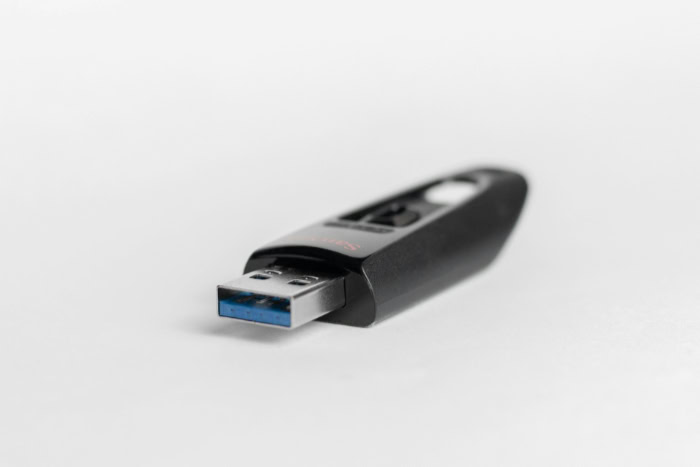
The exterior of a flash drive consists of several functional parts built to protect the fragile electronic circuits within. At the front sits the male connector, which inserts directly into the host port on a computer or television.
A durable outer casing, typically constructed from hard plastic, aluminum, or rubberized silicone, encloses the internal circuitry to shield it from drops and daily friction. Many models include a tiny activity indicator LED that flickers while data transfers take place, warning users not to pull the drive out mid-operation.
To guard the exposed connector against lint and dirt, drives often feature a removable protective cap, a sliding mechanism, or a rotating metal swivel cover. Small loops or perforations molded into the housing allow users to clip the drive onto a lanyard, cord, or split ring for effortless transport in pockets and bags.
Internal Mechanics and Technology

Behind the simple exterior of a flash drive lies solid-state electronic circuitry engineered to manage data efficiently. Unlike older storage media that relied on magnetized tape or spinning platters, these devices store files purely through electrical pathways.
Solid-State Architecture and Flash Memory
Inside the protective shell, two primary components manage every operation: NAND flash memory chips and a memory controller board. The memory chips act as the storage warehouse, organizing digital data into a grid of microscopic electronic cells.
The controller serves as the internal manager, directing the flow of information between the host computer and the storage cells. Flash drives contain no spinning disks, magnetic read heads, or motorized parts.
This solid-state design eliminates the mechanical wear and tear that often damages traditional desktop hard drives.
Non-Volatile Data Retention
A defining attribute of flash memory is non-volatile data retention, which means the device retains stored documents, pictures, and applications without any continuous electrical power. When a user unplugs the drive, the stored information remains intact for years inside the memory cells.
This architecture differs completely from volatile computer memory, such as standard system RAM. Volatile RAM requires an uninterrupted stream of electricity to hold temporary data; the moment the computer turns off, everything inside RAM disappears.
Flash memory uses microscopic charge traps to lock electrons into position, preserving files indefinitely until new data overwrites them.
Plug-and-Play Connectivity
Flash drives operate using direct power drawn straight from the host computer port, eliminating the need for bulky power cords, wall adapters, or internal batteries. Connecting the device instantly powers the memory controller and chips.
Modern desktop and laptop operating systems, including Windows, macOS, Linux, and ChromeOS, feature built-in universal drivers. Because these platforms recognize standard mass storage protocols automatically, users do not need to install specialized software or restart their machines before transferring files.
Common Applications and Practical Utility

Flash drives perform a wide range of everyday computing jobs, making local data management straightforward and flexible. From passing files across unconnected computers to maintaining emergency recovery tools, their versatility supports numerous routine tasks.
File Transfer and Portable Data Access
The most common use of a flash drive is migrating files from one computer to another without an active network connection. Users can transfer large batches of documents, music collections, and high-resolution images between work laptops and home desktops without waiting on slow network uploads.
Flash drives also deliver direct media access on non-computer equipment. Pluggable ports on modern smart televisions allow people to view vacation photos or home movies on a large screen, while vehicle audio systems and office printers can read audio tracks and PDF documents directly from the drive.
Secondary Backups for Essential Documents
A flash drive serves as an effective secondary backup destination for vital personal files, including tax returns, digital copies of passports, financial spreadsheets, and family photo collections. Relying on a single storage location leaves data vulnerable to hardware failure or accidental deletion.
Storing a duplicate copy on a flash drive creates a localized backup that remains safe even if the primary computer crashes. For thorough data protection, many people incorporate a flash drive into a multi-tiered backup routine, pairing an offline drive with cloud storage and external desktop hard drives.
Bootable Software and System Recovery Media
Beyond standard document storage, flash drives can function as bootable installation media for computer operating systems. Users can configure a drive to install fresh copies of Windows, macOS, or Linux, which proves valuable when upgrading hardware or rebuilding a compromised operating system.
Technicians and everyday users also configure emergency utility drives containing diagnostic tools, offline virus scanners, and system repair utilities. When a computer fails to start properly from its primary internal drive, booting from an emergency flash drive allows users to repair system errors and retrieve critical files.
Hardware Variations and Specifications

While all flash drives share the same foundational architecture, they differ significantly in their physical connections, internal performance, and storage volumes. Choosing the right device depends on the types of files being handled and the ports available on host computers.
Storage Capacity Ranges
Flash drives span a broad spectrum of capacities to match varied user requirements. Budget options typically offer 16 GB to 32 GB of space, providing ample room for school reports, office spreadsheets, and thousands of text documents.
Mid-tier drives ranging from 64 GB to 128 GB accommodate extensive photo libraries, music collections, and presentation slide decks. High-capacity options of 256 GB, 512 GB, and 1 TB or more hold massive data archives, uncompressed audio, and high-resolution 4K video projects.
Users working strictly with basic documents rarely need more than 32 GB, while those moving video footage benefit from the largest available capacities.
Physical Connector Profiles: USB-A and USB-C
Flash drives generally feature one of two common physical connectors: the traditional USB-A profile or the modern USB-C profile. USB-A connectors have a rectangular shape that only plugs in one way, commonly found on desktop towers, older laptops, game consoles, and automotive dashboards.
The newer USB-C connector has a rounded, reversible shape that plugs in upside down or right side up without distinction. Many newer laptops, tablets, and smartphones exclusively feature USB-C ports.
To bridge the gap between older and newer hardware, dual-connector flash drives include a USB-A plug on one end and a USB-C plug on the other, enabling direct file sharing between mobile phones and legacy computers.
Speed Classifications and Protocol Standards
Performance varies widely depending on the communication standard supported by the drive and the host port. Older USB 2.0 drives have a theoretical maximum transfer rate of 480 Mbps, translating to actual write speeds between 5 MB/s and 15 MB/s.
Newer USB 3.0 and USB 3.2 Gen 1 standards deliver theoretical bandwidth up to 5 Gbps, often achieving actual speeds of 100 MB/s to 300 MB/s. Advanced USB 3.2 Gen 2 models push transfer speeds up to 10 Gbps or higher.
While these speed variations make little noticeable difference when copying a two-page text document, they drastically reduce wait times when copying a 10 GB video file from 15 minutes down to just 30 seconds.
Benefits, Limitations, and Maintenance

Maximizing the lifespan and reliability of a flash drive requires an appreciation of its physical strengths alongside its operational vulnerabilities. Taking basic precautions ensures that stored information remains secure, readable, and free from corruption over years of use.
Portability, Durability, and Accessibility
The solid-state design of flash drives gives them superior durability compared to mechanical hard drives. Without fragile spinning platters or delicate moving arms, a flash drive can survive accidental drops onto hardwood floors, constant vibration in a backpack, and everyday bumps without data loss.
Their compact dimensions make them exceptionally convenient to slip into a pocket or travel pouch. Flash drives also guarantee uninterrupted, offline access to stored files, which proves essential when working in remote cabins, aboard airplanes, or in areas without reliable cellular service.
Physical Loss and Data Security Risks
The same small size that makes a flash drive convenient also introduces clear risks. Drives can easily slip out of pockets, disappear between couch cushions, or be left behind in public computer labs and library terminals.
Because they are portable, they also face exposure to moisture, dust, and electrical shorts if dropped into water or left in rain. Furthermore, standard flash drives do not protect stored files by default; anyone who finds a lost drive can plug it into a computer and view its contents.
To prevent unauthorized access to sensitive financial records or confidential documents, users can apply password protection tools or full-disk encryption software to protect their data.
Safe Ejection and File System Format Choices
Maintaining data integrity depends heavily on using correct ejection procedures before pulling a flash drive out of a computer. Modern operating systems frequently use write caching, holding data in temporary memory for a few seconds before finishing the physical write operation onto the flash chips.
Unplugging the drive while this process is incomplete can corrupt files or damage the file system entirely. Using the “Eject” option in macOS or selecting “Safely Remove Hardware” in Windows ensures all active operations wrap up properly.
Additionally, formatting a drive with the exFAT file system provides seamless read and write compatibility between Windows and macOS computers, avoiding the 4 GB single-file size restriction found on older FAT32 drives.
Conclusion
USB flash drives remain practical, dependable tools for storing and moving personal information across different machines. Although cloud storage and wireless networks have expanded rapidly, having an offline, physical drive ensures immediate access to files in any environment.
Selecting the right balance of capacity and connector types, paired with safe ejection habits and file encryption, allows users to protect important records and prevent accidental data loss. Learning these straightforward hardware fundamentals ensures that everyday file sharing and emergency system recovery remain seamless, reliable, and secure.
Frequently Asked Questions
What is the difference between a USB stick, flash drive, and thumb drive?
There is no difference between a USB stick, flash drive, and thumb drive because all these terms refer to the exact same device. They are simply colloquial nicknames for solid-state, pocket-sized storage media that plug into a computer port. Manufacturers and consumers use these words interchangeably to describe hardware containing NAND flash memory chips.
Why do I need to safely eject my flash drive before unplugging it?
Safely ejecting a flash drive prevents file corruption by ensuring the computer finishes all background saving operations. Operating systems often keep data in temporary cache memory before finishing the physical write process onto the memory chips. Removing the drive too early interrupts this transfer, which can permanently damage personal files or ruin the entire file system.
Which format should I choose to use a flash drive on both Windows and Mac?
You should format the drive using exFAT for seamless compatibility across Windows and Mac computers. Unlike FAT32, which restricts individual file transfers to a maximum of 4 GB, exFAT handles massive file sizes without difficulty. It works natively on both operating systems without requiring third-party software, making it an effective choice for cross-platform sharing.
How much storage space do I actually need on a flash drive?
Most everyday computer users only need a 32 GB or 64 GB flash drive to store documents, spreadsheets, and family photos. A 32 GB drive easily holds thousands of text documents and high-resolution pictures. However, if you plan to transfer extensive collections of 4K video footage, system backups, or large software installers, choosing 128 GB or 256 GB is much more practical.
Can a flash drive lose data if it stays unplugged for a long time?
Yes, a flash drive can eventually lose stored data if left unpowered in storage for many consecutive years. Flash drives use microscopic electrical charge traps that gradually leak electrons over extended periods without power. Connecting the drive to a computer once every year or two refreshes these charges, preserving stored files against gradual corruption.
About the Author: Julio Caesar


