
What Is AirDrop and How Does It Work?

Moving photos, documents, and web links between devices often involves slow email attachments, clunky cloud storage links, or compressed messaging apps. Apple eliminates those friction points through AirDrop, a built-in wireless sharing utility.
AirDrop provides a seamless, secure, and cable-free method for transferring files locally across Apple devices by combining Bluetooth discovery with direct peer-to-peer Wi-Fi connections. Effective use of the system depends on its core definition, internal wireless mechanics, setup procedures, common troubleshooting steps, and built-in privacy controls that protect personal information during everyday transfers.
Key Takeaways
- AirDrop combines Bluetooth Low Energy for device discovery with peer-to-peer Wi-Fi for high-speed file transfers, operating without a cellular connection or shared router.
- The service works exclusively across iPhones, iPads, and Mac computers, supporting uncompressed 4K videos, photos, documents, and web links.
- Devices must remain unlocked and within 30 feet (9 meters) of one another with both Bluetooth and Wi-Fi enabled to establish a connection.
- Turning off Personal Hotspot and disabling active VPN connections resolves the most common device detection and transfer failures.
- Keeping receiving permissions set to “Contacts Only” prevents unsolicited files in public spaces, while “Everyone for 10 Minutes” allows temporary transfers from non-contacts.
Overview and Core Purpose
Sharing digital files across personal electronics should not require physical cables, external hardware, or internet bandwidth. Apple designed an integrated wireless solution to bridge the gap between its mobile and desktop operating systems, allowing nearby devices to communicate directly.
Definition of the Technology
AirDrop is Apple’s proprietary ad-hoc wireless file-sharing service built directly into its mobile and computer operating systems. Before local wireless sharing became standard, moving a file from a phone to a laptop required emailing attachments to oneself, plugging in USB flash drives, or uploading files to third-party cloud servers.
AirDrop bypasses those intermediary steps altogether. Its primary purpose is instant, close-range data transfer between compatible hardware without relying on cellular networks or local internet routers.
Hardware and Platform Compatibility
The feature operates across three main Apple product lines: iPhone, iPad, and Mac computers. On mobile devices, the tool requires at least iOS 7 or iPadOS 13, while Mac computers must come from 2012 or later and run at least OS X Yosemite to communicate with mobile hardware.
Because the underlying architecture relies on proprietary Apple frameworks and hardware chips, the service is locked to the Apple ecosystem. Users cannot establish direct transfers with Android smartphones, Windows PCs, or Linux machines.
Supported Content and File Categories
Almost any item accessible through the system’s native Share Sheet can be transmitted wirelessly. For media transfers, users routinely send full-resolution photos, uncompressed 4K videos, and voice memos without the quality degradation common in text messaging apps.
For productivity workflows, the service handles PDFs, spreadsheets, word processor documents, and slide presentations of virtually any size. Beyond standard files, it also supports app-specific data such as live web links from Safari, dropped pins from Apple Maps, contact cards, Passbook tickets, and shared passwords.
Technical Architecture and Data Transmission

Behind the simple tap-to-send interface lies a coordinated dual-radio wireless architecture. Rather than relying on a single communication protocol, Apple pairs two distinct wireless technologies to balance low battery consumption with rapid data throughput.
Bluetooth for Device Discovery
The initial handshake between two devices relies entirely on Bluetooth Low Energy (BLE). Rather than keeping power-hungry Wi-Fi antennas constantly scanning for nearby hardware, compatible Apple devices emit a low-power BLE broadcast signal whenever their screens are awake.
Nearby devices passively listen for these small packets of identity data, which confirm compatibility and check contact permissions. Because BLE operates over short distances, both devices must sit in the same room or immediate vicinity to detect one another.
Peer-to-Peer Wi-Fi for Data Transport
Once the Bluetooth handshake confirms a valid target, the heavy lifting shifts to Peer-to-Peer Wi-Fi, often referred to as Wi-Fi Direct. The two devices automatically negotiate a private, ad-hoc wireless network directly between their internal Wi-Fi antennas.
Neither device needs to be connected to a home router or an active internet connection for the transfer to work. Using a direct Wi-Fi frequency provides massive bandwidth advantages over standard Bluetooth, allowing multi-gigabyte video files to move across devices in seconds rather than minutes.
Encryption and Security Protocols
During the wireless transfer, all files pass through a wall of encryption. When two devices establish their peer-to-peer link, they create a Temporary Transport Layer Security (TLS) firewall around the connection.
Furthermore, Apple Identity Service validates authorized contacts by exchanging cryptographic hashes of phone numbers and email addresses associated with each user’s Apple Account, rather than broadcasting raw personal details over the air. Even if someone uses packet-sniffing equipment nearby, the encrypted tunnel prevents outsiders from intercepting the transferred files.
System Configuration and Transfer Procedures

Configuring wireless sharing takes only a few seconds within the system menus of an iPhone, iPad, or Mac. Once the proper permissions are active, sending and receiving files follows a consistent workflow across both mobile and desktop platforms.
Activation Controls and Interface Toggles
On an iPhone or iPad, users manage the feature through the Control Center by swiping down from the top-right corner of the screen, pressing firmly on the network settings card, and tapping the AirDrop icon. On a Mac, the toggle lives inside the Control Center icon in the top Menu Bar or at the top of a Finder sidebar window.
For the service to function, both Bluetooth and Wi-Fi must remain switched on. Enabling Airplane Mode disables these radios immediately, while strict Focus or Do Not Disturb profiles can occasionally suppress incoming transfer notifications until the screen is checked manually.
Visibility Tiers and Access Permissions
Apple provides three distinct visibility settings to control who can see a device and send files to it:
- Receiving Off: Deactivates incoming discovery requests entirely, making the device invisible to everyone nearby while still allowing the user to send files outward.
- Contacts Only: Restricts visibility to people whose Apple Account email address or phone number is saved inside the receiver’s local Contacts app.
- Everyone for 10 Minutes: Opens the device to any nearby Apple user regardless of contact status, automatically reverting to Contacts Only after 10 minutes to protect user privacy.
Step-by-Step Delivery Process
Sending and receiving content follows a direct, sequence-based routine across compatible hardware:
- Open the content: Open the photo, video, document, or link to be shared, and tap or click the Share icon.
- Select the sharing protocol: Tap the AirDrop badge within the sharing menu. Alternatively, on devices running iOS 17 or later, hold the top edges of two iPhones close together to start the transfer screen automatically.
- Pick the recipient: Select the target user’s name or profile icon from the list of detected nearby devices.
- Approve the incoming transfer: On the receiving device, review the incoming notification alert and tap “Accept.” When sending items between two devices linked to the same Apple Account, the system skips this confirmation step and accepts the file automatically.
- Open the delivered file: Once transmission completes, the system routes the item to its designated storage location, directing images to the Photos app, links to Safari, and Mac files directly to the Downloads folder.
Technical Obstacles and Practical Solutions

Wireless transfers occasionally stall or fail due to environmental interference, software settings, or hardware limits. Identifying the specific bottleneck makes it easy to restore connectivity and complete interrupted transfers.
Device Detection Failure
The most frequent frustration occurs when a recipient’s device fails to appear in the sender’s share menu. Both devices must be awake with their screens unlocked for Bluetooth discovery to work; a sleeping phone with a locked screen will not broadcast its presence.
If an unlocked device still does not appear, users should toggle both Wi-Fi and Bluetooth off, wait 5 seconds, and turn them back on. Temporarily switching the receiver’s visibility tier to “Everyone for 10 Minutes” also bypasses glitches where two devices fail to recognize each other’s saved contact cards.
Distance and Hardware Constraints
Physical distance plays a major role in transfer stability. For a reliable Bluetooth handshake and peer-to-peer Wi-Fi bridge, devices must stay within a 30-foot (9-meter) radius of one another.
In practice, keeping them within 6 to 10 feet (1.8 to 3 meters) yields the fastest speeds. Thick concrete walls, metal desks, and heavy microwave interference can degrade wireless signals even across short distances.
Additionally, if a transfer starts normally but fails right at the end, the receiving device likely lacks sufficient free storage space to write the incoming file to its drive.
Network Conflict and Interference Resolution
Certain network features directly conflict with ad-hoc wireless connections. If either device has its Personal Hotspot turned on to share cellular internet, AirDrop will not function because the Wi-Fi antenna is already occupied with tethering duties.
Active Virtual Private Network (VPN) apps can also block local subnet communication, causing transfers to hang indefinitely in a “Waiting” state until the VPN is paused. On macOS, an overly strict firewall configuration can block incoming files; users must open System Settings, check the Firewall menu, and ensure the “Block all incoming connections” toggle is turned off.
Privacy Protection and Risk Mitigation
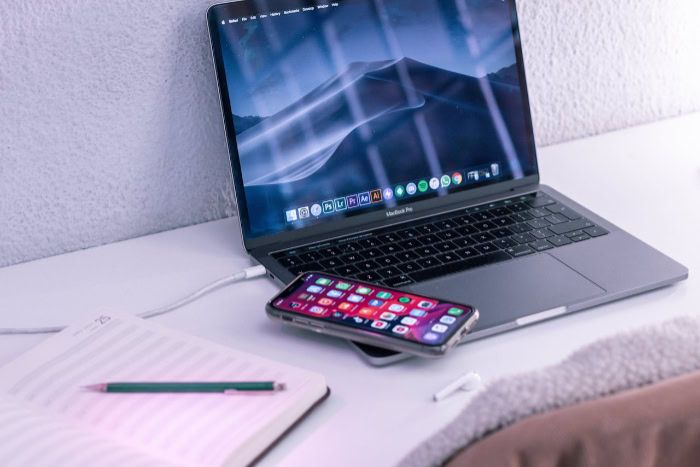
Open wireless receivers in public spaces create obvious privacy risks if left unmonitored. Adjusting system permissions and following basic security habits prevents strangers from sending unwanted files or viewing device identifiers.
Prevention of Unsolicited Content
Leaving a device visible to everyone in crowded environments invites unwanted digital files from strangers, a nuisance commonly called “cyber-flashing.” In response to misuse on public transit and in classrooms, Apple eliminated the permanent “Everyone” visibility setting, replacing it with the 10-minute timer that shuts off public access automatically. Furthermore, Apple includes an optional Sensitive Content Warning feature in system settings, which uses on-device machine learning to blur potentially explicit photos and videos inside the AirDrop preview window before the user decides to accept or view them.
Management of Contact Permissions
Keeping a device set to “Contacts Only” is the safest default posture for daily use. For the setting to work smoothly between friends and colleagues, both the sender and receiver must have their Apple Account signed in on their devices.
The receiver must also have the sender’s active Apple Account email address or phone number listed inside a saved contact card. If a friend only has a work email saved in their address book while the sender’s iPhone uses a personal email for iCloud, the “Contacts Only” handshake will not recognize the match until the contact card is updated.
Safe Practices in Public Environments
When traveling through busy airports, train stations, or stadiums, users should double-check that their receiving permissions are set to “Contacts Only” or “Receiving Off.” If an unexpected file prompt appears on screen while waiting for a file from a friend, users should read the sender’s device name carefully before tapping accept. Finally, because a device’s system name is broadcast to nearby senders whenever discovery is active, users should change their device name in Settings under General and About from default labels like “Jane Smith’s iPhone” to something generic that does not reveal their full identity to strangers.
Conclusion
AirDrop streamlines local file sharing by pairing low-power Bluetooth discovery with high-speed peer-to-peer Wi-Fi transport. By creating a direct, encrypted wireless bridge between devices, the system removes the need for cellular data, shared routers, USB flash drives, or third-party cloud services when moving uncompressed media and documents.
Getting the best results from the tool requires balancing convenience with smart privacy habits, such as keeping visibility restricted to saved contacts during daily routines and disabling conflicting features like Personal Hotspot during transfers. Used properly, Apple’s wireless sharing protocol serves as a fast, dependable standard for moving data across personal devices.
Frequently Asked Questions
Can I use AirDrop to send files to an Android phone or Windows PC?
No, AirDrop is an Apple-exclusive feature that only works on iPhones, iPads, and Mac computers. Android and Windows devices lack the proprietary software protocols required to detect or receive these wireless broadcasts. To share files across different operating systems, users can rely on cross-platform alternatives like Google Quick Share, Snapdrop, or cloud storage links.
Does AirDrop use cellular data or require a Wi-Fi router to work?
AirDrop does not consume cellular data or require a Wi-Fi router when devices remain within close range. The two devices build a temporary, direct peer-to-peer wireless bridge to move files locally without an internet connection. However, on iOS 17.1 or later, moving out of physical range mid-transfer allows the remaining data to finish over cellular networks.
Does AirDrop reduce the quality of photos and videos when you send them?
AirDrop transfers photos and videos at their original, uncompressed resolution without any loss in visual quality. Unlike text messaging apps or social media platforms that shrink media files to save bandwidth, Apple’s local transfer protocol sends the exact source file. Even large 4K video clips retain all of their original metadata, frame rates, and color grading.
Where do files go after I accept them on my iPhone or Mac?
Accepted files automatically open in the specific app that matches their file format. On an iPhone or iPad, photos and videos save directly to the Photos app, websites open in Safari, and documents route to the Files app. On a Mac, all incoming items go straight into the Downloads folder inside Finder.
Is there a file size limit when sending large videos through AirDrop?
Apple does not impose a software file size limit on AirDrop transfers. You can send massive multi-gigabyte video projects or hundreds of high-resolution photos in a single batch. The only practical limit is the available free storage space on the receiving device, which cancels the transfer if its drive lacks room.
About the Author: Elizabeth Baker


