
What Is an SSD and How Does It Work? Explained

For decades, personal computers relied on mechanical hard drives that recorded data across rapidly spinning magnetic platters. When you opened an application or started your system, you waited while motorized components clicked and whirred to locate your files.
Today, solid-state drives have largely replaced those fragile mechanisms with silent, high-speed silicon chips.
Key Takeaways
- SSDs replace mechanical platters and moving heads with silent NAND flash memory chips, retaining operating systems and personal files permanently without requiring electrical power.
- Electronic file access reduces computer boot times to between 6 and 10 seconds while eliminating noise, vibration, and mechanical drive head crashes caused by accidental drops.
- Modern M.2 NVMe drives connect directly to motherboard PCIe lanes, delivering data transfer speeds between 5,000 MB/s and 14,000 MB/s compared to 600 MB/s on older SATA drives.
- Drive lifespan is measured in Terabytes Written (TBW), with typical 1TB consumer drives rated for 600 TBW, which equates to over 10 years of heavy daily use.
- Automated operating system TRIM commands and internal wear-leveling algorithms maintain optimal drive speed and distribute file writes evenly across memory cells to prevent premature failure.
Definition and Core Purpose of the Solid State Drive
Every computer requires a dependable method to store software, system files, and personal records over extended periods. Solid-state drives serve as the primary long-term storage hardware in modern personal computers, providing persistent data retention without the mechanical restrictions of earlier storage devices.
Explanation of the Acronym and Primary PC Function
The acronym SSD stands for Solid State Drive. In a personal computer, the SSD acts as the primary mass-storage device.
It holds the operating system, such as Windows 11 or macOS, along with installed software applications, games, and personal files like documents and photos. Unlike temporary system memory, an SSD retains these files permanently so that software remains installed and available every time the user turns on the computer.
Concept of Non-Volatile Memory
Computer storage falls into two main categories: volatile and non-volatile memory. System RAM (Random Access Memory) is volatile, meaning it requires continuous electrical power to maintain its stored information.
When a computer shuts down or loses power, everything stored in RAM disappears immediately. An SSD uses non-volatile memory, which retains recorded data indefinitely without any continuous power supply.
This non-volatile capability ensures that the operating system and personal files remain intact on the silicon chips even when the computer is turned off or completely unplugged.
Absence of Mechanical Components
The term “solid-state” comes from electronics engineering, referring to devices built entirely from semiconductor circuits. Traditional hard disk drives rely on physical moving parts, including rapidly spinning magnetic platters, motorized spindle motors, and delicate mechanical arms that sweep across the disks to read and write information.
An SSD eliminates all mechanical components. There are zero moving arms, zero spinning platters, and zero motorized parts.
Instead, all data operations occur entirely through silent electrical signals moving across microscopic circuits on silicon chips.
Internal Architecture and Storage Mechanics

Beneath the outer casing of an SSD lies an electronic system composed of specialized semiconductor components. These components collaborate to store binary information, manage internal traffic, and communicate smoothly with the host computer.
Role of NAND Flash Memory Cells
The actual storage of data occurs inside NAND flash memory chips. These chips contain billions of microscopic transistors capable of trapping electrical charges within tiny insulated pockets.
The presence or absence of a trapped electrical charge represents binary data, which translates into the fundamental 1s and 0s of computer programming.
Manufacturers arrange these cells in different densities to balance cost, performance, and storage capacity. In Single-Level Cell (SLC) architecture, each cell stores only 1 bit of data, which yields the fastest performance and highest endurance.
Multi-Level Cell (MLC) designs hold 2 bits per cell, while Triple-Level Cell (TLC) designs store 3 bits per cell. Quad-Level Cell (QLC) architecture packs 4 bits into every individual cell, providing the highest storage density at a lower price point, though it requires precise voltage management to distinguish among the 16 distinct electrical charge states.
Function of the SSD Controller
The SSD controller functions as the internal processor of the drive. It directs data traffic between the computer and the flash memory chips, executing read and write commands efficiently.
Because flash memory cells wear down if written to unevenly, the controller runs wear-leveling algorithms that distribute data evenly across all available cells. It also manages error-correcting code (ECC) engines to detect and fix bit errors, runs background cleanup routines to clear discarded data, and translates computer file commands into physical memory addresses.
Purpose of the DRAM Cache
Many performance-oriented SSDs include a dedicated DRAM (Dynamic Random Access Memory) cache chip. This high-speed memory stores a map of where every file resides physically across the NAND flash cells.
By checking this address lookup table in rapid DRAM rather than searching the slower flash memory, the drive locates and retrieves files with lower latency. In contrast, DRAM-less SSDs reduce manufacturing expenses by omitting this separate chip.
Modern DRAM-less drives often compensate by utilizing Host Memory Buffer (HMB) technology, which borrows a small portion of the computer’s system RAM to store the address mapping table.
Execution of Read, Write, and Erase Operations
An SSD executes read requests almost instantly because the controller accesses targeted memory addresses electronically without physical search delays. Writing and erasing data, however, requires a specific two-tiered procedure.
NAND flash organizes memory into individual pages, which typically range from 4KB to 16KB in size, and combines multiple pages into larger blocks that often span several megabytes. The drive can write data directly into empty individual pages, but it can only erase data in full blocks.
When existing files are modified, the drive writes the new data to fresh pages and marks the old pages as invalid. Before those invalid pages can receive new information, the entire block must be copied, wiped clean, and rewritten.
Direct Comparison Between SSDs and Traditional Hard Drives

The shift from traditional mechanical hard disk drives to solid-state drives represents one of the most substantial hardware upgrades in personal computing. Comparing the physical and electrical attributes of both technologies highlights why solid-state storage has become the standard choice for primary computer drives.
Speed and Data Access Latency
Traditional hard drives suffer from physical latency because their mechanical heads must physically move across a spinning disk to locate requested data, a delay known as seek time. This physical movement takes several milliseconds per request.
By comparison, an SSD retrieves data electronically in microseconds. This vast difference in access speed reduces computer boot times from over a minute down to just 6 to 10 seconds.
Everyday applications launch almost instantaneously, and large file transfers complete in a fraction of the time required by a mechanical drive.
Physical Durability and Acoustic Output
Because mechanical drives contain delicate moving components positioned fractions of a millimeter above rapidly spinning disks, sudden physical shocks can cause catastrophic damage. Dropping an active laptop equipped with a mechanical drive often results in scratched platters and permanent file loss.
An SSD has no moving parts, making it far more resilient against drops, impacts, and vibrations during mobile use. Furthermore, solid-state drives operate in absolute silence.
Users experience zero clicking, whirring, or motor humming during heavy file operations.
Energy Consumption and Thermal Output
Mechanical hard drives require continuous electrical power to spin their internal motors, typically consuming between 4W and 9W of power during active use. An SSD consumes considerably less power, generally drawing between 1W and 4W during active file transfers and less than 0.05W while idle.
This lower electrical draw extends laptop battery runtime and reduces overall power consumption. Lower energy consumption also results in minimal thermal output during idle states, although high-speed SSDs can generate concentrated warmth during prolonged, intense file transfers.
Cost per Gigabyte and Capacity Variations
Historically, solid-state storage commanded a significant price premium over magnetic drives. While manufacturing advancements have reduced that price difference considerably, mechanical hard drives still maintain an advantage in cost per gigabyte at very large capacities.
Users seeking massive archival storage capacities, such as 10TB to 20TB, can acquire mechanical drives at a fraction of the price of equivalent solid-state options. Consequently, many desktop users pair a fast SSD for the operating system with an inexpensive mechanical drive for secondary bulk storage.
Common Form Factors and Connection Protocols

Solid-state drives exist in diverse physical formats and connect through multiple interface protocols to accommodate different device sizes and performance requirements. Matching the physical form factor with the correct transfer protocol ensures optimal drive performance and hardware compatibility.
Standard 2.5-Inch SATA Configuration
The standard 2.5-inch drive configuration was designed to match the physical dimensions of legacy laptop hard drives. Encased in a rectangular shell measuring 2.5 inches across, these drives connect to the motherboard using standard SATA data and power cables.
Because they rely on the SATA 3 interface, their maximum data transfer speed is capped at approximately 550 MB/s to 600 MB/s. While this bandwidth is modest compared to newer technologies, it remains four times faster than a traditional mechanical drive and serves as an accessible upgrade option for older desktop and laptop systems.
Compact M.2 NVMe PCIe Formats
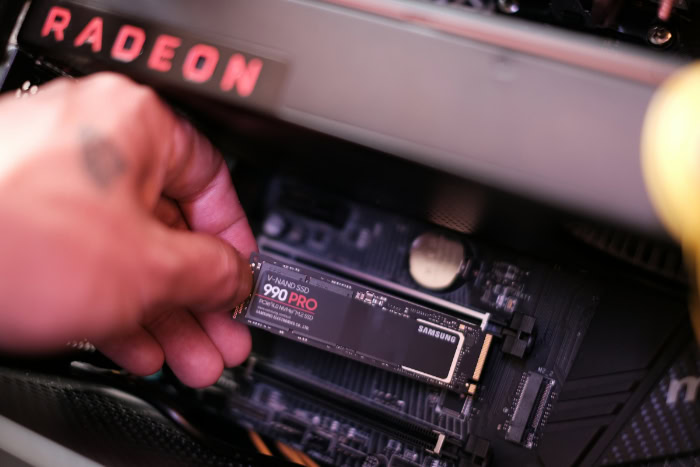
Modern computers frequently use the compact M.2 form factor, which resembles a small stick of chewing gum. These slim circuit boards, typically measuring 22 mm wide by 80 mm long, mount directly into dedicated slots on the motherboard without requiring any external cables.
Most modern M.2 drives utilize the Non-Volatile Memory Express (NVMe) protocol, which communicates over high-speed PCIe lanes. A drive operating on PCIe 4.0 or PCIe 5.0 lanes can achieve sequential transfer speeds between 5,000 MB/s and 14,000 MB/s, delivering data throughput that is up to 25 times faster than standard SATA drives.
System Compatibility and Motherboard Interface Checks
Before purchasing an SSD, users should verify which connection types their computer supports. Older desktop computers typically feature standard SATA ports, which require a SATA data cable running to the motherboard and a power cable from the power supply.
Modern motherboards feature one or more dedicated M.2 slots, identifiable by their small connector sockets and securing screw standoffs. Users must inspect their motherboard documentation to confirm whether an M.2 slot supports NVMe PCIe protocols, older SATA protocols, or both.
For desktop systems lacking available M.2 slots, PCIe expansion cards can provide additional M.2 drive capacity through standard expansion slots.
Drive Lifespan and Maintenance Protocols
Although modern solid-state storage provides exceptional reliability, flash memory cells experience natural wear as data is repeatedly recorded and cleared. Learning how drives manage this wear and monitoring hardware health ensures stored information remains secure throughout the useful service life of the equipment.
Explanation of Terabytes Written and Cell Wear
Every time an SSD writes or erases data, electrical charges pass through the microscopic insulating layer of the flash cell. Over thousands of write cycles, this insulating oxide layer slowly degrades, eventually preventing the cell from holding an electrical charge reliably.
To help consumers evaluate drive endurance, manufacturers provide a Terabytes Written (TBW) rating. A typical 1TB consumer drive might carry a rating of 600 TBW, meaning a user would need to write 600 terabytes of data before reaching the expected endurance threshold of the cells.
For typical daily computing tasks, reaching this limit would require writing dozens of gigabytes every day for more than 10 years.
Utility of TRIM Commands and Cell Wear Management
Operating systems and SSDs utilize automated maintenance tools to preserve speed and balance cell degradation. The most essential of these tools is the TRIM command, which the operating system sends to the drive whenever a user deletes a file.
TRIM informs the SSD controller which memory pages contain discarded data, allowing the drive to wipe those blocks during idle periods rather than delaying future write operations. In addition, wear-leveling algorithms prevent specific blocks from degrading prematurely by actively moving static files, such as operating system components, to older blocks while directing frequent write cycles to newer, less-used cells.
Data Safety and Drive Health Verification Methods
Users can track the physical status of their solid-state storage using built-in S.M.A.R.T. (Self-Monitoring, Analysis, and Reporting Technology) monitoring tools. Free utility software can read these sensor attributes to report operating temperatures, total terabytes written, and the remaining estimated service life of the drive.
While SSDs rarely suffer from the mechanical breakdowns typical of older disks, electronic components can still fail abruptly due to power surges or controller faults without any audible warning signs. Creating regular data backups on external drives or cloud storage services remains a necessary safeguard against unforeseen hardware loss.
Conclusion
The transition from traditional mechanical hard drives to solid-state storage represents a foundational advancement in personal computing. Replacing motorized arms and delicate spinning platters with silent NAND flash memory has removed the physical bottlenecks that slowed down computer systems for decades.
By delivering near-instant access times, robust physical durability against accidental drops, and completely silent operation, SSDs provide an exceptional computing experience. While mechanical drives still offer budget-friendly storage for massive archival needs, solid-state drives have earned their position as the standard for operating systems and daily workloads across modern computers.
Frequently Asked Questions
Do SSDs wear out over time?
Yes, SSDs gradually wear out as data is repeatedly written and erased, but typical users rarely reach these limits. Each flash memory cell withstands a finite number of write cycles before degrading. Built-in management algorithms distribute writes evenly across all available cells, allowing consumer drives to last for over 10 years of normal daily use.
Can I replace my old hard drive with an SSD?
Yes, you can upgrade almost any computer that uses an older hard drive to a solid-state drive. Most older laptops and desktop computers accept standard 2.5-inch (6.35 cm) SATA solid-state drives using identical data and power connections. Installing an SSD provides an immediate speed improvement, significantly reducing boot times and software loading delays.
Should I defrag my SSD to make it faster?
No, you should never defragment an SSD because it does not improve performance and causes unnecessary wear. Defragmentation arranges data physically for spinning disks, but SSDs access all memory cells with equal electronic speed. Running defragmentation performs excessive write operations, which wears down flash cells prematurely without providing any speed benefit.
What is the difference between SATA and NVMe SSDs?
The primary difference lies in connection speed and the communications protocol they use to transfer data. SATA drives connect through legacy cables and top out around 600 MB/s. NVMe drives mount directly onto the motherboard using PCIe pathways, achieving speeds between 3,500 MB/s and 14,000 MB/s to accelerate large file transfers.
Do SSDs lose data if they stay unplugged for a long time?
Yes, an SSD can lose data if left unpowered for several years, though files remain safe during standard storage periods. NAND flash memory relies on electrical charges trapped inside silicon cells. Over multiple years without electricity, these charges can slowly leak, making mechanical drives preferable for decade-long unpowered archival storage.
About the Author: Julio Caesar


