
32-Bit vs. 64-Bit: What Is the Difference?

Over the past two decades, personal computers shifted from 32-bit to 64-bit computing. This transition transformed how consumer devices process information, execute programs, and manage system resources.
Today, computer users frequently encounter these technical designations when downloading application installers, checking operating system specifications, or shopping for memory upgrades. Selecting the incorrect installer can cause immediate setup failures or prevent a program from using available memory properly.
Key Takeaways
- Strict memory boundaries: A 32-bit system can address a maximum of 4GB of RAM, and motherboard hardware reservations typically reduce usable memory to between 2.8GB and 3.5GB, whereas 64-bit systems readily support between 128GB and 2TB on consumer hardware.
- Installer labeling: The “x86” label represents older 32-bit software named after early Intel processor models, while “x64” (or x86-64) denotes modern 64-bit computing.
- One-way software compatibility: Modern 64-bit operating systems run 32-bit applications seamlessly through translation subsystems like WoW64, but 32-bit operating systems cannot run 64-bit software under any circumstance.
- Hardware-enforced security: Modern 64-bit platforms offer superior defense against malware by enforcing hardware-level Data Execution Prevention (DEP), Kernel Patch Protection, and mandatory cryptographic signatures for all hardware drivers.
- Clean installation requirement: Migrating a computer from a 32-bit operating system to a 64-bit operating system requires backing up personal files and completing a clean installation from bootable media, as direct in-place upgrades between architectures are impossible.
Architecture Overview and Terminology
Computers depend on structural blueprints to organize data, execute instructions, and manage connected components. These structural designs establish the rules for how the central processor and the operating system communicate, calculate numbers, and handle everyday workloads.
The Concept of Bit Width in Processors
A bit represents the smallest unit of digital data in computing, functioning as a single binary value of 0 or 1. Inside a computer processor, specialized high-speed storage locations called registers hold temporary pieces of information that the system processes immediately.
The width of these internal registers determines the volume of data that the processor can manipulate in a single operation. A 32-bit processor features registers that are 32 bits wide, whereas a 64-bit processor contains 64-bit registers.
This expanded register width also correlates to the width of the internal communication buses, allowing 64-bit hardware pathways to carry twice the data volume of their 32-bit predecessors in one transmission.
Explanation of x86 and x64 Labels
The software industry commonly uses the term “x86” to refer to 32-bit processor architecture. This naming convention originated with the Intel 8086 processor released in the late 1970s, followed by subsequent models such as the 80286, 80386, and 80486, all ending in the numerals “86.” When computing transitioned to 64-bit designs, AMD introduced an extension to the x86 instruction set called AMD64, which later became known collectively as x86-64 or simply x64.
Software download portals often present these terms side by side, creating confusion for users who see the number 86 and mistakenly assume it represents a higher or more advanced specification than 64. Recognizing that x86 designates 32-bit software and x64 indicates 64-bit software helps prevent incorrect downloads.
The Relationship Between Hardware and the OS Environment
Computer systems function through a layered relationship between the physical central processing unit (CPU) and the operating system. Physical hardware defines the architectural boundary; an operating system cannot run in 64-bit mode unless the underlying processor natively supports 64-bit instructions.
Conversely, a 64-bit processor possesses backward capability and can easily host a 32-bit operating system, though running a 32-bit system on modern hardware leaves the processor’s expanded capabilities unused. Virtually every desktop computer and laptop produced in the past 15 years includes a 64-bit processor as a standard baseline, making 64-bit operating systems the universal default across personal computing.
Memory Capacity and RAM Boundaries
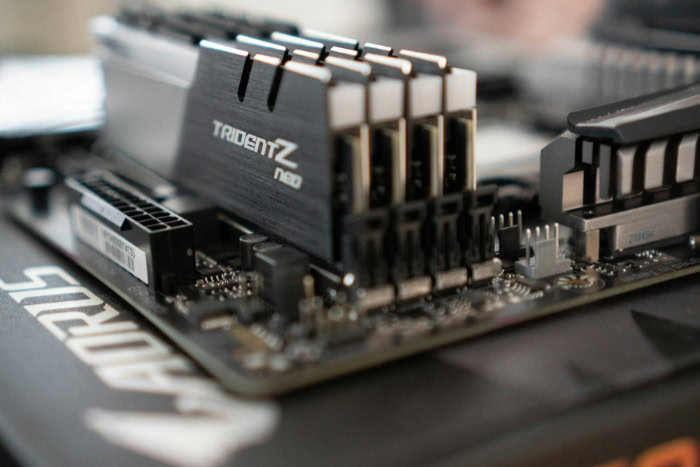
System memory serves as the temporary workspace where a computer stores active programs, open files, and operating background services for fast access. The architectural design of the processor establishes strict boundaries regarding the total amount of random access memory (RAM) the machine can allocate and utilize.
The 4GB RAM Ceiling on 32-Bit Systems
A processor accesses system memory by assigning unique numerical addresses to each individual byte of RAM. A 32-bit register uses 32 binary positions to generate these addresses, producing a mathematical limit of 2 to the 32nd power (232) unique locations.
This calculation totals 4,294,967,296 distinct addresses, which equals exactly 4GB of addressable memory space. A 32-bit system cannot recognize memory beyond this ceiling without specialized and complex workarounds.
Furthermore, the operating system must allocate portions of this 4GB address space to communicate with hardware components, including the motherboard bus, peripheral expansion slots, and graphics hardware. Because these devices reserve memory addresses for system input and output operations, the amount of usable RAM available for user applications typically drops to between 3.2GB and 3.5GB.
Memory Capacity Expansion in 64-Bit Systems
Transitioning to a 64-bit architecture removes this memory barrier by expanding the address space to 2 to the 64th power (264) unique byte locations. Mathematically, this equals approximately 18.4 quintillion bytes, or 16 exabytes of memory, which provides billions of times more capacity than a 32-bit setup.
Modern consumer hardware does not physically implement this full theoretical ceiling due to manufacturing costs and architectural limits on processor pins. Instead, standard motherboards and consumer operating systems support practical ceilings ranging from 128GB to 2TB of RAM.
This expanded capacity provides direct benefits for demanding computing tasks, such as video rendering, high-resolution photo editing, audio production, and running multiple virtual machines simultaneously without exhausting available physical memory.
Practical Effects of RAM Limits on Workload Capacity
When a system depletes its installed physical memory, the operating system compensates by moving background data to a paging file or swap space on the local storage drive. Because solid-state drives and traditional hard disks read and write information far slower than physical RAM, this swapping process creates severe system slowdowns and application freezing.
Computers with memory limited to 4GB quickly exhaust their capacity when opening dozens of browser tabs alongside office suites and background security tools. A 64-bit architecture supporting 16GB or 32GB of RAM provides the headroom necessary to keep numerous resource-heavy applications loaded simultaneously in rapid-access memory, preventing bottlenecks and maintaining overall system stability.
Speed, Data Capacity, and Security

Architecture impacts daily computer use through calculation efficiency, data throughput, and system security policies. These structural attributes dictate how quickly a computer executes calculations, processes multimedia resources, and shields system files from malicious interference.
Data Volume per Clock Cycle
Every clock cycle of a central processing unit processes a defined volume of data based on register width. A 64-bit processor manipulates 64-bit integers and memory pointers in a single cycle, whereas a 32-bit processor must split large numbers into smaller segments and execute multiple cycles to achieve the same calculation.
This expanded capacity improves computational throughput for heavy mathematical calculations, file encryption, data compression, and complex physics algorithms. However, this architectural enhancement does not mean a 64-bit computer runs simple tasks twice as fast as a 32-bit model.
Basic activities, such as typing a text document or browsing a plain webpage, involve small data sizes that do not saturate a 32-bit register, meaning overall speed in daily tasks relies heavily on processor clock frequency, storage drives, and memory latency rather than register width alone.
Performance Differences in Daily Software and Video Games
Standard office utilities and lightweight administrative applications show negligible performance differences between 32-bit and 64-bit environments because their computational requirements remain minimal. In contrast, modern three-dimensional video games, engineering modeling software, and video encoding suites require substantial computing resources.
These applications rely on vast asset libraries, complex matrix calculations, and thousands of simultaneous data streams. A 64-bit application leverages the expanded registers to perform vector calculations efficiently and benefits from larger on-die cache management.
When paired with ample system RAM, 64-bit applications maintain steady frame rates and rapid rendering times that would choke a 32-bit environment.
Hardware-Level Security Capabilities on 64-Bit Systems
Hardware designs in 64-bit processors include specific security features that protect system stability. One critical defense is hardware-enforced Data Execution Prevention (DEP), which works alongside the processor NX (No-Execute) bit to mark memory regions containing data as non-executable, stopping buffer overflow attacks from executing malicious code.
Additionally, 64-bit editions of modern operating systems mandate digital signatures for all device drivers, prohibiting unsigned or modified drivers from loading into kernel memory. These operating systems also implement Kernel Patch Protection, commonly called PatchGuard, which actively monitors the central operating system kernel and halts the computer if unauthorized third-party software attempts to alter internal system tables or modify core system behavior.
Software and Hardware Compatibility

The transition between computing eras required software developers and hardware manufacturers to maintain usability for older software and accessories. Modern operating systems integrate specialized compatibility layers and strict driver rules to manage the coexistence of different architectural generations.
Execution of 32-Bit Software on 64-Bit Platforms
Modern 64-bit operating systems include built-in emulation subsystems to execute legacy 32-bit software without requiring special adjustments from the user. In the Windows environment, this subsystem is known as Windows-on-Windows 64, or WoW64.
This layer translates 32-bit system calls into native 64-bit commands, managing memory pointer conversions and intercepting file access. To prevent software conflicts, the operating system maintains separate directory structures on the primary drive.
Native 64-bit software installs into the standard “Program Files” directory, whereas 32-bit software installs into “Program Files (x86).” The operating system similarly divides system registry hives, redirecting 32-bit application settings to dedicated secondary registry branches to ensure smooth operation across different software generations.
Constraints of 64-Bit Software on 32-Bit Platforms
While 64-bit systems handle 32-bit software gracefully, the reverse does not work. A 32-bit platform possesses no hardware or architectural capability to interpret or execute 64-bit instructions.
If a user attempts to launch a 64-bit executable file within a 32-bit operating system, the system displays an error prompt stating that the application is incompatible with the installed version of Windows or that the executable format is invalid. Major software vendors have largely discontinued the production of standalone 32-bit application editions.
Most modern web browsers, photo editors, video editing suites, and games ship exclusively as 64-bit binaries, leaving 32-bit operating systems unable to access newer software releases.
Device Driver and Legacy Peripheral Compatibility
Hardware devices communicate with an operating system through low-level software components known as device drivers. Because drivers run within the privileged kernel space of the operating system, architectural mixing is not permitted; a 64-bit operating system strictly requires 64-bit device drivers.
Older peripherals, such as specialty scanners, label printers, and legacy audio interfaces manufactured before the mainstream adoption of 64-bit systems, frequently lack 64-bit driver packages from their manufacturers. Without a signed 64-bit driver, these legacy devices cannot communicate with a modern operating system.
Users who must operate legacy hardware often use virtual machine environments running a 32-bit guest operating system, which can connect directly to the USB peripheral and bypass host system driver limitations.
System Verification and Architecture Selection

Verifying current system specifications is essential before downloading software or planning hardware changes. Identifying the processor architecture and installed operating system version ensures smooth application installations and guides future upgrade decisions.
Inspection Methods for Current System Specifications
Users can verify their processor architecture and operating system type using straightforward native tools on any modern desktop platform.
To verify system details on Windows 11 or Windows 10:
- Right-click the Start menu button or press the Windows logo button and the letter X simultaneously.
- Select “System” from the pop-up menu. Alternatively, open the Settings app, click “System,” and scroll to the bottom of the main panel to select “About.”
- Locate the “Device specifications” area and review the “System type” entry.
- Read the listed details to confirm your configuration. Windows displays both the operating system type and the processor architecture, such as a 64-bit operating system running on an x64-based processor for standard Intel or AMD computers, or an ARM-based processor for newer mobile chips. Note that Windows 11 is available exclusively as a 64-bit operating system.
To check hardware specifications on modern macOS versions:
- Click the Apple menu icon located in the upper-left corner of the screen.
- Select “System Settings” from the menu list, choose “General” in the left sidebar, and click “About.” Alternatively, choose “About This Mac” from the Apple menu and click the “More Info…” button.
- Review the “Chip” or “Processor” line displayed in the window.
- Identify your computer platform. Modern Apple devices feature Apple Silicon chips such as the M1, M2, or M3, whereas older models list an Intel processor. Because macOS removed all 32-bit software support, every modern Mac operates entirely on 64-bit architecture. Consequently, software downloads on macOS prompt you to choose between Apple Silicon and Intel rather than 32-bit and 64-bit.
To verify system architecture on Linux:
- Open the system Terminal application using your desktop application launcher or by pressing Ctrl, Alt, and T simultaneously.
- Type
uname -minto the prompt and press Enter. - Interpret the output displayed in the terminal window. A response of
x86_64indicates a 64-bit Intel or AMD system,aarch64indicates a 64-bit ARM system, andi686ori386indicates an older 32-bit installation. Alternatively, open your desktop settings panel, select “System,” and open the “About” screen to view the operating system type graphically.
The Choice Between Software Download Editions
When a website provides separate download choices for 32-bit and 64-bit installers, users should follow clear decision rules based on their verified system configuration. If the computer runs a 64-bit operating system with 4GB of RAM or more, always choose the 64-bit installer.
The 64-bit application utilizes the processor’s full instruction set, accesses more memory, and benefits from built-in hardware security features. Select the 32-bit installer only if the operating system is strictly 32-bit or if the program relies on an older 32-bit third-party plugin that lacks a 64-bit equivalent.
For any personal computer manufactured within the past 10 years, the default download selection should almost invariably be the 64-bit edition.
The Path for Architecture Migration and Clean Setup
Switching an existing computer from a 32-bit operating system to a 64-bit operating system requires an intentional setup process. Because the underlying system files, kernel binaries, and directory structures differ entirely between the two architectures, an in-place upgrade cannot be performed.
To migrate an architecture successfully:
- Create a complete backup of all personal files, documents, and media to an external hard drive or cloud storage service, as the setup process will erase the existing drive partition.
- Verify that the computer’s central processor supports 64-bit architecture by checking the manufacturer hardware specifications.
- Gather installation media and software license codes for all essential third-party applications you intend to reinstall.
- Visit manufacturer support websites to download 64-bit device drivers for critical components, including network adapters, sound cards, and graphics processors, saving them to a secondary USB drive.
- Boot the computer using official 64-bit installation media, format the primary storage drive, and complete a clean installation of the new operating system.
Conclusion
The shift from 32-bit to 64-bit computing established a major leap in personal computer capability. The most significant differences center on memory handling, data throughput, and system security.
While 32-bit systems remain constrained by a strict 4GB memory ceiling, 64-bit architecture unlocks terabytes of RAM, wider register throughput for heavy computational tasks, and hardware-level safeguards like Data Execution Prevention and mandatory driver signatures.
Today, 64-bit architecture stands as the universal standard across modern personal computers, supported by nearly all contemporary processors and operating systems. For everyday users operating modern hardware, selecting 64-bit software ensures optimal stability and responsiveness.
If you still maintain older legacy equipment with obsolete 32-bit peripherals, consider isolating those devices within virtual environments or dedicated machines, while keeping your primary workstation on a fully supported 64-bit platform.
Frequently Asked Questions
Can I run 64-bit programs on a 32-bit computer?
No, a 32-bit computer cannot run 64-bit software under any circumstance. A 32-bit processor lacks the physical circuitry, wider registers, and instruction sets required to interpret 64-bit code. If you attempt to open a 64-bit application on a 32-bit operating system, the system will immediately display an error stating that the software is incompatible.
What happens if I put more than 4GB of RAM into a 32-bit PC?
Your computer will ignore any memory installed beyond 4GB. Because 32-bit systems use 32-bit memory addresses, they can only track up to 4,294,967,296 bytes of memory space. Motherboard components also reserve part of this space, meaning your operating system will only recognize between 2.8GB and 3.5GB of RAM regardless of how much memory you physically install.
Why do software download pages say x86 instead of 32-bit?
Software developers use the x86 label because 32-bit computing originated from historical Intel processors ending in 86. Early chips like the 80286, 80386, and 80486 established this naming standard across the computer industry. Even though 86 is a larger number than 64, x86 always designates older 32-bit architecture, while x64 denotes modern 64-bit systems.
Can I upgrade my 32-bit Windows to 64-bit without losing my files?
No, you cannot switch from 32-bit to 64-bit Windows without erasing your drive and performing a clean install. Because the fundamental operating system structures differ completely, Windows cannot perform an in-place upgrade between architectures. You must back up your files to an external storage drive, boot from a 64-bit installation USB flash drive, and reinstall your applications from scratch.
Will switching to a 64-bit system make my regular computer tasks twice as fast?
No, everyday tasks like web browsing and word processing will not suddenly double in speed. Simple computing routines manipulate smaller data values that already fit easily inside 32-bit registers. You will notice significant speed improvements mainly in heavy workloads like video editing, 3D modeling, modern gaming, and multitasking with dozens of browser tabs that consume large amounts of RAM.
About the Author: Elizabeth Baker


