
External Hard Drive vs. USB Flash Drive: How to Choose

Running out of computer storage forces everyday users to look for portable backup options. Two popular choices dominate store shelves: external hard drives and USB flash drives, often called thumb drives.
Because both plug into a computer via a USB port to store files, shoppers frequently confuse their capabilities and treat them as interchangeable tools. However, their internal designs create massive disparities in storage capacity, transfer speeds, physical durability, and price.
Choosing the wrong device can lead to sluggish file transfers, unexpected data loss, or overspending on unnecessary space. Comparing the internal mechanics, storage limits, sustained performance, physical resilience, and practical applications of both formats helps computer users match the right portable storage device to their daily workload.
Key Takeaways
- Choose a USB flash drive for quick, small file transfers under 256GB, such as moving school assignments or office documents between computers for under $25.
- Invest in an external hard drive or portable SSD when backing up an entire operating system or storing 1TB to 5TB of photos, videos, and console games.
- Expect a much lower cost per gigabyte on high-capacity external hard drives, which typically cost $0.02 to $0.05 per gigabyte compared to $0.08 to $0.15 on flash drives.
- Avoid editing video or running live projects directly from a thumb drive, as its compact plastic casing traps heat and triggers severe speed slowdowns during long transfers.
- Handle traditional mechanical external hard drives with care during operation because a sudden drop can damage the internal spinning platters and destroy stored data.
Hardware Architecture and Core Mechanics
External hard drives and USB flash drives may perform the same basic job on the surface, but their internal engineering differs fundamentally. How a device physically records and retrieves data dictates its speed, size, and reliability.
Mechanical Disks vs. Solid-State Memory
Traditional external hard disk drives (HDDs) rely on moving mechanical parts to store information. Inside the protective shell sits one or more magnetic metal platters, usually measuring 2.5 inches across for portable models or 3.5 inches for desktop units, spinning at speeds of 5,400 RPM or 7,200 RPM.
A tiny mechanical arm with a read-write head hovers microscopic distances above the spinning surface to magnetically encode or read data.
USB thumb drives contain no moving parts at all. Instead, they use solid-state NAND flash memory, storing data as electrical charges inside microscopic memory cells on a silicon chip.
While portable solid-state drives (external SSDs) also use NAND flash memory, their internal structure differs dramatically from a thumb drive. A thumb drive typically uses a single, low-cost memory chip designed to fit on a tiny circuit board, whereas an external SSD combines multiple high-grade NAND chips accessed simultaneously for vastly superior performance.
The Function of the Internal Controller
Every solid-state storage device relies on a microchip called an internal memory controller to act as a traffic director between the computer and the memory cells. Because flash memory cells wear out if written to repeatedly in the same spot, the controller distributes data evenly across all available cells through a process called wear leveling.
Standard USB flash drives use simple, inexpensive controllers that can only communicate with one memory pathway at a time. In contrast, external SSDs use advanced, multi-channel processors paired with dedicated high-speed cache memory, similar to the drives installed inside modern laptops.
High-end controller complexity prevents data bottlenecks, detects file errors early, and extends the operational lifespan and stability of the drive under heavy workloads.
Connection Ports and Cable Requirements
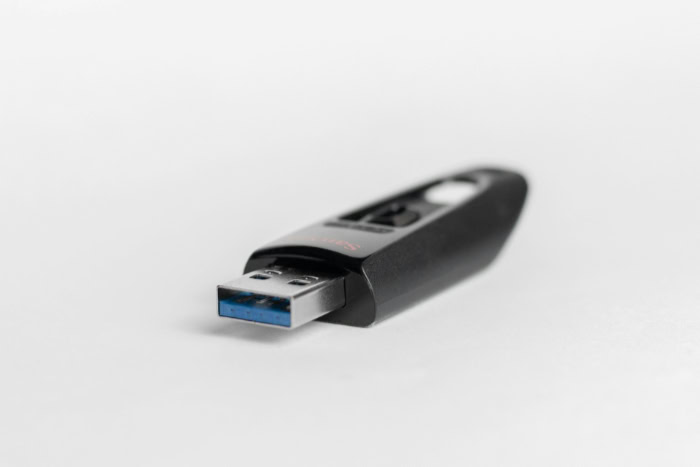
Physical connectivity separates these two devices in daily use. A USB flash drive features an integrated metal plug built directly into its body, sometimes hidden beneath a removable cap or a sliding plastic mechanism.
Users simply plug the stick straight into a computer port without needing extra accessories.
External hard drives and portable SSDs use detachable cables to connect to a computer. Older mechanical drives often use a wide USB 3.0 micro-B port on the drive enclosure, while newer drives use a reversible USB-C port and include adapters for standard rectangular USB-A ports.
While a detachable cord requires an extra item in a laptop bag, it lets the drive rest flat on a desk rather than sticking straight out from the side of a laptop, where an accidental bump could snap the connector or damage the computer port.
Storage Capacity and Cost Analysis
Storage volume and budget constraints often dictate which device makes the most sense for a buyer. While both formats come in various sizes, each technology hits a practical ceiling in price and capacity.
Typical Capacity Ranges by Device
USB flash drives cater to modest storage needs, with the most common consumer models ranging from 32GB to 256GB. High-capacity thumb drives of 512GB or 1TB exist, but they are less common and often approach the price of superior external SSDs.
A 64GB flash drive easily holds thousands of Word documents and PDFs, or roughly 12,000 smartphone photos at 5MB each.
External drives begin where thumb drives leave off. Portable mechanical hard drives and external SSDs typically range from 1TB to 5TB, while larger desktop external hard drives that plug into a wall outlet can reach 20TB or more.
A 2TB external drive provides enough room to store roughly 500 hours of 1080p high-definition video, a massive photography archive, or a complete backup of a standard home computer.
Price per Gigabyte Assessment
Evaluating storage value requires looking at the mathematical cost per gigabyte rather than just the sticker price. Because manufacturing a drive enclosure and controller has a fixed base cost, larger drives deliver far better value per gigabyte of space.
Flash drives carry a higher cost per gigabyte due to their smaller capacities. For example, a 128GB thumb drive priced at $15 costs roughly $0.12 per gigabyte.
Conversely, a 2TB (2,000GB) mechanical external hard drive priced at $70 costs only $0.035 per gigabyte, giving buyers more than three times the storage value for every dollar spent. External SSDs sit in the middle, typically costing around $0.08 to $0.10 per gigabyte for a 1TB or 2TB model.
Upfront Cost for Common Consumer Budgets
Despite costing more per gigabyte, USB thumb drives remain the clear winner for shoppers on a strict budget. A reliable 64GB or 128GB flash drive costs between $8 and $20, making it an easy impulse purchase for students or office workers who only need to move a few folders.
External drives require a higher upfront investment regardless of how little space a user actually needs at the moment. Entry-level 1TB mechanical external hard drives generally start around $55 to $65, while reputable 1TB portable SSDs start around $85 to $110.
Speed and Data Transfer Performance

Transferring a few spreadsheets feels instantaneous on almost any modern storage device, but moving massive folders reveals major performance gaps. Connection standards and internal components work together to determine how fast files move.
Short-Burst Speeds vs. Sustained Transfer Rates
When moving a single PDF or a handful of photos, a USB flash drive appears very fast. Many modern flash drives advertise USB 3.0, USB 3.1, or USB 3.2 speeds with read rates up to 150MB/s or 300MB/s.
However, writing data to a thumb drive tells a different story. Once a user transfers a large 20GB video file, the tiny high-speed buffer on the flash drive fills up within a few seconds, and sustained write speeds frequently plummet to 20MB/s or 40MB/s.
External drives maintain consistent speeds during multi-gigabyte transfers. A mechanical external hard drive connected via USB 3.0 sustains steady read and write rates between 80MB/s and 160MB/s from start to finish.
An external SSD connected to a fast USB 3.2 port sustains speeds between 500MB/s and 1,050MB/s, transferring massive video folders in a fraction of the time required by a thumb drive.
Heat Management and Performance Slowdowns
Transferring gigabytes of data generates significant electrical heat inside solid-state memory chips. Because a USB flash drive packs its controller and memory chip into a tiny, sealed casing made of plastic or thin metal, heat has nowhere to escape.
Within minutes of a heavy transfer, the thumb drive becomes hot to the touch. To prevent permanent damage to the circuitry, the drive triggers thermal safeguards that deliberately throttle transfer speeds down to a crawl until the unit cools.
External drives manage heat much more effectively. Larger enclosures provide ample internal air space, and many portable SSDs use thick aluminum shells paired with internal thermal pads to draw heat away from the memory chips.
As a result, external drives can write hundreds of gigabytes continuously without suffering severe thermal slowdowns.
Live Project Work and Direct File Access
Working on files directly from a storage device without copying them to the computer first requires fast random access times and steady write speeds. Editing a simple text document directly on a thumb drive works fine, but attempting to edit high-resolution photos, multi-track audio, or 4K video footage on a flash drive causes software freezes and dropped frames.
Mechanical external hard drives handle direct playback of media files well, though their moving read heads can feel slightly sluggish when loading hundreds of thumbnail previews in a photo catalog. External SSDs excel at live project work, offering instant responsiveness that matches a computer’s internal drive when launching applications or scrubbing through video timelines.
Durability, Lifespan, and Physical Security

Portable storage devices face constant physical hazards, from accidental drops off a desk to long-term electronic wear. Protecting data requires matching a drive’s physical strengths to its daily environment.
Impact Resistance and Shock Vulnerability
Mechanical external hard drives are fragile when powered on. Because the internal read-write head floats on a microscopic cushion of air above platters spinning thousands of times per minute, a sudden jolt can force the head to scrape against the platter surface.
Dropping an active mechanical hard drive from a standard 3-foot (0.9-meter) desk onto a hard floor frequently results in a catastrophic head crash, instantly destroying the drive and making data recovery expensive or impossible.
USB flash drives and external SSDs have a massive advantage in shock tolerance. With no moving parts inside, a solid-state thumb drive can survive drops from pocket height, bumps inside a backpack, and heavy vibration during travel without losing a single byte of data.
Write Cycle Limits and Component Wear
Every storage medium wears out eventually, though the failure mechanisms differ. Flash memory cells degrade slightly each time an electrical charge erases and rewrites data, a limitation measured in program-erase cycles.
Because budget thumb drives use lower-tier flash memory and basic controllers, heavy daily overwriting can wear out their memory cells within a few years. Under normal consumer workloads of occasional file transfers, however, a quality flash drive easily lasts 5 to 10 years.
Mechanical hard drives do not suffer from electrical write-cycle wear in the same way, so they can rewrite data thousands of times without degrading the magnetic platter. Instead, their lifespan is limited by mechanical wear on the motor and bearings, with most portable hard drives lasting three to five years of regular use before mechanical failure risks increase.
Portability Dimensions and Risk of Misplacement
Size and weight create an ironic security trade-off. A typical USB flash drive measures roughly 2 inches long and weighs less than 1 oz (28 g), sliding effortlessly into a coin pocket or attaching to a lanyard.
That tiny footprint makes a thumb drive effortless to carry everywhere, but it also makes the device remarkably easy to lose in a couch cushion, leave plugged into a library computer, or accidentally run through a washing machine.
Portable external hard drives typically measure about 4.5 inches by 3 inches and weigh between 5 oz and 8 oz (142 g and 227 g). While they require a jacket pocket or a laptop bag for transport, their noticeable bulk makes them far less likely to be misplaced or forgotten at a coffee shop.
Practical Use Cases and Selection Criteria

Everyday computer habits provide the clearest blueprint for selecting the right storage hardware. Matching specific file types and backup routines to the proper device prevents workflow bottlenecks.
Routine Document Distribution and Temporary File Exchange
USB flash drives remain the most practical tool for quick, temporary file exchanges between computers when internet access is unavailable or slow. Students printing term papers at a campus lab, speakers bringing a slide deck to a conference room, or friends sharing a folder of vacation photos benefit from the universal compatibility and pocketability of a thumb drive.
Flash drives also serve an essential technical role as bootable utility tools. Computer technicians and everyday users alike can dedicate a cheap 16GB or 32GB thumb drive to hold a Windows 11 installation image, a macOS installer, or a system recovery tool to repair a crashed computer.
Complete System Backups and Archival Data Retention
Protecting an entire computer against hardware failure or ransomware requires an external hard drive or external SSD. Built-in operating system tools like Apple Time Machine and Windows Backup continuously save copies of system files, applications, and personal folders in the background.
Because these automated backups require at least double the storage capacity of the computer’s internal drive, a 2TB to 5TB external hard drive is ideal.
For multi-year archival vaults of family photos and financial records, pairing two separate external hard drives stored in different locations provides reliable redundancy. Mechanical hard drives offer the most affordable way to duplicate terabytes of precious family history without paying a monthly cloud subscription fee.
Large Media Libraries and Console Game Storage
Modern entertainment files consume storage space rapidly. Recording 4K video at 60 frames per second eats up hundreds of megabytes every minute, while lossless audio collections and RAW photography libraries quickly overflow a laptop’s internal drive.
External drives allow creators to offload massive media libraries while keeping every file accessible on a single device.
Video game consoles also benefit directly from external drives. Consoles like the PlayStation 5 and Xbox Series X allow players to plug in a high-capacity USB external hard drive or SSD to store dozens of massive modern games, which routinely exceed 80GB to 100GB per title, freeing up internal console storage without forcing players to re-download games from the internet.
Conclusion
Choosing between an external hard drive and a USB flash drive comes down to balancing portability and upfront price against capacity and sustained performance. USB flash drives excel as inexpensive, pocket-sized couriers for moving everyday documents, presentations, and small folders between computers, while shrugging off accidental drops along the way.
External hard drives and portable SSDs step in as high-capacity workhorses built to handle terabytes of data, full system backups, console game libraries, and continuous high-speed transfers without overheating. By evaluating the size of the files you handle most often and whether those files need temporary transport or long-term protection, you can invest in the right storage device for your daily computing routine.
Frequently Asked Questions
Can I use a USB flash drive to back up my entire computer?
A standard USB flash drive is not recommended for backing up an entire computer. Most computers contain hundreds of gigabytes of system files and applications that exceed the capacity of affordable thumb drives. Furthermore, flash drives overheat and slow down drastically during massive, continuous file transfers, making an external hard drive a much better choice.
How long do files last on an unplugged external hard drive or thumb drive?
Files stored on an unplugged external hard drive typically remain intact for 5 to 10 years, while USB flash drives reliably hold data for a similar timeframe under proper conditions. However, magnetic charges on hard drive platters slowly weaken, and flash memory cells gradually leak electrical charge if left unpowered for several years.
Is an external SSD better than a regular external hard drive?
An external SSD is faster and more durable than a traditional mechanical external hard drive, though it costs significantly more per gigabyte. Because an external SSD uses solid-state memory instead of spinning platters, it transfers large files up to five times faster and survives accidental drops without mechanical failure.
Why does my USB flash drive transfer files so slowly after a few seconds?
Your USB flash drive slows down after a few seconds because its small high-speed memory cache fills up and the device begins to overheat. Once a large file transfer exhausts that fast buffer, the drive drops to the much slower native speed of its basic flash memory chip to prevent heat damage.
Can I play video games directly from a thumb drive?
You should avoid playing modern video games directly from a standard thumb drive because its sustained transfer speeds are too unstable. Modern games constantly load high-resolution textures and audio files, which causes a thumb drive to overheat and stutter. Use an external SSD or an external hard drive for smooth gaming performance instead.
About the Author: Elizabeth Baker


