
HDD vs. Flash Storage: Which Drive Should You Buy?

For decades, personal computers relied on mechanical hard drives with spinning disks to store files. In recent years, flash storage has gained widespread popularity by offering silent operation and remarkable speed.
This shift leaves everyday computer buyers facing a difficult trade-off between massive capacity and fast system responsiveness. Hard drives provide abundant room for large media collections on a modest budget, yet solid-state options open programs and transfer files in seconds.
Choosing between them requires looking closely at how each format behaves during routine computer use.
Key Takeaways
- Solid-state drives deliver transfer speeds up to 7,400 MB/s and system startup times of 8 to 12 seconds, while mechanical drives average 120 MB/s to 220 MB/s with boot times of 40 to 90 seconds.
- Mechanical hard drives offer the lowest cost per unit of storage at roughly 2.5 to 3 cents per gigabyte, making large capacities from 8TB to 24TB affordable for mass archiving.
- Flash storage contains no moving parts and easily withstands physical shocks, drops, and vibrations that would cause catastrophic head crashes in spinning hard drives.
- Modern M.2 NVMe drives connect directly into motherboard PCIe slots for silent operation and sub-1-watt idle power draw, whereas traditional 3.5-inch and 2.5-inch drives rely on SATA cables and draw 6 to 9 watts.
- A dual-drive setup pairing a 1TB or 2TB SSD for the operating system and applications with a 4TB or 8TB hard drive for files yields both rapid system responsiveness and cost-effective bulk storage.
Core Mechanics of Storage Devices
Storage devices preserve software, documents, and media even when a computer is completely powered down. While hard disk drives and flash devices serve this shared purpose, their internal architectures could not be more distinct.
One relies on intricate mechanical parts operating in physical space, while the other depends entirely on silent electrical circuits.
Hard Disk Drives: Magnetic Platters and Mechanical Heads
Inside a hard disk drive, circular metal or glass disks called platters spin at speeds such as 5,400 RPM or 7,200 RPM around a central spindle motor. These platters are coated with a microscopically thin magnetic layer that stores data in billions of tiny magnetic sectors.
An actuator arm swings horizontally across the spinning surfaces, positioning delicate read and write heads just fractions of a millimeter above the platters.
Reading or saving data requires physical coordination. When a user requests a file, the drive controller commands the motor to spin and the actuator arm to glide to the exact track containing that information.
The read head detects the magnetic orientation of the surface, translating physical magnetic variations into binary code. Because this process depends on mechanical movements, retrieving scattered data requires the head to physically travel back and forth across the spinning disk.
Flash Storage: Semiconductor Cells and Memory Controllers
Flash storage eliminates moving components entirely by using solid-state electronics. Drives of this type rely on NAND flash memory chips, which are grids of semiconductor cells built directly onto silicon wafers.
An onboard microchip called a memory controller coordinates all operations, serving as the central manager that routes data between the computer and the flash chips.
Data storage in flash hardware is an electrical process rather than a magnetic one. The controller directs electrical charges into specialized microscopic structures known as floating-gate or charge-trap cells.
Trapping or releasing electrons inside these memory cells alters their electrical conductivity, representing stored ones and zeros. Because the memory controller manages data electronically through circuit pathways, it accesses any memory block without waiting for physical parts to reposition.
Common Form Factors and System Connections
Physical size and connection types vary widely between these two storage methods. Hard disk drives traditionally appear in two standard sizes: 3.5-inch drives for desktop computers and 2.5-inch drives for laptops and portable enclosures.
Both sizes typically connect to the computer through Serial ATA (SATA) data and power cables, which reach a maximum data transmission rate of 6 Gbps.
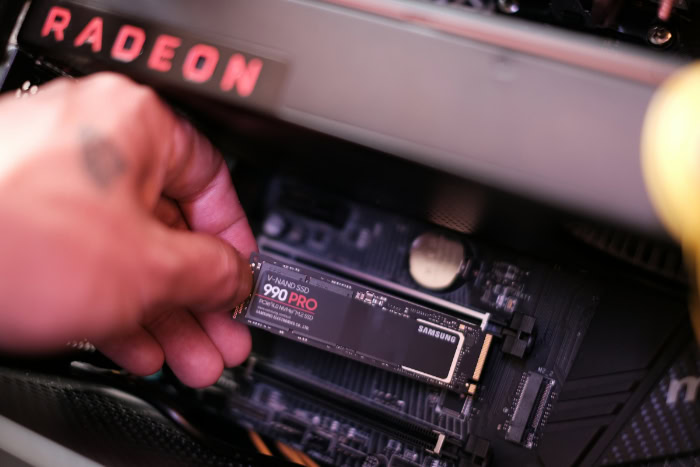
Solid-state drives also exist in 2.5-inch SATA enclosures to fit older computer bays, but modern flash storage predominantly uses the compact M.2 format. These slender drives, roughly the size of a stick of chewing gum, slot directly into dedicated sockets on modern motherboards.
Rather than using SATA cables, high-performance M.2 drives communicate over the Non-Volatile Memory Express (NVMe) interface through direct motherboard PCIe lanes, removing physical cable clutter and delivering significantly higher data bandwidth.
Performance and Everyday System Speed

The internal architecture of a storage drive directly influences how fast a computer feels during routine tasks. Differences in data pathways and mechanical limitations determine how quickly files transfer, how swiftly operating systems load, and how well the machine handles demanding workloads.
File Transfer Rates and Data Throughput
Sequential data throughput measures how rapidly a drive can read or write large, continuous files like video recordings, disk images, and software installation bundles. Traditional hard drives achieve typical transfer speeds between 120 MB/s and 220 MB/s, restricted by how quickly the physical heads can read the magnetic platters.
Solid-state drives utilizing the SATA interface reach ceiling speeds around 550 MB/s, limited by the SATA cable interface itself.
Modern NVMe flash storage bypasses SATA restrictions by communicating over high-speed PCIe lanes. A basic PCIe 3.0 NVMe drive delivers speeds around 3,500 MB/s, while newer PCIe 4.0 models reach up to 7,400 MB/s.
Moving a 50GB media folder can take several minutes on a mechanical hard drive, whereas an advanced NVMe drive completes the exact same transfer in under 10 seconds.
Boot Speeds and Program Launch Times
Everyday computing tasks rely heavily on random access speed, which measures how quickly a drive locates small, scattered files across its storage media. Hard drives suffer from seek latency, requiring between 10 and 15 milliseconds for the mechanical head to swing to the proper track and wait for the platter to rotate into place.
Flash storage operates with access delays under 0.1 milliseconds, locating data almost instantly.
This latency gap creates a stark difference when starting a computer. Loading Windows 11 on a traditional hard drive often requires 40 to 90 seconds because the drive must locate thousands of separate operating system files.
A solid-state drive loads the same desktop environment in roughly 8 to 12 seconds. Web browsers, office suites, and photo editing tools open almost immediately on flash memory rather than pausing to load.
System Responsiveness Under Heavy Workloads
Heavy computing scenarios test a drive by requesting multiple actions at the same time. If a computer runs an antivirus scan while downloading an update and opening web browser tabs, an internal drive must juggle dozens of competing commands.
Mechanical drives struggle with this type of multitasking because the single actuator arm must frantically dart between different physical regions of the platter.
This mechanical bottleneck frequently pushes hard drive usage to 100%, causing the mouse pointer to stutter and applications to freeze. Flash storage easily processes hundreds of thousands of input and output operations per second.
By handling simultaneous read and write queues without physical delays, solid-state drives keep the operating system smooth and responsive during demanding background activities.
Durability, Lifespan, and Drive Health

Drive reliability shapes long-term data safety, especially for computers that travel or run continuously. Hardware components face distinct physical and electrical stresses that determine how devices endure over time, how they wear out, and what happens when they fail.
Impact of Drops, Shocks, and Movement
Mechanical hard drives are inherently vulnerable to physical shocks because their read and write heads float only nanometers above rapidly spinning platters. If a laptop slips off a desk or experiences a hard bump while saving files, the actuator arm can collide with the disk surface.
This event, known as a head crash, scratches the magnetic layer and permanently destroys data stored on that portion of the platter.
Solid-state drives possess no moving parts, making them far more resilient against everyday accidents. Dropping a portable flash drive or bumping a laptop during transit does not endanger the internal NAND flash chips or cause mechanical misalignment.
Flash devices can withstand substantial physical vibrations and impacts that would instantly ruin a spinning hard drive.
Write Limits and Electrical Cell Degradation
The wear patterns of these two technologies stem from fundamentally different mechanisms. Hard disk drives experience mechanical wear on spindle bearings and actuator arm assemblies over years of continuous motion, but their magnetic platters can be written and rewritten virtually without limit.
As long as the motor and heads remain operational, writing new data causes minimal physical harm to the magnetic surface.
Flash storage faces an electrical wear limit measured in Terabytes Written (TBW). Each time a flash memory cell is erased and rewritten, high-voltage electrical cycles gradually degrade the insulating oxide layers within the semiconductor.
Modern drive controllers use wear-leveling algorithms to distribute data evenly across all cells, ensuring the drive lasts for many years under normal consumer use before reaching its write limits.
Symptoms of Failure and Data Recovery Likelihood
Hard drives often provide clear warning signs before total failure occurs. A struggling drive may produce distinct clicking sounds, emit grinding noises, or suffer from deteriorating access speeds as bad sectors develop on the platters.
These physical indicators alert users to back up their data before the drive stops working completely. If a mechanical drive does break down, specialized data recovery laboratories can frequently recover files by replacing donor parts or transplanting platters in cleanroom environments.
Solid-state drives fail in a much more sudden fashion. Because there are no moving components to produce noise, electronic component failures, firmware corruptions, or power surges render an SSD undetectable without warning.
Once a flash controller or memory chip fails completely, extracting raw data from scattered NAND cells requires complex forensic reconstruction that is exceptionally expensive and rarely guaranteed to succeed.
Cost, Capacity, and Power Efficiency
Selecting storage involves balancing performance desires against financial budgets and electrical considerations. Manufacturing techniques, raw materials, and operating requirements heavily influence drive pricing, power consumption, and thermal management inside desktop towers and laptops.
Price per Gigabyte Comparison
Calculating the price per gigabyte reveals the ongoing financial advantage of mechanical drives. A standard 2TB hard disk drive frequently sells for roughly $50 to $60, resulting in a cost of approximately 2.5 to 3 cents per gigabyte.
High-capacity desktop models lower this cost even further, making mechanical drives the most economical choice for massive file storage.
Solid-state storage carries a higher price tag per unit of space. A typical 2TB NVMe solid-state drive generally retails between $110 and $160, working out to roughly 5.5 to 8 cents per gigabyte.
Although flash prices have decreased significantly over the past decade, spinning platters remain noticeably cheaper when calculating storage volume per dollar.
Maximum Capacity Options for Large Media Libraries
Users who maintain massive media archives, extensive raw video libraries, or comprehensive system backups find far greater options among hard drives. Consumer-grade mechanical drives are readily available in capacities of 8TB, 16TB, 20TB, and even 24TB at accessible prices.
These spacious units make it simple to house massive data collections inside desktop enclosures or network-attached storage systems.
Solid-state drives encounter steep cost hurdles at high capacities. While 1TB, 2TB, and 4TB solid-state drives are common in consumer retail, models offering 8TB are expensive, often costing more than $800.
Capacities beyond 8TB are largely restricted to specialized enterprise environments, placing immense flash storage collections out of reach for average consumers.
Energy Draw, Heat Output, and Acoustic Noise
Operational qualities also differ noticeably in power use and sound. Hard drives require continuous electricity to spin platters and move actuator arms, drawing between 6 watts and 9 watts of power under active load.
This physical spinning produces a soft hum, noticeable vibrations, and clicking noises during intense seek operations, while also generating steady heat inside the chassis.
Solid-state drives run completely silent because no physical motion occurs during data reads or writes. In laptops, flash storage uses less than 1 watt during idle periods, preserving battery charge throughout the day.
High-performance PCIe 4.0 and PCIe 5.0 M.2 drives can produce concentrated heat during heavy file transfers, often requiring small aluminum heatsinks on the motherboard to prevent thermal throttling.
Practical Use Cases and Setup Strategies

Recognizing the technical strengths of each device allows users to tailor their hardware choices to their actual computer usage. Finding the right balance rarely requires choosing between technologies exclusively, as modern setups frequently leverage both drive types in tandem.
Optimal Roles for Hard Disk Drives
Hard disk drives excel as high-capacity repositories for large volumes of static data that do not require immediate access speeds. Storing family photo albums, home video recordings, completed creative projects, and compressed system image backups on mechanical storage takes advantage of low pricing per gigabyte.
Secondary storage and long-term archiving represent ideal functions for magnetic drives. When files sit untouched for months at a time, the access latency of a mechanical head causes no inconvenience.
External desktop drives and multi-bay backup enclosures provide dependable, cost-effective homes for expansive personal libraries that would be financially impractical to house on solid-state media.
Optimal Roles for Flash Storage
Solid-state drives are the preferred home for any software that benefits from instant responsiveness. Operating systems like Windows 11, macOS, and modern Linux distributions require flash storage to deliver quick startup times and rapid application switching.
Productivity suites, photo cataloging applications, video editing timelines, and modern video games all load smoothly when installed on an SSD.
Portable external flash drives serve mobile users and creative professionals who work on location. Photographers, videographers, and traveling workers benefit from rapid file offloading and the rugged physical durability of portable flash drives, which easily survive jostling inside a travel backpack without risking data corruption.
Dual-Drive Configurations for Balanced Performance
Desktop computers and expandable laptops offer the flexibility to combine both drive technologies into a unified, high-performing setup. A popular strategy installs an M.2 NVMe solid-state drive with a capacity of 1TB or 2TB as the primary boot drive, hosting the operating system, daily applications, and current project files.
Alongside the fast solid-state drive, a spacious 4TB or 8TB mechanical hard drive handles secondary duties, holding music libraries, movies, and cold backups. This dual-drive configuration delivers the rapid speed and smooth responsiveness of flash storage for daily activities while retaining the vast, economical capacity of magnetic media for long-term file preservation.
Conclusion
The primary difference between mechanical drives and flash storage lies in physical movement versus silent electronics. Hard disk drives depend on spinning magnetic disks and rapid actuator arms to read and write files, while solid-state drives route electrical charges across silicon chips without any moving parts.
This physical distinction dictates the trade-offs between both technologies. Spinning hard drives remain the champion of low-cost capacity, offering massive terabyte storage for photos, video collections, and secondary archives at pennies per gigabyte.
Solid-state drives provide dramatically faster boot speeds, immediate application loading, and resilience against physical drops or bumps.
Selecting the best drive comes down to aligning hardware capabilities with your budget and daily computer habits. Running your operating system and main programs on an SSD provides an immediate upgrade in system responsiveness that transforms daily work.
For large media archives where raw speed is unnecessary, a traditional hard drive delivers unbeatable value. Combining both storage formats inside a desktop or laptop setup often provides the ideal compromise, giving you the swift performance of flash memory alongside the vast, affordable capacity of magnetic media.
Frequently Asked Questions
Can you use an SSD and an HDD in the same computer?
Yes, you can easily use both an SSD and a hard drive in the same desktop computer or multi-drive laptop. Most users install Windows on a fast 1TB SSD for quick boot times and responsive daily use, while connecting an inexpensive 4TB or 8TB hard drive for archiving family photos, videos, and large document backups.
Do SSDs wear out faster than traditional hard drives?
No, modern SSDs generally outlast traditional hard drives under normal consumer usage. While flash memory cells have write limits, wear-leveling algorithms distribute data so effectively that drives routinely last over a decade. Mechanical hard drives rely on moving motors and bearings that can wear out or break from physical bumps much sooner.
Will switching to an SSD make an older computer run faster?
Yes, replacing an old mechanical hard drive with an SSD is the single most effective upgrade for boosting computer speed. Your operating system will boot in roughly 10 seconds instead of over a minute, programs will launch instantly, and sluggish freezes will disappear. Eliminating physical read delays makes routine computing feel noticeably snappier.
Why are hard drives still being sold if flash storage is better?
Hard drives remain popular because they offer massive storage capacity at a fraction of the cost of flash memory. Buying an 8TB or 16TB solid-state drive is financially impractical for most people. Mechanical drives provide those massive capacities at just 2.5 to 3 cents per gigabyte, making large media archives and backups affordable.
Can you recover lost files from a failed SSD?
Recovering data from a failed SSD is possible, but it is substantially harder and more expensive than recovering files from a hard drive. When flash storage hardware breaks down, memory controllers scramble access without warning. Specialized recovery laboratories must desolder individual NAND chips and piece together fragmented data, making recovery labor-intensive and costly.
About the Author: Julio Caesar


