
How to Fix a Slow VPN: Boost Your Speed

You click play on a 4K stream and immediately face the spinning wheel of death while your VPN icon sits mockingly in the taskbar. Protecting your identity online should not feel like returning to the era of dial-up internet.
Most people accept a slight lag as the price of encryption, but a massive drop in throughput often points to a configuration error rather than a fundamental flaw in the technology. Every layer of security adds a small amount of processing overhead, yet your connection should still remain snappy and responsive for daily tasks.
Moving past basic troubleshooting can reclaim your lost bandwidth and eliminate the lag that disrupts your work or entertainment.
Key Takeaways
- A speed reduction of 10 to 20 percent is the standard for a healthy VPN connection, so higher losses indicate a fixable technical bottleneck.
- Connecting to servers with less than 50 percent capacity and choosing a location in your own country will drastically reduce latency and response times.
- The WireGuard protocol and UDP connection settings offer the highest throughput because they minimize data overhead and error checking delays during transmission.
- Hardware limitations, such as older CPUs or Wi-Fi interference, are common culprits that can be resolved by using a wired Ethernet cable or updating router firmware.
- Split tunneling allows you to exclude high bandwidth applications like 4K streaming or gaming from the VPN tunnel to preserve maximum performance for those specific tasks.
Initial Diagnostics and Baseline Testing
Before changing any settings, you must determine if the VPN is actually the cause of the slowdown. It is common to blame the software for performance issues that might originate from your internet service provider or local hardware.
Establishing a clear set of data points allows you to identify exactly where the connection is failing by following these steps:
- Visit a reputable speed testing site such as Speedtest.net or Fast.com while your VPN is disconnected.
- Record the download speed, upload speed, and ping to establish a baseline for your actual internet connection.
- Enable your VPN and connect to your standard or “automatic” server location.
- Run the speed test again on the same website and compare the results to your baseline.
Isolating the Source of the Bottleneck
If your speed is low during the initial test without a VPN, the problem lies with your internet service provider or your home network equipment. In this case, troubleshooting the VPN will not yield results because the source of the lag is external.
If the speed is high during the first test but drops significantly during the second, the bottleneck is definitely within the VPN tunnel or the specific server you have selected.
Defining Normal Performance Reduction
No VPN can perfectly match the speed of a direct internet connection because the encryption process requires time and data overhead. A performance drop of 10 to 20 percent is considered standard and often goes unnoticed during typical browsing.
If you see a reduction of 50 percent or more, you are dealing with a technical bottleneck that requires intervention. Understanding these benchmarks helps you avoid chasing a perfect connection speed that is technically impossible to achieve while maintaining security.
Identifying External Network Factors
Internet speeds are rarely static and can fluctuate based on the time of day. During peak usage hours, such as early evening when many people are streaming video, local network congestion can cause your base speeds to dip.
Additionally, your ISP may engage in bandwidth throttling if they detect high data usage. Testing your connection at different times of the day can help you determine if the slowdown is a temporary result of local traffic or a persistent issue with your encrypted connection.
Optimizing Server Selection Strategies

The choice of server is often the most significant factor in determining your connection speed. Many users choose a server at random or stick with a default setting, which can lead to unnecessary lag and high latency.
To improve your connection via server selection, use the following procedure:
- Open your VPN server list and look for “load” or “capacity” percentages next to each location.
- Identify a server in a city physically closest to your actual location to minimize the distance data must travel.
- Select a server that shows a load of less than 50 percent to ensure there is enough available bandwidth.
- Connect to the server and test your latency to ensure the response time is acceptable for your needs.
The Role of Geographic Proximity
Data cannot travel faster than the laws of physics allow. Every mile between your actual location and the VPN server adds latency, which is the time it takes for a signal to travel back and forth.
If you are located in New York and connect to a server in Singapore, your data must travel halfway around the globe twice for every request. For the best performance, always select a server in your own country or a neighboring region unless you have a specific reason to appear as if you are in a distant location.
Managing Server Load and Capacity
Even a nearby server will perform poorly if it is overcrowded with thousands of other users. Most high quality VPN applications provide a load indicator, usually shown as a percentage or a colored bar, to indicate how much of the server’s bandwidth is currently in use.
A server at 90 percent capacity will struggle to provide a stable connection compared to one at 30 percent. If your current connection feels sluggish, manually switching to a less crowded node in the same general area can provide an immediate boost.
Utilizing Specialized Infrastructure
Modern providers often offer servers tailored for specific high bandwidth tasks. These specialized nodes are configured to handle the unique demands of activities like P2P file sharing, high definition streaming, or competitive gaming.
These servers often have higher throughput limits and optimized routing paths to reduce lag. Using a standard server for a task like torrenting may result in slower speeds because the server is not tuned for that specific type of traffic.
Fine-Tuning Protocols and Encryption Settings

The protocols and encryption levels used by your VPN act as the rules for how data is packaged and sent. Some protocols prioritize absolute security at the cost of speed, while others are built for high performance.
You can adjust these settings within your application by following these steps:
- Open the settings or preferences menu in your VPN application.
- Locate the “Protocol” or “Connection” tab.
- Change the protocol from “Automatic” or “OpenVPN” to “WireGuard.”
- If WireGuard is not available, select “OpenVPN” and ensure the transport is set to “UDP” rather than “TCP.”
Switching to Modern Protocols
Older protocols like OpenVPN are highly secure and reliable, but they were not built with modern high speed fiber connections in mind. If your VPN app allows it, switching to WireGuard can result in a massive performance increase.
WireGuard uses a much leaner code base and modern cryptography to process data more efficiently than its predecessors. For mobile users, IKEv2 is often a superior choice because it handles connection handoffs between Wi-Fi and cellular data without dropping the encrypted tunnel.
Choosing Between UDP and TCP
When using protocols like OpenVPN, you often have the choice between UDP and TCP. The Transmission Control Protocol (TCP) is more reliable because it checks every packet for errors and requests a resend if something is missing, but this constant back and forth creates a lot of lag.
The User Datagram Protocol (UDP) is significantly faster because it sends data without waiting for confirmation. For streaming, gaming, and general browsing, UDP is the preferred choice as it minimizes the time spent on error checking.
Adjusting Encryption Strength
Most VPNs use AES-256 encryption by default, which is extremely secure but computationally expensive for your device to process. If you are using an older computer or a budget smartphone, the hardware may struggle to encrypt and decrypt data at high speeds.
Switching to AES-128 can provide a noticeable speed boost. While AES-128 is technically less complex than AES-256, it is still exceptionally secure for the vast majority of personal internet use and reduces the load on your device processor.
Addressing Hardware and Local Network Infrastructure
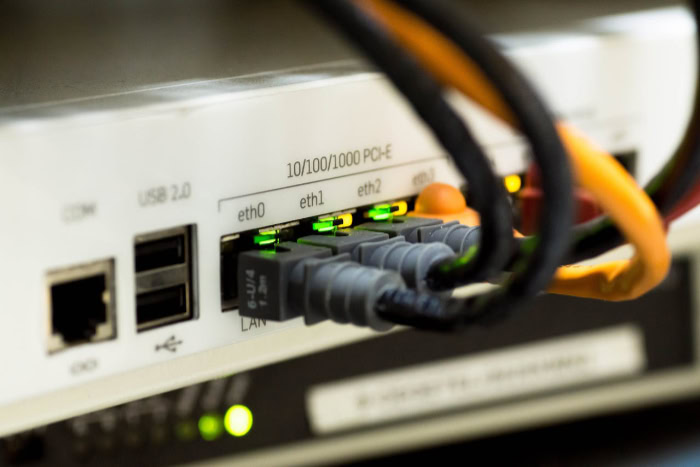
Sometimes the bottleneck is not the software or the server, but the physical equipment you are using. The hardware responsible for managing your internet connection and processing the encryption must be up to the task of handling high speed data streams.
Follow this checklist to ensure your hardware is optimized:
- Disconnect your device from Wi-Fi and plug it directly into your router using a Cat6 or Cat7 Ethernet cable.
- Open your Task Manager (Windows) or Activity Monitor (Mac) to see if your CPU usage spikes to 100 percent when the VPN is active.
- Check your router manufacturer’s website to see if a firmware update is available for your specific model.
- Temporarily disable third party antivirus or firewall software to see if the connection speed improves.
Wired vs. Wireless Connections
Wi-Fi is convenient, but it is susceptible to interference from other electronics, walls, and neighboring networks. This instability is magnified when you add the overhead of a VPN.
For the most stable and fast experience, connect your computer directly to your router using an Ethernet cable. This eliminates the packet loss and signal fluctuations inherent in wireless connections, allowing the VPN to operate at its full potential without fighting for signal clarity.
Device Processing Limitations
Every bit of data sent through a VPN must be mathematically encrypted and decrypted in real time. This task falls on your device’s Central Processing Unit (CPU).
Older computers, tablets, and inexpensive smartphones often lack the processing power to handle high speed encryption, which caps your internet speed regardless of how fast your ISP is. If you notice that your device becomes hot or sluggish when the VPN is active, the hardware itself might be the limiting factor.
Router and Software Conflicts
Your home router can sometimes struggle with VPN traffic, especially if it has outdated firmware or an active firewall that is overly aggressive. Updating your router firmware to the latest version can often resolve hidden performance issues.
Additionally, background applications like antivirus software or third party firewalls may inspect every packet of data, creating a second layer of processing that slows everything down. Temporarily disabling these tools can help you determine if they are interfering with your encrypted tunnel.
Advanced Technical Adjustments and Feature Management

For users who need to squeeze every bit of performance out of their connection, advanced settings offer a way to bypass common limitations. These features allow you to customize exactly how and when your VPN interacts with your data.
To apply these advanced changes, follow these steps:
- Enable “Split Tunneling” in your VPN settings and select your high bandwidth apps to run outside the VPN.
- Change your DNS settings to a fast, public provider such as Cloudflare (1.1.1.1) or Google Public DNS (8.8.8.8).
- Navigate to the advanced security settings and turn off “Double VPN,” “MultiHop,” or “Obfuscated Servers.”
- Restart your device and your VPN application to ensure the new parameters are fully applied.
Implementing Split Tunneling
Split tunneling is one of the most effective ways to maintain speed for high bandwidth tasks. This feature allows you to choose which applications use the VPN and which use your direct internet connection.
For example, you can set your web browser to use the VPN for privacy while allowing a high resolution video game or a streaming app to bypass the encryption entirely. This reduces the total volume of data the VPN has to process, ensuring that only your most sensitive traffic is encrypted.
Optimizing MTU and DNS Settings
The Maximum Transmission Unit (MTU) determines the size of the data packets sent over the network. If the MTU is too large, packets may be broken up into smaller pieces, which causes significant slowdowns.
Adjusting the MTU settings in your VPN app can prevent this fragmentation. Similarly, your DNS provider can impact how quickly websites load.
While most VPNs use their own DNS, switching to a high speed provider like Cloudflare can sometimes reduce the time it takes for a website to begin loading.
Disabling Resource-Heavy Features
Many VPNs come with extra security features like Double VPN, MultiHop, or obfuscation tools. A Double VPN sends your data through two separate servers for extra privacy, but this effectively cuts your speed in half and doubles your latency.
Obfuscation hides the fact that you are using a VPN, but it adds a significant amount of data overhead. Unless you are in a highly restrictive environment where these features are necessary for basic access, turning them off will immediately restore your connection to its full speed.
Conclusion
Achieving a fast connection requires addressing several technical layers simultaneously. You must ensure your hardware can handle the processing demands, your protocol is modern, and your server choice is geographically logical.
While encryption will always introduce a slight delay compared to a direct connection, this minor trade-off provides the security necessary for modern web browsing. If you encounter issues in the future, follow a systematic logic-flow: test your base speed on Speedtest.net, switch to a closer server, update to the WireGuard protocol, and switch to a wired connection.
This structured methodology ensures that you remain protected without suffering through an unusable internet experience.
Frequently Asked Questions
Why is my internet so slow as soon as I turn on my VPN?
Your connection slows down because the VPN must encrypt every piece of data and send it to a distant server before it reaches its destination. A drop of 10 to 20 percent is considered normal performance loss. If you see higher drops, it typically means the server is overcrowded or the protocol is inefficient.
Does the protocol I choose really make that much of a difference?
Yes, modern protocols like WireGuard are significantly faster than older options like OpenVPN because they use more efficient code. WireGuard was designed specifically for high speed connections and modern hardware. Switching to it can often double your speeds if your device and provider support the technology.
Should I use a server that is far away or close to me?
You should always pick the closest server to your physical location to keep your latency as low as possible. Data takes time to travel across physical distances; every extra mile adds lag to your connection. Unless you need to bypass a specific geographic restriction, local servers provide the best experience.
Will using an Ethernet cable actually help my VPN speed?
Switching to an Ethernet cable will likely improve your speed by providing a more stable and consistent data stream. Wi-Fi signals are prone to interference and packet loss, which creates extra work for the VPN encryption process. A wired connection removes these variables and ensures your hardware works at peak efficiency.
Is it safe to lower my encryption from 256-bit to 128-bit?
AES-128 is a safe choice for daily browsing because it remains very secure while being much easier for your computer to handle. Reducing the encryption level lowers the stress on your processor, which can result in faster download speeds. Most users will find it is an excellent balance of speed and privacy.
About the Author: Julio Caesar


