
Laptop vs. Tablet for Travel: How to Choose Your Gear
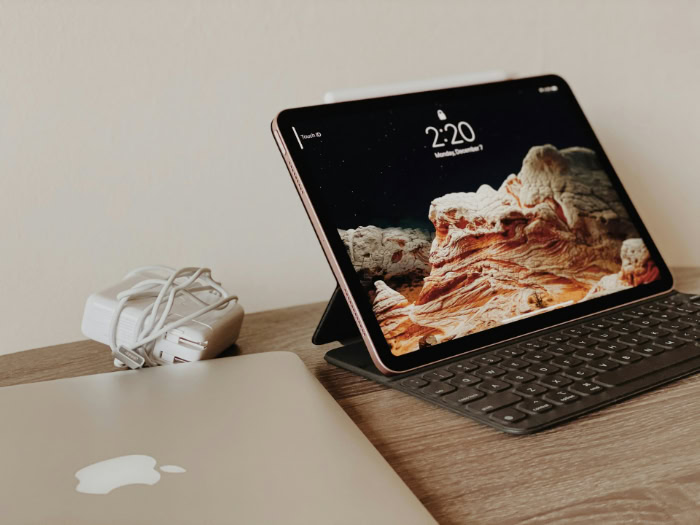
Packing for a trip requires a delicate balance between physical comfort and digital capability. Choosing the wrong machine can leave you struggling with heavy bags, cramped airplane tray tables, or software that simply fails to run your essential work tools.
Laptops remain the reliable standard for heavy-duty typing and file management, whereas tablets provide a lightweight, touch-first alternative for media consumption and quick edits. Yet, the distinction between them continues to blur as accessories and operating systems evolve.
Key Takeaways
- Standalone tablets are highly portable under one pound, but adding essential accessories like keyboard cases and stands can increase their total weight to nearly three pounds, matching modern ultrabooks.
- Laptops excel on tight airplane tray tables and laps because their self-supporting hinges keep the screen stable, while tablets require wider footprints due to kickstands and folding folio covers.
- Desktop operating systems on laptops offer unrestricted background processes and full browser extension support, whereas mobile tablet operating systems restrict background tasks and enforce sandboxed file storage.
- Tablets offer superior cellular integration through physical SIM cards or e-SIMs for instant mobile internet, whereas most laptops require a phone hotspot or public Wi-Fi.
- Travelers can bridge the gap by selecting a 360-degree convertible laptop or by pairing a tablet with a lightweight Bluetooth keyboard to create a modular, on-demand workstation.
Physical Footprint and Travel Ergonomics
Every traveler knows that space and weight are major constraints when packing for a trip. The physical dimensions of your device directly influence how comfortable your travel experience will be, from the moment you lift your backpack to the time you settle into a tight airline seat.
Weight, Volume, and Packing Efficiency
Standalone tablets are remarkably light and thin, often weighing under a pound and sliding easily into any sleeve or backpack compartment. Modern ultrabooks have also made significant strides, with many models coming in at under three pounds.
However, the comparison changes when you prepare a tablet for productivity. To match a laptop’s typing experience, a tablet requires a keyboard cover, a stand, and perhaps a separate mouse.
These accessories add unexpected weight and volume, sometimes bringing the total weight of a tablet setup surprisingly close to that of a thin ultrabook. When packing, a single-unit laptop offers a predictable, unified footprint, whereas a modular tablet setup can lead to a cluttered bag filled with various components and extra charging cables.
Transit Usability: Lap vs. Tray Table Dynamics
Using your device during actual transit brings unique physical challenges. On a cramped airplane tray table or a moving train, a laptop excels because of its self-supporting hinge.
The keyboard base acts as a stable anchor, allowing you to adjust the screen angle easily and keep the device steady on your lap or on a tiny surface. Tablets, by contrast, usually rely on kickstands, folio flaps, or external stands to remain upright.
These designs require a deeper footprint to stay stable, making them difficult to use on small tray tables where space is limited. Trying to balance a kickstand-based tablet on your lap in a terminal waiting area often results in a wobbly, frustrating typing experience.
Security, Durability, and TSA Checkpoints
Airport security screenings introduce another layer of friction to travel. Laptops typically must be removed from your bag and placed in a separate bin, unless you are using a TSA-approved sleeve.
Tablets are occasionally allowed to remain inside personal bags, though security rules vary by airport. Regarding physical durability, laptops offer a rigid clamshell design that naturally protects the screen from drops, pressure, and the vibrations of baggage handlers.
Tablets are highly vulnerable to screen cracks and bending if they are squeezed into an overstuffed bag without a rigid case, though their lack of moving parts can make them more resilient against internal mechanical failures over time.
Operating Systems and Software Capabilities

A lightweight device is of little use if its software prevents you from completing your necessary tasks. The divide between traditional desktop operating systems and mobile-first platforms dictates what you can actually accomplish while away from your desk.
Desktop OS vs. Mobile OS Limitations
Windows, macOS, and Linux offer unrestricted software environments where you can run any application, install custom utilities, and execute background tasks without system interference. Mobile operating systems like iPadOS and Android are highly optimized for efficiency and security, but they enforce strict limitations.
Applications must be approved by official stores, and background processing is heavily restricted to save battery power. This division is most apparent in web browsers.
While tablets now offer desktop-class browsing, they still struggle with complex corporate portals, web-based database tools, and browser extensions that power users rely on for daily tasks. A desktop browser remains the standard for full web compatibility.
File Management and Local Storage
Managing files on a laptop is a straightforward process, utilizing a familiar, visible folder directory that lets you drag, drop, and organize files across various drives. Tablets use sandboxed storage systems where files are tied directly to specific apps, making complex file organization tedious.
If you need to offload heavy camera files, edit video footage from an SD card, or manage backups on an external hard drive, a laptop handles these tasks with ease. While tablets can connect to external drives, their file transfer speeds and file utility apps can feel clunky and slow when handling large volumes of data.
Multitasking and Screen Real Estate
For users who need to refer to multiple documents, run side-by-side windows, or connect to external monitors, laptops provide a superior workflow. Windows and macOS support flexible, overlapping window layouts that allow for fast multitasking and efficient use of screen space.
Tablets have improved with split-screen modes, but these systems remain rigid and require more steps to manage. When connecting to an external monitor in a hotel room or shared workspace, laptops seamlessly extend your desktop, whereas tablets often struggle with aspect ratio mismatches and limited window configurations.
Power, Ports, and Connectivity on the Go

Staying powered and connected while on the move is essential for any traveler. Without access to a reliable power source or a secure internet connection, even the most capable device becomes difficult to use.
Managing how your device interacts with travel chargers, external hardware, and wireless networks will prevent unexpected downtime during your travels.
Battery Life and Charging Flexibility
When traveling, battery performance varies heavily based on your activity. Tablets are highly efficient, easily delivering all-day battery life for reading, offline video playback, and light browsing.
Laptops, especially those with powerful processors, drain their batteries faster under heavy workloads like data analysis or video editing. However, charging standards have synchronized.
Most modern laptops and tablets charge via USB-C, allowing you to use a single high-wattage travel adapter for all your devices. Tablets also have the added benefit of charging easily from compact, lower-wattage portable power banks, whereas laptops often require larger, high-output external batteries to charge successfully.
Port Availability and Peripheral Management
Laptops generally feature a built-in selection of ports, which may include USB-A, HDMI, and SD card slots, allowing you to plug in flash drives, presentation screens, and cameras without extra gear. Tablets typically feature a single USB-C port, forcing you to carry a dongle or a multi-port hub if you want to connect accessories.
Managing dongles while sitting in an airplane seat or a cafe is inconvenient and introduces extra points of failure. If an adapter breaks or is left behind in a hotel room, a tablet user can find themselves unable to connect to local networks or transfer files.
Cellular Integration vs. Wi-Fi Dependence
One of the greatest advantages of tablets is the option for built-in cellular connectivity via physical SIM cards or modern e-SIMs. This allows you to stay connected to secure networks the moment you step off a plane, without searching for public Wi-Fi or draining your phone’s battery via hotspot tethering.
Laptops with built-in cellular modems exist but are rare and expensive. Most laptop users must rely on public Wi-Fi networks, which can be slow and unsecure, or use their smartphones as personal hotspots, which rapidly consumes phone battery and data limits.
Aligning the Device with Your Travel Persona

There is no single device that suits every type of traveler. Your daily tasks, professional requirements, and personal habits during a trip will determine which form factor makes the most sense.
Matching your hardware to your specific travel profile ensures you do not carry unnecessary weight or find yourself limited by your screen size.
The Business Traveler and Digital Nomad
For those who work full-time on the road, a laptop is almost always the superior choice. Business travelers require comfortable, tactile keyboards for hours of typing, reliable video conferencing software with multi-window capabilities, and robust local storage for large databases.
Software developers, accountants, and writers need the depth of desktop operating systems to run specialized programming environments, complex spreadsheets, and offline writing tools. A tablet setup can serve as a temporary backup, but it rarely sustains the intense, multi-hour daily workloads of a professional nomad.
The Leisure Traveler and Media Consumer
If your trip is focused on relaxation, keeping in touch with family, and light entertainment, a tablet is a highly suitable companion. Tablets excel at offline reading, streaming movies on long flights, playing casual games, and making video calls home.
They are comfortable to hold in bed, easy to pass around to show photos to friends, and take up minimal space in a daypack. For these travelers, carrying a full laptop is unnecessary and adds useless weight to their luggage.
The Creative Traveler and Photographer
Creatives often find themselves caught between both worlds. Photographers and digital artists benefit immensely from the high-quality, touch-sensitive screens of tablets, which support precise stylus input for photo editing and sketching.
Drawing directly on a screen offers an intuitive feel that traditional laptops cannot match. However, for heavy video editing, managing massive photo catalogs, and running full desktop versions of creative suites, a laptop still provides the processing speed and local storage management that complex creative workflows require.
Bridging the Gap: Hybrid and Modular Setups

The boundary between laptops and tablets is not completely rigid. If you find yourself torn between the computing power of a laptop and the physical flexibility of a tablet, several options exist to merge these experiences.
2-in-1 Convertible Laptops as a Compromise
Convertible laptops offer a compelling middle ground for travelers who want the best of both worlds. Devices with 360-degree hinges can fold back completely to function as a tablet for reading or watching movies, while still retaining a full desktop operating system, built-in ports, and a permanent keyboard base.
Detachable models function as standalone tablets but can be paired with lightweight magnetic keyboards to quickly transition into full-fledged workstations. These hybrid designs eliminate the need to carry two separate devices, though they are often slightly heavier than standalone tablets.
Equipping a Tablet with Laptop-Style Accessories
If you prefer the thin profile of a tablet but occasionally need to type long emails or reports, you can build a modular workstation. Pairing a tablet with a slim, portable Bluetooth keyboard and a lightweight mouse creates a highly functional setup when you are stationary at a hotel desk.
When you are on the move, you can leave the keyboard in your bag and enjoy the lightweight convenience of a bare tablet. This modular approach gives you maximum flexibility to adjust your gear based on the demands of each day.
Utilizing Cloud and Remote Desktop Solutions
For travelers who want to carry only a tablet but still require the power of a desktop operating system, remote desktop software offers a modern solution. Using secure remote access tools, you can use your tablet to log into a powerful desktop computer left running at home or in the office.
This allows you to run resource-heavy applications, access secure company servers, and manage complex files through a lightweight screen. This setup, however, requires a fast and stable internet connection, making it less reliable when traveling through remote areas or during long transit flights.
Conclusion
Choosing between a laptop and a tablet ultimately comes down to a trade-off between dedicated processing power and lightweight versatility. Laptops remain the standard for demanding professional workloads, offering robust multi-window software, physical durability, and a stable typing platform.
Tablets provide unmatched portability, touchscreen ease, and seamless mobile data connection, making them highly suitable for casual travel and media consumption.
To determine which device suits your next trip, ask yourself these diagnostic questions:
- What are your primary work requirements? If you need to perform heavy typing, coding, or complex file management, choose a laptop. If you only need to read documents, edit photos with a stylus, or reply to brief emails, a tablet is sufficient.
- Where will you be working most often? If you expect to work on airplane tray tables, trains, or your lap, a laptop’s stable hinge is highly advantageous. If you will have access to flat desks or only need a handheld screen, a tablet is easier to handle.
- How long is your trip and how will you travel? For short, light-pack weekend trips where luggage space is scarce, a tablet is the easiest choice. For extended multi-week trips where you must remain productive, a laptop’s desktop system provides a safer backup.
Frequently Asked Questions
Can I use an iPad instead of a laptop for my remote job?
Yes, you can use an iPad for remote work if your daily tasks consist mainly of writing emails, video calling, and using cloud-based web apps. However, you will struggle if your job requires heavy multitasking, complex spreadsheet software, custom desktop applications, or managing large external hard drives.
How do I charge my laptop when I am traveling?
You can charge most modern laptops using a compact USB-C travel charger with a power output of sixty watts or higher. Unlike tablets, which can easily draw power from small phone chargers and standard power banks, laptops require high-wattage chargers or specialized high-output portable batteries to replenish their power successfully while on the move.
Is a tablet more durable than a laptop for backpacking?
No, a tablet is generally less durable than a laptop unless you protect it with a heavy, rugged case. While tablets lack the moving mechanical parts found in laptops, their exposed glass screens are highly vulnerable to cracking and bending when squeezed into tightly packed backpacks or subjected to accidental drops.
Do I need to take my tablet out of my bag at airport security?
In most cases, you do not need to remove your tablet from your bag at airport security checkpoints. While TSA rules require passengers to place larger laptops in separate bins, tablets are often categorized with smartphones and allowed to remain inside your carry-on luggage, though local airport rules can sometimes vary.
How can I get internet on my laptop while traveling without Wi-Fi?
You can get internet on your laptop by using your smartphone as a personal mobile hotspot. Simply turn on the personal hotspot option in your phone settings and connect your laptop to that wireless network, though this method will drain your phone battery and consume your cellular data plan quickly.
About the Author: Elizabeth Baker


