
MacBook Air vs. MacBook Pro: Which Should You Buy?

Investing upwards of a thousand dollars on a laptop only to realize it bogs down during your daily tasks or burdens your backpack on your commute is an expensive headache. Choosing the wrong Mac can leave you either overpaying for power you never touch or constantly waiting on a machine that cannot keep up.
Apple’s current lineup pits the featherweight Air against the powerhouse Pro, but the dividing line is no longer just about raw processor speed. Instead, thermal designs, screen technology, and port selections dictate which laptop fits your routine.
Key Takeaways
- The MacBook Air relies on silent, fanless passive cooling, which triggers thermal throttling and reduces processor speeds by up to twenty percent during sustained, heavy tasks like video rendering.
- The MacBook Pro features active cooling fans that prevent thermal throttling, allowing Pro and Max chips to maintain maximum performance indefinitely under heavy, prolonged workloads.
- Displays differ significantly, as the Air utilizes a standard 60Hz LCD panel, while the Pro upgrades to a 120Hz ProMotion mini-LED display with deep blacks and superior outdoor brightness.
- Port selection on the Air is limited to two Thunderbolt ports on a single side, whereas the Pro offers three Thunderbolt ports, a dedicated HDMI 2.1 port, and an SDXC card slot.
- The baseline configurations for the Air offer high value for everyday office work, while specialized workloads like 3D modeling and multi-track audio production justify the higher cost of the Pro.
Direct Comparison
| Feature | MacBook Air (13-inch & 15-inch) | MacBook Pro (14-inch & 16-inch) |
| Cooling System | Passive cooling (Fanless, completely silent) | Active cooling (Dual internal fans) |
| Display Tech | Liquid Retina (Standard IPS LCD, 60Hz) | Liquid Retina XDR (Mini-LED, 120Hz ProMotion) |
| Peak Brightness | 500 nits | Up to 1,600 nits (HDR content) |
| Built-in Ports | 2x Thunderbolt 4, Headphone jack | 3x Thunderbolt 4, HDMI 2.1, SDXC card slot, Headphone jack |
| External Monitors | Up to 2 displays (Only with laptop lid closed) | Up to 4 displays (Depending on chip configuration) |
| Starting Memory | 16GB unified memory | 16GB or 18GB unified memory (Up to 128GB) |
| Weight | 2.7 lbs (13-inch) / 3.3 lbs (15-inch) | 3.4 lbs (14-inch) / 4.7 lbs (16-inch) |
| Check Price | View on Amazon | View on Amazon |
Design, Portability, and Physical Build

Apple has refined its unibody aluminum design, but the structural philosophies behind the MacBook Air and MacBook Pro address entirely different mobile lifestyles. One is built to disappear into a messenger bag, while the other is engineered as a robust desktop replacement that can still travel.
Weight and Dimensions
The physical footprints of these machines highlight their intended use cases. The 13 inch MacBook Air measures a mere 0.44 inches in thickness and weighs just 2.7 pounds, making it one of the easiest laptops to slip into a backpack.
For those needing more screen space without excessive weight, the 15 inch Air remains incredibly slim at 0.45 inches while weighing 3.3 pounds. The MacBook Pro lineup compromises on thinness to accommodate its complex internal hardware.
The 14 inch MacBook Pro is 0.61 inches thick and weighs 3.4 pounds, while the 16 inch behemoth sits at 0.66 inches thick and scales up to 4.7 pounds. Carrying a 16 inch Pro all day requires a sturdy bag and an accommodating shoulder, whereas an Air is barely noticeable on a flight tray or in a tote bag.
Acoustic Profiles (Silent vs. Active Cooling)
Under the hood, these laptops handle heat in fundamentally opposite ways. The MacBook Air relies entirely on a passive cooling system, meaning it lacks any internal fans or moving parts.
Heat dissipates through the aluminum chassis itself, allowing the machine to run in total, permanent silence. You can push the Air to its absolute processing limits in a quiet library, and it will never emit a whisper.
The MacBook Pro, by contrast, relies on active cooling. It features dual internal fans paired with dedicated exhaust vents.
Under light tasks like typing or browsing, these fans remain idle or spin at unnoticeable speeds. When you push the processor with video exports or code compilation, the fans spin up to prevent overheating, producing a distinct whirring sound that trades silence for maximum computing stability.
Chassis Rigidity and Materials
Both lineups use premium recycled aluminum enclosures that feel incredibly sturdy, though they distribute that metal differently. The MacBook Air utilizes a balanced, ultra-slim profile that distributes its weight evenly, though its razor-thin screen lid exhibits a tiny amount of flex when twisted intentionally.
The MacBook Pro feels like a solid block of metal. Its keyboard deck has absolutely zero flex under heavy typing, and its hinge is tuned to open effortlessly with a single finger while staying perfectly rigid in moving vehicles.
The Pro also boasts a slightly larger, deeper trackpad on its larger models, providing more sweeping room for gesture control compared to the slightly more compact trackpads on the Air.
Performance, Processing Power, and Thermals

Processor efficiency is the defining trait of Apple silicon, yet how these chips perform over time depends on their physical housing. While standard chips focus on high efficiency for daily productivity, the advanced silicon tiers are built to tackle intense computing tasks.
Silicon Tiers (Base vs. Pro/Max Chips)
The entry-point MacBook Air is powered by standard M-series chips, which feature a balanced architecture of high-performance and high-efficiency CPU cores alongside integrated graphics. These chips deliver rapid, responsive performance for daily tasks, but they lack the heavy-duty compute lanes of Apple’s higher-tier silicon.
The MacBook Pro can be configured with standard chips, but it shines when equipped with Pro or Max variants. These premium chips pack significantly more CPU and GPU cores, along with wider memory bandwidth.
While a standard chip might have a 10-core CPU and 10-core GPU, an M-series Max chip can offer up to a 16-core CPU and a massive 40-core GPU, which drastically reduces rendering and compilation times for demanding applications.
Sustained Workloads and Thermal Throttling
Raw processor specs only tell half the story, as thermal design determines how long a laptop can maintain its peak speeds. Because the MacBook Air has no fan, it relies on passive cooling to manage heat.
Under short, bursty tasks like opening a large PDF, loading a webpage, or cropping an image, the Air runs at full speed without issue. However, during a sustained workload like exporting a long 4K video or running a local AI model, internal temperatures rise.
To protect the hardware from overheating, the Air automatically engages in thermal throttling, temporarily lowering its clock speeds and reducing performance by up to fifteen to twenty percent. The MacBook Pro uses its active cooling fans to constantly exhaust hot air, allowing its Pro and Max chips to run at maximum performance indefinitely without throttling.
Practical Use Cases
These architectural variations translate to distinct practical capabilities. The fanless design of the MacBook Air makes it an exceptional tool for writing, spreadsheet work, web browsing, and streaming video.
It handles light photo editing, casual coding, and basic video cutting effortlessly. However, developers running multiple virtual machines, 3D artists rendering scenes in Blender, and video editors working with multi-cam ProRes RAW footage will find the Air restrictive.
The MacBook Pro is purpose-built for these intense creative tasks, allowing music producers to run hundreds of audio tracks with real-time effects and programmers to compile massive software builds without breaking a sweat.
Display Quality and Audio Capabilities
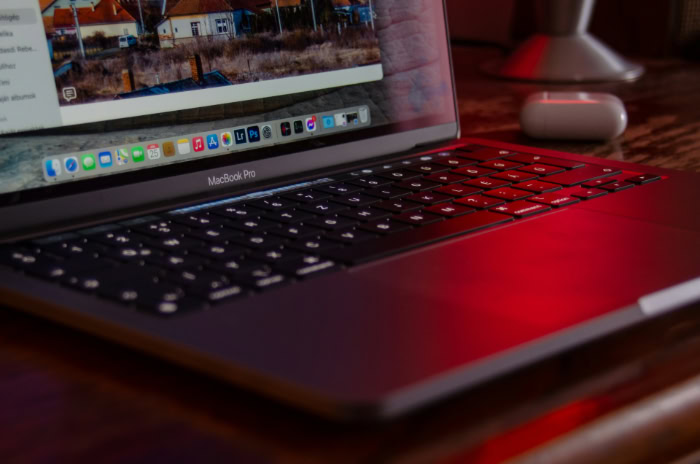
How you interact with your work is heavily influenced by your laptop’s screen and speakers. Apple provides high-quality audiovisual components across both lineups, but the MacBook Pro pushes boundaries with technology designed specifically for professional colorists and media creators.
For casual users, the Air offers an excellent baseline that satisfies all standard entertainment needs.
Panel Technology (Liquid Retina vs. Liquid Retina XDR)
The MacBook Air features a standard Liquid Retina display, which is a high-quality IPS LCD panel. It offers accurate colors, sharp text, and great viewing angles, but it relies on a traditional edge-lit LED backlight.
This means the entire screen backlight must remain partially active even when displaying black pixels, resulting in deep grays rather than true blacks. The MacBook Pro upgrades to Liquid Retina XDR technology, which utilizes thousands of mini-LED backlighting zones.
This allows for local dimming, meaning individual zones can turn off completely to display true, inky blacks. The resulting contrast ratio reaches one million to one, providing incredible depth and realism when viewing HDR content.
Refresh Rates and Brightness Levels
Screen fluidness and outdoor visibility also differ between the two lineups. The MacBook Air display is locked to a standard 60Hz refresh rate, which is entirely sufficient for office tasks and video playback.
Its peak brightness tops out at 500 nits, which is bright enough for indoor environments but can struggle under direct sunlight. The MacBook Pro introduces ProMotion technology, enabling an adaptive refresh rate that scales up to 120Hz.
This high refresh rate makes scrolling through webpages, moving windows, and system animations look incredibly fluid. Additionally, the Pro display reaches up to 1,000 nits of sustained full-screen brightness and 1,600 nits of peak brightness for HDR content, making it highly usable even in bright outdoor settings.
Built-in Audio and Microphone Arrays
The audio systems in both machines are surprisingly robust, though the physical space inside the Pro chassis allows for a superior setup. The 13 inch Air features a four-speaker sound system, while the 15 inch Air uses a six-speaker array that bounces sound off the screen for a wide stereo image.
Both support spatial audio and sound remarkably clear. The MacBook Pro, however, sets the standard for laptop audio with a high-fidelity, six-speaker system that includes force-cancelling woofers.
The bass is deep, rich, and distorts less at high volumes, almost eliminating the need for external speakers. The Pro also includes a three-mic array with a high signal-to-noise ratio, which captures cleaner, more professional voice recordings for virtual meetings than the standard microphones in the Air.
Connectivity, Ports, and External Display Support

A laptop’s utility is often measured by how easily it connects to your wider ecosystem of accessories, monitors, and storage media. The minimalist aesthetic of the modern laptop has led to a reduction of built-in inputs, but the MacBook Air and MacBook Pro approach this constraint differently.
Native Input/Output (I/O) Options
Port availability represents one of the most immediate practical differences between these two families. The MacBook Air is equipped with just two Thunderbolt 4 ports alongside a MagSafe 3 charging port and a high-impedance headphone jack.
Both Thunderbolt ports sit on the left side of the machine, leaving the right side completely empty save for the headphone jack. This setup forces you to plug all accessories into one side.
The MacBook Pro offers a much more versatile physical layout. It provides three Thunderbolt 4 ports distributed on both sides of the chassis, allowing you to charge or connect accessories from either direction.
More importantly, the Pro includes a dedicated HDMI 2.1 port and an SDXC card slot, enabling you to connect directly to TVs, projectors, and camera storage without adapters.
External Monitor Limitations
If you plan to build a multi-monitor workstation, Apple’s silicon constraints require careful planning. The standard M-series chip found in the MacBook Air natively supports up to two external displays, but only when the laptop lid is closed.
If you open the Air to use its built-in display, you can only run a single external monitor. The MacBook Pro offers far more display versatility depending on the chip configuration.
Even the base M-series Pro supports multiple external monitors with the lid open. Stepping up to the Pro or Max silicon tiers expands this capacity significantly, with M-series Max configurations supporting up to four external displays simultaneously, allowing for massive desktop arrangements.
Accessory Ecosystem and Adapter Reliance
Your choice of laptop directly dictates the contents of your travel bag. Opting for the MacBook Air usually means carrying a USB-C hub or a collection of adapters if you frequently interface with legacy USB-A thumb drives, wired Ethernet cables, or external displays that require HDMI connections.
This can clutter a workspace and adds another item to remember when packing. Because the MacBook Pro integrates HDMI and an SDXC slot directly into its frame, creative professionals can often leave their adapters behind.
This self-contained setup provides peace of mind when working on location or in unfamiliar conference rooms.
Battery Life, Specifications, and Value Proposition

Long battery runtimes and smart configuration choices determine the overall value of your laptop investment over its lifespan. While both the Air and Pro lines leverage the remarkable power-per-watt efficiency of Apple silicon, they offer different paths for up-front costs and hardware upgrades.
Battery Endurance Under Varied Workloads
Apple silicon has redefined mobile endurance, allowing both lineups to easily clear a full workday of light office tasks. Under lighter workloads like editing documents or streaming video, the MacBook Air easily lasts up to 18 hours, operating with incredible power efficiency.
The MacBook Pro has a slightly larger physical battery, allowing the 14 inch and 16 inch models to reach up to 22 or 24 hours respectively of light web browsing. However, when you run heavy processing tasks, the story changes.
Because the Air lacks a fan, it quickly runs hot and throttles down, which actually limits power consumption. The Pro, when running at maximum performance with active fans, will drain its battery much more rapidly under intense rendering or compile cycles, though it completes the task in a fraction of the time.
Configuration Flexibility and Upgrade Pricing
Both lines start with unified memory and solid-state storage that are soldered directly to the motherboard, meaning you cannot upgrade them after purchase. The base models of the modern MacBook Air now start with 16GB of unified memory and 512GB of storage, which provides a comfortable entry point for most users.
However, upgrading memory or storage through Apple’s configuration tool is expensive. Stepping up to 24GB of memory or a larger 1TB drive adds hundreds of dollars to the final price.
The MacBook Pro starts at a higher baseline, with Pro and Max configurations offering up to 128GB of unified memory and up to 8TB of storage, though these high-end options are priced specifically for corporate budgets or production houses.
Return on Investment (ROI) by User Persona
For students and business professionals whose daily routines consist of writing, presentation design, and web communication, the MacBook Air offers an extraordinary return on investment. It provides premium build quality and snappy performance for a much lower entry price, making the Pro an unnecessary expense for these workflows.
Creative experts, software developers, and database engineers who lose billable hours waiting for files to render or code to compile will find the MacBook Pro highly cost-effective. The time saved by the Pro’s active cooling and faster memory bandwidth quickly pays for the premium price tag.
Conclusion
Choosing between these two machines comes down to a fundamental trade-off between absolute mobility and sustained power. The MacBook Air is the ultimate travel companion, offering a silent, lightweight chassis that handles daily tasks with exceptional battery efficiency.
It excels in coffee shops, lecture halls, and offices, where its light weight outweighs the need for extreme computing power. The MacBook Pro, however, is a desktop-class workhorse designed to run demanding applications at peak performance for hours on end, supported by superior display technology and a rich array of built-in ports.
To make your decision, evaluate your daily workload and budget. If your tasks consist of document editing, web research, emails, and light photo adjustments, the MacBook Air will handle your needs easily while saving you hundreds of dollars.
On the other hand, if you regularly compile massive codebases, edit multi-stream high-definition video, or render 3D scenes, the active cooling and advanced silicon of the MacBook Pro are necessary investments that will quickly pay for themselves in time saved.
Frequently Asked Questions
Can I run more than one monitor on the MacBook Air?
Yes, you can connect up to two external monitors to the MacBook Air, but only while the laptop lid is closed. Opening the laptop disables one of the external feeds, limiting you to a single external display. The MacBook Pro bypasses this limitation, supporting multiple external displays with the lid open.
Does the MacBook Air get hot when you use it a lot?
Yes, the MacBook Air will get warm under intense workloads because of its fanless cooling design. Without internal fans, the aluminum chassis dissipates heat directly, which can trigger thermal throttling to prevent overheating. This temporary slowdown protects the hardware but reduces performance during long video exports.
Can I play games on the MacBook Air?
Yes, you can run casual games on the MacBook Air, but it is not built for high-end gaming. While the integrated graphics handle moderate settings, demanding games will cause the fanless laptop to heat up and lower its frame rate. The active cooling in the MacBook Pro delivers much smoother gameplay.
Do I need a dongle to plug in my camera card on the MacBook Air?
Yes, you will need an external USB-C adapter or dock to read an SDXC camera card on the MacBook Air. Because the Air only comes with two Thunderbolt ports, it lacks built-in card readers. Photographers can avoid carrying extra dongles by choosing the MacBook Pro, which features an integrated SDXC card slot.
Is the MacBook Pro screen really that much better than the Air screen?
Yes, the MacBook Pro screen is noticeably superior because of its mini-LED backlighting and fast adaptive refresh rate. This technology enables true black levels and exceptional HDR contrast that the standard Air LCD display cannot achieve. Additionally, the ProMotion 120Hz refresh rate makes on-screen motion and scrolling look incredibly fluid.
About the Author: Elizabeth Baker


