
What Does a Factory Reset Do? What Gets Deleted
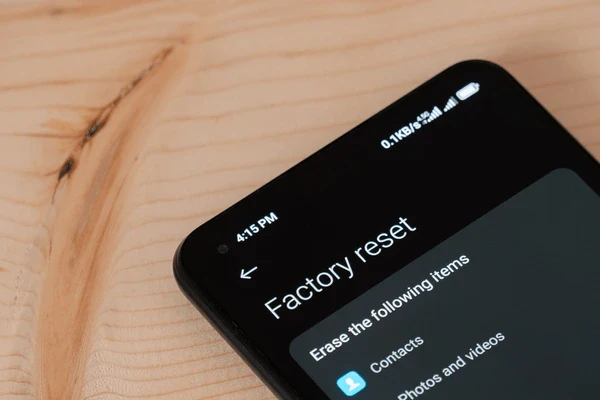
A factory reset wipes a smartphone, computer, or tablet clean, returning the software to its original factory state. It restores the device to how it functioned the day it came out of the box, removing every trace of user customization.
Because this action permanently deletes files, accounts, and custom settings, knowing what happens beforehand protects against accidental data loss.
Key Takeaways
- A factory reset erases the user partition while preserving system files: It completely wipes personal files, downloaded apps, and login credentials, but leaves the core operating system and default manufacturer tools intact.
- The current operating system version is maintained: A reset will not downgrade your software to an older edition; an upgraded device simply reinstalls default configurations for its current operating system build.
- External storage and cloud accounts remain safe: MicroSD cards, cellular SIM cards, and synced cloud platforms such as Google Drive or iCloud are unaffected by the internal drive wipe.
- Cryptographic erasure makes unbacked data unrecoverable: Because modern flash storage securely scrambles encryption credentials during a reset, files cannot be recovered without a prior external or cloud backup.
- Account disconnection prevents device lockouts: Signing out of primary profiles like Apple ID or Google prevents anti-theft security locks from trapping you during the post-reset setup wizard.
Core Concept and Technical Mechanism
Modern consumer electronics rely on dedicated software architectures that separate everyday personal files from critical system code. Initiating a factory reset triggers an automated procedure that alters this software environment, clearing out personal additions while keeping the underlying operating system functional.
Definition of a Factory Reset
A factory reset, often called a master reset, restores an electronic device to its original manufacturer configuration. During this process, the operating system purges user-installed applications, account configurations, and personal data files from the local storage drive.
This operation is strictly a software-level action. It does not alter, repair, or physically degrade internal hardware components such as the processor, memory chips, or battery.
Instead, it resets the storage sectors that contain personalized data back to their original blank parameters, leaving the physical architecture completely untouched.
System State and Firmware Retention
Electronic devices separate internal storage into distinct segments known as partitions. The primary system partition houses the core operating system files, hardware drivers, and default system utilities, whereas the user data partition stores personal files, downloaded programs, and temporary caches.
A factory reset wipes the user data partition, but it leaves the system partition intact.
Because the core firmware and system partitions remain protected, a reset does not downgrade the operating system to the version that originally shipped on the device. For example, if a smartphone initially arrived with Android 12 but received updates to Android 14 over two years of use, a factory reset preserves Android 14.
The system rebuilds the default configuration for that updated platform rather than rolling back to the older release.
Distinction Among Reset Classifications
Device troubleshooting involves several levels of restarts and resets, each serving a different purpose. A standard restart, often called a soft reset, simply turns the device off and back on.
This action clears temporary data from active random-access memory (RAM) and resolves minor software hiccups without deleting any saved personal files.
A forced restart, commonly called a hard reset, occurs when a user forces the hardware to reboot using physical buttons, such as holding the power and volume buttons simultaneously for 10 seconds. This action cuts power or interrupts the processor to reboot an unresponsive screen, but like a soft reset, it preserves all personal files and stored settings.
In contrast, isolated configuration resets target specific categories of system preferences without erasing the entire device. Examples include resetting network settings to resolve Wi-Fi issues, or resetting location and privacy permissions.
A factory reset is far more thorough than any of these methods, as it wipes all user data across the entire local drive.
Data Impact and Storage Modification
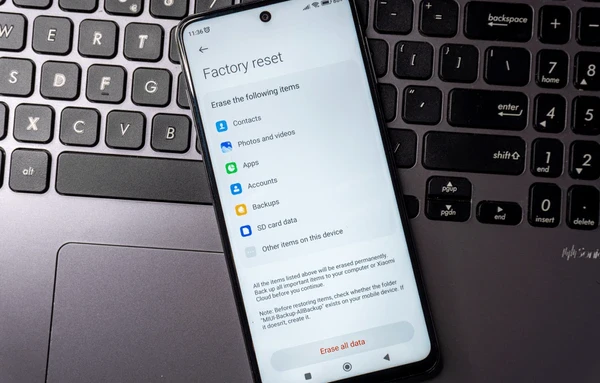
Initiating a factory wipe directly alters how internal flash storage manages existing data blocks. Understanding which components vanish and which elements remain on the drive prevents surprises during the restoration process.
Eradication of Personal Files and Application Data
The most visible result of a factory reset is the complete removal of personal media and downloaded files. Stored photos, home videos, audio recordings, downloaded documents, and local files are deleted from internal storage.
The procedure also deletes every third-party application installed since the initial purchase. Along with the applications themselves, the reset discards local application caches, saved progress, custom preferences, and stored login credentials.
Any web browsing histories, offline map downloads, and stored autofill profiles stored on the local drive disappear immediately.
Retention of Base Operating System Components
While user additions disappear, base operating system components remain on the drive. Essential system software, foundational drivers, and default manufacturer applications are retained so the device can boot up and function normally.
However, every customized setting reverts to its default value. Personal wallpaper images, dark mode schedules, display refresh rate preferences, custom ringtones, and notification sounds return to the standard out-of-the-box defaults.
The device behaves as if a new user turned it on for the first time.
Status of Removable Media and Cloud Synchronizations
Removable media generally remains unaffected by a standard factory reset. External storage components, including microSD cards and cellular SIM cards, operate on independent storage tracks.
Data stored on a microSD card, such as music tracks or camera backups, stays intact unless a user intentionally selects the optional setting to format external storage during the wipe sequence.
Similarly, information synced to cloud storage services remains completely independent of the local wipe. Files, contacts, and photos stored in Google Drive, Apple iCloud, Microsoft OneDrive, or Dropbox remain safe on remote servers.
Once the reset finishes, logging back into these services restores access to that synchronized data.
Primary Use Cases and System Benefits

Wiping a device clean provides a dependable way to resolve persistent performance problems, remove deep security infections, and prepare hardware for transfer. Returning the software environment to its baseline state produces distinct operational advantages.
Resolution of Persistent System Faults
Over months or years of regular use, operating systems accumulate leftover files, broken registry entries, and corrupted software caches. These lingering elements can cause sudden system freezes, frequent application crashes, or severe boot loops where the device continually restarts without reaching the home screen.
A factory reset eliminates these accumulated software conflicts by replacing altered system configurations with fresh default files. It removes background clutter and bloatware that drain memory, restoring responsive performance and quick load times to an aging device.
Elimination of Malware and Corrupted Software
Malicious software programs such as spyware, aggressive adware, and rogue background trackers often embed themselves deeply within local user directories. Standard antivirus scanners sometimes struggle to isolate and delete these persistent threats when root permissions are compromised.
Executing a complete reset purges infected user directories, terminating malicious background tasks and eliminating corrupted files. Because the procedure clears out unauthorized scripts, it restores basic system security following a severe infection or unauthorized intrusion.
Sanitation for Device Resale or Ownership Transfer
Selling, donating, or trading in an old device requires thorough data sanitation to protect personal privacy. Handing over hardware that still holds cached accounts, text messages, or browsing records exposes private information to strangers.
A factory reset breaks the connection between the hardware and previous user accounts. It wipes authentication tokens, personal photos, and saved financial details, preventing subsequent owners from recovering personal identities or accessing sensitive records.
Potential Risks and Operational Pitfalls

Although a master reset is a powerful tool, it presents serious risks if initiated carelessly. Overlooking security safeguards or experiencing technical failures during the wipe sequence can lead to data loss or a disabled device.
Irreversible Data Depletion
Modern flash storage on smartphones and solid-state drives uses hardware encryption to protect data. When a factory reset occurs, the system cryptographically destroys the internal encryption credentials.
Once this cryptographic wipe completes, unbacked data cannot be retrieved by commercial recovery tools or specialized repair technicians.
This permanent erasure also destroys local authentication tokens and two-factor recovery codes stored in authenticator apps. Losing these temporary codes without an alternate verification method can lock an owner out of vital financial, email, or work accounts permanently.
Activation Locks and Authentication Traps
Modern operating systems include anti-theft protocols, such as Apple Activation Lock and Android Factory Reset Protection (FRP). These security measures require the original owner to enter their account credentials after a device undergoes an unauthorized wipe or a reset performed through recovery menus.
If an owner resets a device without signing out of their primary account first, the system demands that specific username and password during the initial setup wizard. Forgetting those credentials can permanently lock the device, turning a functional smartphone or tablet into an unusable piece of hardware.
Firmware Corruption from Mid-Process Interruption
During a factory reset, the device actively rewrites storage partitions and reinstalls baseline configuration profiles. If the battery level drops to 0% or the device loses power during this sensitive sequence, the write operation stops midway.
An incomplete wipe often causes firmware corruption, leaving the operating system without the critical files needed to boot. This can trap the device in a permanent unbootable state that requires specialized service center equipment or complete motherboard replacement to fix.
Essential Precautions and System Reconfiguration

Proper preparation ensures a smooth reset process and prevents accidental data loss. Following a structured procedure before and after the wipe keeps personal files safe and allows for a smooth setup on the clean system.
Creation of Comprehensive Backups
Preserving essential data requires creating a complete copy of all personal files before starting the reset process.
- Connect the device to a secure Wi-Fi network and plug it into a wall charger.
- Open system settings and trigger a manual cloud backup to ensure recent messages, photos, and device configurations upload completely.
- Plug an external hard drive or high-speed USB flash drive into the computer or mobile device.
- Copy important personal documents, high-resolution media folders, and manual downloads to the external drive.
- Export contact lists as a standard VCF file and save message histories using certified export utilities.
- Verify that all essential folders appear intact on the secondary storage drive before proceeding.
Disconnection of Security Credentials and User Accounts
Decoupling personal accounts from the hardware prevents anti-theft software locks from triggering after the reboot.
- Open the device settings menu and select the accounts management panel.
- Confirm that two-factor authentication backup methods, such as an alternate phone number or secondary email, are active on a separate device.
- Sign out of primary accounts, including Apple ID, Google, and Microsoft profiles.
- Turn off device tracking features such as Find My or Find My Device to release the hardware lock.
- Remove screen locks, including biometric fingerprints, facial recognition profiles, and numeric PINs.
Post-Reset Configuration and Profile Setup
Once the reset sequence finishes, the device reboots into the initial setup wizard.
- Power on the device and select your preferred language, region, and input layout.
- Connect to a trusted Wi-Fi network to complete initial device activation.
- Sign in using your primary account credentials when prompted by the setup assistant.
- Choose between restoring data from a previous cloud backup or configuring the operating system as a completely fresh machine.
- Reinstall necessary third-party applications individually from official application stores to avoid reintroducing unwanted bloatware.
- Transfer saved personal files and local documents back to the internal storage drive from your external backup media.
Conclusion
A factory reset serves as a powerful solution for restoring sluggish system performance and safeguarding personal privacy. By clearing corrupt software, stubborn system errors, and hidden malware, the procedure returns a computer, tablet, or smartphone to its baseline responsiveness.
It also provides reliable data sanitation when passing hardware to a new owner, ensuring personal files and accounts remain completely inaccessible. However, this process permanently wipes local storage.
Always verify that all essential files are safely copied to a secondary drive or cloud service, and sign out of all linked user accounts before initiating the wipe.
Frequently Asked Questions
Does a factory reset delete everything on my phone?
Yes, a factory reset deletes all personal data, downloaded applications, and custom settings stored on your device. It wipes your photos, messages, documents, and saved login details so the operating system returns to its original factory state. However, it does not erase items stored in cloud services like Google Drive or iCloud.
Will a factory reset get rid of viruses and malware?
Yes, a factory reset removes almost all standard viruses, spyware, and malicious programs from your device. Because the reset completely wipes the user storage partition where rogue software installs itself, malicious background processes are eliminated. It restores system integrity, provided you do not immediately reinstall infected files from an unverified backup.
Does a factory reset change my operating system back to an older version?
No, a factory reset does not downgrade your operating system to an earlier version. The reset clears out user data while leaving your current system firmware intact. If your device updated from Android 12 to Android 14, it stays on Android 14 and simply rebuilds that version using factory default settings.
Will a factory reset wipe my SD card or SIM card?
No, a standard factory reset only erases the internal storage drive inside the device. Removable media like microSD cards and cellular SIM cards stay unaffected during the process. Any photos or files stored on an external memory card remain safe unless you manually choose the optional setting to format that card.
Can I get my files back after doing a factory reset?
No, you cannot recover files deleted by a factory reset unless you previously created a backup. Modern devices use built-in hardware encryption, and the reset process permanently destroys the cryptographic certificates needed to read the drive. Without a secondary cloud or external hard drive backup, those wiped files cannot be restored.
About the Author: Elizabeth Baker


