
Why Is My TV Screen Flickering? How to Fix It

A flickering television screen immediately disrupts your relaxation, turning a favorite movie or a tense gaming match into an unwatchable distraction. For many households, this sudden malfunction threatens to turn an expensive piece of technology into an unusable glass pane.
The strobe-like pulsing might point to a minor signal error or hint at a more serious internal hardware issue. Instead of rushing to buy a replacement or calling an expensive technician right away, a systematic diagnostic approach can often pinpoint the exact source of the trouble.
Key Takeaways
- A flickering screen is frequently caused by simple physical issues like a loose or dusty HDMI cable rather than a hardware failure.
- Performing a full power cycle by unplugging the television and holding the physical power button for thirty seconds drains residual electricity and clears temporary system bugs.
- Disabling energy-saving features, such as Eco Mode or automatic ambient light sensors, prevents the TV from rapidly shifting brightness in response to changing room lights.
- You can isolate a backlight hardware failure by shining a flashlight closely against the dark glass; seeing a faint image underneath indicates the LCD panel works but the light strips are broken.
- Internal physical repairs pose severe electrical shock risks from high-voltage capacitors, making complete unit replacement a safer and more practical choice if the main display panel fails.
Root Causes of TV Screen Flicker
Before attempting to repair a flickering screen, it is essential to identify why the display is behaving erratically. Television flicker usually stems from a breakdown in communication between the display panel and the signal source, or from inconsistent power delivery.
Pinpointing the source of this disruption is the first step toward restoring a stable picture.
Loose or Damaged Connection Cables
Physical cables are the primary pathways for high-definition video signals. Over time, constant bending, pulling, or exposure to dust can degrade HDMI, coaxial, or optical cables, leading to physical wear on the copper wiring or fiber optics inside.
When a cable is damaged or loosely seated in its port, the electrical or optical signals become intermittent. This interruption causes the TV to momentarily lose its connection to the video source, resulting in rapid blackouts, static, or flashing lines.
Additionally, repeated plugging and unplugging can wear down the internal pins of the TV ports themselves, rendering even a brand-new cable unstable.
External Signal Source Incompatibility
Sometimes the television itself is completely functional, and the issue lies within connected hardware. Cable boxes, gaming consoles, and streaming sticks can encounter software glitches or output format conflicts.
If a connected device sends a video signal at a resolution or refresh rate that the television cannot consistently process, the display will struggle to sync with the incoming data. This format mismatch forces the TV to continuously attempt to re-establish the connection, which manifests as a persistent, rhythmic flicker.
Electrical Interference and Power Fluctuations
A stable picture requires clean, consistent electrical power. If a TV shares a wall outlet or an overloaded surge protector with other devices, voltage drops can occur.
Faulty surge protectors may fail to regulate the electrical current properly, leading to micro-fluctuations in the power supplied to the TV’s internal components. Furthermore, high-wattage household appliances such as air conditioners, refrigerators, or vacuum cleaners can create electromagnetic interference on the same electrical circuit, causing brief power sags that disrupt the television screen’s brightness.
Internal Hardware Deterioration
When external factors are ruled out, physical wear on the internal hardware must be considered. Over years of use, the internal circuit boards and the display panel itself begin to degrade.
Aging light-emitting diode (LED) backlight strips can become unstable, causing the screen to strobe or dim randomly. Similarly, heat and electrical stress degrade the capacitors and processors inside the TV, leading to structural failures that prevent the screen from maintaining a steady image.
Initial Diagnostics and Simple Fixes
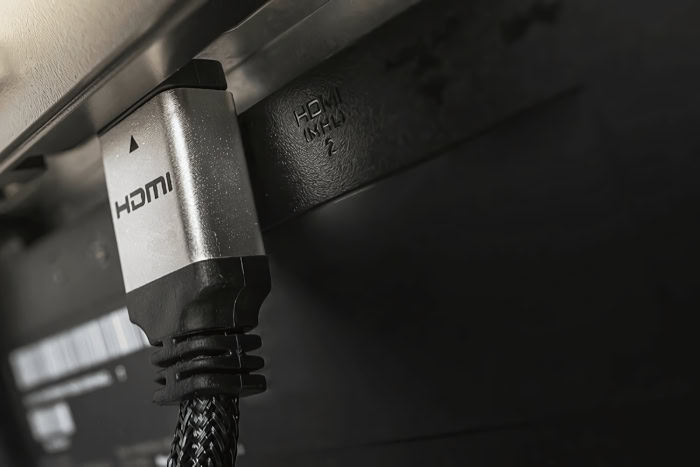
Many display issues are caused by temporary system glitches or minor physical misalignments rather than permanent hardware failures. Before seeking professional repair services, you can perform several basic diagnostic checks to isolate the problem.
These initial steps require no technical expertise.
Power Cycle and Hard Reset Method
A cold boot is one of the most effective ways to clear temporary memory errors and drain residual electrical charge from the TV’s internal boards. To perform a complete power cycle, follow these steps:
- Turn off the television using the physical power button on the unit, not just the remote control.
- Unplug the main power cord directly from the wall outlet or surge protector.
- Press and hold the power button on the TV itself for 30 seconds to drain any remaining electricity stored in the capacitors.
- Leave the television unplugged for at least two to three minutes.
- Plug the power cord back directly into a functional wall outlet, bypass any extension cords or surge protectors temporarily, and turn the TV on.
Port and Cable Verification
If the power cycle does not resolve the flicker, the physical connections must be examined systematically. Follow these steps to verify your connections:
- Turn off both the television and the connected source device.
- Unplug the HDMI or coaxial cable from both the TV port and the device port.
- Inspect the cable plugs for bent pins, debris, or physical damage, and look inside the ports for any dust buildup.
- Firmly plug the cable back into the ports, ensuring a snug and complete fit.
- If the flickering continues, move the cable to an alternative port, such as switching from HDMI 1 to HDMI 2, to test if a specific port is faulty.
- Try using a verified, working cable from another device to rule out a damaged cord.
Alternative Input Device Test
To determine whether the television itself or an external device is malfunctioning, you must isolate the signal source. You can accomplish this by switching between built-in smart applications and external hardware:
- Open the TV’s native settings menu or launch a built-in streaming application, such as YouTube or Netflix, directly from the smart TV interface.
- Observe the screen to see if the flickering persists while using native apps.
- If the picture is stable during built-in app playback but flickers when using a gaming console or cable box, the issue lies with that specific external device, its settings, or its connecting cable.
- If the screen flickers across all inputs and built-in applications, the problem is likely rooted in the television’s internal settings or hardware.
Software Configurations and Settings

Modern televisions rely heavily on internal operating systems to process video signals and manage power consumption. Sometimes, a flickering screen is simply the result of an outdated firmware file or an overactive software setting.
Firmware and System Updates
Outdated television operating systems can struggle to process modern, high-bandwidth video formats sent by newer streaming devices or gaming consoles. Manufacturers frequently release software patches to fix stability issues and improve compatibility.
To update your television’s firmware, perform the following steps:
- Navigate to the TV’s main settings menu using your remote control.
- Locate the “Support,” “About,” or “System” submenu.
- Select the option labeled “Software Update” or “Check for Updates.”
- If an update is available, download and install it, ensuring that you do not turn off the television during the installation process.
- If your TV cannot connect to the internet, download the latest firmware from the manufacturer’s website onto a USB drive and insert it into the TV’s service port to install the update manually.
Eco Mode and Ambient Light Sensor Settings
Many modern televisions come equipped with energy-saving configurations, often labeled as Eco Mode, or ambient light sensors that automatically adjust the screen’s brightness based on the lighting conditions of the room. When these sensors encounter fluctuating lighting, such as passing shadows or shifting sunlight, they may constantly adjust the backlight.
This rapid, automatic calibration can easily be mistaken for a hardware flicker. To disable these features, use the following steps:
- Open your television’s main settings menu.
- Locate the menu labeled “General,” “System,” “Power and Energy,” or “Eco Solution.”
- Toggle “Eco Mode,” “Auto Brightness,” or “Ambient Light Sensor” to the “Off” position.
- Manually adjust your picture settings, setting the backlight and brightness to a comfortable, static level.
Video Output Resolution and Refresh Rate Calibration
If the screen only flickers when a specific external device is active, the issue is likely a mismatch in display settings. High-performance devices, like gaming consoles or computers, might output video at resolutions or refresh rates that exceed what the television’s hardware can process.
To align these settings, follow these steps:
- Access the system or display settings menu of the connected source device (such as your console or streaming stick).
- Locate the “Video Output,” “Resolution,” or “Display” configurations.
- Manually lower the output resolution (for example, from 4K to 1080p) or reduce the refresh rate (such as from 120Hz to 60Hz) to match your television’s native capabilities.
- Save the changes, restart the connected device, and observe if the screen remains stable.
Advanced Hardware Issues

When cable adjustments, software resets, and configuration updates fail to resolve a flickering display, the underlying cause is likely structural. Televisions are complex assemblies of electronic modules, and a failure in any of these internal boards or power delivery systems will disrupt the picture.
LED Backlight Failures
Modern liquid crystal display (LCD) and light-emitting diode (LED) televisions rely on internal light strips to illuminate the screen from behind. If these LED backlight strips begin to wear out, they can produce a rapid, strobing effect or cause the entire screen to appear unusually dim.
To determine if the backlights are failing rather than the main display panel itself, you can perform a simple “flashlight test.” Turn on the television in a dark room, shine a bright flashlight directly against the glass from a few inches away, and look closely at the illuminated area. If you can see a faint, non-flickering image of the menu or video content underneath the light, the LCD panel is functioning correctly, and the backlight strips or their power supply lines are the components that have failed.
T-Con Board Malfunctions
The Timing Controller, commonly known as the T-Con board, acts as the coordinator of the television’s visual output. This board takes the incoming video data from the main system board and translates it into specific electrical instructions for individual pixels on the screen.
When a T-Con board begins to fail, the synchronization of these pixel instructions breaks down. This malfunction typically manifests as a vertical screen flicker, flickering horizontal colored lines, or a double image that shifts rapidly.
Because the T-Con board controls the precise timing of the pixels, any physical defect or overheating on this module immediately disrupts visual stability.
Power Board and Capacitor Defect Symptoms
The power supply board is responsible for converting high-voltage alternating current from your wall outlet into the low-voltage direct current required by the television’s internal processors and backlight strips. Over years of operation, the capacitors on this board, which store and smooth the electrical current, are subjected to heat and electrical stress.
When capacitors begin to fail, they often bulge at the top or leak electrolytic fluid, reducing their capacity to regulate voltage. This degradation causes inconsistent voltage distribution across the TV’s components, leading to sudden screen dimming, rapid flashing, or even a complete failure of the TV to power on.
Decision Framework: Repair or Replacement

Identifying a hardware failure requires a practical evaluation of your options. Deciding whether to fix a malfunctioning television or purchase a new one involves weighing repair costs, safety considerations, and the general lifespan of modern display technologies.
Financial Assessment of Repair Cost
The financial practicality of a television repair depends heavily on the specific component that has failed. Replacing minor parts, such as a T-Con board or individual power capacitors, can be relatively inexpensive if you can source the parts.
However, professional labor rates and diagnostic fees quickly add up, often totaling several hundred dollars. If the failure involves the main display panel or a complex array of LED backlights, the combined cost of the replacement parts and professional installation can easily approach or exceed the price of a brand-new, modern television with updated features and a fresh warranty.
Safety Hazards of Internal Hardware Access
Attempting to diagnose or repair a television’s internal components at home presents severe safety risks. The power supply board contains large capacitors designed to store high levels of electrical energy to smooth out power spikes.
Even after the television has been unplugged from the wall for days, these capacitors can retain lethal high-voltage electrical charges. Accidentally touching the contacts on the power board can cause severe electrical shocks or burns.
Because of these electrical hazards, physical intervention inside the television chassis is generally discouraged for anyone without formal electrical training and specialized safety equipment.
Display Lifespan and Obsolescence Factors
The expected operational lifespan of a modern television varies depending on the display technology. Standard LED televisions typically offer around 40,000 to 60,000 hours of peak performance, whereas premium OLED and QLED displays can maintain their brightness for up to 100,000 hours under ideal conditions.
If your malfunctioning television is already five to seven years old, it is likely nearing the end of its reliable operational life. At this stage, spending money to repair one failing hardware component may only extend the device’s usefulness temporarily before another aging part fails, making a replacement the more sensible long-term choice.
Conclusion
Resolving an erratic display is a process of elimination that begins with simple physical assessments. By inspecting your connection cables, performing a cold boot, and verifying alternative input devices, you can quickly rule out basic connection issues.
If the flickering persists, adjusting software configurations such as firmware updates, eco settings, and resolution outputs can correct internal processing misalignments.
When these initial troubleshooting steps fail to stabilize the picture, advanced hardware issues like failing backlight strips or degraded capacitors are likely to blame. In these scenarios, it is critical to prioritize safety and financial practicality over complex DIY fixes.
Because internal components retain dangerous electrical charges and professional repair bills can quickly exceed the value of an older TV, transitioning to a modern replacement is often the safest and most sensible choice.
Frequently Asked Questions
Why does my TV screen keep flashing on and off?
A screen that flashes on and off is most commonly caused by a loose or damaged HDMI cable interrupting the video signal. When the connection drops momentarily, the TV screen goes black before attempting to sync back up with your cable box or console. Replacing the cord usually fixes this issue immediately.
How do I do a hard reset on my television?
To perform a hard reset, unplug your TV from the wall outlet and hold its physical power button for thirty seconds. This process drains all residual electrical power from the internal circuit boards to clear system glitches. Plug it back in directly to a wall outlet after two minutes.
Can an energy saving mode cause my screen to flicker?
Yes, energy-saving modes and ambient light sensors can cause a flickering effect by constantly adjusting the backlight brightness. If your room has shifting sunlight or moving shadows, the sensor continuously recalibrates, which mimics a hardware glitch. Turning off Eco Mode in your TV settings resolves this immediately.
How can I tell if my TV backlight is broken?
You can test for a broken backlight by shining a bright flashlight directly against the screen in a dark room. If you can see a faint, steady image of your menu underneath the flashlight, your screen panel is working, but the internal LED backlight strips have failed.
Is it safe for me to open my TV to fix a flickering screen?
No, opening your television to repair internal components is not safe because the power board capacitors store lethal electrical charges even when unplugged. Touching these parts can cause severe electrical shock. It is highly recommended to leave internal hardware diagnostics and repairs to trained professionals.
About the Author: Elizabeth Baker


