
512GB vs. 1TB SSD: Which Size Do You Need?

Buying a new computer or upgrading a current setup often brings a major dilemma between 512GB and 1TB storage options. Choosing the wrong capacity can mean wasting money on unused room or struggling with a slow, overcrowded drive that limits daily productivity.
Solid-state drives do far more than hold personal files. Total drive space directly influences write speeds, hardware endurance, and daily software responsiveness.
A smaller drive might seem budget-friendly up front, yet mandatory operating system files and modern application sizes quickly consume available room.
Key Takeaways
- Formatted capacity differs from advertised labels: Due to binary conversion, a 512GB SSD provides about 476 GiB of usable space, while a 1TB drive yields roughly 931 GiB before installing software.
- Performance buffers reduce practical space: SSDs require a 15% to 20% free space margin for garbage collection and wear leveling, leaving approximately 320GB of active workspace on a 512GB drive compared to over 700GB on a 1TB drive.
- Higher capacity improves speed and endurance: A 1TB SSD uses more memory dies to saturate controller channels and features a larger dynamic SLC cache, while offering double the endurance rating (typically 600 TBW versus 300 TBW on 512GB models).
- 1TB drives provide better price-per-gigabyte: Standalone 1TB SSDs cost roughly $0.055 to $0.08 per gigabyte compared to $0.07 to $0.10 per gigabyte for 512GB drives, making 1TB the market sweet spot for component value.
- Hardware design dictates purchasing choices: Laptops with soldered, non-upgradeable storage require buying 1TB upfront to avoid hardware limits, whereas desktops and laptops with open M.2 slots allow for easy aftermarket expansion later.
Usable Storage Capacity and Overhead Analysis
Selecting an appropriate solid-state drive requires looking past advertised capacity numbers on product packaging. File systems, operating system installations, and storage management buffers reduce the actual amount of space available for personal files and applications.
Binary Conversion and Total Usable Gigabytes
Drive manufacturers and computer operating systems measure storage capacity using two different mathematical systems. Manufacturers calculate storage in standard decimal gigabytes, where 1GB equals 1,000,000,000 bytes.
Operating systems like Microsoft Windows calculate space using binary gibibytes (GiB), where 1 GiB equals 1,073,741,824 bytes. Because the operating system divides the total byte count by binary values, the reported space appears lower than the retail label indicates.
A drive advertised as 512GB provides approximately 476 GiB of usable capacity once formatted. In comparison, a 1TB drive provides approximately 931 GiB of formatted space.
This mathematical discrepancy creates an immediate difference of 455 GiB between the two storage tiers before installing a single application.
System Overhead and OS Footprint Allocations
Operating systems occupy a substantial portion of the initial drive space. A fresh installation of Windows 11 requires between 20GB and 30GB for core system files.
Modern macOS installations require roughly 15GB to 25GB, while mainstream Linux distributions occupy between 10GB and 20GB.
Beyond the base operating system, automated system processes claim additional hidden space. Setup routines create mandatory recovery partitions that consume 1GB to 5GB.
Windows sets aside dedicated space for the pagefile, swapfile, and hibernation files, which often equal the total amount of installed RAM. If a computer contains 16GB or 32GB of RAM, hibernation and virtual memory files can take up an equivalent volume on the SSD.
System restore points, driver caches, and rolling update staging folders further diminish free space over time. On a 512GB drive, system overhead leaves the user with roughly 400 GiB of actual space for personal files, whereas a 1TB drive leaves around 850 GiB.
Storage Threshold Limits and Performance Degradation Margins
Solid-state drives require empty space to maintain fast file operations. An SSD writes data in blocks, but it can only erase data in large clusters called erase blocks.
When a drive fills up, the internal controller must read, modify, erase, and rewrite existing blocks to save new data, a process known as write amplification.
Maintaining a buffer of 15% to 20% free space allows the SSD controller to perform background maintenance tasks, such as garbage collection, wear leveling, and TRIM optimization. Filling a drive beyond 80% to 85% capacity leads to noticeable slowdowns in system response, application loading times, and file transfer speeds.
On a 512GB drive, this buffer requirement restricts usable storage by another 70GB to 95GB, leaving roughly 305GB to 330GB for active workloads. A 1TB drive reserves a 140GB to 185GB buffer while still providing between 665GB and 710GB of usable high-speed storage.
Technical Performance and Hardware Durability
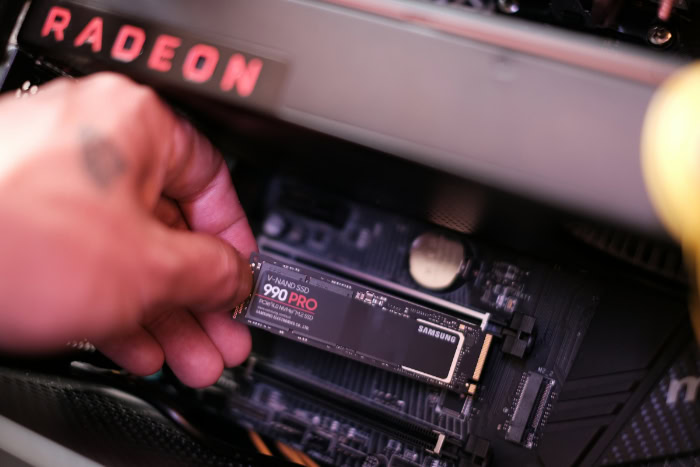
Storage capacity plays a direct role in hardware architecture, sustained read and write speeds, and overall drive endurance. Larger drives incorporate more physical components, which provides engineering advantages during intense computing tasks.
Controller Channel Saturation and Sustained Write Speeds
An SSD functions similarly to a miniature computer array, relying on a central controller chip that connects to individual NAND flash memory dies through multiple parallel channels. Most modern SSD controllers feature four or eight data channels.
To reach maximum speed, the controller needs enough flash memory dies to populate all available channels simultaneously, allowing data to write across multiple pathways at once.
In 512GB drives, manufacturers use fewer high-density memory dies, which can leave half of the controller channels empty. A 1TB drive uses twice as many dies, fully saturating the controller channels and enabling parallel data transfers.
Under light daily workloads, burst speeds may look identical. Under heavy transfer loads, such as copying hundreds of gigabytes of media, a 1TB drive maintains sustained write speeds that are frequently twice as fast as its 512GB counterpart.
Dynamic SLC Cache Allocations
Most modern consumer SSDs utilize Triple-Level Cell (TLC) or Quad-Level Cell (QLC) flash memory, which stores three or four bits of data per cell. To deliver rapid write speeds, the drive controller assigns a portion of free flash memory to run in Single-Level Cell (SLC) mode, where each cell holds only one bit.
This dynamic SLC cache acts as a high-speed landing zone for incoming data.
Because dynamic SLC cache scales with total available capacity, a 1TB drive features a significantly larger cache buffer than a 512GB drive. During massive, uninterrupted file transfers, such as uncompressing large archive packages or moving raw video files, smaller drives exhaust their SLC cache rapidly.
Once the cache fills, the drive drops to the raw write speed of the underlying TLC or QLC flash, causing transfer rates to plummet from several thousand megabytes per second down to 100 MB/s or 200 MB/s. The 1TB drive absorbs much larger transfers before experiencing any performance drop.
Terabytes Written and Drive Lifespan Metrics
Flash memory cells wear out after a finite number of write and erase cycles. Manufacturers measure SSD durability using Terabytes Written (TBW), which represents the total amount of cumulative data a user can write to the drive before the flash memory degrades.
A standard 512GB NVMe SSD generally carries an endurance rating of 300 TBW, whereas a 1TB version of the same drive offers 600 TBW. Because the 1TB drive has twice the physical capacity, wear-leveling algorithms spread write operations across twice as many memory cells.
For users who write large amounts of data daily, such as video editors and software developers, a 1TB drive provides substantial multi-year write endurance before approaching warranty limits.
Workload Requirements and Use-Case Evaluation

Matching drive capacity to specific computer tasks prevents unnecessary hardware spending and avoids future storage bottlenecks. Everyday software, gaming installations, and professional creative applications have vastly different storage footprints.
Standard Office Applications and Academic Use
General productivity workloads require modest storage allocations. Standard web browsers, office suites, PDF readers, and cloud synchronization clients rarely exceed 15GB to 25GB of total installed space.
Word processing documents, spreadsheets, and presentation slides take up minimal storage, usually measured in kilobytes or megabytes.
For users whose routine consists of web browsing, administrative paperwork, streaming video, and academic study, a 512GB drive is completely adequate. Even after accounting for the operating system and essential applications, hundreds of gigabytes remain open for local document storage and media collections.
Modern Video Game Installation Sizes
Contemporary high-budget video games represent some of the largest software packages on personal computers. Modern titles frequently require 80GB to 150GB of drive space upon initial download.
Frequent seasonal updates, high-resolution texture packs, and local shader caches often expand the final installation footprint by an additional 20GB to 50GB.
On a 512GB drive with roughly 320GB of practical free space, a user can comfortably install only two or three major titles at the same time before running out of room. A 1TB drive provides enough space to hold six to eight major gaming titles alongside everyday programs, eliminating the need to repeatedly delete and re-download games to free up space.
High-Resolution Creative Assets and Virtual Machines
Creative production workflows create massive data volumes in short periods. Uncompressed 4K video footage recorded at 60 frames per second can consume over 100GB per hour of recording, while RAW camera files from modern mirrorless cameras range from 40MB to 80MB per photo. Video editing applications also create temporary scratch disks, render files, and proxy media that require hundreds of gigabytes of high-speed local storage.
Software developers and IT professionals working with local virtual machines face similar constraints. A single virtual machine running a guest operating system requires 40GB to 64GB of dedicated disk space.
Running two or three isolated testing environments quickly overwhelms a 512GB SSD. A 1TB drive provides the required headroom to manage active creative project directories and multiple virtual testing environments simultaneously.
Cost Efficiency and Value Assessment

Evaluating storage value involves balancing raw hardware component pricing against OEM configuration markups and future upgrade requirements. Understanding the cost per unit of storage helps identify the most practical financial option.
Price-per-Gigabyte Calculations
Comparing retail pricing shows that higher-capacity solid-state drives deliver superior price-to-performance efficiency. Standalone 512GB M.2 NVMe drives typically retail between $35 and $50, which equates to roughly $0.07 to $0.10 per gigabyte.
Standalone 1TB drives generally sell between $55 and $80, bringing the cost down to approximately $0.055 to $0.08 per gigabyte.
The 1TB tier represents the historical sweet spot for SSD manufacturing economics. Production costs for drive controllers, circuit boards, packaging, and retail distribution remain the same regardless of capacity, meaning buyers pay mostly for additional raw flash memory rather than fixed manufacturing overhead.
Factory Upgrade Costs versus Aftermarket Drive Prices
Computer manufacturers often charge significant premiums for factory storage upgrades. When ordering a laptop or pre-built desktop, upgrading from a 512GB drive to a 1TB drive directly through the manufacturer can add $150 to $200 to the total purchase price.
In the retail component market, the price difference between those two capacities is often less than $35.
If a computer features modular, user-accessible storage slots, buying the base model and installing an aftermarket 1TB or 2TB drive saves substantial money. When purchasing devices with non-upgradeable parts, users must balance the higher upfront manufacturer fee against the inconvenience of external storage.
Return on Investment and Hardware Resale Value
Purchasing a 1TB drive reduces the risk of needing an early hardware replacement when personal storage needs grow over time. A computer that runs out of internal storage requires accessory purchases, time spent managing files, or an entirely new computer purchase.
A secondary benefit appears when selling used hardware. Laptops and desktop systems equipped with 1TB of storage maintain stronger appeal in the used market, attracting higher resale values.
Used buyers tend to avoid smaller capacities due to modern software sizes, making 1TB a more desirable configuration.
Hardware Architecture and Expansion Options

A device’s internal build determines whether initial storage choices are permanent or flexible. Assessing physical expansion slots, external interface speeds, and network alternatives provides a complete storage strategy.
Soldered Flash Memory versus Modular Drive Slots
Modern computer designs vary widely in upgrade flexibility. Many compact laptops, ultrabooks, and all-in-one desktop computers solder the NAND flash chips directly to the main logic board.
In these systems, expanding internal storage after purchase is physically impossible, making the initial capacity choice permanent for the life of the machine.
Desktop motherboards and full-sized gaming or workstation laptops feature standard M.2 expansion slots. Many desktop boards offer two, three, or four separate M.2 slots alongside standard SATA ports, allowing users to start with a 512GB boot drive and add secondary 1TB or 2TB drives whenever needed.
High-Speed External NVMe Enclosures
External SSDs and portable enclosures provide a fast method for expanding storage on closed systems. Using USB 3.2 Gen 2 interfaces offering 10 Gbps speeds, external NVMe drives reach read and write speeds of approximately 1,000 MB/s.
Enclosures utilizing Thunderbolt 3, Thunderbolt 4, or USB4 reach up to 40 Gbps, enabling transfer speeds above 3,000 MB/s.
External drives offer flexible storage capacity across multiple computers, but they introduce physical trade-offs. Portable drives require carrying extra cables, take up external ports, and risk disconnection during active file writes.
Internal storage remains superior for primary operating system tasks and daily applications.
Network-Attached Storage and Cloud Service Integration
Network-attached storage (NAS) devices and cloud storage services offer centralized locations for data that does not require low-latency access. Archival photos, completed project files, and system backup images can reside on local home servers or remote services like Microsoft OneDrive, Google Drive, or Apple iCloud.
A hybrid configuration pairs a fast 512GB internal SSD for active programs with a local NAS or cloud subscription for cold storage. This approach minimizes internal disk clutter while keeping vast amounts of data accessible across all connected devices.
Conclusion
The choice between a 512GB and a 1TB solid-state drive comes down to usable capacity, sustained performance consistency, and hardware endurance. A 512GB drive delivers roughly 476 GiB of formatted space, which decreases further once the operating system, mandatory recovery partitions, and the necessary 15% to 20% performance buffer are set aside.
In contrast, a 1TB drive provides around 931 GiB of formatted space, alongside faster sustained write speeds during large transfers, a larger dynamic SLC cache pool, and double the write endurance rating.
A 512GB SSD is the right choice for budget-conscious users who focus on web browsing, office applications, and academic tasks, or for those who store large files in cloud accounts or network servers. A 1TB SSD is the superior choice for users installing modern gaming libraries, editing high-resolution media, running virtual machines, or purchasing a laptop with soldered, non-upgradeable storage.
Choosing the 1TB capacity ensures the system maintains peak speed and remains productive over years of regular use without requiring external storage workarounds.
Frequently Asked Questions
Is a 512GB SSD enough for normal everyday use?
Yes, a 512GB SSD is plenty of space for standard web browsing, office applications, and schoolwork. After Windows or macOS and essential programs take up their required space, you will still have over 300GB remaining. This leaves ample room for thousands of personal documents, photos, and lightweight software packages.
Why does my 1TB SSD only show 931GB in Windows?
Windows calculates drive capacity using binary gibibytes rather than the decimal gigabytes used on retail packaging. Drive manufacturers define 1TB as 1 trillion bytes, but Windows divides that total by 1,073,741,824 bytes per gibibyte. This mathematical difference reduces the reported storage to approximately 931 GiB without any actual data loss.
Does a 1TB SSD actually run faster than a 512GB SSD?
Yes, 1TB solid-state drives often provide faster sustained write speeds than 512GB models during heavy file transfers. Higher-capacity drives contain more memory dies, which fully saturates the controller channels for parallel processing. They also feature larger dynamic SLC cache buffers, preventing write speeds from suddenly dropping during massive file copies.
Is 512GB enough storage for PC gaming?
No, a 512GB SSD is generally too small if you want to play modern high-budget video games. Modern games frequently require 80GB to 150GB each, alongside large update patches and shader files. After reserving space for your operating system, a 512GB drive can only hold two or three major titles.
Should I upgrade to 1TB if my laptop storage is soldered?
Yes, upgrading to a 1TB drive is strongly recommended if your laptop has soldered, non-replaceable storage. Because you cannot install a larger internal SSD in the future, purchasing extra capacity upfront protects the machine from running out of space. It also ensures better performance and higher resale value later.
About the Author: Julio Caesar


