
HDMI vs. DisplayPort vs. USB-C: Which Cable Is Best?

Looking behind a new monitor, laptop, or graphics card often reveals a confusing cluster of video ports with no obvious sign of which cable delivers the best results. Grabbing the wrong cord can easily leave a crisp display stuck at sluggish speeds.
HDMI, DisplayPort, and USB-C all put an image on a screen, yet they were designed for different devices and handle speed, audio, and power in distinct ways. Getting optimal performance starts with seeing how each standard operates and how their bandwidth limits compare.
Pairing the right port with a desktop monitor, television, or laptop also prevents common setup traps like legacy cable bottlenecks and one-way adapters. Finally, reading official certification labels with confidence makes selecting compatible hardware effortless.
Key Takeaways
- Match the port to the device: Use DisplayPort for desktop PCs and high-refresh monitors (for universal G-Sync and FreeSync support), HDMI for televisions, soundbars, and consoles (for eARC surround sound and CEC remote control), and USB-C for single-cable laptop charging and docking.
- Prioritize version specs over connector shape: Bandwidth limits dictate resolution and refresh rate, ranging from 18Gbps on HDMI 2.0 (4K at 60Hz) up to 48Gbps on HDMI 2.1, 80Gbps on DisplayPort 2.1, and 96Gbps on HDMI 2.2 for uncompressed 4K at 240Hz or 8K video.
- Watch for hidden USB-C and multi-monitor limits: Not every USB-C port outputs video, charge-only phone cords lack display lanes, and macOS requires Thunderbolt docks (rather than standard DisplayPort MST daisy-chaining) to drive dual monitors over a single cable.
- Remember that passive adapters work one way only: A passive DisplayPort-to-HDMI cable can feed a TV from a PC graphics card, but connecting an HDMI console to a DisplayPort monitor requires an active, powered converter box.
- Buy certified cables matched to your distance: Look for Ultra High Speed HDMI, Ultra96, VESA Certified DP54/DP80, or Thunderbolt 4/5 packaging labels, and step up to fiber-optic cables when high-speed runs exceed 10 feet (3 meters).
Overview of Each Display Standard
Every display cable moves digital picture and sound from one device to another, yet the three main standards grew out of very different parts of the technology industry. Looking at where each connector started explains why televisions, desktop monitors, and portable laptops favor separate ports.
HDMI: The Standard for Televisions and Home Entertainment
High-Definition Multimedia Interface, known universally as HDMI, emerged in the early 2000s through a collaboration among major consumer electronics manufacturers. Its original purpose was to replace tangled bundles of analog red, green, blue, and white living room cables with one compact digital plug capable of carrying high-definition video and multi-channel audio together.
Because home entertainment brands adopted it across the board, HDMI quickly became the default port on virtually every television, home theater projector, streaming box, and game console. Manufacturers also built digital copy protection, known as HDCP, directly into the specification so movie studios and streaming platforms could transmit protected 4K and High Dynamic Range (HDR) content safely to living room screens.
DisplayPort: The Purpose-Built Interface for Computer Monitors
DisplayPort was created by VESA (the Video Electronics Standards Association) specifically for personal computers and external monitors. While HDMI targeted living rooms and appliances, VESA engineered DisplayPort to support the fast refresh rates, sharp desktop text, and flexible multi-screen setups demanded by computer graphics cards and workstations.
Unlike older display connections that pushed video as a continuous stream of pixels, DisplayPort transmits visual data in small packets, similar to how an Ethernet network moves files. That packet-based design makes it easier to drive multiple screens off one output or push extreme frame rates.
Many full-size DisplayPort plugs also include physical locking latches with a small release button, securing the connector firmly so bumping a desk or adjusting a monitor arm never knocks the screen offline.
USB-C: The Universal Port for Video, Data, and Power
USB-C stands apart from HDMI and DisplayPort because USB-C is strictly a physical plug shape, not a video standard on its own. That small, oval, reversible connector can carry completely different internal signals depending on how a laptop, tablet, or monitor was built.
To put an image on a screen, a USB-C port relies on underlying video protocols such as DisplayPort Alt Mode, USB4, or Thunderbolt. When both connected devices support those protocols, one reversible cable consolidates high-resolution video output, USB accessory data for webcams and keyboards, and laptop battery charging into a single link.
That consolidation allows a thin notebook to drive an entire desk setup without separate video cords and power bricks.
Core Technical Differences and Performance Capabilities
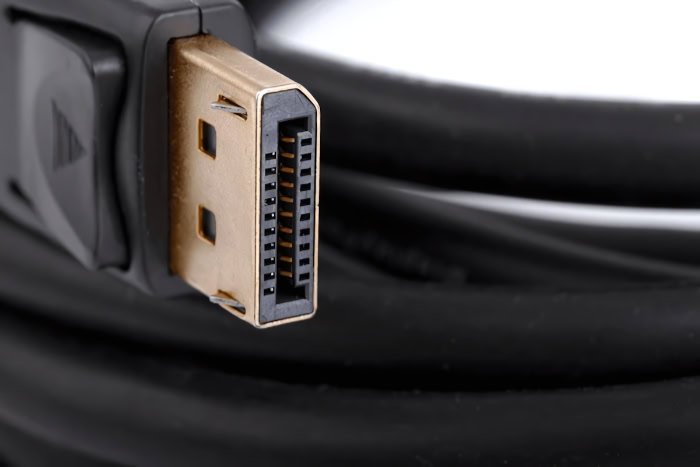
Choosing between these three connections requires looking past the shape of the plug to see how fast each link transfers data. Differences in bandwidth limits, color precision, and audio features determine how smoothly a screen operates and which living room conveniences work automatically.
Bandwidth, Resolution, and Refresh Rate Limits
A port’s version number matters far more than its physical shape. Two cables that look identical on the outside can handle vastly different data speeds depending on the specification inside.
Higher bandwidth allows more pixels to travel every second, unlocking sharper resolutions and faster refresh rates.
On the HDMI side, older HDMI 2.0 connections top out at 18Gbps, which supports 4K video at 60Hz. Modern HDMI 2.1 hardware jumps to 48Gbps, enabling 4K gaming at 120Hz or 144Hz and 8K displays at 60Hz.
The newer HDMI 2.2 specification doubles that ceiling to 96Gbps, supporting uncompressed 4K at 240Hz and 8K at 60Hz alongside even higher resolutions.
DisplayPort follows a similar generational jump. DisplayPort 1.4 provides 32.4Gbps of raw bandwidth (roughly 25.92Gbps of usable data after encoding overhead), which powers 1440p high-refresh monitors or 4K at 144Hz using compression.
DisplayPort 2.1 scales up to 80Gbps of raw bandwidth (about 77.37Gbps usable), comfortably driving uncompressed 4K at 240Hz and 8K displays. USB-C speeds match whichever video protocol runs through the port, scaling from standard DisplayPort links up to 40Gbps on Thunderbolt 4 and 80Gbps (with up to 120Gbps asymmetric video boost) on Thunderbolt 5 and top-tier USB4 hardware.
Color Depth, HDR Support, and Picture Clarity
Because HDMI, DisplayPort, and USB-C all transmit digital signals, they deliver identical image quality whenever two setups run at the exact same resolution, refresh rate, and color settings. Buying an expensive HDMI cord will not make movies look sharper than a standard DisplayPort cord at matching settings.
Visual compromises only appear when a link runs out of bandwidth. To squeeze a demanding 4K 144Hz HDR signal through an older connection, devices turn to Display Stream Compression (DSC) or chroma subsampling.
Modern DSC is visually lossless to most eyes, though color-critical photo and video editors often prefer uncompressed connections. Chroma subsampling, shown as ratios like 4:2:2 or 4:2:0 instead of full 4:4:4 color, discards some color detail to shrink file size.
While movies mask that shortcut well, chroma subsampling can leave small colored text on a computer spreadsheet looking blurry or fringed. Generous bandwidth also preserves 10-bit and 12-bit color depth, keeping HDR brightness and color gradients smooth rather than showing visible banding.
Audio Transmission, Surround Sound, and Remote Control
All three standards carry clean stereo audio alongside the video feed, so built-in monitor speakers and headphones plugged into a display work reliably over HDMI, DisplayPort, or USB-C. However, HDMI retains clear advantages in home theater rooms thanks to two specialized features designed around televisions.
The first is eARC, or Enhanced Audio Return Channel. Normally, a video cable sends sound only from a player toward a screen, but eARC lets a television route high-bitrate surround sound formats like Dolby Atmos from built-in streaming apps or connected consoles back down a single HDMI cable to a soundbar or AV receiver.
The second is CEC, or Consumer Electronics Control, which lets connected devices share commands so one television remote can wake a game console, switch TV inputs, and raise a soundbar’s volume without juggling three separate controllers.
Optimal Use Cases by Device and Setup
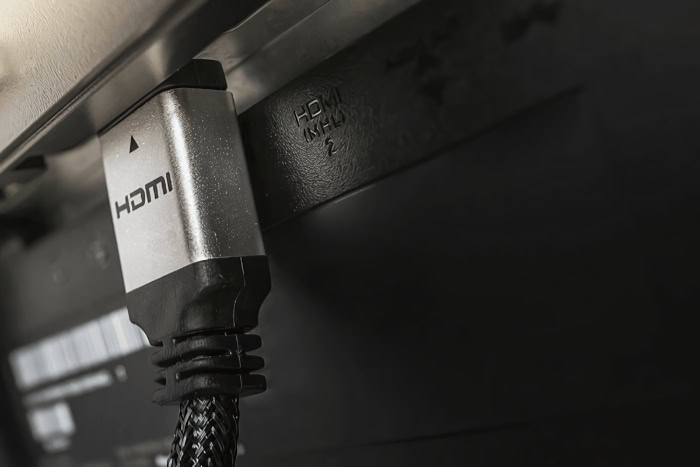
Hardware manufacturers build their devices around the strengths of specific ports, so pairing each machine with its intended connector avoids unnecessary adapters and unlocks specialized features. Desktop rigs, living room entertainment centers, and mobile workstations each perform best with a distinct connection.
Desktop PCs and High-Refresh-Rate Monitors
For desktop gaming PCs and productivity monitors, DisplayPort is almost always the strongest choice. Modern desktop graphics cards routinely include three DisplayPort outputs alongside just one HDMI port, and many PC monitors reserve their highest advertised refresh rates and color modes strictly for their DisplayPort inputs.
DisplayPort also provides broad support for adaptive refresh technologies, including NVIDIA G-Sync and AMD FreeSync. Those systems match a monitor’s refresh cycle to the graphics card’s live frame output, preventing horizontal screen tearing and smoothing out motion during fast-paced games.
Televisions, Game Consoles, and Soundbars
HDMI remains the undisputed standard for the living room because televisions, soundbars, streaming sticks, and consoles like the PlayStation 5 and Xbox Series X almost never include DisplayPort inputs. Sticking with HDMI keeps entertainment setups simple while preserving eARC surround sound and CEC remote control.
On modern televisions, HDMI 2.1 adds helpful features built specifically for console gaming. Auto Low Latency Mode (ALLM) signals the TV to turn off slow picture-processing filters and switch into low-lag Game Mode automatically whenever a console launches a game.
Variable Refresh Rate (VRR) brings smooth, tear-free frame pacing to living room sets just like adaptive sync does on desktop monitors.
Laptops, Tablets, and Single-Cable Workstations
USB-C transforms a portable laptop or tablet into a full desktop workstation using one plug. When connected to a USB-C monitor, a single cord drives the external display, links a desk webcam, keyboard, and mouse plugged into the monitor’s USB ports, and supplies 100W or more of power delivery back to charge the laptop battery.
Even when a desk monitor lacks a built-in USB-C port, a direct USB-C-to-DisplayPort cable offers an ideal bridge for laptops supporting DisplayPort Alt Mode. That direct connection lets a slim notebook power a high-refresh gaming or creator monitor cleanly without awkward adapter dongles hanging from the side, though the laptop still needs its regular power brick plugged in separately.
Multi-Monitor Desks and Display Expansion
Connecting two or more screens exposes big structural differences among the three standards. DisplayPort supports Multi-Stream Transport (MST), often called daisy-chaining, which lets a Windows PC drive two or three monitors in a chain by connecting the computer to the first display and linking a short DisplayPort cable from that monitor’s output port to the next screen.
HDMI lacks native daisy-chaining and supports only one display per port. Meanwhile, Thunderbolt 4 and Thunderbolt 5 docking stations split a single USB-C laptop cable into multiple 4K or 8K monitors alongside wired Ethernet and external storage. Operating system support creates an important split here as well: Windows PCs handle standard DisplayPort MST daisy-chaining natively, whereas macOS ignores MST and requires Thunderbolt docks or separate laptop ports to run dual extended displays over one cable.
Common Compatibility Pitfalls and Performance Bottlenecks

Plugging in a cord and getting an image does not mean a screen is running at full capability. Legacy cables, hidden port limits, and one-way adapters frequently cap resolutions or refresh rates behind the scenes.
Hidden Version Mismatches and Legacy Cables
Pairing a new 4K 144Hz monitor with a fast graphics card can still leave the desktop stuck at 60Hz if an older cable pulled from a desk drawer is reused. Display connections follow a strict weakest-link rule: the lowest-rated piece in the chain, whether the computer port, cable, adapter, or monitor input, dictates the maximum speed for the entire setup.
Because connector shapes have stayed consistent across generations, an aging HDMI 1.4 or DisplayPort 1.2 cord fits right into modern ports. Whenever a sharp display refuses to offer high refresh rate options in system settings, swapping in a properly rated cable is often the quickest fix.
USB-C Port Restrictions and Bandwidth Splits
Not every USB-C port on a computer can output video, and not every USB-C cord carries display signals. Many budget laptop ports and phone charging cords wire up only power lines and slow USB 2.0 data, leaving out the high-speed lanes required for video.
Cords marketed strictly for charging wattage without data speed ratings will leave an external monitor blank.
USB-C monitors also hide a subtle bandwidth trade-off. A standard USB-C cord contains four high-speed data lanes; when a monitor runs its built-in USB hub at fast USB 3.2 data speeds alongside video, it splits those lanes in half, leaving just two lanes for the picture.
That split halves display bandwidth and can cap a 4K monitor at 30Hz or lower refresh rates unless the monitor switches its USB hub down to USB 2.0 mode or relies on full USB4 or Thunderbolt tunneling.
Signal Loss Over Extended Cable Distances
High-speed digital signals weaken rapidly as they travel through standard copper wire. While older 1080p cables stretched across rooms with little trouble, modern 48Gbps and 80Gbps passive copper cords often flicker, drop frames, show static sparkles, or fail to display an image beyond 6 to 10 feet (1.8 to 3 meters).
Ultra-fast DisplayPort 2.1 links are even stricter at full 80Gbps speeds, where passive copper cords often top out around 3.3 feet (1 meter) before signal quality drops. Routing wires around wide standing desks or across living rooms requires respecting those distance ceilings.
One-Way Adapters and Signal Conversion Errors
Switching between DisplayPort and HDMI frequently causes confusion because passive adapter cables only travel in one direction. Most desktop DisplayPort outputs include Dual-Mode circuitry (labeled DP++) that automatically recognizes a passive DisplayPort-to-HDMI cable and converts its output into an HDMI signal for a television or secondary monitor.
That conversion cannot run backward. Plugging the HDMI end of a passive cord into a PlayStation 5 or streaming stick and attaching the DisplayPort end to a PC monitor leaves the screen completely dark, because HDMI ports cannot output native DisplayPort signals.
Connecting an HDMI source to a DisplayPort monitor requires an active, USB-powered converter containing a dedicated signal-translation chip.
Practical Selection Criteria for Cables and Accessories

Buying dependable display accessories becomes effortless once vague marketing slogans are ignored in favor of standardized technical logos. Checking official certifications, internal cable materials, and device compatibility prevents wasted money and troubleshooting headaches.
Official Certification Labels and Port Symbols
Skip empty packaging claims like “8K ready” or “pro gaming” and search directly for verified industry certification badges. On HDMI boxes, look for the official Ultra High Speed HDMI label (with a scannable QR verification code) to guarantee 48Gbps HDMI 2.1 speeds, or the newer Ultra96 certification label for HDMI 2.2 devices up to 96Gbps.
For DisplayPort 2.1, check for VESA Certified DP54 or DP80 badges on the packaging. For USB-C, look for Thunderbolt 4 or Thunderbolt 5 logos, or explicit USB-IF speed badges listing 40Gbps or 80Gbps alongside charging wattage ratings.
Decoding the tiny icons printed beside a laptop’s USB-C ports eliminates guesswork before purchasing accessories. A lightning bolt icon marks a Thunderbolt port supporting video, fast data, and charging; a stylized “D” DisplayPort logo confirms video output via DisplayPort Alt Mode; and a small battery or plug symbol indicates power charging support.
A port displaying only a plain USB trident without extra symbols typically handles data and charging without supporting external monitors.
Passive Copper, Active, and Fiber-Optic Cable Construction
Picking the right internal cable construction depends primarily on length. For short desk runs under 6 feet (1.8 meters), an affordable, certified passive copper cable delivers spotless clarity with no downsides.
Once a cable run extends beyond 10 feet (3 meters) for a wall-mounted television, living room projector, or across-the-room PC rig, passive copper struggles to hold high speeds. Active copper cables place small signal-boosting chips inside the connectors to extend reach slightly, while active optical fiber cables convert electrical signals into light pulses traveling down hair-thin glass fibers.
Fiber-optic HDMI and DisplayPort cords stay thin, resist electrical interference, and carry full 48Gbps or 80Gbps bandwidth cleanly across 15 to 50 feet (4.5 to 15 meters) or more without dropping frames. Keep in mind that fiber-optic video cables are directional, with clearly labeled “Source” and “Display” plugs that must be connected to the matching devices.
A Quick Decision Guide for Common Setups
Matching everyday hardware combinations to the safest cable choice removes trial and error:
- Desktop PC to Gaming or Creator Monitor: Choose a VESA-certified DisplayPort 1.4 cable (for up to 4K 144Hz with DSC) or a VESA-certified DP54 or DP80 DisplayPort 2.1 cable (for 4K 240Hz or 8K monitors) to unlock adaptive sync and full bandwidth.
- Game Console or Streaming Box to Modern TV: Choose a certified Ultra High Speed HDMI cable for 4K at 120Hz, VRR, ALLM, and eARC surround sound, or an Ultra96 cable when connecting future HDMI 2.2 hardware.
- Windows Laptop to Single-Cable Desk Setup: Pair a USB-C monitor supporting Power Delivery with a certified 40Gbps USB4 or Thunderbolt 4 cable (or Thunderbolt 5 for dual 4K 144Hz setups) to combine video, USB accessories, and charging.
- MacBook to Dual External Monitors: Use a certified Thunderbolt 4 or Thunderbolt 5 docking station (or plug two separate USB-C-to-DisplayPort or HDMI cables into separate laptop ports), since macOS does not support DisplayPort MST daisy-chaining.
- Laptop to Standard Monitor Without USB-C Input: Plug a bidirectional USB-C-to-DisplayPort cable into a laptop USB-C port marked with a Thunderbolt or DisplayPort icon to keep high-refresh performance intact without an adapter dongle.
Conclusion
No single display port is universally the best choice for every screen. Each standard thrives in its own environment: HDMI dominates living room televisions, soundbars, and game consoles; DisplayPort rules desktop PCs and high-refresh monitors; and USB-C excels at portable, single-cable convenience for laptops and tablets.
Getting the sharpest picture and smoothest motion comes down to matching the right connector to the hardware on your desk or entertainment stand. Checking what each port actually supports, lining up cable version numbers with screen capabilities, and buying officially certified cords keeps everything running at full speed without wasting money on unnecessary adapters.
Frequently Asked Questions
Does DisplayPort give better picture quality than HDMI?
No, DisplayPort and HDMI produce identical picture quality when both run at the same resolution, refresh rate, and color settings. Because both transmit digital signals, neither makes images inherently sharper. Visual differences only happen if an older cable runs out of bandwidth and triggers compression or chroma subsampling, which can soften small desktop text.
Why is my new 144Hz monitor stuck at 60Hz?
Your monitor is usually limited by an older cable or an outdated port somewhere in the connection chain. Display setups always match their slowest component, so reusing an old HDMI 1.4 or DisplayPort 1.2 cord limits speeds even on modern gear. Switching to a certified HDMI 2.1 or DisplayPort 1.4 cable normally unlocks 144Hz immediately.
Can any USB-C cable connect my laptop to a monitor?
No, many USB-C cords only handle charging and basic data, so they cannot carry video signals at all. Both your laptop port and the cord must support DisplayPort Alt Mode, USB4, or Thunderbolt to drive a monitor. Look for a lightning bolt or “D” logo beside your port and pick cables rated for 40Gbps.
Can I connect a PlayStation 5 to a DisplayPort monitor with a regular adapter cable?
No, passive adapter cables only convert signals in one direction and will leave your monitor blank when plugged into a console. A passive cord works from a DisplayPort PC to an HDMI TV, not the reverse. Connecting a PlayStation 5 to a DisplayPort monitor requires an active converter box with USB power.
When should I buy a fiber-optic HDMI or DisplayPort cable?
You should buy a fiber-optic cable whenever a high-speed video run exceeds 10 feet (3 meters). Standard passive copper cords lose signal strength over distance, causing flickering or black screens at 48Gbps and 80Gbps speeds. Fiber-optic cables send light pulses through glass, keeping full 4K 120Hz performance stable up to 50 feet (15 meters).
About the Author: Julio Caesar


