
External SSD vs. External HDD: Which Should You Buy?

External storage connects to your computer via USB to provide extra space for your personal files. Everyday users rely on these external devices to back up family photos, save large movie collections, and free up crowded laptop drives.
When shopping for extra capacity, buyers face a classic dilemma between Solid State Drives (SSDs) and traditional Hard Disk Drives (HDDs). Each format offers distinct advantages.
Fast SSDs speed up daily workflows, while mechanical hard drives deliver massive storage space at significantly lower prices.
Key Takeaways
- External SSDs deliver transfer speeds between 500 MB/s and 2,000 MB/s, finishing a 50GB video file transfer in under 60 seconds compared to 7 to 10 minutes on a traditional hard drive.
- Traditional hard drives provide the most affordable storage capacity at roughly $0.03 per gigabyte, while external SSDs cost between $0.06 and $0.09 per gigabyte.
- Solid state drives have no moving parts and can survive drops from up to 6 feet (1.8 meters), whereas hard drives risk catastrophic mechanical read-head crashes from minor desk falls.
- Magnetic hard drives retain unpowered data safely for 10 to 20 years, whereas unpowered solid state drives risk cell charge leakage and data corruption after three to five years without power.
- Buying an external SSD in the 1TB to 2TB capacity range provides the best daily performance value, while desktop hard drives are the most cost-effective solution for massive archives of 4TB, 8TB, or more.
Internal Technology and Mechanics
The primary differences between modern external drives stem from how they record and retrieve your data. While one format relies on silent electronic chips, the other uses spinning physical disks and moving mechanical components.
Looking closely at these internal designs explains why each type behaves differently on your desk.
The Flash Memory of Solid State Drives
Solid state drives rely on flash memory chips known as NAND flash to hold files. Instead of writing information onto physical discs, these chips store data electronically within microscopic cells.
Because there are no moving parts inside the casing, an SSD operates in complete silence. You will never hear buzzing, clicking, or hums coming from the drive while moving large files.
The electronic design also generates relatively little heat during normal computing tasks, keeping the hardware cool and quiet during daily operations. Purely electronic access allows the drive to pull up saved records almost instantaneously, as it does not need to align any mechanical components before reading data.
The Magnetic Platters of Traditional Hard Drives
Traditional hard disk drives use physical magnetic platters stacked inside a sealed metal casing. An electric motor spins these platters at high speeds, typically 5,400 RPM or 7,200 RPM, while a tiny mechanical read/write head moves across the spinning surfaces on a motorized arm.
Writing or reading a file requires the arm to locate the exact physical track where data resides. This physical motion produces slight vibrations that you can feel through the desk or enclosure.
Hard drives also generate audible clicks and faint whirring sounds during operation, which reflect the mechanical motion required to process your files.
Physical Construction and Size Differences
The physical differences between these two storage types are immediately obvious when you hold them. Solid state drives require no bulky motors, allowing manufacturers to build pocket-sized enclosures that weigh as little as 1.5 ounces (43 grams).
Most portable solid state models easily slide into a shirt pocket or laptop sleeve. In contrast, portable hard drives house spinning 2.5-inch platters, making them thicker and noticeably heavier at around 5 ounces (142 grams) or more.
Larger desktop hard drives use 3.5-inch platters and require an external wall power adapter alongside their USB cable, creating a stationary footprint that belongs solely on an office desk.
Transfer Speeds and Daily Responsiveness

Daily performance is often the most noticeable difference between drive types for personal computer users. Read and write speeds dictate how long you wait when transferring vacation videos, opening photo libraries, or backing up system files.
The hardware design and the cable connection together define how quickly your machine transfers data.
Standard Read and Write Metrics
Standard external hard drives achieve baseline transfer speeds between 80 MB/s and 140 MB/s under typical conditions. In comparison, standard external solid state drives easily deliver speeds ranging from 500 MB/s to over 2,000 MB/s, depending on the internal technology used.
Beyond raw throughput, access times highlight a massive performance gap. Hard drives suffer from mechanical latency because the physical arm must sweep across the platter to find information, creating delays of 10 to 15 milliseconds.
Solid state drives locate data in less than 0.1 milliseconds, making file folders and documents open without hesitation.
Large File Transfer Duration
The speed gap becomes dramatic when copying multi-gigabyte files like high-definition movies or full system images. Transferring a 50GB video folder to an external hard drive can take between 7 and 10 minutes.
A modern solid state drive can complete the exact same transfer in under 60 seconds. When dealing with thousands of small, scattered files like family photos or document archives, hard drives slow down even further due to constant mechanical head repositioning.
Solid state drives maintain high transfer rates across mixed file types, keeping your operating system responsive without freezing your file manager during transfers.
Influence of USB and Thunderbolt Connection Ports
External drives plug into computers using USB-A, USB-C, or high-speed Thunderbolt ports. While a mechanical hard drive rarely maxes out an older USB 3.0 connection, a high-performance solid state drive can easily be held back by an outdated port.
Connecting a drive capable of 1,000 MB/s to an old rectangular USB-A port that caps throughput at 450 MB/s cuts the potential speed in half. Matching your drive with a compatible USB-C or Thunderbolt 4 port ensures that the storage device runs at its intended speed on modern laptops and desktop computers.
Storage Capacity and Purchase Price
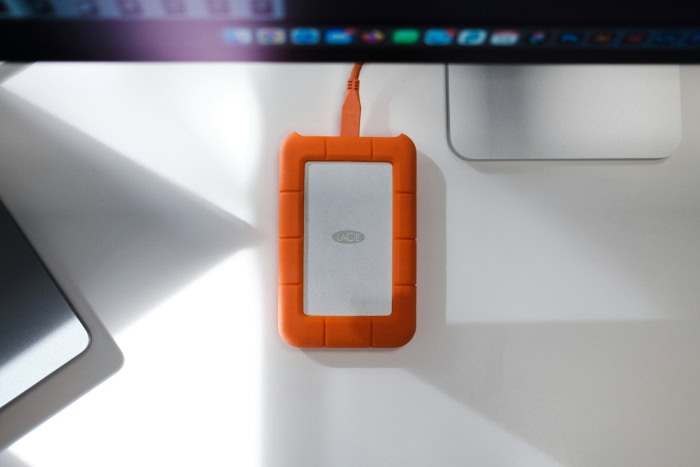
Storage budgets frequently force shoppers to balance total capacity against rapid data access. While chip manufacturing costs have declined over time, mechanical storage remains the traditional benchmark for low-cost capacity.
Reviewing prices across common storage tiers highlights where buyers receive the highest value for their dollars.
Cost-per-Gigabyte Breakdown
Evaluating external drives by their cost per gigabyte reveals substantial price differences between the two formats. A standard 2TB external hard drive typically sells for approximately $60, working out to roughly $0.03 per gigabyte.
A 2TB external solid state drive often costs between $120 and $180, which translates to $0.06 to $0.09 per gigabyte. Solid-state flash memory chips require complex silicon fabrication, whereas magnetic platters remain inexpensive to produce in volume.
Budget-conscious consumers who need raw space above all else will find that hard drives provide far more gigabytes per dollar spent across standard 1TB, 2TB, and 4TB capacities.
Maximum Available Capacity Tiers
Capacity ceilings also differ sharply between portable drives. Most consumer solid state models top out at 4TB, with rare 8TB models commanding steep prices exceeding $600.
External hard drives, on the other hand, easily reach massive capacity milestones. Desktop hard drive enclosures routinely offer 8TB, 16TB, and 20TB of space for reasonable consumer prices.
Shoppers needing to store enormous libraries of archival data often must choose between paying a heavy premium for high-capacity solid state storage or accepting the slower performance of high-capacity magnetic platters.
Value Recommendations by Budget Size
For buyers with moderate budgets, the sweet spot for portable solid state drives sits comfortably between 1TB and 2TB. In this price bracket, solid state drives deliver exceptional daily utility, saving hours of waiting time for an extra $40 to $70 over a hard drive.
However, when storage requirements exceed 4TB, mechanical hard drives become the only cost-effective choice for everyday consumers. Investing in an SSD makes financial sense if you access the drive frequently and value saved time, while hard drives represent superior value for static storage where files sit untouched for months.
Durability, Reliability, and Longevity
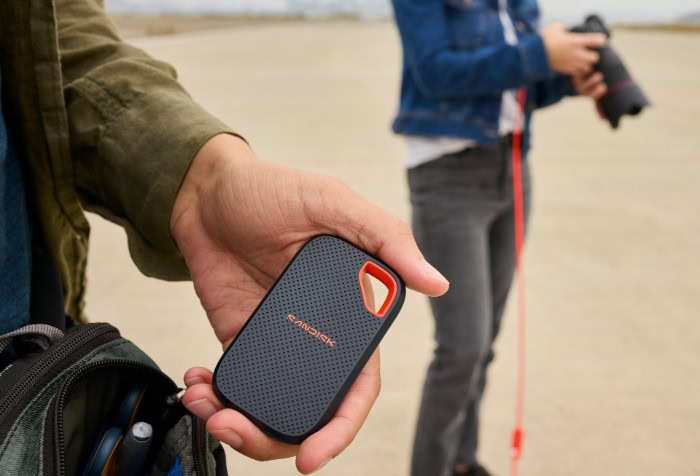
External drives face physical hazards that stationary internal components never encounter. Trips inside backpacks, accidental table drops, and years in storage closets all present unique challenges to stored data.
Assessing drive durability helps prevent sudden data loss when accidents happen.
Resistance to Physical Drops and Shocks
Physical impacts represent the greatest operational hazard for external hard drives. Because mechanical drive heads hover fractions of a millimeter above delicate magnetic platters, even a short drop from a desk can cause a catastrophic head crash, scratching the platters and destroying data.
Solid state drives lack moving components, making them resilient against sudden drops and vibrations during daily transit. Many portable solid state drives come enclosed in aluminum frames with rubber bumpers and IP55 or IP65 weather seals, allowing them to withstand dust, water splashes, and falls from up to 6 feet (1.8 meters) without data loss.
Component Lifespan and Operational Wear
All storage devices experience hardware degradation over years of steady operation. Mechanical drives eventually suffer from motor wear, spindle friction, and failing read heads.
Solid state drives, by comparison, experience wear during write cycles as flash memory cells degrade after saving hundreds of terabytes. Average consumer workloads rarely exhaust these write limits during ordinary use.
Warning signs of hardware decline differ across both formats. Hard drives often announce physical failure with repetitive clicking noises or grinding sounds, while failing solid state drives generally turn into read-only media or vanish from your system menu without audio cues.
Data Retention in Unpowered Storage
Storing an external drive in a drawer for extended periods exposes different vulnerabilities in each technology. Magnetic hard drives excel at long-term archival storage, retaining magnetic signatures safely for 10 to 20 years without power when kept in a dry environment.
Solid state drives rely on microscopic electrical charges trapped inside flash cells. When left unpowered in storage for three to five years, flash memory cells can slowly lose charge, leading to silent data corruption.
Owners of unpowered backup drives should connect their solid state storage to a computer once every 12 months to refresh cell charges and verify file integrity.
Drive Selection by Primary Use Case

Selecting the right drive ultimately depends on what tasks you plan to accomplish every day. Video editors, gamers, and home office workers all place unique demands on external storage.
Matching hardware strengths with your main computing tasks guarantees smooth daily operation and avoids unnecessary spending.
Media Production and Creative Projects
Creative professionals who edit high-resolution video and organize extensive photo catalogs benefit heavily from solid state speeds. Modern video editing software demands fast throughput to scrub through 4K video clips without dropped frames.
Editing directly from a solid state drive provides stutter-free playback and accelerates export times. Trying to edit raw video from an external hard drive creates severe bottlenecks, causing editing software to lag while the read head searches for project assets across mechanical platters.
System Backups and File Archives
High-capacity external hard drives excel at routine backups and deep file archives. Automated backup software, such as Windows Backup or Apple Time Machine, runs unobtrusively in the background where drive speed matters far less than raw capacity.
A desktop hard drive can store years of complete system images, tax documents, and family photo collections without running out of room. Setting up a dedicated 4TB or 8TB desktop hard drive offers an economical backup strategy for home offices, preserving critical files without exhausting your hardware budget.
Console and PC Game Libraries
Modern gaming consoles like the PlayStation 5 and Xbox Series X, as well as gaming PCs, require substantial storage for expanding game libraries. Modern console titles demand ultra-fast storage and will only launch directly from high-speed solid state media.
While an external hard drive cannot run current-generation games directly on modern consoles, it serves as cheap cold storage for parking games when internal drive space runs low. For older console games and PC titles, running files directly from an external solid state drive reduces game loading screens from 45 seconds down to 10 seconds.
Mobile Productivity and Commute Needs
Commuters, remote workers, and frequent travelers require compact hardware that tolerates the bumps of daily travel. Solid state drives withstand motion inside backpacks and laptop cases without risk of mechanical damage.
They also draw considerably less power than mechanical drives, which must continuously spin physical motors. Connecting an SSD to a laptop consumes less battery power, helping extend your battery runtime while working unplugged at coffee shops or airport terminals.
Their compact size and lightweight profile make solid state drives the natural companion for mobile productivity.
Conclusion
Choosing between an external solid state drive and an external hard drive comes down to balancing performance and physical durability against storage volume and purchase price. Solid state drives deliver rapid transfer speeds, silent operation, and resistance to accidental drops, making them ideal for daily computing, active creative work, and regular travel.
Traditional hard drives trade away speed and ruggedness to provide massive storage capacity at a fraction of the cost per gigabyte.
Use this quick decision checklist to finalize your purchase:
- Choose an external SSD if you move 4K video files, edit directly from the drive, travel frequently, or want game load times reduced by more than 50%.
- Choose an external SSD if you need 1TB to 2TB of portable storage and can spend between $80 and $160 for fast daily performance.
- Choose an external HDD if you need 4TB, 8TB, or 16TB of capacity for long-term file archives, full system backups, or static media libraries on a strict budget.
- Choose an external HDD if your drive will remain stationary on a desk where physical drops and transfer speeds do not affect your workflow.
Frequently Asked Questions
How long can an external SSD hold files without power?
An external SSD safely retains data without power for three to five years before electrical charge leakage becomes a risk. Flash memory chips store data as microscopic charges that slowly dissipate over long periods of disuse. Connecting the drive to your computer once every 12 months refreshes the cells and prevents file corruption.
Will dropping an external hard drive break it?
Dropping an external hard drive will often break it because internal mechanical parts are extremely fragile. The read heads hover fractions of a millimeter above spinning magnetic platters, so even a fall from a desk can cause a fatal collision. In contrast, external solid state drives lack moving components and easily survive typical drops.
Can I play modern PlayStation 5 or Xbox games off an external hard drive?
You cannot run current-generation PlayStation 5 or Xbox Series X games directly from an external hard drive. Modern console games require the rapid speeds of solid state drives to function properly. However, you can use an external hard drive as cold storage to store inactive games until you copy them back to internal memory.
Why are external solid state drives so much more expensive than hard drives?
External solid state drives cost more because manufacturing silicon flash memory chips is significantly more expensive than producing magnetic platters. Flash storage relies on complex semiconductor fabrication to record data electronically at high speeds. In contrast, mechanical hard drives use basic metal platters and motors that have benefited from decades of low manufacturing expenses.
Will plugging an external SSD into an old USB port make it slower?
Plugging an external SSD into an older USB port will severely limit the transfer speeds of the drive. An older rectangular USB-A connection caps speeds around 450 MB/s, preventing fast drives from reaching their full 1,000 MB/s or 2,000 MB/s potential. To achieve maximum performance, always connect your drive to a USB-C or Thunderbolt 4 port.
About the Author: Elizabeth Baker


