
What Is Thunderbolt? One Cable for All
Plugging a cable into your laptop and experiencing sluggish transfer speeds or unsupported monitors is a frustrating problem. This common issue often stems from confusing a simple physical connector shape with a high-performance standard like Thunderbolt.
Developed to combine data, video, and power into a single stream, Thunderbolt is a premium hardware interface built for maximum efficiency. Because modern versions share the exact same oval shape as standard USB cables, identifying what your devices can handle is tricky.
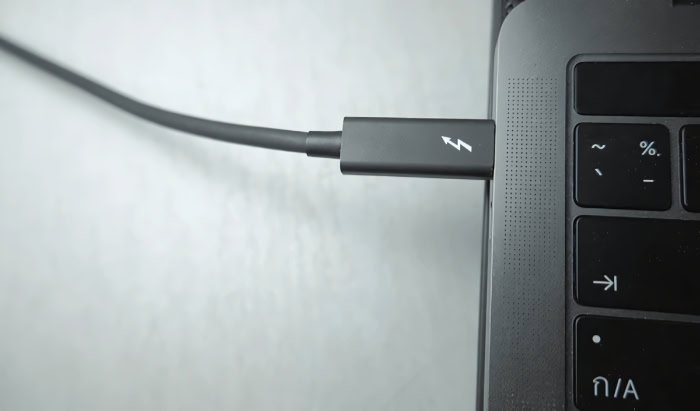
The small lightning bolt symbol next to a port signifies massive bandwidth capabilities that stretch far beyond basic connections.
Key Takeaways
- USB-C refers only to the physical oval shape of the connector, while Thunderbolt is the high-speed communication protocol that operates through that specific shape.
- Ports and cables equipped with this technology are easily identified by a small lightning bolt symbol, guaranteeing support for advanced video displays and high-speed data.
- A single connection can simultaneously transmit massive data payloads, output crisp video to multiple 4K monitors, and deliver heavy electrical power to charge a laptop.
- You can connect up to six compatible devices sequentially from a single laptop port without losing performance across the hardware chain.
- Maximizing speed over distances greater than three feet requires expensive active cables equipped with microchips, as standard passive cables lose data transfer capacity rapidly.
Definition and Core Architecture of Thunderbolt
Understanding what makes this technology powerful requires a look at its foundation and how it handles complex data streams. Instead of relying on multiple distinct cables for different tasks, this standard centralizes everything into a single, high-speed connection.
Intel Standard and Hardware Origins
Thunderbolt began as an ambitious project developed by Intel in close collaboration with Apple. Released commercially in 2011, the primary purpose of this technology was to create a unified standard capable of transmitting enormous amounts of data and high-resolution video simultaneously.
Before this innovation, users had to manage an array of different ports and cables, such as FireWire for data and dedicated display ports for monitors. Intel designed this new protocol to streamline connectivity and push the boundaries of hardware performance.
Physical Connector Design and Symbol Iconography
The physical appearance of the ports has changed significantly since the initial release. Early versions utilized the squarish Mini DisplayPort connector shape, which restricted its universal appeal.
Recognizing the need for a more versatile design, Intel eventually transitioned to the reversible USB Type-C connector shape. To help consumers identify these high-performance ports and cables, manufacturers imprint them with a distinct lightning bolt symbol.
This small icon is the primary visual cue that a cable or port supports the advanced speeds and features of the protocol.
Integration of PCI Express, DisplayPort, and DC Power Protocols
The true strength of the architecture lies in its multiplexing mechanism. This system seamlessly combines data, audio, video, and electrical power into one unified stream.
It achieves this by carrying both DisplayPort signals for monitors and PCI Express (PCIe) lanes for raw data. Direct access to PCIe lanes allows host-level communication with peripherals, meaning external devices like storage drives can operate with the same speed and efficiency as internal components installed directly inside a computer.
Distinction Between Thunderbolt and USB-C

Many people use the terms interchangeably because the cables look exactly the same, but they represent entirely different technological concepts. Sorting out the terminology is essential for buying the right cables and ensuring external devices work properly.
Physical Form Factor vs Technical Protocol
The main source of confusion stems from how we define the connection. USB-C simply refers to the physical shape of the connector, which is the flat, reversible oval plug found on modern electronics.
In contrast, Thunderbolt is a communication standard or protocol that dictates how fast and efficiently data travels through that physical plug. All Thunderbolt 3, 4, and 5 ports use the USB-C connector shape.
However, not all USB-C ports support the Intel standard. A standard USB-C port might only handle basic data transfers and charging without any of the advanced video or PCIe capabilities.
Cross-Compatibility and Backward Compatibility Mechanics
Because the physical plugs match, you can generally mix and match cables and devices with varying results. If you plug a standard USB device into a Thunderbolt port, the host computer will recognize it and operate it perfectly at the device’s maximum supported speed.
The fallback mechanics are different in reverse. If you connect a premium Thunderbolt peripheral to a basic USB-C port, the device will scale back its performance to match the port’s lower limits.
In some cases, a high-bandwidth device like an external graphics card might not function at all if the host port lacks the necessary protocol support.
Structural Alignment with the USB4 Specification
The lines between these technologies blurred further with the release of the open-source USB4 protocol. Intel contributed the Thunderbolt 3 architecture to the USB Promoter Group, meaning USB4 is heavily based on Intel’s previous innovations.
While they share the same underlying structure and offer similar peak speeds, the strictness of their implementations differs. USB4 allows manufacturers to pick and choose certain features to keep hardware costs low.
Thunderbolt 4 and 5 demand strict, mandatory minimum hardware requirements. If a computer bears the lightning bolt logo, it guarantees support for dual displays and fast charging, whereas a USB4 label does not guarantee those specific capabilities.
Generational Evolution and Version Breakdown

Since its debut, the technology has undergone several major revisions to keep pace with the demands of modern computing. Each new generation has focused on increasing bandwidth, improving connector versatility, and establishing stricter performance baselines.
Legacy Standards: Thunderbolt 1 and Thunderbolt 2
The first two iterations of the technology laid the groundwork for high-speed external connections. Thunderbolt 1 launched with a maximum data transfer rate of 10 gigabits per second (Gbps) and relied on the Mini DisplayPort connector.
A few years later, Thunderbolt 2 doubled that speed limit to 20 Gbps by combining two 10 Gbps channels into a single stream. These early versions were mostly limited to Apple computers and high-end professional workstations, making them relatively uncommon for average consumers.
Universal Connector Shift: Thunderbolt 3 Improvements
The third generation marked a massive turning point for mainstream adoption. Thunderbolt 3 abandoned the older Mini DisplayPort shape in favor of the universally accepted USB-C connector.
Alongside the physical redesign, the maximum speed doubled once again to an impressive 40 Gbps. This massive boost in throughput allowed for dual 4K monitor setups and made entirely new categories of peripherals possible, though the lack of strict minimum requirements meant some manufacturers delivered ports that did not support every available feature.
Certification Standards: Thunderbolt 4 Minimum Requirements
Rather than pushing for a higher maximum speed, Thunderbolt 4 focused entirely on consistency and reliability. The peak speed remained at 40 Gbps, but Intel implemented much stricter mandatory base specifications for manufacturers.
To earn certification, a port must guarantee support for at least two 4K displays or one 8K display. Additionally, the standard requires 32 Gbps PCIe data rates to ensure external storage drives run at maximum efficiency.
It also mandates dock wake-from-sleep features, allowing users to wake their sleeping laptops simply by tapping a keyboard connected to an external dock.
High-Bandwidth Capabilities: Thunderbolt 5 Specifications
The latest generation targets the massive bandwidth requirements of advanced creators and gamers. Thunderbolt 5 delivers an 80 Gbps bi-directional baseline speed, effectively doubling the data transfer rates of the previous version.
Furthermore, it introduces a feature called Bandwidth Boost. When a system detects a highly demanding video configuration, such as multiple ultra-high-resolution monitors running at high refresh rates, the connection can reallocate its lanes to deliver up to 120 Gbps of bandwidth in a single direction.
Primary Technical Capabilities and Performance Metrics

The hardware under the hood defines what a connection can actually handle. By maximizing throughput and power efficiency, this protocol ensures that demanding peripherals operate without bottlenecks.
Data Transfer Speed and Bandwidth Limits
Standard USB connections often max out at 5, 10, or 20 gigabits per second, which can easily throttle the performance of high-end storage drives. Thunderbolt completely bypasses these limitations.
With baseline speeds of 40 Gbps and modern versions pushing 80 Gbps or more, it moves massive files in a fraction of the time. This massive bandwidth allows heavy data transfers, such as video rendering or large system backups, to happen rapidly without slowing down other connected devices.
Video Output and Multi-Monitor Configurations
Managing multiple monitors usually requires several dedicated video ports on the back of a computer. This standard simplifies that process by offering native support for multiple high-resolution displays through a single host port.
Users can comfortably run dual 4K monitors, single 5K displays, or even push into 8K resolutions depending on the generation of the hardware. The connection dynamically allocates bandwidth, ensuring crisp visuals and high refresh rates without interrupting data transfers happening on the same cable.
Power Delivery Specifications and Device Power Transfer
Moving data and video is only part of the equation, as these cables also carry significant electrical current. The protocol supports bidirectional power flow.
A monitor plugged into a wall outlet can display video from a laptop while simultaneously charging that same laptop up to 100 watts. Under updated USB Power Delivery standards, modern cables can push up to 240 watts.
This massive capacity handles heavy laptop charging with ease and provides plenty of electricity for bus-powered external devices that lack their own dedicated power supplies.
Daisy-Chain Networks and Sequential Peripheral Topology
Running out of ports is a frequent problem on modern, ultra-thin laptops. The daisy-chaining mechanism solves this by allowing users to connect up to six compatible devices sequentially off a single host connection.
Instead of plugging six items directly into the computer, you plug the first device into the laptop, the second device into the first, and so on. The host computer recognizes and communicates with all of them seamlessly, maintaining high speeds down the entire chain.
Applications, System Requirements, and Hardware Considerations
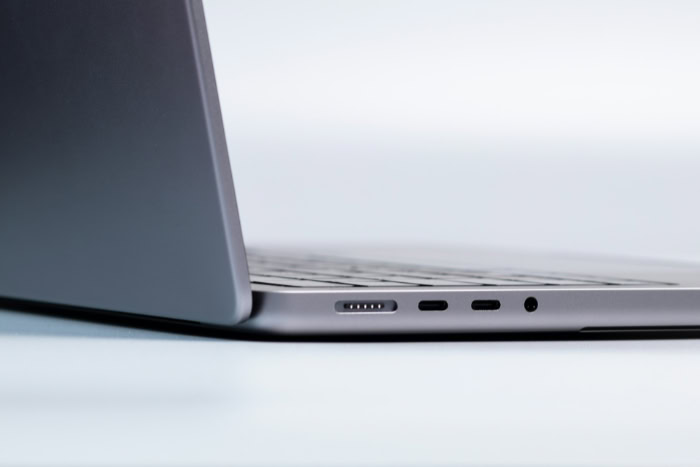
Building an efficient setup requires more than just compatible ports. Users must carefully select their accessories and cables to ensure optimal performance across their chosen operating systems.
Port Replicator Units and Desktop Expansion Solutions
For professionals who use laptops but need a full desktop experience, multi-port docks offer the ultimate solution. These port replicator units allow for single-cable workstation consolidation.
By plugging one cord into the computer, users immediately gain access to multiple monitors, ethernet connections, audio jacks, and several standard USB ports. This eliminates the daily hassle of plugging and unplugging half a dozen different cables every time a laptop moves from a desk.
External Drives and External Graphics Cards (eGPUs)
High-speed creative workflows demand specific hardware to process massive files effectively. Because the protocol uses direct PCIe lanes, professionals can utilize ultra-fast NVMe storage arrays that perform identically to internal drives.
Furthermore, this direct access enables the use of external graphics cards. An eGPU enclosure houses a full-sized desktop graphics processing unit, allowing a lightweight, thin laptop to run demanding software like 3D rendering engines or high-end video games.
Cable Selection, Active vs Passive Cables, and Cost Considerations
Buying the right cord requires careful attention to detail. Passive USB-C cables are inexpensive and work well for short distances or basic charging, but they quickly lose data transfer speed if they exceed three feet in length.
Active Thunderbolt cables contain tiny microchips at both ends to boost the signal, maintaining maximum speed over much longer distances. These active components make the cables significantly more expensive than standard alternatives.
Fortunately, once you have the correct hardware, compatibility is broad. The technology operates smoothly across Windows, macOS, and Linux platforms, automatically detecting and configuring devices without requiring specialized drivers.
Conclusion
Thunderbolt stands out as an exceptionally powerful hardware interface designed to handle massive data transfers, high-resolution video, and heavy power delivery all through a single connection. While the familiar USB-C shape makes plugging things in convenient, the physical connector remains completely separate from the underlying protocol that dictates actual speed and performance.
Looking for the signature lightning bolt symbol ensures you are utilizing advanced bandwidth capabilities rather than settling for basic charging ports. Recognizing how the different generations operate allows you to invest in the correct active cables or multi-port docks, helping you build a highly efficient and streamlined workstation.
Frequently Asked Questions
Can I plug a regular USB-C cable into a Thunderbolt port?
Yes, you can safely plug any standard USB-C cable or device into these ports. The host computer will recognize the basic peripheral and run it perfectly at its maximum supported speed. However, you will not unlock advanced video features or massive bandwidth unless both the device and cable support the Intel protocol.
Why are Thunderbolt cables so much more expensive than regular ones?
These premium cords cost more because they contain active microchips at both ends to boost and manage the signal. This active hardware allows the cable to maintain extremely high data transfer speeds over longer distances. Standard passive charging cords lack these internal chips and drop speed significantly after a few feet.
Will my computer charge faster if I use a Thunderbolt port?
The charging speed depends entirely on the maximum wattage supported by your specific machine and the power adapter. While modern generations handle up to 240 watts of bidirectional power, plugging into the premium port does not force the battery to charge faster than its manufacturer-set hardware limits allow.
What happens if I connect an older Thunderbolt device to a newer port?
The connection will work seamlessly because the technology features full backward compatibility. The newer port scales down its performance to match the exact specifications of your older hardware. You can easily use a previous generation storage drive on a modern laptop without experiencing any software errors or connection failures.
Do I need a special driver to make a Thunderbolt dock work?
You do not need to install specialized drivers for basic functionality across modern operating systems. Windows, macOS, and Linux platforms automatically detect the hardware and configure the necessary data, video, and power streams. You simply plug the dock into the wall and connect the single host cord to your computer.
About the Author: Elizabeth Baker


