
HDD vs. SSD: Speed, Cost, and What You Need

Internal storage holds every file on a computer, from the operating system and applications to personal photos and documents. Unlike temporary memory that clears at shutdown, storage drives preserve data permanently and dictate how fast a system loads information.
Users selecting storage choose between two designs: traditional Hard Disk Drives (HDDs) and modern Solid-State Drives (SSDs). Hard disk drives rely on spinning magnetic platters and moving parts to read and write data, making them affordable for holding massive file libraries.
Solid-state drives store data electronically on flash chips with zero moving components. Choosing between the two technologies directly shapes daily computing, determining if a machine boots in seconds or prioritizes high capacity on a low budget.
Key Takeaways
- Solid-state drives (SSDs) use electronic NAND flash memory to boot operating systems in 10 to 15 seconds, whereas mechanical hard disk drives (HDDs) often take 40 to 90 seconds.
- Connection interfaces dictate maximum speeds; SATA drives peak around 550 MB/s, while M.2 NVMe drives using PCIe lanes reach 3,500 MB/s to over 7,000 MB/s.
- Because SSDs have no moving parts, they withstand accidental drops and vibrations in laptops far better than HDDs, which rely on delicate spinning platters and actuator arms.
- Hard disk drives remain the most cost-effective choice for bulk storage above 4TB, offering capacities up to 24TB at a fraction of the price per gigabyte of flash storage.
- Desktop users on a budget can pair a 500GB or 1TB SSD for the operating system and daily software with a multi-terabyte HDD for media libraries and system backups.
Drive Architecture and Mechanical Design
The physical construction of a storage drive determines how it writes, organizes, and retrieves digital files. Mechanical drives and flash-based drives rely on completely different engineering principles to store binary data.
Mechanical Components of the Hard Disk Drive
Inside a traditional hard disk drive, circular magnetic disks called platters spin on a central spindle motor at high speeds, typically 5,400 RPM or 7,200 RPM in consumer models. An actuator arm moves a tiny read/write head across the surfaces of the platters, hovering nanometers above the magnetic coating.
To open a file, the motor must rotate the platter to the exact location of the data while the actuator arm swings into position. Because the drive relies on physical movement to find scattered bits of information, mechanical delays occur every time the system requests a new file.
Flash Memory and Electronic Data Storage
Solid-state drives replace spinning disks and moving arms with non-volatile NAND flash memory chips. Inside the silicon chips, millions of microscopic memory cells trap electrical charges to represent binary data, retaining information even when the computer loses power.
An embedded microprocessor, known as the drive controller, acts as the traffic director for the storage modules. The controller locates, reads, and writes data across the memory cells instantaneously using electrical signals, eliminating physical movement, friction, and audible noise.
Common Form Factors and Connection Interfaces
Internal drives come in standardized physical sizes and connect to the motherboard through specific data pathways. Desktop HDDs typically use a 3.5-inch enclosure, while laptop HDDs and older SSDs share a compact 2.5-inch casing that connects via the Serial ATA (SATA) interface.
Modern computers favor the M.2 form factor for SSDs, which resembles a flat stick of gum that mounts directly onto the motherboard without power or data cables. While some M.2 drives still use the older SATA protocol, most utilize Non-Volatile Memory Express (NVMe) over PCI Express (PCIe) lanes to communicate directly with the processor at much higher speeds.
Speed and Operational Performance

Architectural differences between magnetic platters and electronic flash cells translate into noticeable speed gaps during daily use. Every interaction with the operating system depends on how quickly the storage drive can locate and deliver data.
System Startup Times and Application Launch Speed
Booting a computer requires the storage drive to load thousands of small system files into memory. A computer equipped with an SSD typically powers on and reaches the desktop in 10 to 15 seconds.
In contrast, an HDD takes 40 to 90 seconds to complete the same startup sequence, often remaining sluggish for another 60 seconds while background utilities finish loading. During daily tasks, clicking an icon for a web browser, word processor, or email client on an SSD opens the window almost instantly, whereas an HDD introduces a noticeable pause while the read/write head hunts for the program files.
Data Transfer Rates and File Access Latency
Storage performance is measured through sequential speeds for large contiguous files and random speeds for scattered small files. Consumer HDDs deliver sequential read and write speeds between 80 MB/s and 160 MB/s, making large video copies or system backups a slow process.
A standard 2.5-inch SATA SSD pushes sequential speeds to around 550 MB/s, while PCIe 4.0 NVMe SSDs reach 3,500 MB/s to 7,000 MB/s or higher. Furthermore, because flash storage eliminates mechanical seek time, access latency drops from over 10 milliseconds on an HDD to less than 0.1 milliseconds on an SSD, allowing the computer to handle dozens of background operations without freezing.
Performance Differences in Video Games and Heavy Software
Demanding software exposes the bandwidth limits of mechanical storage. In modern video games, an SSD reduces level loading screens from over a minute to just a few seconds and prevents visual stuttering or delayed texture pop-in as players move through detailed environments.
Many recent game titles explicitly require an SSD to stream high-resolution assets smoothly. For creative workflows and heavy office work, flash storage accelerates scrubbing through 4K video timelines, importing hundreds of uncompressed raw photographs, and recalculating massive spreadsheets that exceed system memory.
Durability, Lifespan, and Hardware Reliability

All computer hardware wears down over time, making physical durability and long-term reliability essential considerations when protecting personal data. Mechanical and electronic drives face very different physical risks and aging processes.
Physical Shock Tolerance and Environmental Resistance
Because an HDD read/write head floats just nanometers above a platter spinning thousands of times per minute, sudden movement poses a severe risk. Dropping a laptop or bumping a desktop tower while the drive is active can cause a head crash, where the metal arm scrapes the magnetic surface and destroys stored data permanently.
Constant vibrations and extreme temperatures also accelerate mechanical wear on the spindle motor. Solid-state drives contain no moving parts, allowing them to survive accidental drops, constant travel, and rough handling inside portable laptops without losing data.
Drive Endurance and Write Limit Thresholds
While immune to physical knocks, SSD memory cells experience microscopic degradation each time electrical charges force data into them. Manufacturers measure flash endurance using a metric called Terabytes Written (TBW), which estimates how much data a drive can write over its life before the cells wear out.
A typical 1TB consumer SSD carries a rating of 300 TBW to 600 TBW. For an average user writing 30GB of files per day, reaching 300 TBW takes more than 25 years.
Drive controllers also use wear-leveling algorithms to distribute writes evenly across all blocks, ensuring the drive easily outlasts the useful life of a typical computer.
Symptoms of Hardware Failure and Data Recovery Potential
When a mechanical hard drive begins to fail, it usually provides early warning signs. Users may hear repetitive clicking, grinding, or whirring noises coming from the enclosure, alongside frequent system freezes, corrupted files, and multiplying bad sectors.
Because data remains magnetically recorded on the physical platters, professional recovery labs can often extract files from a dead HDD by replacing damaged internal parts in a cleanroom. Conversely, SSDs rarely give clear warning before failing; if the electronic controller or power circuit shorts out, the drive can vanish from the system instantly.
Recovering data from failed flash chips and encrypted controllers is far more complex and frequently impossible.
Capacity and Cost Comparison
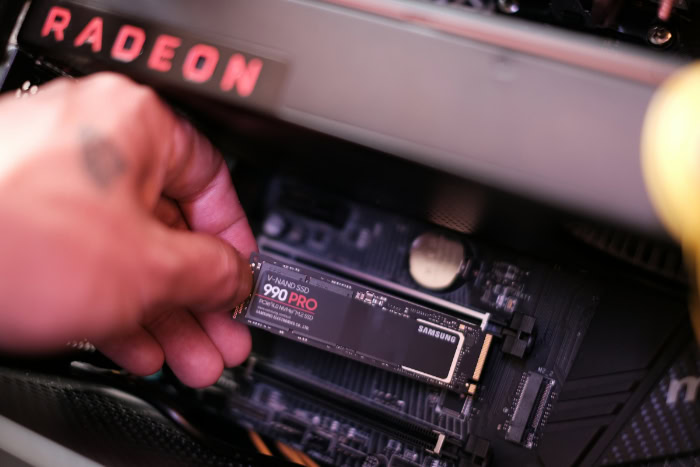
Budget constraints and storage volume requirements often pull buyers in opposite directions. Comparing the financial cost per gigabyte alongside maximum available capacities highlights where each storage technology makes the most financial sense.
Price Per Gigabyte Across Different Storage Sizes
Flash memory has become much more affordable over the years, yet magnetic platters still hold a clear cost advantage at high capacities. At smaller sizes like 500GB and 1TB, the price gap is narrow; a 1TB NVMe SSD typically costs between $60 and $90, while a 1TB HDD costs around $45 to $55.
Once storage needs reach 2TB, 4TB, and beyond, the math shifts heavily in favor of mechanical drives. A 4TB SSD generally sells for $230 to $320 (roughly $0.06 to $0.08 per gigabyte), whereas a 4TB HDD costs between $80 and $100 (roughly $0.02 to $0.025 per gigabyte).
Maximum Storage Limits for Desktop and Mobile Computers
Physical space inside a computer dictates how much total storage a user can install. Desktop cases with 3.5-inch drive bays can accommodate ultra-high-capacity consumer HDDs ranging from 8TB to 24TB on a single drive.
In contrast, mainstream consumer SSDs in both 2.5-inch and M.2 formats usually top out at 4TB or 8TB. While 8TB SSDs exist for laptops and desktops, they carry a steep price premium that often exceeds $600, making multi-terabyte solid-state storage impractical for casual users.
Value Assessment for Budget-Conscious Buyers
Evaluating storage value requires looking past the raw sticker price and considering how the drive will be used. Paying extra per gigabyte for a 500GB or 1TB SSD delivers an immediate return in daily usability, turning a sluggish computer into a fast, responsive machine.
However, spending hundreds of dollars on flash storage just to hold cold data, such as family photo backups or archived tax documents, offers zero practical benefit. When storing multiple terabytes of rarely accessed files on a tight budget, a high-capacity HDD remains the smartest financial option.
Storage Selection by Workload and User Profile

Matching the right storage drive to a computer depends entirely on daily workloads and personal storage habits. Different setups cater to casual web users, media collectors, and desktop enthusiasts.
Primary Drives for Casual Use, Office Work, and Modern Laptops
For everyday web browsing, streaming media, office suites, and student coursework, an SSD is the baseline requirement for the primary operating system drive. Modern operating systems like Windows 11 and macOS are built around the fast random access speeds of flash memory and struggle to run smoothly on mechanical disks.
A 500GB or 1TB M.2 NVMe SSD provides plenty of space and speed for daily software and documents. In laptops, choosing an SSD also extends battery life slightly, keeps the chassis cool, and protects school or work files during daily commutes.
Secondary Storage for Media Libraries and Long-Term Archives
Users who collect high-definition movies, preserve thousands of uncompressed raw photographs, or maintain automated system backups rarely need instant loading speeds for those files. Watching a movie or viewing a photo requires very little read bandwidth, meaning an HDD plays media just as smoothly as an SSD.
High-capacity 3.5-inch HDDs ranging from 4TB to 16TB work best inside desktop towers, external USB enclosures, or multi-bay Network Attached Storage (NAS) devices designed to archive family data over many years.
Dual-Drive Configurations for Balanced Speed and Budget
Desktop builders and owners of larger laptops with two drive bays can combine both technologies to get high speed without overspending. Pairing a 500GB or 1TB NVMe SSD with a 2TB to 8TB HDD creates an efficient two-drive system.
Under the dual-drive setup, the user installs the operating system, core applications, and favorite video games on the SSD to keep the system snappy. Bulk data, including music folders, video downloads, and backup images, gets routed directly to the secondary HDD, keeping the fast flash drive uncluttered and responsive.
Conclusion
Selecting between a hard disk drive and a solid-state drive comes down to balancing daily speed and physical durability against maximum capacity and total cost. Solid-state drives outperform mechanical disks in boot times, application responsiveness, silent operation, and drop resistance, making flash storage essential for any primary operating system drive.
Hard disk drives trade away speed and shock resistance to deliver massive multi-terabyte capacities at a fraction of the price per gigabyte. Everyday laptop users, students, and office workers are best served by a 500GB to 2TB SSD that keeps their computer fast and reliable.
Users managing huge video libraries, photo archives, or home backup servers can pair a smaller primary SSD with a high-capacity HDD to achieve both instant system responsiveness and affordable bulk storage.
Frequently Asked Questions
Do SSDs slow down when they get full?
Yes, solid-state drives lose write speed when they reach near-maximum storage capacity. Flash drives need empty blocks of memory to organize incoming files and run background maintenance tasks efficiently. Leaving at least 10% to 15% of the total drive space free prevents performance drops and reduces unnecessary wear on the memory cells.
Should I defragment my SSD like an old hard drive?
No, you should never defragment a solid-state drive because it causes unnecessary wear without improving speed. Defragmentation reorganizes scattered files on spinning magnetic platters so the physical read head moves less. Since an SSD accesses any memory cell in the same fraction of a millisecond, defragmenting only wastes limited write cycles.
How long can an unplugged SSD or HDD keep my files safe?
An unplugged mechanical hard drive retains data longer in storage than an unpowered solid-state drive. Magnetic platters inside an HDD hold files safely on a shelf for 5 to 10 years in a dry room. Conversely, SSD flash cells slowly leak electrical charge without power and may lose data after 12 to 24 months.
Does an SSD make my games run at a higher frame rate?
An SSD will not increase your maximum frame rate, which depends mainly on your graphics card and processor. However, flash storage eliminates level loading delays and prevents sudden frame drops caused by slow drive reads. Open-world games benefit the most because the drive streams background textures and map data smoothly as you move.
About the Author: Elizabeth Baker


