
Internal vs. External HDD (Hard Disk Drive): Which Is Best?

Magnetic hard disk drives (HDDs) remain a practical, budget-friendly solution for storing massive amounts of digital data. Inside each drive, spinning magnetic platters and mechanical read/write heads record files at a fraction of the cost of solid-state alternatives.
Buyers generally choose between two primary configurations: fixed internal drives mounted directly inside a computer case, and portable external drives housed in protective shells that connect via cable. Internal models prioritize direct motherboard communication and stationary stability, whereas external units focus on mobility and plug-and-play convenience across multiple machines.
Evaluating raw transfer performance, installation effort, physical durability, and overall price per terabyte helps computer users select the right storage hardware and configure a reliable system for daily workloads or long-term backups.
Key Takeaways
- Internal hard drives connect directly to the motherboard via SATA III interfaces and spin at up to 7,200 RPM, making them ideal for active applications, large video game libraries, and frequent read/write tasks.
- External portable 2.5-inch drives draw power directly from a single USB port and require zero hardware installation, offering convenient plug-and-play file sharing across Windows, macOS, and gaming consoles.
- Physical movement makes external drives vulnerable to mechanical head crashes from accidental drops, while sealed plastic casings trap more heat than fan-cooled desktop computer towers.
- Unplugging an external drive without ejecting it through the operating system risks corrupting files still held in the write cache, a vulnerability that permanently mounted internal drives avoid.
- Bare internal 3.5-inch drives generally provide longer manufacturer warranties of three to five years, whereas external drives remain essential for offline, off-site disaster recovery backups.
Hardware Design and Interface Types
Every magnetic hard drive relies on spinning platters and moving actuator arms, yet internal and external models package and connect these delicate components differently. Physical enclosures, interface cables, and power delivery mechanisms define how each drive integrates with a computer.
Structural Differences and Protective Enclosures
Bare internal drives expose their cast-aluminum body on top and a green printed circuit board on the underside. Desktop systems typically use larger 3.5-inch drives, while compact systems and laptops fit smaller 2.5-inch models.
Because an internal drive sits inside a steel or aluminum PC tower, the computer chassis itself provides physical shielding and vibration control through dedicated drive bays and rubber grommets. Conversely, an external hard drive wraps a standard bare mechanism inside a plastic or metal outer shell.
Many portable models add internal silicone bumpers or rubber dampeners around the inner drive to absorb minor shocks during transport.
Connection Standards: SATA versus USB
Internal hard drives communicate directly with the system motherboard through Serial ATA (SATA) data cables. A standard 7-pin SATA connector locks firmly onto the drive and links straight to the motherboard controller, establishing a dedicated internal data path.
External drives add an extra translation layer by attaching a small bridge board to the internal SATA pins. That bridge converts the storage signal to universal external ports, including rectangular USB-A connectors, reversible USB-C interfaces, or high-speed Thunderbolt ports.
Power Delivery: Direct PSU Feeds versus Bus Power
Operating the spindle motor and moving the read/write actuator requires stable electrical current. Internal drives draw electricity straight from the computer power supply unit (PSU) via a 15-pin SATA power connector, receiving regulated 5V and 12V rails.
On the external side, power requirements depend on physical drive size. Portable 2.5-inch external drives run entirely on bus power, pulling all necessary electricity through the single USB data cable plugged into the host computer.
Larger 3.5-inch desktop external drives demand 12V power to spin heavier platters, requiring a separate AC wall adapter alongside the USB data cord.
Speed and System Performance

Data transfer speed determines how quickly large folders copy and how smoothly software loads from a drive. Interface bandwidth, platter rotation rates, and signal latency all influence responsiveness during everyday computing tasks.
Transfer Rates and Interface Bottlenecks
Theoretical cable bandwidth rarely limits mechanical hard drives on modern ports. Internal SATA III connections support up to 6 Gbps, which equals roughly 600 MB/s of usable throughput.
Modern external interfaces surpass that ceiling, with USB 3.2 Gen 1 offering 5 Gbps, USB 3.2 Gen 2 reaching 10 Gbps, and Thunderbolt 4 delivering 40 Gbps. Despite those high interface numbers, the mechanical nature of magnetic platters creates the actual bottleneck.
Most consumer HDDs top out between 100 MB/s and 220 MB/s during sequential reads and writes, meaning the spinning disk reaches its physical speed limit well before saturating either SATA III or USB 3.0 cables. Only an outdated USB 2.0 port will bottleneck a mechanical drive, capping transfers at around 35 MB/s to 40 MB/s.
The Influence of Spindle Speed (RPM)
Platter rotation speed, measured in revolutions per minute (RPM), directly dictates how fast the read/write head locates and transfers sectors of data. Standard 3.5-inch internal desktop drives usually spin at 7,200 RPM, delivering sustained sequential speeds near 160 MB/s to 210 MB/s.
In contrast, most portable 2.5-inch external drives operate at a slower 5,400 RPM, averaging 80 MB/s to 130 MB/s. Manufacturers favor 5,400 RPM mechanisms for portable units because slower motors consume less USB bus power, generate less heat inside tight enclosures, and reduce gyroscopic wear when users move the drive slightly.
Latency in System Tasks and Application Access
Beyond bulk file copying, access latency affects how responsive a drive feels when opening complex programs with hundreds of small files. Internal drives communicate natively with the motherboard chipset through the Advanced Host Controller Interface (AHCI), keeping command overhead minimal.
External drives must translate storage commands from SATA to the USB Mass Storage or USB Attached SCSI Protocol (UASP) before reaching the processor. That translation step introduces slight delays and higher CPU overhead, which can lengthen load times when launching heavy applications or browsing folders packed with thousands of image thumbnails.
Usability and Physical Integration

Setting up new storage involves a trade-off between permanent hardware integration and effortless portability. Users must weigh the effort of opening a desktop case against the convenience of external cables.
Hardware Installation and Desktop Chassis Setup
Adding an internal hard drive requires shutting down the computer, removing the side panel, and securing the bare drive into a 3.5-inch or 2.5-inch mounting cage using four screws or tool-free plastic rails. Installers then route a SATA data cable to an open motherboard header and attach a SATA power lead from the power supply.
Once the computer boots up, a brand-new internal drive will not appear in the standard file explorer immediately. Users must open Windows Disk Management or macOS Disk Utility to initialize the partition table, format the volume with a file system such as NTFS or APFS, and assign a drive letter.
Plug-and-Play Simplicity for Portable Units
External hard drives eliminate physical assembly entirely. Most portable models ship pre-formatted from the factory, often using the broadly compatible exFAT file system.
A user simply plugs the USB cable into a Windows 11 laptop, a Mac, a PlayStation 5, or an Xbox Series X, and the operating system mounts the storage volume within 3 to 5 seconds. Because no tools or internal drive bays are necessary, external units excel at moving massive video projects or photo libraries between multiple computers at home and the office.
Drive Adaptation with Enclosures and Docks
The boundary between internal and external drives remains flexible thanks to third-party accessories. Users with spare internal 2.5-inch or 3.5-inch drives from older computers can purchase an empty aluminum or plastic USB enclosure for $15 to $35, slide the bare drive inside, and convert it into a functional external unit.
For technicians and enthusiasts who swap bare drives frequently, a desktop USB docking station acts like a vertical slot for hard drives. Hot-swap docks allow users to insert bare internal drives for quick diagnostics, disk cloning, or bulk file transfers without fastening a single screw.
Durability, Heat, and Operational Risks
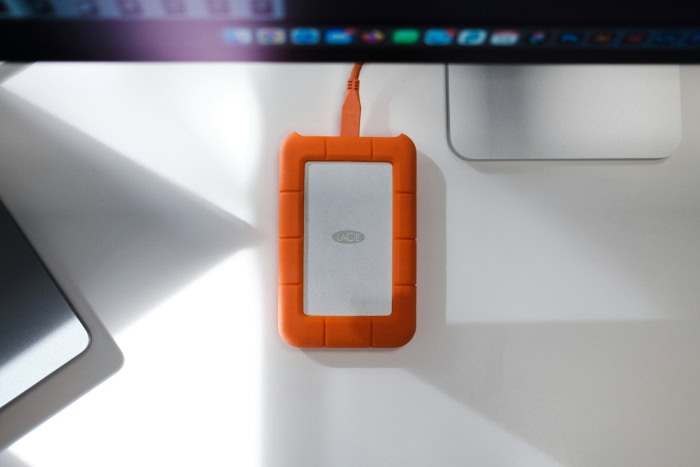
Because hard disk drives rely on precision mechanical parts spinning at high speeds, environmental conditions heavily influence hardware survival. Physical impacts, operating temperatures, and power stability pose distinct challenges for stationary and mobile setups.
Physical Shock and Impact Hazards
Inside an active hard drive, the read/write head hovers just nanometers above the spinning magnetic platter on a microscopic cushion of air. If a drive suffers a sudden jolt while operating, the head can scrape against the platter surface, permanently destroying data in a failure known as a head crash.
Internal drives enjoy a major safety advantage because they remain bolted inside a heavy desktop tower on a desk or floor. External drives face constant handling hazards; knocking a portable drive off a table or dropping a backpack can ruin the delicate internal spindle or actuator assembly instantly, even if the outer plastic shell looks unscathed.
Thermal Regulation and Airflow Constraints
Excessive heat degrades mechanical bearings and electronics over time, making operating temperatures between 77°F and 113°F (25°C and 45°C) ideal for hard drives. Internal drives benefit directly from active PC cooling, as front intake fans pull cool room air across the metal drive cages and rear exhaust fans expel warm air.
In contrast, most external hard drives rely purely on passive cooling inside sealed plastic housings. During multi-hour backups or heavy file transfers, heat gets trapped inside the enclosure, causing external drives to run noticeably warmer than fan-cooled internal counterparts.
Data Corruption Risks from Abrupt Disconnection
Operating systems frequently use write caching, holding data temporarily in fast volatile memory before physically writing it to the magnetic platters. If someone accidentally trips over a USB cord or unplugs an external drive while a background write operation is still pending, the file system directory can become corrupted, rendering the volume unreadable.
Using the system eject icon flushes the write cache safely before cutting power. Internal drives rarely face accidental disconnection because their SATA data and power cables remain locked inside the closed computer chassis throughout the entire power cycle.
Selection Criteria for Common User Needs

Choosing between internal and external storage depends on how the data will be accessed and protected. Matching the hardware format to specific workloads prevents performance bottlenecks and safeguards critical files.
Local System Storage for Operating Systems and Video Games
While modern computers rely on solid-state drives (SSDs) for the primary boot partition, high-capacity 7,200 RPM internal hard drives remain practical for storing massive secondary application directories and older video game libraries. Direct SATA connections and uninterrupted power keep games running smoothly without random disconnects.
Running modern PC games or heavy editing software directly from an external USB hard drive often leads to stuttering textures, slow level loading, and application crashes if the USB controller enters a low-power sleep state mid-session.
Data Security and Redundant Archive Backups
A sound backup strategy requires separating backup copies from the main workstation. Adding a second internal hard drive provides a fast, convenient destination for automated daily backups, yet an internal drive remains vulnerable to the same power surges, ransomware attacks, house fires, or theft that could claim the primary drive.
External hard drives excel at cold archive storage. Users can copy critical family photos and financial records to an external unit, unplug the cable to create an offline air gap against malware, and store the drive in a fireproof safe or a separate building for reliable disaster recovery.
Cost Efficiency and Value per Terabyte
Pricing structures across the storage market reveal subtle trade-offs in hardware quality and warranty coverage. At capacities between 1TB and 4TB, bare internal drives and portable external drives cost roughly the same per terabyte, usually hovering around $20 to $30 per terabyte.
At high capacities of 8TB to 20TB, external desktop drives sometimes go on sale for slightly less than bare internal drives. However, manufacturers often place lower-binned drives inside retail external enclosures and limit warranty coverage to one or two years, whereas premium internal desktop and NAS drives frequently include three to five years of warranty protection and built-in rotational vibration sensors.
Conclusion
Selecting between an internal and an external hard drive comes down to balancing stationary performance against portable convenience. Internal drives integrate seamlessly into a desktop tower, offering direct SATA III communication, faster 7,200 RPM platter speeds, active fan cooling, and protection from accidental drops or cable disconnects.
External drives trade some of that thermal efficiency and shock protection for unmatched flexibility, allowing anyone to expand storage across laptops, desktops, and gaming consoles in seconds without opening a computer case. Before buying, weigh three practical criteria: how often files need to travel between machines, personal comfort with mounting hardware and routing internal cables, and the primary workload.
Active software workspaces and secondary game libraries belong on an internal drive, while cross-device file sharing and offline disaster recovery backups belong on an external unit.
Frequently Asked Questions
Can I use an external hard drive for gaming?
Yes, you can store and play many older games from an external hard drive, though loading screens will take longer than on internal storage. Classic PC titles and PlayStation 4 games run smoothly over a USB 3.0 cable, whereas modern PlayStation 5 games require fast internal storage to launch and play.
Do internal hard drives last longer than external hard drives?
Internal hard drives generally last longer because they operate in a stationary, fan-cooled environment inside a computer case. While both types use similar mechanical platters designed to run for thousands of hours, external drives fail earlier more often due to accidental drops, cable tugs, and heat buildup inside sealed plastic shells.
Can I take an external hard drive out of its case and put it inside my PC?
Yes, you can remove many desktop external hard drives from their plastic enclosures and install them inside a desktop PC, a process known as shucking. Most 3.5-inch external desktop drives contain a standard SATA hard drive inside, though some portable 2.5-inch models solder the USB port directly onto the circuit board.
Is it bad to leave an external hard drive plugged in all the time?
Leaving an external hard drive plugged in continuously is safe for short periods, but it increases long-term wear and security risks. Constant connection exposes the drive to computer power surges, ransomware attacks, and extra thermal wear inside a warm plastic enclosure, so unplugging backup drives after each file transfer is safer.
Why does my new 2TB hard drive show less storage space on my computer?
Your computer displays less capacity because drive manufacturers and operating systems calculate storage units using different math systems. Manufacturers define 1TB as 1 trillion bytes using decimal math, whereas Windows uses binary math where 1TB equals roughly 1.1 trillion bytes, causing a 2TB drive to report around 1.81TB of usable space.
About the Author: Elizabeth Baker


