
NAS vs. External Hard Drive: Which One Wins?

Everyday life generates a vast amount of computer data. Family photos, important documents, system backups, and large media collections quickly exhaust the internal storage on standard laptops and desktops.
To manage these files safely, most people turn to two main options: traditional external hard drives and Network Attached Storage (NAS) units. While a portable drive plugs directly into a single computer with a cable, a NAS device links to your local network router to serve several computers and mobile devices at once.
This comparison evaluates hardware costs, transfer speeds, backup reliability, and daily usability to help you select the ideal solution for your household or office setup.
Key Takeaways
- Direct cable connections provide faster speeds for creative work: A portable drive using USB 3.0 or Thunderbolt transfers data between 5Gbps and 40Gbps, easily outpacing standard 1Gbps network storage during demanding tasks like 4K video editing.
- Network Attached Storage serves multiple users simultaneously: A NAS connects to your router to stream media to smart TVs, share files across different operating systems, and provide private remote access without recurring monthly cloud subscriptions.
- RAID redundancy prevents system downtime rather than data loss: Multi-drive configurations such as RAID 1 and RAID 5 permit continuous operation when a physical drive fails, but separate secondary copies are still required to guard against accidental deletion or file corruption.
- External drives offer affordable, air-gapped protection: Priced between $60 and $120 for 2TB to 5TB capacities, an external drive disconnected from your computer keeps sensitive archives physically isolated from network hackers and ransomware.
- Automation eliminates human backup errors: While external drives demand the discipline to connect cables and copy folders manually, a NAS runs silent background backup routines every night for household computers and mobile photo galleries.
Overview of Both Storage Solutions
Choosing between an external hard drive and a network attached storage system begins with reviewing how physical architecture shapes file access. Both tools serve as local repositories for documents, photos, and system backups, yet their internal hardware and connection methods create completely different user experiences.
Definition and Hardware of an External Hard Drive
An external hard drive is a self-contained portable or desktop unit designed to provide straightforward, point-to-point data storage. It consists of a protective outer enclosure housing either a traditional spinning platter mechanism or a solid-state drive.
Inside desktop models, you typically find a 3.5-inch drive mechanism that requires external wall power, while portable versions use a 2.5-inch drive powered entirely through the computer interface.
The primary interface uses a direct cable, typically USB 3.0, USB-C, or Thunderbolt. This cable creates a dedicated link between the storage drive and a single host computer.
Because the drive lacks independent computing hardware, it relies entirely on the connected computer to process file reading, writing, and power management. Once disconnected, the drive powers down, remaining dormant until plugged into another host machine.
Definition and Architecture of a NAS System
A Network Attached Storage (NAS) system is a standalone computer dedicated entirely to serving data over a private network. Rather than relying on a host computer for processing, a NAS unit contains its own processor, dedicated system memory, cooling fans, and a specialized operating system.
The physical chassis includes two, four, or more drive bays that hold individual hard drives or solid-state media.
Instead of connecting directly to a computer through a data cable, a NAS integrates into a local area network by plugging into a home or office router using an Ethernet cable. The internal operating system handles data distribution, runs localized applications, and assigns storage pools.
This independent structure allows the unit to remain powered continuously, handling file transactions across the local network without tying up the processing resources of any personal computer.
Direct Cable Connection versus Network Connection
The physical link between storage hardware and user devices defines how files are transferred and managed. An external hard drive uses Direct-Attached Storage architecture, creating an exclusive physical circuit between the drive and one machine.
To access files, the operating system mounts the drive directly as a local volume, such as a drive letter on Windows 11 or a desktop icon on macOS. File access occurs instantaneously at the hardware level, with zero exposure to external traffic.
A NAS operates as a shared node on a local network. Computers and mobile devices communicate with the NAS across local network protocols, such as SMB or NFS.
Instead of appearing as a direct physical disk, the shared storage space mounts as a network folder or shared drive. Multiple devices view and access these directories simultaneously, allowing shared folders to remain available across the entire household as long as the local network is active.
Access Options and Device Mobility

The physical design of a storage device dictates how easily individuals interact with their data across different environments. Sharing photos among family members and retrieving work files during travel involve very different hardware demands, making device mobility and shared access crucial considerations.
Single-Device Connection versus Multi-User Access
Direct-attached external hard drives limit access to one computer at any given moment. If a family member wants to copy pictures from an external drive while another person uses it to edit home video files, one user must wait for the other to finish, safely eject the unit, and physically hand over the cable.
This single-device constraint works well for personal workflows, but it creates friction in multi-device households.
A NAS resolves this bottleneck by allowing simultaneous multi-user file sharing. Laptops, desktop computers, tablets, and smart TVs can read and write files to the unit concurrently.
Parents can stream stored video files to a smart TV in the living room while children access school assignments from their laptops, all without interrupting ongoing system backups running in the background.
Remote File Access and Personal Cloud Features
External hard drives offer limited utility when you leave the house. Unless you physically carry the drive with you or leave it connected to a running computer configured with specialized sharing software, your data remains inaccessible while traveling.
A NAS functions as a private personal cloud without monthly subscription fees. Because the unit remains powered and connected to your internet router, built-in remote access software lets you log into your file library from anywhere in the world.
You can upload smartphone photos while away from home, stream music playlists to your phone, and download spreadsheets to a laptop without relying on third-party commercial cloud providers.
Portability and Physical Space Requirements
Portable external hard drives excel at physical mobility. Compact models often weigh around 6 ounces (170 grams) and slide easily into a pocket or laptop bag, drawing all operational power from the connected computer.
This makes them ideal for photographers, students, and traveling professionals who need localized storage on the go.
A NAS unit is a stationary appliance. A 4-bay enclosure can weigh 5 lbs (2.3 kg) or more before adding drives, and it requires permanent placement near a router.
The device requires continuous access to an electrical outlet, produces low background noise from internal fans, and demands adequate ventilation to prevent heat buildup. Relocating a NAS requires shutting down the system, unplugging power and Ethernet cables, and carefully moving fragile hard drive arrays.
Transfer Speed and Daily Performance

Speed and daily responsiveness influence how seamlessly a storage device handles demanding tasks like video editing, file transfers, and media streaming. The transfer medium determines how quickly data moves between drives and user applications.
Direct Cable Bandwidth versus Network Data Limits
Direct cable connections provide substantial throughput for heavy file transfers. A modern external drive running on a USB 3.0 interface achieves theoretical speeds up to 5Gbps, while USB-C connections frequently support 10Gbps or 20Gbps.
High-performance solid-state drives using Thunderbolt interfaces can reach 40Gbps, enabling real-time data transfers exceeding 2,500MB/s.
Network storage transfer rates, by contrast, are constrained by local network equipment. Most home routers and switches rely on standard 1Gbps Ethernet ports, which cap real file transfer speeds at roughly 110MB/s to 125MB/s.
Even with upgraded 2.5Gbps or 10Gbps network hardware, data rates rarely match the direct pipeline of a high-speed Thunderbolt cable plugged directly into a computer motherboard.
Impact of Wi-Fi Connections and Network Latency
Connecting to a NAS wirelessly introduces speed reductions and latency. Wireless signals fluctuate based on physical distance, wall materials, and radio interference from other household electronics.
When several family members stream video, download software, or participate in video calls, NAS transfer speeds drop noticeably.
An external hard drive bypasses network congestion entirely. Its isolated physical cable provides consistent transfer rates regardless of local internet activity or radio interference.
Moving a 50GB file over an isolated USB cable takes a predictable amount of time, whereas moving that same file over a crowded Wi-Fi connection can take two or three times longer due to retransmitted data packets and signal drops.
Best Use Scenarios for Media Playback and Heavy File Transfers
The performance profiles of these devices suit very different applications. External drives, especially solid-state variants, serve as excellent scratch disks for creative work.
Video editors working with 4K or 8K footage require the sustained bandwidth of a direct cable to scrub through timelines smoothly without dropped frames.
A NAS provides an ideal environment for centralized media playback and background file management. Media server applications like Plex organize video files and music albums for simultaneous streaming to multiple televisions and mobile screens.
Because routine file syncing occurs quietly in the background, lower transfer rates do not hinder daily computer tasks.
Data Safety, Redundancy, and Backup Methods

Protecting files from equipment failures and external security threats requires deliberate planning. Hardware design heavily dictates how easily data can be protected, restored, or isolated from harmful network activity.
Single Drive Failure Risks versus Multi-Drive RAID Protection
Standard external hard drives carry an inherent vulnerability: they rely on a single drive mechanism. If that internal mechanical platter scratches or the internal circuit board burns out, data recovery requires expensive cleanroom services, and files are often lost permanently.
Dropping a portable drive while it is spinning can destroy stored data in an instant.
A multi-bay NAS combats this issue through Redundant Arrays of Independent Disks, commonly known as RAID. Configurations like RAID 1 mirror data across two identical drives, while RAID 5 distributes parity information across three or more drives.
If one drive fails completely, the NAS continues running normally without any data loss. The user simply pulls out the broken drive, inserts a replacement, and the system automatically rebuilds the array.
Manual File Copies versus Automated Backup Schedules
External hard drives depend on manual user discipline. You must remember to connect the drive, select the target folders, and initiate the copy process.
If you forget to plug in the drive for two weeks, any files created during that timeframe remain unprotected against accidental deletion or computer failure.
A NAS automates data safety across your entire household. Dedicated software applications run silently in the background of laptops, desktops, and smartphones.
Every night at an appointed hour, the NAS scans each device for modified files and uploads fresh backups across the local network. Computers back up their system states without user intervention, and mobile devices automatically transfer new camera roll images as soon as they connect to the home network.
Network Vulnerability versus Offline Air-Gap Security
Connecting any storage unit to an active network creates potential security risks. Because a NAS connects to the local router, it can become an appealing target for malicious software.
If a computer on the network contracts ransomware, the infection can spread across shared folders, encrypting stored files and demanding payment for their return. Operating a NAS securely requires applying software updates, configuring firewalls, and managing complex user privileges.
An external hard drive provides offline security through a physical air-gap. When you disconnect the USB cable and place the drive inside a desk drawer, no remote hacker or malware script can reach it.
Storing periodic backups on an unplugged external hard drive guarantees that an isolated copy of critical files remains safe from network breaches.
Financial Costs and Technical Setup Requirements
Initial equipment budgets and required technical skills represent significant factors when choosing storage solutions. Comparing hardware investments alongside day-to-day maintenance requirements ensures that users select a system they can comfortably manage.
Initial Purchase Prices and Operational Expenses
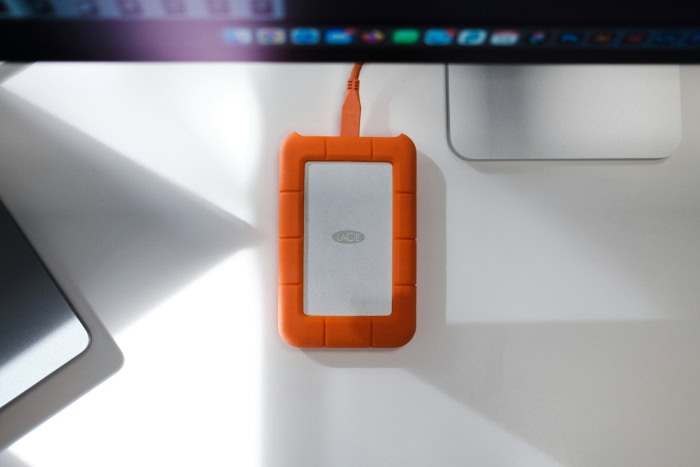
External hard drives offer an affordable entry point. A reliable 2TB portable external drive generally costs between $60 and $80, while a larger 5TB desktop drive costs around $120.
Once purchased, the device incurs zero operating costs, drawing minimal electricity only when plugged into a host computer.
A NAS involves a much larger initial investment. A basic 2-bay diskless enclosure typically retails between $200 and $300, while a 4-bay unit can easily exceed $500.
Furthermore, users must purchase specialized NAS-grade hard drives, which cost roughly $80 to $150 per drive for capacities like 4TB. Operational expenses also include electricity, as a NAS typically runs 24 hours a day, drawing between 15W and 40W of power continuously.
Plug-and-Play Simplicity versus Network Configuration
External hard drives require virtually no technical experience. You plug the cable into an available port, format the drive if prompted, and immediately begin dragging and dropping files.
There are no user profiles to manage, no networking rules to adjust, and no background software suites to maintain.
Setting up a NAS requires moderate technical comfort. The initial deployment involves mounting physical drives into drive sleds, connecting the unit to a router, locating the device IP address, and formatting the storage array through a web browser.
Administrators must establish user accounts, assign folder permissions, configure remote access protocols, and schedule regular operating system updates to patch security vulnerabilities.
Storage Selection Based on Common User Needs
An external hard drive remains the practical choice for single-computer households, students, and budget-conscious individuals who simply need secondary copies of local files. Creative professionals working away from home benefit from the rapid speeds, light weight, and direct cable reliability of portable drives.
A NAS justifies its higher price and configuration demands in multi-user homes and busy offices. When several people need shared access to central file repositories, automated system backups for multiple computers, and private cloud streaming without monthly software fees, a dedicated network storage unit provides unmatched value.
Conclusion
Choosing between an external hard drive and a NAS comes down to balancing simplicity against shared convenience. An external hard drive offers an affordable, plug-and-play solution with rapid transfer speeds, zero network configuration, and no ongoing power costs.
In contrast, a NAS demands a higher initial investment and some technical setup, but it rewards you with automated backups, multi-user file sharing, and round-the-clock remote access from any device.
The most dependable data protection strategy often combines both tools rather than choosing one over the other. You can use a NAS as your central household hub to collect daily, automated backups from laptops, desktops, and smartphones across your local network.
Meanwhile, keeping a secondary backup on an external hard drive that stays unplugged inside a desk drawer gives you an offline, air-gapped safeguard against mechanical breakdowns, network outages, and ransomware infections.
Frequently Asked Questions
Can I use an external hard drive as a NAS by plugging it into my router?
Yes, many modern routers allow you to plug an external hard drive into their USB port to create basic network storage. While this provides an inexpensive way to share files across your home, router processors are relatively slow. You will not get the high transfer speeds, automated software, or drive redundancy of a dedicated NAS.
Is RAID on a NAS considered a backup?
No, RAID provides hardware redundancy to prevent downtime, but it is not a true backup. RAID protects your files if a single physical drive breaks, but it cannot protect against accidental deletions, file corruption, or ransomware. If you accidentally erase a folder, the array instantly deletes it across all mirrored drives.
Can I edit video directly from a NAS?
Yes, you can edit video directly from a NAS, but it requires a fast wired network setup. Standard 1Gbps Ethernet is often too slow for editing high-bitrate footage. However, a NAS using 10Gbps Ethernet and solid-state drives provides enough speed to scrub through 4K timelines smoothly without dropping frames.
How long does an external hard drive usually last?
Most external hard drives last between three and five years with regular use. Mechanical parts wear down over time, and portable drives face added risks from accidental drops, bumps, and cable disconnections. To avoid sudden file loss, replace aging backup drives or copy important records onto a second storage unit regularly.
Do I have to pay monthly fees for a NAS?
No, you do not pay any monthly subscription fees to access or manage a NAS. After paying the upfront hardware cost for the unit and hard drives, remote mobile access and private cloud features are completely free. Your only recurring expense is the modest electricity needed to power the hardware.
About the Author: Julio Caesar


