
PCIe 3.0 vs. 4.0: Does It Actually Matter?
Building or upgrading a computer is a major financial investment, and choosing the wrong connection standard can quietly throttle your expensive new graphics card or solid-state drive. Selecting between PCIe 3.0 and PCIe 4.0 determines how fast data flows between your processor and vital hardware, making it a critical decision for system performance.
Peripheral Component Interconnect Express (PCIe) serves as the primary data highway on your motherboard, linking components directly to the CPU. While PCIe 3.0 was the standard for years, PCIe 4.0 doubles the potential data transfer rate.
Key Takeaways
- PCIe 4.0 doubles the raw data transfer rate of PCIe 3.0, increasing individual lane throughput from 8 GT/s to 16 GT/s.
- Both generations are fully compatible, meaning a newer PCIe 4.0 device can safely run in an older PCIe 3.0 motherboard slot at reduced speeds.
- High-end graphics cards experience negligible performance loss on PCIe 3.0 systems, while budget graphics cards with restricted x4 or x8 lane configurations suffer significant stuttering.
- A PCIe 4.0 NVMe SSD delivers up to 7,000 MB/s sequential read speeds, but it requires a physical heatsink to avoid performance-killing thermal throttling.
- Utilizing PCIe 4.0 speeds requires at least an AMD Ryzen 3000 series or Intel 11th Gen desktop processor, paired with a matching compatible motherboard chipset.
Technical Specifications and Bandwidth Comparisons
The fundamental distinction between PCIe generations lies in the rate at which data moves across the physical trace lines connecting the processor to other hardware components. Analyzing these basic engineering metrics helps explain how generational upgrades impact system capabilities and why certain devices require more lane configurations than others.
Throughput and Gigatransfers (GT/s)
Gigatransfers per second (GT/s) measure the raw transmission speed of data before accounting for encoding overhead. PCIe 3.0 operates at a rate of 8 GT/s, whereas PCIe 4.0 doubles this throughput to 16 GT/s.
This doubling of physical frequency means that data can be processed and pushed through the motherboard twice as quickly, providing a substantial leap in bandwidth capabilities for components that can utilize the extra capacity.
Bandwidth by Lane Configuration (x1 to x16)
PCIe slots are classified by the number of lanes they use, ranging from a single lane (x1) up to sixteen lanes (x16). Because PCIe 4.0 doubles the transfer rate of each individual lane, a Gen 4 slot requires only half the lanes of a Gen 3 slot to achieve identical throughput.
For instance, a PCIe 3.0 x16 slot, typically used for graphics cards, delivers roughly 16 Gigabytes per second (GB/s) of bandwidth. A PCIe 4.0 x16 slot delivers around 32 GB/s.
For high-speed solid-state drives, which usually utilize an x4 configuration, PCIe 3.0 provides about 4 GB/s of bandwidth, whereas PCIe 4.0 elevates this threshold to approximately 8 GB/s. This structural scaling allows system architects to distribute fewer lanes to high-speed devices without sacrificing transfer speed.
Signal Integrity and Efficiency
Doubling the data rate to 16 GT/s presents significant engineering challenges, particularly regarding signal degradation and electrical noise. PCIe 4.0 retains the efficient 128b/130b encoding scheme introduced with PCIe 3.0, meaning only a fraction of transmission capacity is lost to protocol overhead.
To maintain a clean signal at higher speeds, PCIe 4.0 relies on advanced receiver equalization, tighter trace layout restrictions, and lane-level margining. These physical motherboard design changes prevent crosstalk and electromagnetic interference, allowing components to run at higher bandwidths without substantially increasing power consumption or generating excessive electromagnetic noise.
Compatibility, Interoperability, and System Prerequisites

A major advantage of the PCIe standard is its focus on maintaining access to previous hardware generations. When assembling a new desktop or upgrading individual parts, knowing how different generations interact ensures that your hardware functions correctly without unexpected software crashes or boot failures.
Backward and Forward Compatibility
The PCIe protocol is designed to be fully backward and forward compatible, meaning older hardware will work in newer slots and vice versa. An older PCIe 3.0 expansion card, such as an older graphics card, will fit and function perfectly in a PCIe 4.0 motherboard slot, though it will remain capped at Gen 3 speeds.
Conversely, a newer PCIe 4.0 graphics card or NVMe solid-state drive can be installed into a PCIe 3.0 slot. The newer device will automatically scale down its communication protocol to match the maximum speed of the PCIe 3.0 slot, operating without stability issues but restricted to the lower speed limit of the older standard.
Motherboard and CPU Requirements
To utilize PCIe 4.0 speeds, both the processor and the motherboard must support the standard. For AMD systems, PCIe 4.0 support began with Ryzen 3000 series desktop processors, excluding the G-series APUs with integrated graphics, paired with B550 or X570 motherboards, and continues through newer AM5 socket platforms.
For Intel, support was introduced with 11th Generation desktop processors alongside 500-series chipsets, and remains standard on all subsequent generations. If a PCIe 4.0 graphics card is installed in a system with an older CPU or motherboard chipset that only supports PCIe 3.0, the entire link reverts to PCIe 3.0 speeds.
System Configuration and Troubleshooting
The system BIOS manages how expansion slots negotiate their communication speeds. Under standard operation, the motherboard automatically detects the capabilities of an installed device and configures the connection speed.
However, issues arise when using flexible PCIe riser cables, which are common in vertical graphics card mounts or small-form-factor builds. If you use an older PCIe 3.0 riser cable with a PCIe 4.0 motherboard and a PCIe 4.0 graphics card, the motherboard will attempt to negotiate a Gen 4 link over a cable that lacks the physical shielding required for higher frequencies.
This mismatch leads to system instability, black screens, or failure to boot. To resolve this, builders must connect the graphics card directly to the motherboard, access the BIOS to manually set the PCIe slot speed to Gen 3, and then reinstall the riser cable.
Impact on Graphics Card (GPU) Performance

The visual demands of modern software make graphics cards the heaviest users of motherboard bandwidth. However, the degree to which PCIe generations affect graphics processing varies depending on the specific tier of hardware you select.
High-End GPUs and Bandwidth Saturation
Flagship graphics cards handle massive datasets, yet they rarely saturate the limits of the older connection standard. High-end cards utilizing a full sixteen lanes (x16) run perfectly on PCIe 3.0 systems.
The performance difference when running a flagship card on PCIe 3.0 x16 compared to PCIe 4.0 x16 is usually less than three percent, which is barely noticeable in standard operations. Because these cards are wired with all sixteen physical lanes, they have ample bandwidth even when forced to operate at PCIe 3.0 speeds.
The Budget GPU Limitation
The story is different for entry-level and budget graphics cards. To cut manufacturing costs, manufacturers often limit the physical lane configurations on budget GPUs to x8 or even x4 lanes.
While a budget card with x4 lanes works fine on a PCIe 4.0 system, plugging that same card into a PCIe 3.0 system limits it to a PCIe 3.0 x4 connection. If a game demands more video memory than the card possesses, the GPU must retrieve assets from the system RAM.
Doing so over a narrow, slow PCIe 3.0 x4 connection causes severe performance drops, visible stuttering, and significantly lower minimum frame rates.
Gaming Benchmarks
Testing across multiple games reveals that the performance gap between Gen 3 and Gen 4 is highly dependent on game engine design and system memory usage. For cards with a full x16 lane configuration, the frame-rate variance remains negligible in almost all titles.
However, in games that stream assets constantly, the bottleneck on restricted x4 or x8 budget cards becomes apparent. In these cases, running a budget card on PCIe 3.0 can lead to double-digit percentage drops in average and minimum frame rates compared to running the same card on a native PCIe 4.0 platform.
Impact on Storage (SSD) Speed and Usability
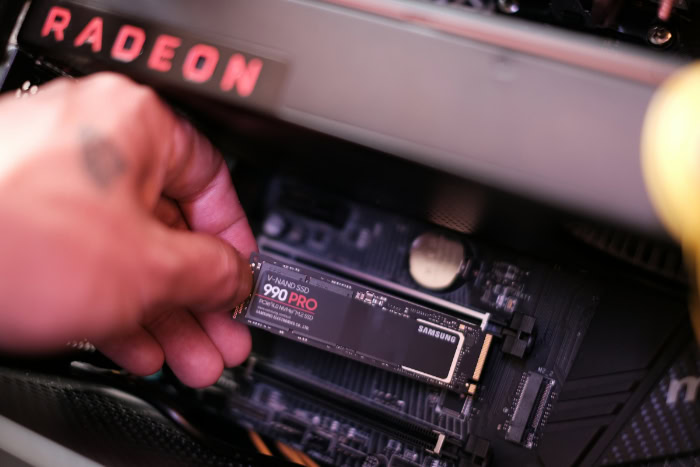
Solid-state drives have experienced some of the most visible changes during the transition between PCIe generations. While a faster connection dramatically increases theoretical transfer limits, the practical impact on daily tasks depends on how software reads and writes data.
Sequential vs. Random Read/Write Speeds
High-speed NVMe solid-state drives utilize sequential read and write operations when transferring large, contiguous files. PCIe 3.0 NVMe drives typically top out at sequential read speeds of around 3,500 Megabytes per second (MB/s).
PCIe 4.0 drives double this capability, reaching speeds up to 7,000 MB/s or higher. However, standard operating system tasks, program launches, and general system responsiveness rely on random read and write operations, which deal with small files scattered across the storage drive.
Because random read performance is limited by flash memory latency rather than bus bandwidth, the differences between Gen 3 and Gen 4 SSDs in daily office tasks or boot times are almost impossible to perceive.
Asset Streaming and DirectStorage
Modern gaming APIs, such as Microsoft’s DirectStorage, are changing how storage bandwidth is utilized. DirectStorage allows games to bypass the CPU and stream compressed assets directly from an NVMe drive into the graphics card’s video memory.
This operation relies heavily on high sequential speeds to eliminate loading screens and prevent asset pop-in during fast-paced movement in open-world environments. In games optimized for this technology, a PCIe 4.0 SSD significantly reduces loading times compared to a PCIe 3.0 drive, enabling smoother transitions and more immersive game environments.
Thermal Output and Cooling Solutions
Processing data at 7,000 MB/s requires more electrical power, which in turn generates significant heat. The controller chips on PCIe 4.0 SSDs run noticeably hotter than those on PCIe 3.0 drives.
Without adequate cooling, a PCIe 4.0 drive will quickly reach its thermal limits during prolonged transfers, triggering thermal throttling to protect the components from damage. This throttling temporarily drops the transfer speed down to basic SATA levels.
Consequently, PCIe 4.0 drives require a physical heatsink, either provided by the motherboard manufacturer or pre-installed on the drive, along with decent case airflow to maintain high performance.
Cost-to-Performance Evaluation and Practical Use Cases

Choosing between these PCIe generations involves balancing performance demands against financial costs. For many computer users, paying a premium for newer motherboard chipsets and processors is not always the most practical financial move.
The General Productivity and Office User
For users whose daily workloads consist of web browsing, document editing, spreadsheets, and streaming video, PCIe 3.0 is more than capable. These activities do not saturate the bandwidth of older connection standards, and upgrading to a PCIe 4.0 system will yield no noticeable improvement in speed or responsiveness.
Sticking with a PCIe 3.0 platform allows office and productivity users to allocate their budget toward more impactful upgrades, such as higher system memory capacity or more storage space.
The Gamer and Content Creator
Gamers and content creators are far more likely to benefit from the expanded bandwidth of PCIe 4.0. Content creators who regularly edit high-resolution video, work with large raw image files, or compile massive software codebases will see substantial time savings when moving files or loading project caches.
For gamers, having a PCIe 4.0 system ensures compatibility with modern asset streaming technologies and prevents performance degradation when using modern budget graphics cards with restricted physical lane counts.
Upgrading vs. Building New
If you are building a new computer from scratch, starting with a PCIe 4.0 motherboard and processor is highly recommended to ensure compatibility with modern hardware standards. However, if you already own a functional PCIe 3.0 system, a complete platform replacement is rarely necessary.
Buying a PCIe 4.0 graphics card or SSD for a PCIe 3.0 motherboard is still a viable strategy, as the components will run reliably at Gen 3 speeds, allowing you to get more years out of your current setup before needing to purchase a new CPU and motherboard.
Conclusion
The transition from PCIe 3.0 to PCIe 4.0 centers primarily on data transfer rates, with Gen 4 doubling the bandwidth from 16 GB/s to 32 GB/s on a standard x16 slot. While both generations are fully backward and forward compatible, the practical performance impact is highly selective.
High-end graphics cards with full lane configurations run almost identically on both standards, whereas budget graphics cards with restricted physical lanes and high-speed NVMe solid-state drives require PCIe 4.0 to operate at their full potential.
When choosing which standard to prioritize, base your decision on your current hardware and specific workflow requirements. If you are building a new system from scratch, investing in a PCIe 4.0 platform provides essential future-proofing and optimal performance for budget-tier GPUs or fast storage.
However, if you are running a functional PCIe 3.0 system, upgrading individual components remains highly viable, as most daily productivity tasks and standard gaming setups do not saturate the limits of the older standard.
Frequently Asked Questions
Will a PCIe 4.0 graphics card work in a PCIe 3.0 motherboard?
Yes, a PCIe 4.0 graphics card will work in a PCIe 3.0 slot because the technology is backward compatible. However, the card will be restricted to the slower speeds of the PCIe 3.0 slot. For high-end cards with sixteen lanes, this speed reduction has a negligible impact on performance.
Do I need a heatsink for a PCIe 4.0 SSD?
Yes, you should use a heatsink for a PCIe 4.0 solid-state drive to prevent thermal throttling. Because these drives process data at extremely high speeds, they generate substantial heat during heavy transfers. Without proper cooling, the drive will automatically slow down to protect itself from heat damage.
Why does my computer run slowly with a PCIe riser cable?
Your system is likely experiencing signal instability because you are using a PCIe 3.0 riser cable with PCIe 4.0 hardware. The older cable lacks the physical shielding required to handle higher frequency signals. You can resolve this by changing the PCIe slot speed to Gen 3 in your motherboard BIOS.
Can I notice the speed difference between a Gen 3 and Gen 4 SSD?
You will not notice a speed difference during normal daily tasks, but you will see a massive improvement during large file transfers. Standard computer boot times and app launches rely on random read speeds, which are limited by flash memory latency. The expanded Gen 4 bandwidth only helps with massive file movements.
Which processors and motherboards support PCIe 4.0?
You need at least an AMD Ryzen 3000 series or Intel 11th Gen desktop processor paired with a compatible motherboard to enable PCIe 4.0. For AMD, B550 or X570 motherboards are required, while Intel requires at least a 500-series motherboard chipset. Older hardware configurations will automatically fall back to PCIe 3.0 speeds.
About the Author: Julio Caesar


