
Internal vs. External SSD: Which Should You Buy?

Most computer users eventually see the warning that their primary storage drive is full. Heavy media files, operating system updates, and modern programs can quickly overwhelm personal laptops and desktop towers.
Today, systems address this shortage with solid-state drives (SSDs). Unlike traditional mechanical hard drives that rely on spinning magnetic platters and moving read heads, SSDs store information on silent flash memory chips.
This design delivers lower power use, fast boot times, and rapid file transfers. When you need extra space, you face a practical choice: an internal drive mounted directly inside the computer chassis or an external drive connected through an exterior cable.
Finding the right solution means balancing raw data speed against portable convenience.
Key Takeaways
- Internal PCIe 4.0 NVMe drives reach speeds up to 7,500 MB/s with direct processor access, while standard USB 3.2 external drives max out around 1,050 MB/s due to port bandwidth limits and bridge chip latency.
- Operating systems like Windows 11 require an internal drive for stable operation, as USB external drives frequently face driver restrictions and connection dropouts during sleep or hibernation cycles.
- Modern gaming consoles like the PlayStation 5 and Xbox Series X/S require high-speed internal storage to play current-generation titles, restricting external USB drives to legacy game playback and cold backup storage.
- Internal drives sustain peak write performance longer due to motherboard heatsinks and PC case airflow, whereas compact portable drives can thermally throttle from 1,000 MB/s down to 100 MB/s during large file copies.
- Bare internal drives offer the lowest cost per gigabyte at the 1TB and 2TB tiers, and pairing an internal M.2 SSD with an inexpensive USB-C enclosure allows you to build a custom portable drive for less money than pre-assembled retail models.
Architectural Differences and Connection Types
Every storage drive relies on a specific physical and electrical architecture to communicate with a computer. The way a drive joins the system influences how quickly data travels, how the hardware draws electrical power, and how well delicate electronic parts survive daily handling.
Direct Motherboard Interfaces (PCIe NVMe and SATA)
Internal solid-state drives install directly onto the motherboard of a desktop computer or laptop. Modern systems primarily use M.2 slots, which accept slender circuit boards about the size of a stick of chewing gum.
Older desktop towers and larger laptops also support 2.5-inch SATA drive bays connected through flat data cables. Because internal drives sit directly on the motherboard or link to onboard SATA controllers, they benefit from direct data paths to the central processing unit (CPU) and system memory without intermediate bridges.
System power delivery flows cleanly through dedicated internal power rails or directly through the motherboard slot. A typical M.2 drive draws its 3.3V power directly from the PCIe slot, while a 2.5-inch drive receives 5V or 12V through a standardized power supply cable, eliminating reliance on external power bricks or port limitations.
External Connection Ports (USB and Thunderbolt)
External solid-state drives attach to computers through exterior ports, relying on standardized cables such as USB-A, USB-C, and Thunderbolt. Unlike internal drives, an external SSD cannot talk directly to the processor.
Instead, the enclosure contains a bridge chip that translates storage commands across external ports, converting NVMe or SATA protocols into USB or Thunderbolt data packets. This translation process adds an operational layer between the drive and the operating system.
External drives also depend completely on host ports for electrical power. A standard USB-A port might deliver only 4.5 watts of power (5V at 0.9A), whereas modern USB-C and Thunderbolt ports can supply 15 watts or more.
If a host device cannot deliver adequate power, an external drive might disconnect unexpectedly or fail to register during write operations.
Protective Shells and Drive Assembly
The mechanical construction of these two formats reflects their intended operating environments. An internal M.2 SSD features an exposed printed circuit board with bare flash memory chips and a controller chip soldered directly to its surface.
These parts require careful handling during installation to prevent static damage. Inside a computer, internal drives often use thermal pads coupled to metal motherboard heatsinks to pull heat away from hot controllers.
In contrast, portable external drives encase delicate flash chips inside ruggedized housings. Manufacturers build these enclosures with thick aluminum casings, rubber bumpers, and silicone sleeves to cushion accidental drops.
Because portable drives must fit into a pocket or backpack, their chassis designs balance impact resistance with passive heat dissipation, relying entirely on the outer shell to shed warmth into the surrounding air.
Speed and Data Transfer Capabilities

Data transfer speeds determine how quickly a storage drive loads operating systems, opens heavy programs, and duplicates large directories. While both internal and external drives employ fast flash memory, their communication protocols and thermal limitations create distinct performance tiers.
Bandwidth Limits and Sequential Read/Write Rates
Internal drives utilize PCIe lanes directly connected to the CPU, delivering massive theoretical throughput. A modern PCIe 4.0 NVMe drive can achieve sequential read speeds up to 7,500 MB/s across 4 PCIe lanes, while cutting-edge PCIe 5.0 drives exceed 14,000 MB/s.
External drives face strict bandwidth caps imposed by exterior connection standards. A standard USB 3.2 Gen 2 port maxes out at 10 Gbps, yielding sequential transfer rates of roughly 1,050 MB/s.
Faster USB 3.2 Gen 2×2 connections push this boundary to 20 Gbps (about 2,000 MB/s), while Thunderbolt 4 and USB4 interfaces reach up to 40 Gbps, enabling practical speeds near 3,000 MB/s. For everyday tasks such as moving text documents or photos, both formats complete tasks in fractions of a second.
During massive transfers, such as copying a 100GB video library, an internal drive can finish the transfer in under 15 seconds, whereas a standard external USB drive requires more than 1 minute.
Data Latency and System Responsiveness
Pure transfer speed tells only part of the story, as data latency determines how snappy a system feels during daily use. Internal NVMe drives communicate directly with the processor using the low-overhead NVMe protocol, resulting in minimal command latency and input/output operations per second (IOPS) that often exceed 1 million.
External drives introduce additional processing delay because their bridge controllers must convert storage commands into USB packets before sending them across the host bus. This bridge conversion adds microsecond delays to every individual command.
While these tiny delays go unnoticed when transferring a single large video file, they accumulate quickly during micro-tasks. Opening an application requires reading thousands of small configuration files, and higher latency across external interfaces can make the entire operating system feel less responsive.
Heat Dissipation and Sustained Performance
Solid-state drives produce substantial heat during intensive read and write sessions, especially near the controller chip. Desktop computers and modern laptops manage this thermal energy with metal heatsinks, thermal interface pads, and constant airflow provided by chassis fans.
This cooling keeps internal drives running within safe thermal limits during heavy workloads. Portable external drives lack active fans and feature cramped, sealed enclosures.
When subjected to continuous write sessions, such as backing up hundreds of gigabytes of media, the heat inside a small enclosure builds up quickly. To prevent physical damage, the drive controller triggers thermal throttling, automatically dropping transfer speeds from 1,000 MB/s down to 100 MB/s or lower until temperatures normalize.
Physical Setup and Daily Usability
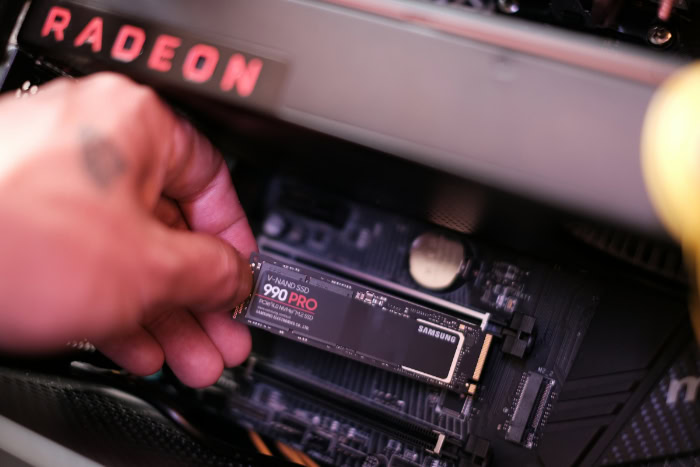
Beyond technical specifications, physical convenience and installation requirements heavily shape the ownership experience. Deciding between an internal upgrade and a portable drive often comes down to personal comfort with computer hardware, mobile workspace habits, and cable management preferences.
Hardware Installation and Tool Requirements
Installing an internal drive requires physical interaction with the inner components of a computer. Users must power down the machine, disconnect the main power source, and open desktop side panels or laptop base plates using small screwdrivers.
Fitting an M.2 drive involves aligning delicate pins, seating the board at an angle, and fastening a tiny screw or latch. For pre-built systems and retail laptops, opening the chassis can occasionally void manufacturer warranties or damage fragile plastic clips.
Conversely, external drives offer pure plug-and-play simplicity. Setting up an external drive requires zero tools and no technical disassembly.
A user simply plugs the provided cable into an available port, and the drive appears on the desktop ready for immediate use.
Portability and Multi-Device Flexibility
Internal solid-state drives remain stationary once installed, permanently housed inside a single desktop tower, console, or laptop. This setup offers dedicated local storage, but it prevents easy data sharing with other personal machines.
External drives excel at cross-device flexibility. A single portable SSD can transfer files between a Windows desktop at home, a MacBook at the office, an iPad on a flight, and an Android smartphone in the field.
Measuring only a few inches on each side and weighing under 3 ounces (85 grams), a pocket-sized drive lets commuters, students, and travelers carry terabytes of private data wherever they go without relying on internet access or cloud storage subscriptions.
Cable Dependency and Disconnection Hazards
Despite their mobility, portable drives introduce physical dependencies that stationary internal drives avoid. An external drive requires a tethering cable, typically measuring between 6 inches (15.24 cm) and 3 feet (0.91 meters) in length, which adds visual clutter to clean desks.
These physical connections also introduce disconnection hazards. Bumping a cord or unplugging a drive while the operating system writes data can cause directory errors and severe file corruption.
Over months of transport, physical ports and detachable cables also suffer from mechanical wear, loose connections, and bent pins. Internal drives eliminate these risks entirely by resting securely inside the chassis, away from bumps, spills, and accidental pulls.
Software and Workload Compatibility

Storage media must work smoothly with operating systems, gaming hardware, and professional creative software. How a drive communicates with a computer dictates whether it can run an operating system, host next-generation video games, or handle complex editing timelines without stuttering.
Boot Drive and Primary OS Execution
Internal solid-state drives serve as the natural foundation for primary operating systems such as Windows 11, macOS, and Linux distributions. Motherboard firmware natively supports booting from internal PCIe and SATA slots, ensuring reliable system startup, automatic driver initialization, and stable power state transitions.
Running a primary operating system from an external USB drive presents steep hurdles. Microsoft Windows explicitly blocks standard installations on removable USB drives without complex third-party workarounds.
Furthermore, external boot drives frequently crash or drop connection during system sleep, wake, and hibernation cycles, risking operating system instability and lost work whenever the computer enters low-power mode.
Game Library Management on Consoles and PCs
Modern gaming consoles maintain strict rules regarding storage expansion. Both the PlayStation 5 and Xbox Series X/S rely on custom high-speed storage architectures to deliver rapid game asset streaming.
The PlayStation 5 requires an internal M.2 NVMe SSD meeting specific speed benchmarks (at least 5,500 MB/s) to run modern PS5 titles. Similarly, the Xbox Series X/S only plays current-generation games from internal storage or proprietary expansion cards plugged into a dedicated internal-style bus.
External USB drives connected to these consoles can only store games as cold storage or play older legacy titles. On gaming PCs, internal NVMe drives support Microsoft DirectStorage, an application programming interface that routes compressed visual assets directly from the drive to the graphics card.
While external drives can run standard PC games, internal drives deliver faster loading sequences and smoother open-world asset streaming.
Heavy Workloads and Creative Production
Demanding creative tasks place intense demands on storage drives. Video editors and commercial photographers frequently use fast solid-state drives as scratch disks, which serve as temporary workspaces for rendering effects, caching audio waveforms, and generating preview files.
Internal NVMe drives provide the sustained bandwidth and low latency required for multi-stream 4K and 8K media playback, allowing editors to scrub through multi-camera timelines without dropped frames. External Thunderbolt drives can also handle intense editing workflows, though their higher cost per gigabyte makes them an expensive choice for permanent project archives.
For automated system backups and scheduled disk images, external drives remain the preferred format because they can be detached and stored in a fireproof safe or separate location to guard against local hardware failure.
Cost and Long-Term Value

Evaluating solid-state drives involves looking beyond immediate shelf prices to assess cost per gigabyte, modular flexibility, and hardware durability. Calculating the total return on investment ensures that chosen storage meets future digital needs without overspending.
Price Per Gigabyte Comparison
Bare internal drives generally cost less per gigabyte than retail external drives of identical capacity. A bare internal 1TB NVMe drive often sells for $60 to $80, while a factory-assembled 1TB external drive typically ranges from $80 to $110.
This price markup covers the external aluminum shell, thermal pads, the internal bridge circuit board, and bundled connection cables. For standard consumer budgets, 1TB and 2TB drives currently represent the sweet spot for value, offering the lowest price per gigabyte across both formats.
High-capacity drives reaching 4TB or 8TB carry substantial price premiums, making internal bare drives much more economical when building extensive local storage libraries.
Enclosure Kits as a Modular Alternative
Practical computer users often bypass pre-packaged portable SSDs by assembling modular alternatives. By purchasing a standalone internal M.2 NVMe drive and sliding it into an inexpensive third-party USB-C enclosure, users build a custom portable drive for less money than retail options.
This modular approach provides exceptional flexibility. If the external bridge chip malfunctions, the internal drive can be removed and placed into a new enclosure or installed directly into a desktop PC.
Similarly, when upgrading a computer with a larger internal drive, an owner can place the older drive into an enclosure kit, transforming spare hardware into a functional portable backup drive.
Physical Wear and Component Longevity
Environmental exposure and physical handling directly influence hardware durability. Internal drives rest in a protected environment inside the computer chassis, shielded from liquid spills, drops, and pet interference.
Their primary physical risk is heat accumulation over years of continuous service. Portable drives, meanwhile, face drops onto hard surfaces, exposure to dust, and cable tension.
In terms of software health tracking, internal drives provide direct access to Self-Monitoring, Analysis, and Reporting Technology (S.M.A.R.T.) telemetry through the motherboard bus, giving accurate warnings regarding remaining drive life and sector errors. While some external bridge chips pass S.M.A.R.T. information through USB ports, others block these commands, making it harder to track drive health.
Planning to replace storage drives every 5 years protects critical files against sudden hardware failure across both drive formats.
Conclusion
Choosing between internal and external solid-state drives centers on a trade-off between raw speed and portable flexibility. Internal drives provide direct access to the motherboard and processor, delivering the highest transfer speeds, lowest latency, and seamless system stability.
External drives sacrifice peak bandwidth for plug-and-play simplicity, letting you carry data anywhere and connect across multiple computers without using tools.
An internal SSD is the better choice for primary operating systems, demanding PC or console gaming, and continuous heavy workloads such as high-resolution video editing. In contrast, an external SSD excels as a portable scratch disk, a cross-device file transfer tool, or a secure physical backup drive stored away from your desk.
Selecting the right storage format depends on your machine’s physical expansion slots and your daily workflow. If your laptop or desktop has an open M.2 slot and you want permanent, maximum-speed storage, an internal drive delivers the best performance per dollar.
If opening your computer feels intimidating, or if you need to move massive files between different devices, a portable external drive offers unmatched day-to-day convenience.
Frequently Asked Questions
Can I run an operating system from an external SSD?
You can boot from an external drive, but it is rarely practical or reliable for daily use. Microsoft Windows actively restricts installations on removable USB drives without specialized software workarounds. Furthermore, external drives can drop connection or crash during sleep and hibernation states, making an internal drive far safer for your primary operating system.
Can I play modern games directly from an external SSD?
You can play older games from an external drive, but current consoles require internal storage for modern titles. Both the PlayStation 5 and Xbox Series X/S only store current-generation games on USB drives as cold backups. While PC games run from external drives, an internal NVMe drive delivers significantly faster load times and smoother asset streaming.
Is an internal SSD always faster than an external SSD?
Yes, internal drives are consistently faster than external drives because they bypass external connection limits. An internal PCIe 4.0 drive reaches speeds up to 7,500 MB/s, while standard USB-C external drives cap out near 1,050 MB/s. Internal drives also connect directly to the processor, which reduces latency and makes routine computer tasks feel noticeably snappier.
Can I turn an internal SSD into a portable external drive?
Yes, you can easily convert an internal drive into a portable external drive using an enclosure kit. You simply slide a bare M.2 NVMe solid-state drive into a third-party USB-C enclosure and secure the housing. This modular setup costs less than buying a retail portable drive and lets you reuse older internal drives as high-speed mobile storage.
Why do external SSDs slow down during large file transfers?
External drives slow down during extended transfers because excess heat triggers automatic thermal throttling. In addition, once the drive exhausts its fast temporary cache memory, write speeds drop substantially. Because small portable aluminum enclosures lack active cooling fans, the internal controller chip intentionally drops transfer rates to prevent the memory chips from overheating and suffering permanent damage.
About the Author: Julio Caesar


