
USB-C vs. Thunderbolt 3 vs. Thunderbolt 4: Explained

Modern laptops feature small oval ports that look completely identical from the outside. However, plugging a cable into one can produce very different results depending on the machine.
One port might struggle with an external drive, while another powers high-resolution screens and moves gigabytes of data in seconds.
This confusion happens because the familiar oval shape is only the physical plug, known as USB-C. The invisible data system operating behind that opening determines what the port can actually do.
While some run basic USB rules, others support advanced Thunderbolt 3 or Thunderbolt 4 technologies.
Key Takeaways
- USB-C refers solely to the physical, reversible oval connector, while internal protocols such as standard USB, Thunderbolt 3, and Thunderbolt 4 govern actual speeds and capabilities.
- Standard USB-C ports offer transfer rates between 5 Gbps and 10 Gbps, whereas Thunderbolt 3 and Thunderbolt 4 provide a much higher ceiling of 40 Gbps.
- Thunderbolt 4 doubles the minimum PCIe data transfer requirement from 16 Gbps in Thunderbolt 3 to 32 Gbps, guaranteeing faster external solid-state drive performance.
- A single Thunderbolt connection can natively power two 4K monitors at 60Hz or one 8K display, while basic USB-C connections are typically restricted to driving one 4K screen.
- Common charging cables packaged with mobile devices often cap data transfers at slow USB 2.0 speeds of 480 Mbps, making certified high-bandwidth cables necessary for external drives.
Connector Design vs. Internal Data Protocols
Many computer buyers assume that identical plugs always deliver identical performance. Modern electronics, however, separate the physical shape of a connector from the underlying communication rules that dictate speed and features.
While two ports may look identical from the outside, their internal capabilities depend entirely on the specific transmission technology built into the computer motherboard.
The Universal USB-C Oval Port
USB-C refers strictly to the physical design of the connector and the matching socket. Unlike older rectangular USB-A connectors, the USB-C plug features a symmetrical oval shape with rounded edges.
This reversible design eliminates the frustration of trying to insert a cable upside down; either orientation works seamlessly every time. Because of its compact size and versatility, electronics makers have adopted this oval port across modern laptops, tablets, smartphones, and computer accessories.
The physical shape merely provides the entryway for signals, meaning that an oval port on a budget laptop might perform very differently from an oval port on a premium desktop workstation.
Port Symbols and Visual Identification Markers
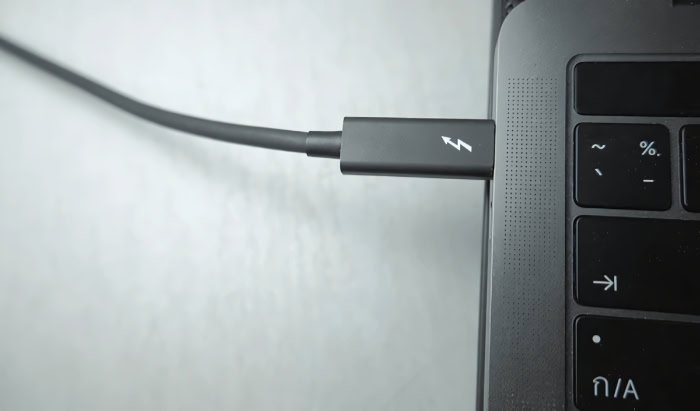
To tell different ports apart, manufacturers often print small symbols next to the openings. A standard USB-C port frequently features the traditional USB trident symbol, sometimes accompanied by a small “SS” indicating SuperSpeed data capabilities or a battery icon denoting charging support. Thunderbolt ports, on the other hand, feature a distinct lightning bolt icon stamped directly above or beside the oval slot.
Certain newer computers include a small number 4 next to the lightning bolt to signify Thunderbolt 4 support.
Not every manufacturer labels their ports clearly. Sleek laptops often omit logos entirely to keep the chassis looking clean and minimal.
When port markers are missing, checking the computer system software provides definitive answers. On Windows laptops, opening Device Manager and expanding the system controllers list reveals whether a Thunderbolt controller exists.
On Apple computers, opening the System Information utility under the Apple menu lists all installed hardware, detailing whether the oval connections support standard USB protocols or Thunderbolt speeds. Consulting the technical specifications in the original product documentation also confirms the exact capabilities of each slot.
Standard USB-C Protocol Speeds
When an oval port runs on basic USB technology rather than Thunderbolt, its transfer rate follows specific USB naming generations. Older and budget-friendly devices often rely on USB 3.2 Gen 1, which tops out at a data transfer speed of 5 Gbps.
More capable laptops incorporate USB 3.2 Gen 2, doubling that ceiling to 10 Gbps. A less common format, USB 3.2 Gen 2×2, combines multiple internal channels to achieve 20 Gbps.
Even though these standard USB connections are fast enough for everyday office tasks, backing up occasional documents, and running external mice or printers, they represent the lower end of modern port capability. Data speeds between 5 Gbps and 10 Gbps remain capped well below what advanced hardware requires.
Heavy workloads quickly encounter these ceilings, which is why higher-end computers incorporate more sophisticated data technologies into the exact same physical slot.
Bandwidth and Data Transfer Performance

Bandwidth defines how much information can travel through a cable at any given moment. Think of bandwidth as a highway where data travels in moving vehicles; wider highways accommodate more simultaneous traffic without creating slowdowns.
Selecting the right connection standard ensures that storage drives, accessories, and system data move smoothly without creating performance bottlenecks.
Maximum Bandwidth Limits Across Each Standard
The primary distinction between basic USB connections and Thunderbolt technology lies in total bandwidth capacity. Standard USB-C connections top out between 10 Gbps and 20 Gbps under the best circumstances, with many budget ports operating at only 5 Gbps.
Thunderbolt 3 and Thunderbolt 4 leap far ahead, providing a maximum theoretical bandwidth of 40 Gbps.
This massive bandwidth pool does not just make individual file transfers faster. It also changes how a computer distributes resources.
In standard USB setups, sharing bandwidth between displays, audio, and storage often forces connected accessories to compete for the same limited channel. Thunderbolt technology allocates bandwidth dynamically, allowing high-speed data transfers to run at full speed even while external displays and other peripherals remain active on the same physical link.
Dedicated Data Lanes for High-Speed Storage
External storage drives rely heavily on PCIe channels, which are the same high-speed pathways that internal components use to communicate directly with the computer processor. Standard USB connections do not offer direct PCIe access; instead, they translate data through intermediate USB controllers, creating overhead and capping throughput.
Thunderbolt technology includes dedicated PCIe data lanes built directly into the protocol. Thunderbolt 3 reserves up to 16 Gbps of PCIe bandwidth for data storage, while Thunderbolt 4 doubles that minimum guarantee to 32 Gbps.
This dedicated throughput means that an external solid-state drive plugged into a Thunderbolt 4 port can achieve read and write speeds comparable to an internal storage drive, without sacrificing performance when other devices share the connection.
Transfer Efficiency for Large Media Files
For everyday activities such as saving text documents, streaming music, or browsing the internet, the difference between standard USB-C and Thunderbolt is barely noticeable. A basic USB-C port running at 5 Gbps transfers a typical office folder or a handful of music tracks in a fraction of a second.
The true advantage of Thunderbolt speeds emerges when working with massive data libraries. Moving a 50GB folder of high-definition video footage or thousands of raw camera photographs can take several minutes over a standard 5 Gbps or 10 Gbps USB-C connection.
Over a Thunderbolt connection with a compatible external drive, that same 50GB transfer finishes in approximately 20 to 30 seconds. For digital media editors, photographers, and audio engineers who regularly handle massive project archives, this dramatic reduction in waiting time saves substantial hours every week.
Video Output and Monitor Capabilities

Beyond simply transmitting data and power, modern oval ports can replace traditional video connectors like HDMI and DisplayPort. A single slim cable can now send high-definition video signals directly to external screens while simultaneously powering the host laptop.
However, the number of displays and the image fidelity a computer can support depend on the protocol driving the port.
Screen Count Limits by Connection Type
Standard USB-C ports utilize a feature known as DisplayPort Alternate Mode to output video. Under standard USB protocols, this setup typically limits the computer to driving only one external display per port.
Connecting multiple screens to a basic USB-C hub often results in duplicate displays that mirror each other, rather than providing separate, extended desktop workspaces.
Thunderbolt technology removes this limitation by natively packaging two separate DisplayPort video streams into a single connection. A single Thunderbolt 3 or Thunderbolt 4 port can drive two independent external displays simultaneously.
This allows users to spread their desktop windows across multiple screens without purchasing separate video adapters or plugging individual cables into different sides of the laptop.
Maximum Resolutions and Refresh Rates
Resolution and refresh rates determine how crisp images look and how smoothly motion appears on screen. Standard USB-C ports generally have sufficient bandwidth to power a single 4K monitor at 60Hz.
If a user tries to push beyond that threshold or connect additional accessories to the same port, the video quality or refresh rate may drop to 30Hz, resulting in choppy mouse movement and noticeable window lag.
Thunderbolt connections offer much greater visual headroom. Thanks to the 40 Gbps bandwidth ceiling, Thunderbolt 3 and Thunderbolt 4 easily run two 4K monitors at 60Hz with rich color reproduction.
For specialized creative workstations, a Thunderbolt 4 port can even handle a single 8K display at 60Hz. This capability ensures that high-resolution displays run smoothly without compromising the performance of attached hard drives or network adapters.
Port Layout Options: Direct Cables vs. Multi-Port Hubs
Organizing a multi-monitor workstation involves choosing between direct cable runs and centralized docking hubs. Direct cabling requires running an individual cable from each monitor directly into an available port on the computer.
While simple, this approach quickly consumes all available ports on a slim laptop and creates cable clutter across the desk surface.
Multi-port hubs and docking stations provide a much cleaner layout. Thunderbolt enables daisy-chaining, where a cable connects from the laptop to a primary device, and a second cable connects from that device to a monitor or second accessory in a linear sequence.
Alternatively, branch-style Thunderbolt docking stations act as a central desktop command center. A single cable connects the laptop to the dock, which then branches out to power two independent monitors, wired internet, external speakers, and multiple USB devices, transforming a mobile laptop into a full desktop workstation with one connection.
Technical Upgrades in Thunderbolt 4
Although Thunderbolt 4 shares the same 40 Gbps top speed as its predecessor, it introduces stricter baselines that make hardware performance much more predictable. In earlier generations, computer makers could choose which capabilities to support, creating situations where two identical-looking ports behaved very differently.
Thunderbolt 4 eliminates that variability by turning previously optional capabilities into mandatory requirements.
Stricter Minimum Hardware Standards
The transition from Thunderbolt 3 to Thunderbolt 4 focuses on tightening manufacturer baselines. Under the older Thunderbolt 3 standard, laptop makers were permitted to implement lower-tier configurations to save money or power.
For instance, some laptops only connected two PCIe lanes to the port instead of four, cutting potential storage performance in half without warning the buyer. Thunderbolt 3 also only required support for a single external 4K monitor.
Thunderbolt 4 enforces uncompromising rules for computer certification. Every laptop bearing the Thunderbolt 4 logo must support at least two 4K displays at 60Hz, or a single 8K display at 60Hz.
Furthermore, the standard doubles the required PCIe data transfer minimum from 16 Gbps to 32 Gbps. This change ensures that high-speed external drives and external graphics expansion enclosures consistently operate at their full potential, regardless of which brand built the computer.
Multi-Port Accessory Support and Sleep Wake Controls
Older connectivity standards placed strict limits on how accessories connected to a computer. Thunderbolt 3 docks generally relied on linear daisy chains, meaning users had to string devices together in a single line, and hubs could only offer two Thunderbolt ports in total.
Thunderbolt 4 removes this bottleneck by introducing multi-port accessory hubs with up to four independent ports. A hub can receive one upstream connection from the laptop and provide three fully capable downstream Thunderbolt 4 ports, letting users plug in multiple high-speed drives and monitors simultaneously without daisy-chaining.
Convenience also improves through sleep wake controls. Under previous protocols, putting a laptop into sleep mode often severed the link to connected peripherals, requiring users to open the laptop lid to wake the machine.
Thunderbolt 4 mandates peripheral wake support on certified docking stations. Moving an attached mouse or pressing a button on a connected dock instantly wakes the computer, allowing docked laptops to remain closed and tucked out of the way.
Memory Protection and System Security
Because Thunderbolt communicates directly with system memory through PCIe channels, it requires robust protection against malicious hardware. Older ports were sometimes susceptible to unauthorized Direct Memory Access, or DMA, attacks.
If an attacker plugged a compromised drive into an unprotected system, malicious code could potentially read data stored in the computer memory before the operating system could block it.
Thunderbolt 4 addresses this vulnerability by requiring Intel Virtualization Technology for Directed I/O, commonly known as VT-d DMA protection. This security protocol creates isolated memory spaces, preventing any external peripheral from accessing unauthorized parts of the system memory.
By making DMA protection mandatory for all certified hardware, Thunderbolt 4 ensures that connecting unfamiliar storage drives, network adapters, or display hubs does not expose sensitive personal files or corporate credentials.
Cable Compatibility and Device Selection

Selecting cables and accessories requires matching hardware capabilities with daily workflow requirements. Because modern ports share a single connector design while supporting several different internal protocols, picking the correct combination ensures optimal performance without unnecessary spending.
Backward Compatibility Across Cables and Ports
One major strength of the shared oval design is backward compatibility. A user can plug any standard USB-C device into a Thunderbolt 4 port, and the port will automatically adjust down to communicate using standard USB protocols.
Similarly, plugging a Thunderbolt peripheral into a standard USB-C port does not harm either piece of hardware; the accessory simply steps down to standard USB data transfer speeds, provided the accessory supports USB fallback mode.
Problems arise most frequently when choosing cables. Many budget oval cables bundled with phones or wall chargers are wired solely for electrical power and basic USB 2.0 data transfers, which top out at 480 Mbps.
Using one of these charge cables with a high-speed external drive or a monitor results in severe performance drops or an outright refusal to display video. Achieving the full 40 Gbps speed of Thunderbolt requires a certified Thunderbolt 3 or Thunderbolt 4 cable, which contains specialized internal circuitry to maintain signal strength across its entire length.
Power Delivery and Device Charge Standards
Beyond carrying data and video, oval connections deliver electrical power through USB Power Delivery, commonly known as USB-PD. Standard USB-C and Thunderbolt ports both leverage this protocol to eliminate the need for proprietary laptop power bricks.
Under standard USB-PD rules, ports can negotiate power transfers up to 100W, which is enough to run and charge most portable laptops, while newer revisions support power levels up to 240W for high-performance gaming machines.
This power flow works in both directions. While a wall charger or powered dock sends electricity into a laptop, the laptop port can also send power back out to connected accessories.
Thunderbolt 4 guarantees that ports supply at least 15W of electrical power to bus-powered accessories. This reliable power budget ensures that external solid-state drives, portable audio interfaces, and travel docks function reliably without requiring separate wall adapters.
Port Recommendations for Common User Profiles
Finding the ideal port setup comes down to the tasks performed each day. For everyday home and office users focused on web browsing, streaming media, and word processing, standard USB-C ports operating between 5 Gbps and 10 Gbps provide plenty of speed.
These ports handle basic file backups, wireless mouse receivers, and single external monitors while keeping laptop and accessory prices affordable.
Power users, office workers with multiple monitors, and digital content creators require the enhanced bandwidth of Thunderbolt. Content creators moving large video files benefit immensely from the 32 Gbps PCIe transfer floor provided by Thunderbolt 4, while office professionals can connect two 4K monitors, wired networking, and multiple external drives using a single cable connected to a certified dock.
Investing in Thunderbolt hardware provides the high data throughput and display flexibility needed for demanding multi-tasking setups.
Conclusion
The universal oval port simplifies hardware connections by replacing dozens of legacy cables with a single physical shape, yet the technology powering each port dictates your actual computing experience. USB-C serves as the physical plug, while Thunderbolt functions as an advanced data engine running behind it.
While Thunderbolt 3 introduced impressive 40 Gbps speeds, Thunderbolt 4 solidifies those capabilities by doubling PCIe storage bandwidth to 32 Gbps, requiring dual 4K display support, and enforcing memory security across every certified device.
Getting the best value from your hardware means selecting ports and cables that match your actual routine. Everyday web browsing, document editing, and basic peripheral connections operate seamlessly over standard USB-C without requiring premium accessories.
Digital media creators, multi-monitor power users, and anyone moving massive files will find that investing in Thunderbolt hardware delivers the speed, reliability, and desk organization necessary for an efficient modern workspace.
Frequently Asked Questions
Can I plug a Thunderbolt device into a regular USB-C port?
Yes, you can plug a Thunderbolt device into a standard USB-C port without damaging your hardware. However, the accessory will step down to standard USB data rates instead of full Thunderbolt speeds. If the device requires high bandwidth or advanced video protocols that the port lacks, it may run slowly or fail to display video.
How can I tell if my laptop port is Thunderbolt or just USB-C?
Look for a small lightning bolt icon printed directly next to the oval port on your laptop casing. If the port is unmarked, check your operating system settings. Windows users can review the system controllers list inside Device Manager, while Mac users can open System Information from the Apple menu to verify Thunderbolt support.
Why is my external hard drive transferring files so slowly over USB-C?
You are likely using a basic charging cable rather than a dedicated high-speed data cable. Many oval cords packaged with phones only support USB 2.0 speeds capped at 480 Mbps. To achieve rapid transfers, use a cable rated for at least 10 Gbps and ensure your laptop port supports fast data protocols.
Do I need Thunderbolt 4 if I only use one external monitor?
No, a standard USB-C port with video capabilities is plenty for a single monitor setup. Most standard USB-C connections easily power a 4K screen at 60Hz using DisplayPort Alternate Mode. You only require Thunderbolt 4 if you plan to connect two 4K displays, drive an 8K monitor, or attach ultra-fast storage drives.
Can any USB-C port charge my laptop?
Not every USB-C port supports charging, as laptops require ports compatible with USB Power Delivery. Some oval ports only transfer data and cannot receive incoming electrical current. To charge your machine, look for a port marked with a battery icon, or confirm that your computer supports power delivery in its technical manual.
About the Author: Julio Caesar


