
60Hz vs. 75Hz Refresh Rate: Does It Matter?
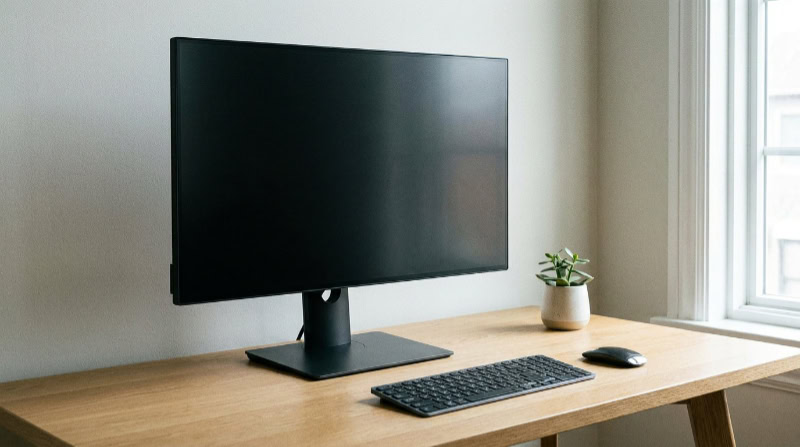
Investing in a new monitor is a decision that shapes how you experience every click, scroll, and video frame during your daily routine. Selecting the wrong specification can result in choppy visuals or rapid eye fatigue, making even minor technical variations highly consequential to your comfort.
The choice between 60Hz and 75Hz remains a common decision point for budget-conscious buyers seeking optimal value. Although a fifteen-hertz difference sounds negligible on paper, it represents a substantial proportional increase in display output.
Weighing how these entry-level refresh rates perform under different workloads makes it easier to select a display that aligns with your specific performance needs and budget.
Key Takeaways
- A 75Hz monitor updates the screen image 75 times per second, which represents a 25 percent performance increase over standard 60Hz displays.
- The transition from 16.7 milliseconds of latency at 60Hz to 13.3 milliseconds at 75Hz provides a more responsive feel during daily desktop tasks and casual gaming.
- Many budget-friendly 75Hz monitors feature built-in variable refresh rate technologies like AMD FreeSync, which dynamically match frame rates to prevent screen tearing.
- Using modern digital connections like HDMI or DisplayPort is necessary to output a true 75Hz signal, as older legacy connections like VGA are typically capped at 60Hz.
- Because the price difference between entry-level 60Hz and 75Hz displays is typically minimal, the higher refresh rate offers excellent value for general productivity and light entertainment.
Core Concepts of Refresh Rates
Before comparing specific hardware options, it is helpful to clarify the fundamental mechanics of how monitors display moving images. Visual quality and motion fluidity depend heavily on how a display communicates with a computer’s graphics hardware.
Definition of Monitor Refresh Rate (Hz)
A monitor’s refresh rate, measured in Hertz (Hz), represents the number of times the screen updates its displayed image each second. For example, a standard 60Hz monitor refreshes the picture exactly 60 times per second, which has served as the baseline standard for flat-panel displays for decades.
A 75Hz monitor increases this rate to 75 updates per second, representing an incremental 25 percent upgrade in the frequency of image updates. While this might seem like a modest change, it allows the screen to display more incremental stages of motion, resulting in a smoother rendering of movement.
Relationship Between Refresh Rate and Frame Rate (FPS)
Frame rate, measured in frames per second (FPS), refers to how many unique images the computer’s graphics card produces each second. In contrast, the refresh rate is the fixed physical limit of how many images the monitor can actually display in that same timeframe.
If a graphics card outputs 100 FPS but the monitor is capped at 60Hz, the user only sees 60 images per second, rendering the extra frames wasted. Conversely, if the graphics card outputs only 40 FPS on a 75Hz monitor, the screen must repeat certain frames to fill the gap, which can cause visible stutter or hesitation in motion.
Matching these two metrics is essential for achieving optimal visual performance.
Performance Comparison in Office and Productivity Tasks

While gaming often dominates the discussion around high refresh rates, daily office work and desktop usage also benefit from screen updates. Most professional environments rely on static layouts, but motion is constant in daily workflows.
Subtle improvements in how a screen handles basic transitions can have a noticeable effect on daily productivity.
Visual Smoothness in Basic Desktop Navigation
In everyday office tasks, the transition from 60Hz to 75Hz is most apparent during rapid movement across the desktop. Activities such as moving a mouse cursor, dragging application windows, and scrolling through dense documents appear slightly more fluid on a 75Hz screen.
On a 60Hz display, a fast-moving mouse cursor can appear to jump across the screen with visible gaps, whereas a 75Hz display reduces those gaps, rendering a more continuous path. Although a 25 percent increase in refresh rate does not offer a transformative difference, many users notice a cleaner, more responsive feel during long hours of data entry or web browsing.
Impact on Eye Strain and Visual Fatigue
Even when the human eye cannot consciously register individual screen refreshes, the brain still processes the subtle flicker of a monitor updating its image. Standard 60Hz displays can sometimes contribute to visual fatigue over extended periods because the update frequency sits near the threshold of perceptible flicker for some sensitive users.
Moving to a 75Hz refresh rate provides a more stable picture, reducing this micro-flicker. This slight reduction in display flicker can lower cognitive fatigue, helping to prevent headaches and dry eyes during long workdays.
Performance Comparison in Video Games

Interactive entertainment relies heavily on fast response times and clear visual feedback, making display performance a critical factor in gaming. The rate at which your monitor refreshes directly impacts how clearly you perceive moving targets and how quickly you can react to changing on-screen events.
For budget-conscious players, choosing between these two standard refresh rates can alter the overall feel of play.
Motion Clarity and Reduction of Motion Blur
When objects move rapidly across the screen, a lower refresh rate can cause a trailing effect commonly known as motion blur. Moving from 60Hz to 75Hz reduces the time an individual frame remains static on screen, which helps sharpen fast-moving elements.
In slow-paced strategy games or simulation titles, this improvement is barely noticeable because the camera remains relatively static. However, in fast-paced genres like first-person shooters or racing games, where the camera pans constantly, the extra frames help maintain the legibility of text, crosshairs, and distant opponents, providing a cleaner viewing experience.
Input Lag and Overall Responsiveness
Input lag is the delay between pressing a button and seeing the corresponding action occur on screen. A 60Hz monitor refreshes its image once every 16.7 milliseconds, creating an inherent hardware delay.
By upgrading to 75Hz, the refresh interval drops to 13.3 milliseconds, saving roughly 3.4 milliseconds of latency. While this reduction is far too small for most casual players to measure consciously, it translates into a tighter, more immediate connection to the game.
Actions like aiming a weapon or moving through obstacle courses feel slightly more direct and intuitive.
Screen Tearing and Adaptive Sync Compatibility
Screen tearing occurs when a graphics card outputs frames at a rate that does not align with the monitor’s refresh cycle, causing the display to show portions of multiple frames simultaneously. While a standard 60Hz monitor is prone to this misalignment unless capped by restrictive software limits, many modern 75Hz monitors come equipped with built-in variable refresh rate technologies like AMD FreeSync.
These features allow the monitor to dynamically adjust its refresh rate to match the exact output of the graphics card, eliminating screen tearing without introducing the heavy input lag associated with traditional vertical sync settings.
Hardware and Setup Requirements

Upgrading your display requires verifying that your current computer hardware can support the increased performance demands. While 75Hz is not an extreme specification, it still requires proper connectivity and configuration to function as intended.
Ensuring your system is correctly configured prevents you from running an upgraded monitor at baseline speeds.
System Resource Demands on the Graphics Card
Driving a monitor at 75Hz requires the graphics card to render 15 more frames per second than it would at 60Hz. For modern dedicated graphics cards, this extra demand is negligible and will not cause a noticeable drop in overall system performance.
However, for older computers or systems relying on basic integrated graphics processors, rendering 75 frames per second in modern applications or games can strain resources. If your system already struggles to maintain a stable 60 frames per second, upgrading to a 75Hz monitor will not provide a smoother experience unless you lower your game’s graphical settings.
Cable Compatibility and Interface Limitations
Connecting a 75Hz monitor requires a cable that can handle the necessary data bandwidth. Standard HDMI and DisplayPort cables easily support 75Hz at standard resolutions like 1080p, making them the preferred options for modern setups.
Older analog interfaces like VGA or early DVI standards often face bandwidth limits that restrict output to 60Hz, particularly at higher resolutions. To ensure you receive the full performance of your monitor, you should avoid using legacy ports or low-quality adapters and stick to modern digital connections.
Manual Configuration in Display Settings
A common issue when setting up a 75Hz monitor is that operating systems often default to 60Hz out of the box to ensure basic compatibility. To activate the higher refresh rate, you must manually adjust your operating system’s display settings.
In Windows, you can resolve this by opening the settings menu, choosing system display options, selecting advanced display settings, and choosing 75Hz from the refresh rate dropdown menu. On macOS, a similar adjustment can be made in the displays section of system settings, ensuring that your hardware is actually operating at its maximum specified speed.
Value Assessment and Purchase Advice

Deciding which monitor to buy ultimately requires balancing performance benefits against financial costs. For budget-conscious buyers, even small price differences can influence the decision.
Evaluating how these options fit into the broader monitor market will help clarify the best option for your workspace.
Cost Analysis of Budget Monitors
In the modern display market, the price gap between standard 60Hz and 75Hz monitors has shrunk significantly, often amounting to less than ten or twenty dollars for budget models. Because of this small price difference, the 15Hz increase offers a solid price-to-performance ratio.
For a very minor premium, buyers get a 25 percent increase in fluid motion and access to useful features like variable refresh rate compatibility, making 75Hz panels a highly cost-effective upgrade over standard baseline models.
Comparison of the 75Hz Upgrade to Higher Refresh Rates
While 75Hz is a clear step up from 60Hz, it is important to consider where it stands relative to higher refresh options like 100Hz or 144Hz. These higher-tier displays are also becoming more affordable and offer a far more dramatic improvement in fluid motion, especially for gaming.
If you play fast-paced competitive games regularly, bypassing 75Hz entirely and saving for an entry-level 144Hz display is often the more logical choice. However, if your budget is strictly limited or if your computer cannot output more than 75 frames per second, the 75Hz display remains a sensible stopping point.
Recommendation Metrics for Different User Profiles
The ideal display choice depends primarily on your daily usage patterns and hardware setup. For office workers, students, and general users who spend hours reading text, writing documents, and browsing the web, a 75Hz monitor is an excellent, low-cost choice that helps minimize eye fatigue without requiring a high-end graphics card.
For casual gamers who enjoy slower-paced genres and operate on a strict budget, 75Hz provides a welcome boost in responsiveness and tearing prevention. In contrast, those with more modern systems or competitive gaming aspirations should consider looking past these baseline options in favor of higher refresh rates.
Conclusion
The choice between 60Hz and 75Hz represents a subtle but meaningful upgrade in visual comfort and overall responsiveness. On paper, the 25 percent increase in refresh rate provides smoother cursor movements, cleaner scrolling, and reduced screen flicker, which can help lower visual fatigue during long periods of office work.
In casual gaming, the drop in rendering latency from 16.7 milliseconds to 13.3 milliseconds combined with the integration of variable refresh rate technologies results in a more cohesive visual experience with less screen tearing.
Deciding to opt for 75Hz ultimately depends on your budget and current hardware setup. Because the price premium for a 75Hz display is often minimal, selecting one is a highly sensible convenience for students, office workers, and casual gamers operating on strict budgets.
However, if your system can output higher frame rates and you play fast-paced competitive games, bypassing both options to save for a higher-tier display is a more logical investment.
Frequently Asked Questions
Can I use any cable to get 75Hz on my monitor?
You need to use a modern digital cable like HDMI or DisplayPort to achieve a full 75Hz refresh rate. Older analog cables like VGA or early DVI standards often lack the necessary bandwidth to support this refresh rate, especially at higher resolutions. Using the correct cable prevents your monitor from reverting to 60Hz.
Will a 75Hz monitor make my games run smoother?
Yes, a 75Hz monitor will display motion more fluidly if your computer is powerful enough to generate at least 75 frames per second. The higher refresh rate reduces motion blur and shortens the visual delay between updates. However, if your computer struggles to output high frame rates, you will not notice any improvement.
Do I need a special graphics card for a 75Hz screen
No, you do not need a high-end graphics card to run a standard 75Hz display. Almost all modern integrated and dedicated graphics processors can easily handle the basic desktop output and light workloads of a 75Hz refresh rate. Only older systems running demanding games might experience performance drops when trying to hit 75 frames per second.
Why does my new 75Hz monitor say it is only running at 60Hz?
Most monitors default to a standard 60Hz refresh rate out of the box to ensure basic system compatibility. To enable the full 75Hz performance, you must manually change the setting in your computer’s operating system display properties. Selecting the correct refresh rate in your Windows or macOS settings will instantly resolve this common issue.
Does 75Hz actually help reduce eye strain?
Yes, a 75Hz display can help reduce eye strain by updating the image more frequently and minimizing screen flicker. Even when you cannot consciously see the screen refreshing, your brain detects the micro-flicker of a 60Hz display over long hours of work. Moving to 75Hz offers a more stable image for daily productivity.
About the Author: Julio Caesar


