
DVI vs. HDMI: Which Display Cable Do You Need?

Display interfaces connect computer towers, laptops, and media players to external monitors and television screens. In the early 2000s, the Digital Visual Interface (DVI) replaced aging analog VGA cables, bringing crisp digital video to desktop computing.
As home entertainment merged with personal computers, High-Definition Multimedia Interface (HDMI) emerged to carry both uncompressed digital picture and multi-channel audio through a single compact plug. While HDMI dominates modern consumer electronics, millions of functional DVI displays and graphics cards remain in active service.
Comparing physical connector designs, signal architecture, bandwidth limits, and cross-compatibility highlights how both standards handle modern computing tasks. Knowing where their strengths and limitations lie ensures optimal video clarity and seamless hardware integration across old and new equipment.
Key Takeaways
- Both interfaces share the same underlying TMDS digital video technology, delivering identical image clarity and color accuracy at standard 1080p resolution.
- HDMI carries uncompressed multi-channel audio through a single cable, whereas native DVI transmits video only and requires a separate 3.5 mm or optical audio line.
- Dual-Link DVI maxes out at 2560×1600 at 60Hz and 1080p at 144Hz, while modern HDMI 2.1 delivers 48 Gbps of bandwidth to support 4K at 120Hz and 8K at 60Hz.
- Passive DVI-to-HDMI adapters work without external power for simple video conversion, but they are limited to Single-Link speeds capping output at 1080p at 60Hz.
- DVI serves as a dependable connection for secondary office monitors, while HDMI is mandatory for modern gaming consoles, smart televisions, and high dynamic range displays.
Physical Connector Designs and Port Types
The mechanical layout of a display cable directly influences how devices connect, fit into workspaces, and remain anchored during operation. Looking at the physical housings of both standards reveals contrasting design philosophies tailored to different eras and equipment sizes.
DVI Variations and Pin Configurations
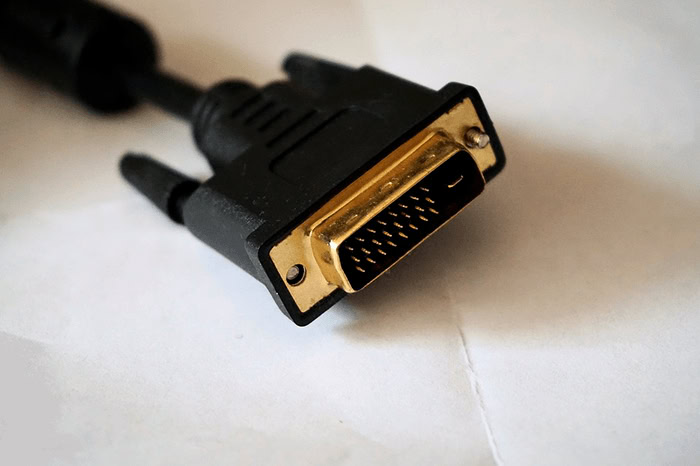
The Digital Visual Interface standard uses a large, rectangular plug containing a grid of pin receptacles and a flat ground blade. Three distinct variants exist to handle different transmission modes.
DVI-D carries digital signals exclusively, making it standard for flat-panel LCD monitors. DVI-A transmits only analog signals, functioning primarily as a legacy bridge to cathode-ray tube (CRT) displays through VGA adapters.
DVI-I combines both formats within a single port, offering integrated pins that transmit digital and analog signals simultaneously.
Pin arrangements also dictate bandwidth capability. Single-Link DVI features an 18-pin digital grid split into two separate 9-pin blocks, separated by a gap.
Dual-Link DVI fills that central gap with 6 additional pins, creating a solid 24-pin digital cluster. These extra pins provide a second data transmitter path, enabling higher resolutions and faster refresh rates.
Beside the main pin block, 4 analog pins surround a flat ground bar on DVI-I and DVI-A connectors, whereas DVI-D omits these 4 pins entirely.
Standard, Mini, and Micro HDMI Form Factors
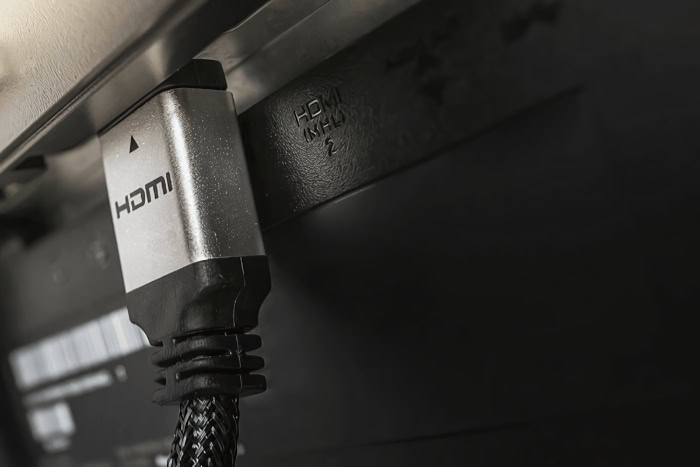
The High-Definition Multimedia Interface relies on a much smaller, symmetrical 19-pin connector with beveled lower corners that ensure correct insertion orientation. The most widespread variation is Type-A, measuring roughly 14 mm wide.
Type-A ports appear universally across television panels, computer graphics cards, desktop monitors, and home video game consoles.
Compact devices utilize scaled-down form factors to preserve chassis space. Type-C, commonly known as Mini HDMI, measures 10.42 mm wide and appears on camcorders, digital cameras, and older tablets.
Type-D, or Micro HDMI, measures just 5.83 mm wide, matching the approximate size of older micro-USB charging ports. Micro HDMI enables ultra-thin laptops, action cameras, and portable media players to output high-resolution video without requiring thick external enclosures.
Connector Retention: Thumbscrews vs. Friction Fit
Retention mechanisms reflect the intended operating environments of both cable types. DVI plugs incorporate dual threaded thumbscrews positioned on either side of the plastic housing.
Fastening these screws into the female standoffs on a computer chassis creates an immovable physical bond. This mechanism prevents accidental disconnections caused by cable weight, vibration, or workplace movement, making DVI practical for permanent desktop installations.
HDMI replaces mechanical screws with a friction-fit retention system. Internal spring clips inside the female port grip small indentations on the metal male shell.
This design facilitates quick insertion and removal, fitting modern consumer spaces where users regularly swap cables between consoles, laptops, and televisions. The friction fit disconnects safely under moderate tension without damaging internal circuit boards, though loose-fitting ports can occasionally suffer intermittent signal drops if cables are bumped.
Signal Architecture and Audio Support

Beneath their physical housings, display cables rely on specific electrical signaling methods to transfer audiovisual data from a host computer or player to an output panel. How each format manages data streams determines its compatibility with modern sound systems and interactive displays.
Digital Video Transmission via TMDS Technology
Both interfaces share an identical underlying protocol for passing digital picture data: Transition-Minimized Differential Signaling, known as TMDS. Developed by Silicon Image, TMDS encodes 8-bit visual data into 10-bit transition-minimized sequences before transmission.
This process reduces electromagnetic interference and preserves signal integrity over copper wiring through differential voltage pairs.
Because Single-Link DVI and early HDMI revisions use identical TMDS clock and data channels, both produce the exact same digital picture quality at standard resolutions like 1080p. Neither format compresses the basic image signal.
A pixel transmitted over a Single-Link DVI connection delivers the identical color values and sharpness as the same pixel routed through an HDMI port.
Integrated Audio Capabilities and Channel Support
Audio distribution represents the primary divergence between the two standards. HDMI was engineered from inception as an all-in-one cable capable of transmitting pristine digital sound alongside video.
It embeds audio data directly into the horizontal and vertical blanking intervals between video frames. HDMI accommodates uncompressed stereo sound, multi-channel surround formats such as 5.1 and 7.1 audio, and high-bitrate surround codecs including Dolby TrueHD and DTS-HD Master Audio.
DVI was designed solely as a visual conduit. The official DVI specification contains no provision for audio channels.
Using a standard DVI connection requires running a separate 3.5 mm auxiliary cable or an optical audio link from the computer to an external speaker set. While select graphics card manufacturers later modified their proprietary DVI pinouts to carry audio over custom HDMI adapters, native DVI monitors and cables cannot receive or process sound.
Consumer Electronics Control and Device Communication
Interactive device communication is another area where HDMI expanded upon foundational technology. HDMI integrates Consumer Electronics Control, or CEC, across a dedicated internal wire.
CEC transmits bi-directional command signals, allowing one remote control to adjust volume on a soundbar, cycle power on a television, and trigger playback on a streaming box or console.
DVI incorporates the I2C-based Display Data Channel, known as DDC, which enables a monitor to send its Extended Display Identification Data (EDID) to a graphics card. This exchange informs the operating system of the native resolution and refresh rate limits of the panel.
DVI lacks any protocol comparable to CEC, preventing modern media remotes from controlling auxiliary devices and restricting the interface to basic, one-way hardware reporting.
Display Resolution, Refresh Rates, and Bandwidth
Bandwidth constraints dictate the ceiling for pixel density, motion fluidness, and visual fidelity. As display panels progressed from basic high-definition displays to ultra-high-definition screens, cable standards had to scale their transmission speeds accordingly.
Resolution Maximums Across Cable Generations
Single-Link DVI operates at a maximum pixel clock frequency of 165 MHz, providing approximately 3.96 Gbps of video bandwidth. This caps its resolution at 1920×1200 at 60Hz.
Dual-Link DVI removes the pixel clock restriction by doubling the data channels, yielding up to 7.92 Gbps of usable bandwidth. This expansion permits a maximum resolution of 2560×1600 at 60Hz, which served as the benchmark for professional monitors for several years.
HDMI expanded bandwidth through successive revisions. HDMI 1.0 to 1.2 supported 4.95 Gbps, handling 1080p at 60Hz.
HDMI 1.3 and 1.4 increased bandwidth to 10.2 Gbps, introducing early 4K video at 30Hz. HDMI 2.0 raised bandwidth to 18 Gbps, standardizing 4K content at 60Hz. HDMI 2.1 introduced Fixed Rate Link (FRL) technology, pushing total transmission capacity to 48 Gbps.
This immense throughput accommodates uncompressed 8K video at 60Hz and 4K at 120Hz.
Refresh Rate Performance for High-Speed Displays
Dual-Link DVI earned a dedicated following among competitive gamers due to its refresh rate capabilities. At a resolution of 1080p (1920×1080), Dual-Link DVI cables carry enough data to drive displays at 120Hz and 144Hz.
For years, fast desktop gaming monitors relied almost exclusively on Dual-Link DVI ports to achieve blur-free motion before newer interfaces became widespread on graphics cards.
Modern HDMI specifications surpass these legacy caps. While early HDMI ports capped out at 60Hz for 1080p, HDMI 1.4 enabled 120Hz at 1080p.
HDMI 2.0 expanded high-speed performance to deliver 240Hz at 1080p and 144Hz at 1440p. HDMI 2.1 supports up to 240Hz at 1440p and 120Hz or higher at 4K resolution, making modern HDMI cables suitable for demanding high-framerate competitive gaming.
High Dynamic Range and Color Depth Support
Color rendering highlights the generational gap between both technologies. DVI hardware operates on standard 8-bit color depth, delivering roughly 16.7 million distinct shades using the standard sRGB color spectrum.
It lacks the metadata architecture needed to convey brightness mapping instructions to modern panels, preventing any form of High Dynamic Range (HDR) reproduction.
HDMI 2.0a and later revisions provide the processing capacity and signaling protocols required for advanced color delivery. HDMI handles 10-bit and 12-bit Deep Color, which expands the palette to over 1 billion shades.
It also supports Wide Color Gamut (WCG) profiles like BT.2020 and transfers static and dynamic HDR metadata formats, including HDR10 and Dolby Vision. These formats dynamically alter display brightness and contrast levels scene by scene.
Adapters, Converters, and Cross-Compatibility
Hardware transitions often require linking equipment from different eras. Because DVI and HDMI share underlying electrical DNA, bridging the physical gap between them is straightforward, though bandwidth limitations and audio routing require careful consideration.
Passive DVI-to-HDMI Cable Connections
Because Single-Link DVI and standard HDMI both utilize TMDS digital signaling, passive adapters and directional cables function without external power supplies or active converter microchips. The pins on an HDMI connector route directly to the corresponding digital pins on a DVI-D connector.
Passive conversion is limited by the Single-Link specification. A passive adapter cannot negotiate Dual-Link DVI pin allocations, restricting output to a maximum resolution of 1920×1200 at 60Hz or 1080p at 60Hz.
Attempting to output 1440p or 4K resolutions across a passive DVI-to-HDMI adapter will result in an unsupported signal or a blank screen.
Separate Audio Solutions for DVI Ports
When adapting an HDMI source to a DVI monitor, sound handling requires an external path. If an older computer uses DVI to feed a display, users must route audio independently using a 3.5 mm auxiliary stereo cable, a USB headset, or an optical TOSLINK connection directly to external speakers.
In scenarios where a modern media source outputs exclusively via HDMI into a DVI monitor that lacks speakers, an inline audio extractor is required. This device sits between the source and the display, tapping into the incoming HDMI stream to pull out the sound data.
It converts the audio to an analog 3.5 mm jack or optical output for external sound hardware, while passing the video signal through to the DVI port.
Active Adapters for High-Bandwidth Conversion
Users wishing to connect a legacy Dual-Link DVI monitor to a modern graphics card that lacks DVI outputs cannot rely on passive adapters. Modern graphics cards predominantly feature native HDMI and DisplayPort outputs, neither of which routes Dual-Link bandwidth passively through a legacy pinout.
Active adapters solve this bottleneck by incorporating an internal processor powered by an external USB cable. The processor receives the high-bandwidth video feed from the modern host and re-encodes it into an authentic 24-pin Dual-Link DVI signal.
This powered translation allows legacy 120Hz and 144Hz monitors to run at full speed without requiring an immediate monitor upgrade.
Hardware Selection for Everyday Display Scenarios

Selecting between these two display interfaces depends on the intended workload, existing peripheral inventory, and required fidelity. Evaluating common computer and home entertainment environments reveals where each standard functions most effectively.
Office Workstations and Secondary Monitors
General office productivity places low demands on display bandwidth. Routine tasks such as document editing, bookkeeping, web browsing, and email correspond well with standard 1080p or 1200p resolutions at 60Hz.
DVI provides sharp, stable text clarity at these resolutions, making older flat-panel monitors cost-effective secondary displays for dual-screen desktop setups.
Corporate IT departments frequently utilize DVI to extend the operational life of existing hardware. Enterprise desktop towers, business-class graphics cards, and legacy docking stations often retain DVI ports.
Pairing these legacy ports with DVI cables avoids the expense of deploying new monitors across an entire office floor, provided the workplace does not require integrated display audio.
Personal Computer and Console Video Game Setups
Modern gaming environments demand rapid response times, low input latency, and high framerates that favor modern connections. Current gaming consoles, such as PlayStation 5 and Xbox Series X, omit legacy ports completely, operating exclusively via HDMI.
These consoles require modern HDMI features, such as Variable Refresh Rate (VRR) and Auto Low Latency Mode (ALLM), to prevent screen tearing and input delay.
While Dual-Link DVI remains capable of pushing 1080p at 144Hz on older gaming monitors, it does not support adaptive synchronization technologies like HDMI Forum VRR or AMD FreeSync over DVI. PC players running competitive titles on current-generation graphics cards benefit from native HDMI or DisplayPort connections, which support higher resolutions, rapid refresh rates, and synchronized refresh technologies simultaneously.
Television and Home Theater Integration
Living room entertainment centers are engineered entirely around HDMI interoperability. Modern smart televisions, AV receivers, streaming devices, soundbars, and Blu-ray players rely on HDMI to route high-definition video alongside multi-channel surround audio through a single, slim cable.
Features like Audio Return Channel (ARC) and Enhanced Audio Return Channel (eARC) enable a television to send native app audio back down to a soundbar without supplementary wiring.
DVI is entirely impractical in home theater environments. Contemporary televisions do not feature DVI inputs, and the bulky connector size with protruding thumbscrews makes wall mounting difficult.
Furthermore, because DVI lacks native audio conveyance and CEC remote synchronization, attempting to adapt DVI hardware into a living room setup creates a tangle of extra cables and demands multiple remotes to operate.
Conclusion
Choosing between DVI and HDMI comes down to physical design, audio support, and data throughput. DVI features a bulky connector secured by thumbscrews, delivers video without integrated sound, and tops out at 2560×1600 resolution at 60Hz over Dual-Link connections.
HDMI provides a compact friction-fit connector that transmits high-resolution video alongside multi-channel surround sound, scaling from 1080p up to 8K at modern bandwidths of 48 Gbps. DVI remains a dependable, cost-effective interface for basic office tasks, legacy desktop towers, and secondary 1080p monitors.
For modern gaming, home theaters, and current audio-visual hardware, HDMI stands as the versatile, all-in-one standard that fulfills modern multimedia demands without unnecessary adapters or extra audio cords.
Frequently Asked Questions
Does DVI carry sound like HDMI does?
Standard DVI cables do not carry sound, whereas HDMI transmits multi-channel audio and video together. The original DVI specification only supports video signals. If you connect a computer to a monitor using DVI, you must run a separate 3.5 mm auxiliary or optical cable to an external speaker system or headphone port to hear any audio.
Can I plug an HDMI cable into a DVI monitor using an adapter?
Yes, you can connect an HDMI source to a DVI monitor using a simple passive adapter. Because both standards share the same digital video signaling technology, basic adapters work without external power. However, passive adapters only transmit Single-Link video, capping your display resolution at 1080p or 1920×1200 at 60Hz while leaving audio behind.
Does HDMI have better picture quality than DVI?
HDMI and DVI deliver the exact same digital picture quality at standard 1080p resolution. Both interfaces use identical digital encoding to transmit video, meaning pixels reach your screen without compression. HDMI only looks better on newer screens because it supports High Dynamic Range, richer 10-bit color, and higher resolutions like 4K and 8K.
Can DVI support 144Hz refresh rates for gaming?
Dual-Link DVI cables can run 1080p resolution at 144Hz, but Single-Link DVI cannot. Reaching 144Hz requires the extra data pins found on a Dual-Link DVI connector and a compatible monitor. However, DVI cannot support modern gaming features like Variable Refresh Rate or HDR, making newer HDMI connections better for recent graphics cards.
Why did computers switch from DVI to HDMI?
Computers switched to HDMI because it combines video and audio into a smaller, more versatile plug. DVI connectors were too large for thin laptops, lacked native sound transmission, and could not support 4K video. HDMI solved these issues with a compact friction port, unified audio, higher data speeds, and remote-control integration.
About the Author: Elizabeth Baker


